Table of Contents >> Show >> Hide
- What Does “Lock Sound” Mean on iPhone?
- Where Is the Lock Sound Setting?
- What Happens When Lock Sound Is Turned On?
- What Happens When Lock Sound Is Turned Off?
- Does Lock Sound Affect Security?
- Why Does My iPhone Lock Sound Seem Loud?
- Why Can’t I Hear the Lock Sound?
- Does Silent Mode Turn Off the Lock Sound?
- Lock Sound vs. Keyboard Clicks: What’s the Difference?
- Lock Sound vs. System Haptics
- Can You Change the iPhone Lock Sound?
- Should You Keep Lock Sound On or Off?
- How to Troubleshoot Lock Sound Problems
- Why Apple Includes Small Sounds Like Lock Sound
- Best Settings for a Quieter iPhone
- Common Myths About the iPhone Lock Sound
- Real-World Experiences With the iPhone Lock Sound
- Conclusion
If your iPhone makes a tiny “click” when you press the Side button and the screen turns off, congratulations: you have just met the famous Lock Sound. It is one of those small iPhone settings that many people see, ignore, wonder about at 1:00 a.m., and then Google because the name sounds more mysterious than it really is.
The Lock Sound on an iPhone is the short sound effect that plays when you lock your screen. You can control it inside Settings > Sounds & Haptics. When the Lock Sound switch is turned on, your iPhone makes a subtle click-like noise as the screen locks. When it is turned off, your iPhone locks silently. That is the whole plot twist. No secret security alarm. No hidden anti-theft feature. No tiny Apple employee inside your phone snapping a clipboard shut.
Still, this setting matters more than it seems. It affects how your iPhone feels in everyday use, especially in quiet places like classrooms, offices, libraries, bedrooms, meetings, and shared spaces where one small click can sound like a dramatic movie effect. This guide explains what the Lock Sound does, how to turn it on or off, why it may seem louder or quieter than expected, and how it relates to Silent Mode, haptics, ringer volume, keyboard clicks, and other iPhone sound settings.
What Does “Lock Sound” Mean on iPhone?
Lock Sound is the audio cue your iPhone plays when you lock the device. On most modern iPhones, you lock the screen by pressing the Side button. On some older iPhone models, the button may be located on the top or side, but the result is the same: the display turns off, the device enters its locked state, and, if Lock Sound is enabled, you hear a quick click.
Think of it as your iPhone saying, “Done. Screen locked. See you when Face ID recognizes you again.” It is a small confirmation sound, similar in purpose to keyboard clicks or message alert tones. It does not mean your passcode changed. It does not mean the phone is shutting down. It does not mean your data is being locked in some extra-powerful vault. It simply confirms that the screen has been locked.
Where Is the Lock Sound Setting?
You can find the Lock Sound option in the iPhone Settings app. The usual path is:
- Open the Settings app.
- Tap Sounds & Haptics.
- Scroll down until you see Lock Sound.
- Turn the switch on or off.
When the switch is green, Lock Sound is on. When the switch is gray, Lock Sound is off. The change takes effect immediately, so you can press the Side button to test it right away. If you are in a quiet room, maybe warn the nearest person first so they do not think you are testing a tiny digital stapler.
What Happens When Lock Sound Is Turned On?
When Lock Sound is enabled, your iPhone plays a brief sound every time you manually lock the screen. This usually happens when you press the Side button. The sound is short, crisp, and designed to be subtle. It is not meant to be a ringtone, notification alert, alarm, or warning.
The main benefit is confirmation. You do not have to look at the screen to know the phone locked. That can be useful when you put your phone in your pocket, place it face down on a desk, or lock it quickly before handing it to someone. The click gives you a tiny bit of reassurance that the screen is off and the phone is no longer sitting there unlocked like a wallet left open on a park bench.
What Happens When Lock Sound Is Turned Off?
When Lock Sound is turned off, your iPhone still locks normally. The only thing that changes is the sound. Your passcode, Face ID, Touch ID, notifications, apps, privacy settings, and screen lock behavior are not affected.
This is the best choice if you prefer a quieter iPhone. Many people disable Lock Sound because they find it unnecessary or distracting. If you lock your phone dozens of times a day, that tiny click can become less “premium feedback” and more “why is my pocket making noises?” Turning it off gives you a cleaner, calmer experience.
Does Lock Sound Affect Security?
No. The Lock Sound setting does not make your iPhone more or less secure. It is only an audio setting. Your actual device security depends on features such as your passcode, Face ID, Touch ID, Auto-Lock timing, Find My iPhone, Apple ID security, and whether you avoid handing your unlocked phone to someone who says, “I just need to check one thing.” Famous last words.
Turning off Lock Sound does not stop your iPhone from locking. Turning it on does not add an extra layer of protection. The sound is simply feedback. It tells your ears what your eyes may already know: the screen has locked.
Why Does My iPhone Lock Sound Seem Loud?
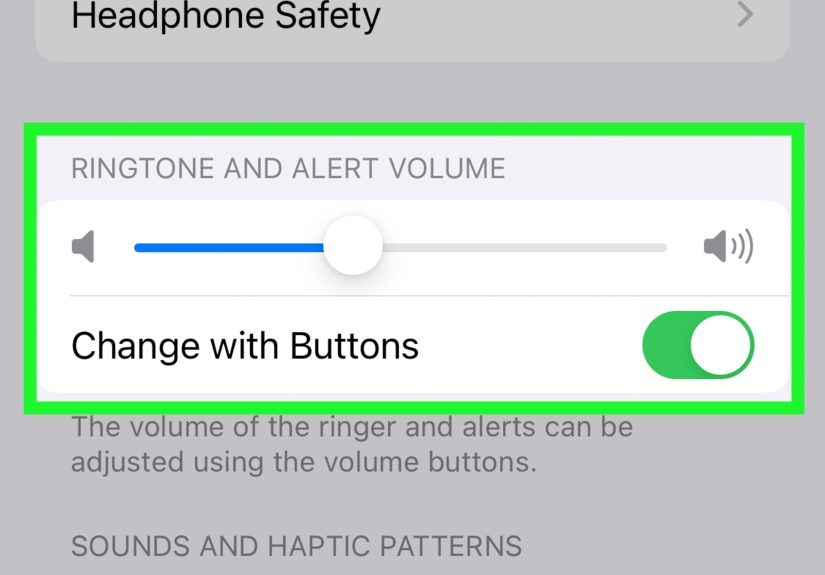
If the Lock Sound suddenly seems louder, the first thing to check is the Ringtone and Alerts volume inside Settings > Sounds & Haptics. iPhone system sounds are often tied to alert volume behavior, and the Change with Buttons setting can also affect how volume buttons control certain alert sounds when media is not playing.
Here is the simple version: if Change with Buttons is turned on, your volume buttons may adjust ringer and alert volume when you are not actively listening to music, watching video, or using another media app. If it is turned off, the Ringtone and Alerts slider in Settings becomes the main place to control that alert volume level.
If the click feels too loud, try lowering the Ringtone and Alerts slider. If you do not want the sound at all, turn off Lock Sound completely. That is usually easier than playing detective with volume settings like you are solving a tiny audio crime scene.
Why Can’t I Hear the Lock Sound?
If you expect to hear the Lock Sound but do not, there are several possible reasons:
- Lock Sound is turned off in Sounds & Haptics.
- Silent Mode is enabled, which may mute sound effects.
- The alert volume is very low.
- Your iPhone is connected to headphones, Bluetooth speakers, or CarPlay.
- A temporary software glitch is affecting system sounds.
Start with the easiest fix: go to Settings > Sounds & Haptics and make sure Lock Sound is on. Then check Silent Mode. On iPhone models with a Ring/Silent switch, look at the switch on the side of the phone. If orange is showing, Silent Mode is on. On models with an Action button, Silent Mode can be controlled through the Action button or Sounds & Haptics settings.
Does Silent Mode Turn Off the Lock Sound?
Silent Mode is designed to prevent your iPhone from playing many sounds, including rings, alerts, and sound effects. Because Lock Sound is a system sound effect, it may not play when your iPhone is in Silent Mode. Your iPhone can still vibrate depending on your haptic settings, and important exceptions such as alarms may still make sound.
This is why some users think their Lock Sound setting is broken. It may not be broken at all. Your phone may simply be in Silent Mode, politely refusing to click because it knows you are in a meeting, class, or movie theater. For once, the phone is being socially aware.
Lock Sound vs. Keyboard Clicks: What’s the Difference?
Lock Sound and Keyboard Feedback are related because both live in the world of iPhone sound and haptic settings, but they control different things.
Lock Sound
Lock Sound controls the click that plays when the iPhone screen locks.
Keyboard Sound
Keyboard Sound controls the clicking noise you hear when typing on the iPhone keyboard.
Keyboard Haptic
Keyboard Haptic controls the tiny vibration you feel when typing, if your iPhone and iOS version support it.
You can change keyboard feedback by going to Settings > Sounds & Haptics > Keyboard Feedback. If you want a stealthy phone, you may want to turn off both Lock Sound and keyboard sounds. Your thumbs may miss the drama, but the people around you probably will not.
Lock Sound vs. System Haptics
Haptics are vibrations or tactile feedback. On iPhone, haptics can make actions feel more physical, such as pressing and holding an app icon or typing with keyboard haptics turned on. The Lock Sound, however, is an audio cue, not a vibration setting.
That said, sound and haptics often work together to make the iPhone feel responsive. Apple’s design language relies on small signals: a tap here, a vibration there, a click when something locks, a tone when something arrives. None of these is absolutely necessary, but together they make the phone feel alive without making it feel like a noisy kitchen appliance.
Can You Change the iPhone Lock Sound?
At this time, iPhone does not offer a built-in setting to choose a custom Lock Sound. You can turn the Lock Sound on or off, but you cannot replace it with a different tone through normal iOS settings.
So, no, you cannot make your iPhone lock with a dramatic thunderclap, a cash register sound, a tiny duck quack, or a superhero landing noise. Apple gives you the classic lock click or silence. Minimalism wins again.
Should You Keep Lock Sound On or Off?
The best choice depends on how you use your iPhone.
Keep Lock Sound On If You Like Confirmation
Some users enjoy knowing that the screen locked successfully. The sound is quick and clear, and it can be helpful if you often lock your phone without looking at it.
Turn Lock Sound Off If You Prefer Quiet
If you use your phone in quiet spaces, turning off Lock Sound may be better. It makes your iPhone less distracting and reduces unnecessary audio feedback.
Turn It Off If You Lock Your Phone Constantly
Some people lock and unlock their iPhone repeatedly throughout the day. If that sounds like you, the repeated click may become annoying. Turning it off keeps things peaceful.
How to Troubleshoot Lock Sound Problems
If your Lock Sound is not behaving the way you expect, try these practical steps:
- Go to Settings > Sounds & Haptics and confirm that Lock Sound is turned on.
- Check whether Silent Mode is enabled.
- Raise the Ringtone and Alerts volume slider.
- Review the Change with Buttons setting.
- Disconnect Bluetooth devices temporarily.
- Restart your iPhone.
- Update iOS if a software issue appears to affect system sounds.
Most Lock Sound issues are not serious. They usually come down to a toggle, a volume level, Silent Mode, or a connected audio device. In other words, the solution is often less “repair shop” and more “tap three things in Settings.”
Why Apple Includes Small Sounds Like Lock Sound
Small sound effects help create a sense of interaction. When you lock your iPhone and hear a click, your brain receives confirmation that an action happened. That kind of feedback is common in digital design. Buttons click, keyboards tap, messages swoosh, and trash cans sometimes make little disposal sounds because apparently even deleted files deserve sound design.
The iPhone Lock Sound is part of that feedback system. It makes the lock action feel complete. But Apple also gives users the option to turn it off, because not everyone wants their phone narrating every tiny action with sound effects.
Best Settings for a Quieter iPhone
If your goal is to make your iPhone less noisy, Lock Sound is only one piece of the puzzle. Here are several settings worth checking:
- Turn off Lock Sound.
- Turn off Keyboard Sound under Keyboard Feedback.
- Use Silent Mode when needed.
- Lower the Ringtone and Alerts volume.
- Customize notification sounds so only important alerts make noise.
- Use Focus modes to reduce interruptions during school, work, sleep, or study time.
A quieter iPhone can make daily life feel calmer. It also reduces the chance that your phone becomes “that phone” in a silent room. Nobody wants to be the person whose device clicks, dings, buzzes, and chirps through a serious conversation.
Common Myths About the iPhone Lock Sound
Myth 1: Lock Sound Means the Phone Is Fully Powered Off
False. Locking the screen is not the same as turning off the iPhone. The phone remains on and can still receive calls, messages, notifications, and background updates depending on your settings.
Myth 2: Lock Sound Makes the Phone More Secure
False. It is only a sound. Your passcode, Face ID, Touch ID, and security settings handle actual protection.
Myth 3: Turning Off Lock Sound Disables Auto-Lock
False. Auto-Lock still works. Your iPhone can still turn off and lock the screen automatically after the time limit you choose.
Myth 4: You Can Pick Any Lock Sound You Want
Not through built-in iPhone settings. Apple lets you turn the sound on or off, not customize it.
Real-World Experiences With the iPhone Lock Sound
The Lock Sound is one of those settings people do not think about until it becomes noticeable. For example, imagine sitting in a quiet classroom or office and checking your phone between tasks. You read a message, press the Side button, and hear that tiny click. Once? Fine. Twice? Still fine. Twenty times in one afternoon? Suddenly, your iPhone sounds like it is auditioning for a role as a miniature door latch.
Many users keep Lock Sound on because it gives them confidence. The click confirms that the phone is locked before it goes into a pocket or bag. This can be useful when you are walking, commuting, or multitasking. You do not need to stare at the screen to make sure it went dark. The sound tells you the action happened.
Other users turn it off almost immediately. People who work in quiet environments often prefer a silent lock. If you are in a library, the Lock Sound can feel louder than it really is. The room is silent, everyone is concentrating, and then your iPhone produces a crisp little click that somehow feels personally embarrassing. Turning it off removes that awkward moment.
The setting can also affect nighttime phone use. If you check your iPhone before bed and lock it while someone nearby is sleeping, the click may be enough to annoy them. It is not loud like an alarm, but in a dark, quiet room, even small sounds become dramatic. A silent lock can make the phone feel more bedroom-friendly.
There is also a psychological side. Some people like sound feedback because it makes the device feel responsive and complete. Others prefer fewer sounds because it makes the phone feel calmer and less demanding. Neither choice is right or wrong. It is the same device personality question as keyboard clicks: some people love the little taps, while others hear them and immediately want to move to a cabin in the woods.
From a practical standpoint, turning off Lock Sound is one of the easiest ways to make an iPhone feel more polished in public. It does not change performance, security, battery life in any meaningful everyday way, or how the phone locks. It simply removes a sound that may not be necessary for you. If you miss the confirmation, turn it back on. If you enjoy the silence, leave it off. The beauty of the setting is that it is simple, reversible, and impossible to mess up.
In daily use, the best approach is to match the setting to your environment. Keep Lock Sound on if you like audio confirmation and mostly use your phone in casual spaces. Turn it off if you study, work, sleep near others, attend meetings, or just prefer a more discreet iPhone. The Lock Sound may be small, but small details are often what make a phone feel perfectly tuned to your habits.
Conclusion
The Lock Sound on an iPhone is the short click-like sound that plays when you lock your screen. You can find it under Settings > Sounds & Haptics, where you can turn it on or off in seconds. It does not affect security, passcodes, Face ID, Touch ID, Auto-Lock, or how your iPhone protects your information. It is simply an audio confirmation that the screen has locked.
If you enjoy feedback and want to know your phone locked without looking, leave Lock Sound on. If you prefer a quieter, more discreet iPhone, turn it off. Either way, the setting is easy to change, easy to understand, and surprisingly useful once you know what it does.