Table of Contents >> Show >> Hide
- Why Instagram Remembers Your Account
- How to Log Out of Instagram Account That Is Remembered: 10 Steps
- Step 1: Open Instagram and Go to Your Profile
- Step 2: Open Settings and Privacy
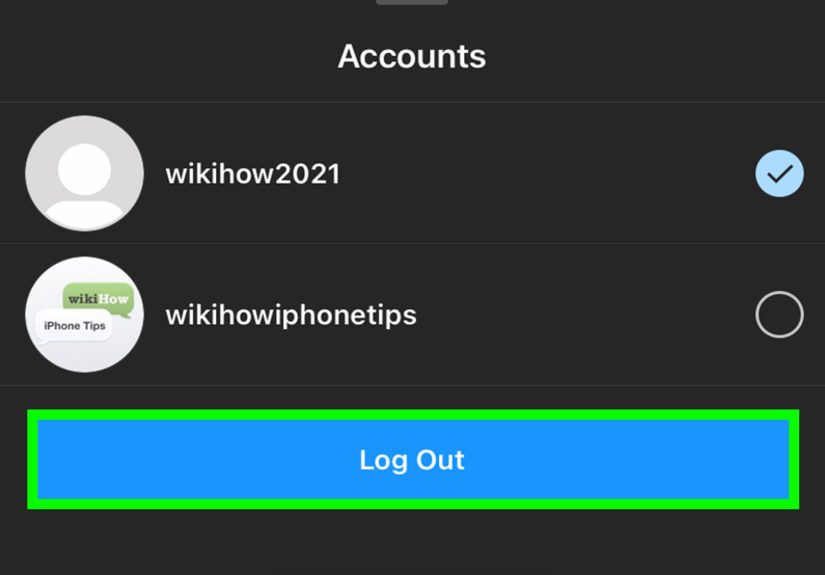
- Step 3: Scroll Down and Tap Log Out
- Step 4: Choose “Not Now” When Instagram Asks to Save Login Info
- Step 5: Remove the Profile From the Login Screen
- Step 6: Turn Off Saved Login Information Inside Instagram
- Step 7: Remove Instagram Passwords From Your Phone’s Password Manager
- Step 8: Delete Saved Instagram Passwords From Your Browser
- Step 9: Clear Instagram Site Data on Web Browsers
- Step 10: Check Accounts Center, 2FA, and Recognized Devices
- How to Remove a Remembered Instagram Account on iPhone
- How to Remove a Remembered Instagram Account on Android
- How to Log Out of Instagram on a Computer
- Common Problems and Quick Fixes
- Security Tips Before You Walk Away From a Device
- of Real-World Experience: What Actually Happens When Instagram Remembers You
- Conclusion
Logging out of Instagram sounds easy until your account keeps popping back up on the login screen like it pays rent there. You tap Log out, close the app, reopen it, and there it is again: your profile photo, username, and a friendly “Continue as…” button waiting for the next person who grabs your phone. Convenient? Yes. Slightly creepy on a shared device? Also yes.
This guide explains how to log out of an Instagram account that is remembered, remove saved login information, stop automatic sign-in, and clean up saved passwords in your phone or browser. Whether you use iPhone, Android, Chrome, Safari, Edge, Firefox, or Instagram on the web, the goal is the same: log out properly and make sure Instagram does not keep your account ready for one-tap access.
Below are the 10 practical steps, plus troubleshooting tips, security advice, and real-life experience notes to help you avoid the classic “I logged out, but not really” problem.
Why Instagram Remembers Your Account
Instagram can remember an account in a few different ways. First, the Instagram app may save your login information on the device. Second, your phone or browser may store your username and password through a password manager such as iCloud Keychain, Google Password Manager, Microsoft Password Manager, or Firefox Password Manager. Third, your browser may keep you signed in with cookies and site data. Finally, if you manage several Instagram accounts, Meta’s Accounts Center may connect accounts in ways that make switching and logging in easier.
That is helpful when the device is yours. It is less helpful when you borrowed a friend’s phone, used a family tablet, logged in on a school computer, or sold an old phone without cleaning it up. The good news: you can remove the remembered Instagram account without deleting the Instagram account itself.
How to Log Out of Instagram Account That Is Remembered: 10 Steps
Step 1: Open Instagram and Go to Your Profile
Start in the Instagram app while you are still signed in. Tap your profile picture in the bottom-right corner. This opens your profile page. If you manage multiple accounts, make sure you are viewing the exact account you want to log out from and remove from the device.
This matters because Instagram lets you switch between accounts quickly. If you remove the wrong saved account, you may still see the account you actually wanted to forget sitting on the login screen later. That is like cleaning your room by moving the mess under the bedtechnically something changed, but the problem survived.
Step 2: Open Settings and Privacy
From your profile, tap the menu icon, usually shown as three lines in the top-right corner. Then choose Settings and privacy. Instagram changes small interface labels from time to time, but the main path is usually through your profile menu.
On some versions of the app, you may see Accounts Center near the top. On others, login-related options may appear under security or account settings. Do not worry if your screen does not match every label perfectly. App menus are like grocery stores after a remodel: the bread is still there, just in a new aisle.
Step 3: Scroll Down and Tap Log Out
In the settings area, scroll toward the bottom and tap Log out. If you are signed into multiple accounts, Instagram may ask whether you want to log out of one account or all accounts. Choose the option that matches your situation.
If this is a shared phone, public computer, or device you do not control, choose the safer option and log out fully. If it is your own phone and you only want to remove one account from quick switching, log out of the specific account you no longer want remembered.
Step 4: Choose “Not Now” When Instagram Asks to Save Login Info
This is the step many people miss. After tapping log out, Instagram may ask whether you want to save your login information. If you want the account to stop being remembered, choose Not now or the option that declines saving login information.
If you tap Save, Instagram may keep your account on the login screen so you can return without typing your password. That is convenient for personal devices, but it defeats the whole purpose if you are trying to remove a remembered account.
Step 5: Remove the Profile From the Login Screen
After logging out, look carefully at the Instagram login screen. If your profile still appears, tap Options, the three-dot menu, or a similar control near the saved profile. Then choose Remove profile from this device or Remove next to the account.
This removes the saved login shortcut from that phone or tablet. It does not delete your Instagram account, erase your photos, remove your followers, or cancel your username. It simply tells that device, “Please stop acting like this account lives here.”
Step 6: Turn Off Saved Login Information Inside Instagram
If the account keeps coming back, sign in again and check whether saved login information is enabled. Go to your profile, open Settings and privacy, and look for login, security, or saved login information options. Depending on your app version, this may appear under Accounts Center, Password and security, or a similar section.
Turn off saved login information for the account. Then log out again and decline the prompt to save login details. This double-check is helpful because the login screen removal and the in-app saved login setting are related, but they may not always feel like the same thing to users.
Step 7: Remove Instagram Passwords From Your Phone’s Password Manager
If Instagram still autofills your password, your phone may be helping behind the scenes. On iPhone, open the Passwords app or go to Settings > Passwords, authenticate with Face ID, Touch ID, or your passcode, then search for Instagram. Delete the saved Instagram password or passkey you do not want stored.
On Android, saved Instagram credentials may live in Google Password Manager. Open Chrome or device settings, go to password settings, search for Instagram, and delete the saved login entry if needed. Be careful here: deleting a saved password from a password manager does not delete your Instagram account, but it does remove your easy password recovery shortcut. Make sure you know your password or have recovery options ready before deleting it.
Step 8: Delete Saved Instagram Passwords From Your Browser
If you logged into Instagram on a computer, the browser may be the reason your account is remembered. In Chrome, open Google Password Manager, search for Instagram, and delete the saved password. In Microsoft Edge, go to Settings, then Passwords and autofill or Microsoft Password Manager, and remove the Instagram entry. In Firefox, open Logins and Passwords, search for Instagram, and remove the saved login.
For Safari on Mac, open System Settings > Passwords, authenticate, search for Instagram, and delete the saved password or passkey if you no longer want it stored. This step is especially important on shared computers, work devices, school computers, or any browser where someone else could click into Instagram after you leave.
Step 9: Clear Instagram Site Data on Web Browsers
Sometimes a browser remembers you not because of a saved password, but because of cookies and site data. If Instagram.com still opens your account after you log out, clear the site data for Instagram in that browser. You can usually do this through the browser’s privacy and security settings.
You do not always need to wipe your entire browsing history. A targeted cleanup for Instagram.com is often enough. However, on public or shared devices, clearing all browsing data from the session can be a safer move. Think of it as wiping your fingerprints off the digital snack drawer.
Step 10: Check Accounts Center, 2FA, and Recognized Devices
If you use multiple Instagram or Facebook accounts, open Accounts Center and review which accounts are connected. Removing an account from Accounts Center is different from deleting it; it only changes how connected account experiences work. This can help if one account keeps appearing because it is linked with other Meta accounts on the same device.
Next, review your security settings. Turn on two-factor authentication if it is not already enabled. Remove old trusted or recognized devices that you no longer use. If you logged in on someone else’s phone and are worried they may still have access, change your Instagram password from a device you trust. That forces a cleaner security reset and reduces the chance of unwanted access.
How to Remove a Remembered Instagram Account on iPhone
On iPhone, the Instagram app and iCloud Keychain can both remember login details. First, log out from Instagram and choose not to save login information. Then remove the profile from the Instagram login screen if it still appears. After that, open the iPhone Passwords app or Settings > Passwords, search for Instagram, and delete the saved password if you do not want iPhone to autofill it again.
If Safari remembers Instagram, check Safari’s saved passwords and clear Instagram site data. Also make sure your iPhone is updated, because app menus and password tools can look different across iOS versions.
How to Remove a Remembered Instagram Account on Android
On Android, first remove the account from Instagram’s login screen. Then check Google Password Manager. You can usually access it from Chrome settings or your Google account settings. Search for Instagram and delete the saved password if needed. If you use Samsung Internet, Firefox, Edge, or another browser, check that browser’s password manager too.
Android users should also check whether Instagram is linked to system autofill. If a keyboard, browser, or password manager keeps suggesting the login, the account may feel “remembered” even after Instagram itself has forgotten it.
How to Log Out of Instagram on a Computer
On Instagram.com, click your profile or the menu area, choose Log out, and then close the browser tab. If the browser offers to save your password, decline it. If the password was already saved, open your browser’s password manager and delete the Instagram entry.
For shared computers, also clear Instagram cookies and site data. If you used a public computer, do not simply close the tab. Closing the tab is not logging out. That is the digital equivalent of leaving your house key under a doormat labeled “Definitely Not a Key.”
Common Problems and Quick Fixes
Instagram Still Shows “Continue as…”
If you still see “Continue as…” after logging out, remove the profile from the login screen. Look for Options, a three-dot menu, or a remove button next to the account. Then check saved login information in Instagram settings.
The Password Keeps Autofilling
If the password keeps appearing automatically, the saved password is probably coming from iCloud Keychain, Google Password Manager, Chrome, Edge, Firefox, Safari, or another password tool. Delete the saved Instagram entry from the password manager you use.
I Forgot My Password After Removing Saved Login Info
Use Instagram’s password reset option from the login screen. This is why it is smart to confirm your email address and phone number before deleting saved login details. Removing saved information is good security, but it should not lock you out of your own account.
I Logged Out, but Another Account Is Still There
You may have multiple accounts saved. Remove each saved profile separately from the login screen. Then review Accounts Center if the accounts are connected.
Security Tips Before You Walk Away From a Device
Logging out is only one part of account safety. If you used Instagram on a device you do not own, take a few extra steps. Change your password if you suspect anyone else may know it. Turn on two-factor authentication. Review login activity and remove devices you do not recognize. Avoid saving passwords on shared devices. Do not rely on “I closed the app” as a security strategy, because apps are very good at remembering things you wish they would forget.
For your own phone, saved login information is not automatically bad. It can be convenient and safe when your device is protected with a strong lock screen. The risk appears when the device is shared, borrowed, sold, repaired, or used by people who should not have access to your account.
of Real-World Experience: What Actually Happens When Instagram Remembers You
In real life, the remembered Instagram account problem usually shows up at the worst possible moment. Someone borrows your phone to take a picture, opens Instagram to send it, and suddenly your account is sitting there with a big friendly login button. Or you sign into Instagram on a family tablet “just for one minute,” and three weeks later your little cousin is one tap away from posting a blurry ceiling photo to your Story. Technology has a sense of humor, and unfortunately, it is not always on your side.
The most common mistake is thinking that logging out and removing a remembered account are the same thing. They are related, but they are not identical. Logging out ends the active session. Removing saved login information stops the device from offering quick access again. If you only do the first part, Instagram may still display your account on the login screen. That is why the “Not now” choice matters so much when Instagram asks whether to save your login details.
Another real-world lesson: password managers are sneaky in a helpful way. You may remove your account from Instagram, but Chrome, Safari, or your phone’s password manager may still offer to fill in the username and password. This makes people think Instagram ignored their request. In reality, Instagram may have forgotten you, while your browser is standing nearby saying, “No worries, I wrote it down.” To fully solve the issue, you have to check both places: Instagram’s saved login information and the device or browser password manager.
Shared devices need extra caution. On your own locked phone, remembered login can be convenient. On a school computer, work laptop, repair-shop phone, hotel business-center computer, or friend’s tablet, it is risky. The safest habit is simple: never save login information on a device you do not control. When finished, log out, reject saved login prompts, remove the profile from the login screen, and clear browser data if you used Instagram on the web.
Multiple-account users should be even more careful. If you manage a personal account, creator account, business account, or community account, it is easy to remove one and forget another. After logging out, inspect the login screen like a detective in a very low-budget crime drama. If any profile remains, remove it. Then check Accounts Center to make sure connected accounts are not creating confusion.
The best long-term setup is a balance between convenience and control. Use a reputable password manager on your personal devices, protect the device with a strong passcode or biometric lock, turn on two-factor authentication, and keep your recovery email and phone number updated. But when the device is not yours, be strict. Do not save the password. Do not leave the profile remembered. Do not assume closing the app is enough. Instagram may be social, but your login should not be available to everyone in the room.
Conclusion
Learning how to log out of an Instagram account that is remembered is really about understanding where your login information lives. Instagram may save it inside the app. Your phone may save it in a password manager. Your browser may save it through autofill, cookies, or site data. To fully remove a remembered account, log out, decline saved login prompts, remove the profile from the login screen, delete saved passwords when necessary, and review account security settings.
The process takes a few minutes, but it can prevent awkward posts, privacy problems, and unauthorized access. In other words, it is worth doing before your account becomes the next surprise guest on someone else’s device.
Note: This article is written for web publication and is based on current Instagram, Meta account-management, browser password-manager, and online security best-practice information. Menu names may vary slightly by app version, device, and region.