Table of Contents >> Show >> Hide
- What Does “Android Setup Keeps Stopping” Mean?
- Common Reasons Android Setup Keeps Crashing
- Before You Start: Do These Quick Checks
- How to Fix the “Android Setup Keeps Stopping” Error
- 1. Restart the Phone
- 2. Tap “App Info” and Force Stop Android Setup
- 3. Clear Cache and Data for Android Setup
- 4. Clear Cache and Data for Google Play Services
- 5. Clear Cache and Data for Google Play Store
- 6. Update Android and Google Play System
- 7. Free Up Internal Storage
- 8. Boot Into Safe Mode
- 9. Remove and Re-Add Your Google Account
- 10. Check Date and Time Settings
- 11. Wipe the System Cache Partition If Your Device Supports It
- 12. Factory Reset as a Last Resort
- Special Cases: Custom ROMs, Emulators, and GApps Packages
- How to Avoid the Android Setup Error in the Future
- Practical Experience Notes: What Usually Works in the Real World
- Conclusion
- SEO Tags
The message “Android Setup keeps stopping” is one of those Android errors that feels small until it blocks the entire phone. You are trying to set up a new device, restore after a factory reset, add your Google account, or finish an update, and suddenly the Setup Wizard crashes like it slipped on a banana peel. Not dramatic. Just deeply annoying.
The good news: this error is usually fixable. It often happens because the Android Setup app, Google Play Services, Google Play Store, system cache, account sync, network connection, or a recent update is misbehaving. In other words, the phone is not necessarily “broken.” It may simply be stuck in a confused setup loop.
This guide explains how to fix the Android Setup keeps stopping error, what causes it, when to use simple fixes, when to reset the device, and how to avoid the problem next time. Whether you are using a Pixel, Samsung Galaxy, Motorola, OnePlus, or another Android phone, the steps below cover the most reliable solutions.
What Does “Android Setup Keeps Stopping” Mean?
Android Setup, also called Setup Wizard on some devices, is the system process that helps you configure your phone after turning it on for the first time, installing a major update, switching users, or performing a factory reset. It handles things like language selection, Wi-Fi connection, Google account login, data transfer, permissions, security settings, and backup restoration.
When you see “Android Setup keeps stopping”, it means that this setup process has crashed. The error may appear once and disappear, or it may keep popping up every few seconds. In the worst cases, the phone cannot reach the home screen at all.
Common Reasons Android Setup Keeps Crashing
The error can appear for several reasons. The most common causes include corrupted temporary files, outdated Google Play Services, a failed system update, weak Wi-Fi during setup, low internal storage, buggy restored app data, custom ROM or GApps compatibility issues, or a damaged Setup Wizard process.
On regular consumer phones, the issue is usually linked to software rather than hardware. If the phone turns on, charges normally, and can reach recovery mode or settings, there is a strong chance you can fix it without visiting a repair shop.
Before You Start: Do These Quick Checks
Charge the Phone
Keep the battery above 50% before troubleshooting. If you need to update, reset, or restore the phone, a dying battery can interrupt the process and create more problems. Android setup errors already enjoy chaos; do not hand them a low-battery warning as a snack.
Use a Stable Wi-Fi Network
During setup, Android may need to contact Google servers, update Play Services, verify your account, restore backups, or download device configuration files. A weak or unstable network can make setup fail repeatedly. Connect to a strong Wi-Fi network, move closer to the router, or try a different network if the error appears during sign-in or restoration.
Do Not Try to Bypass Factory Reset Protection
If the phone asks for a previously synced Google account after a reset, that is Factory Reset Protection. Use the correct account credentials or contact the original owner, carrier, or manufacturer. Avoid unofficial “bypass” tools. They can damage the phone, compromise your data, or create security problems.
How to Fix the “Android Setup Keeps Stopping” Error
1. Restart the Phone
Start with the classic fix because, yes, it still works more often than tech people want to admit. A restart refreshes system processes, clears temporary glitches, and gives Android Setup a clean chance to run again.
Press and hold the power button, then choose Restart. If the screen is frozen, hold the power button for about 10 to 30 seconds until the phone turns off or reboots. Once it restarts, continue setup and see whether the error returns.
2. Tap “App Info” and Force Stop Android Setup
If the crash popup includes an App info option, tap it. This may open the App info page for Android Setup or Setup Wizard. From there, tap Force stop, confirm the action, and return to setup.
This works because the setup process may simply be stuck in a bad session. Force stopping it can reload the process from scratch without wiping your phone. If the phone gives you only a Close app button, tap it, wait a few seconds, and try moving forward again.
3. Clear Cache and Data for Android Setup
If you can access Settings, clearing Android Setup’s cache and storage is one of the most direct fixes. Cache files are temporary files that help apps load faster. When they become corrupted, the app can crash over and over like it has a personal vendetta against your patience.
Go to Settings > Apps > See all apps. Tap the three-dot menu and enable Show system apps if needed. Find Android Setup, Setup Wizard, or a similarly named setup app. Open Storage & cache, then tap Clear cache. If the error continues, tap Clear storage or Clear data.
Clearing data may restart parts of the setup flow, but that is often exactly what you need. It removes broken setup data and lets the system rebuild the process.
4. Clear Cache and Data for Google Play Services
Google Play Services is a core Android component. Many setup functions depend on it, including Google account login, backup restoration, app updates, device verification, and background services. If Play Services is outdated or corrupted, Android Setup may crash even though the error message names Android Setup instead.
Open Settings > Apps > See all apps > Google Play Services > Storage & cache. Tap Clear cache. If needed, tap Manage space or Clear all data, depending on your device. Restart the phone afterward.
This step is especially useful if you also see messages such as “Google Play Services keeps stopping”, “Google app keeps stopping”, or “Google Play Store keeps stopping.”
5. Clear Cache and Data for Google Play Store
The Play Store can also affect setup because Android may try to update apps and core components during onboarding. To reset it, open Settings > Apps > Google Play Store > Storage & cache. Tap Clear cache, then Clear storage if the issue continues.
After clearing Play Store data, open the Play Store again when possible. You may need to accept the terms again. Then update apps and Google services before trying setup again.
6. Update Android and Google Play System
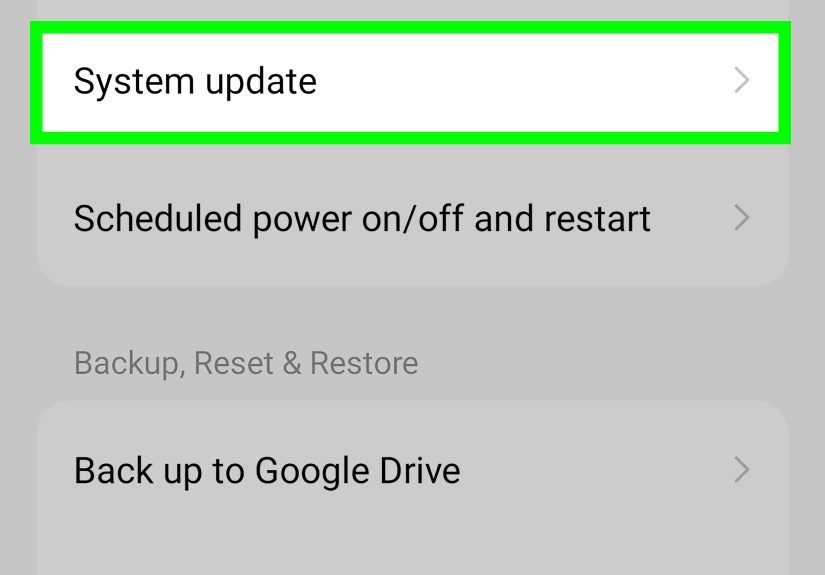
Some setup crashes happen because the phone is running an outdated or partially installed system build. If you can reach Settings, go to Settings > System > Software update or Settings > Software update, depending on your phone. Install available Android updates.
Also check Settings > Security & privacy > System & updates or Settings > About phone > Software information > Google Play system update. The wording varies by brand, but the goal is the same: update core Android and Google Play components.
After installing updates, restart the phone. If the device recently updated and then started crashing, leave it powered on and connected to Wi-Fi for a while so background optimization can finish.
7. Free Up Internal Storage
Android Setup may fail if the phone has too little free storage to complete updates, restore backup data, or rebuild system files. If you can access settings, go to Settings > Storage and check available space.
Delete unnecessary downloads, large videos, duplicate photos, unused apps, and old APK files. If your phone supports a cleanup tool, use it carefully. Avoid deleting random system folders unless you enjoy turning one problem into a limited-edition collector’s problem.
8. Boot Into Safe Mode
Safe Mode starts Android with only essential system apps. Downloaded apps are temporarily disabled. This helps you test whether a third-party app is interfering with setup, launcher behavior, Google services, or account sync.
On many Android phones, press and hold the power button, then press and hold Power off until Safe mode appears. Tap it to restart. On some Motorola, Samsung, and other devices, the button combination may differ.
If the error disappears in Safe Mode, uninstall recently installed apps, device cleaners, battery savers, launchers, VPN apps, parental control apps, or apps downloaded outside the Play Store. Restart normally and test again.
9. Remove and Re-Add Your Google Account
If Android Setup crashes while signing in, syncing, restoring a backup, or accepting Google terms, the Google account session may be stuck. If you can access settings, go to Settings > Passwords & accounts or Settings > Accounts. Remove the Google account, restart the phone, and add the account again.
Before removing an account, make sure you know the email address and password. Removing an account can affect synced contacts, email, Play Store access, and backup restoration until you sign in again.
10. Check Date and Time Settings
Incorrect date and time can cause Google sign-in, certificates, Play Services, and setup verification to fail. Go to Settings > System > Date & time and turn on Set time automatically and Set time zone automatically.
This is a small step, but it can solve strange setup problems, especially after factory resets, long storage periods, dead batteries, or manual time changes.
11. Wipe the System Cache Partition If Your Device Supports It
Some Android phones allow you to clear the system cache from recovery mode. This does not erase your personal files, but it removes temporary system files that may be causing crashes. The exact steps vary by manufacturer.
Generally, you turn off the phone, press a specific button combination to enter recovery mode, choose Wipe cache partition, confirm, and restart. Not all modern phones show this option, so check your device model before trying it.
12. Factory Reset as a Last Resort
If nothing works, a factory reset may be necessary. This erases apps, photos, files, accounts, settings, and local data from the device. Before resetting, back up anything important through Google backup, Samsung Cloud, Smart Switch, a computer, or another trusted backup method.
To reset from settings, go to Settings > System > Reset options > Erase all data. On Samsung phones, look under Settings > General management > Reset. If you cannot access settings, use recovery mode and choose Wipe data/factory reset.
After resetting, connect to strong Wi-Fi, sign in with the correct Google account, and avoid interrupting setup. If the phone crashes again immediately after a clean reset, the issue may involve firmware, hardware, carrier configuration, or a known device-specific bug.
Special Cases: Custom ROMs, Emulators, and GApps Packages
If the error appears after flashing a custom ROM, installing Open GApps, using a de-Googled Android build, or running an Android emulator, the fix may be different. In those cases, Android Setup may crash because the ROM, Android version, architecture, or Google apps package is incompatible.
For custom ROMs, confirm that the ROM build matches your exact device model. Use the recommended GApps package for that ROM and Android version. For emulators, try a different image, avoid incompatible Google app packages, or use a supported ARM image if the x86 image has a known Setup Wizard bug.
If you are not comfortable flashing firmware, do not experiment randomly. A setup error is irritating; a bricked phone is a very expensive paperweight with feelings.
How to Avoid the Android Setup Error in the Future
Keep Android and Apps Updated
Install Android updates, Google Play system updates, Play Store updates, and app updates regularly. Updates often include bug fixes for setup, account sync, security, and compatibility problems.
Back Up Before Resetting
Before any factory reset, confirm that your contacts, photos, messages, app data, and important files are backed up. A backup will not prevent every error, but it makes recovery much less stressful.
Use Reliable Wi-Fi During Setup
Do not set up a phone on a weak hotel network, overloaded public Wi-Fi, or a connection that drops every time someone microwaves soup. Use a stable private network when possible.
Avoid Interrupting Updates
Do not force restart the phone during updates, setup restoration, or Google account verification unless the device is completely frozen. Interruptions can leave system components in an incomplete state.
Be Careful With Cleaner Apps and APKs
Some aggressive cleaner, optimizer, launcher, VPN, and sideloaded APK apps can interfere with Android system services. Install apps from trusted sources, review permissions, and uninstall suspicious apps quickly.
Practical Experience Notes: What Usually Works in the Real World
In everyday troubleshooting, the “Android Setup keeps stopping” error usually falls into two groups: phones that can still reach Settings and phones trapped inside setup. If you can reach Settings, the success rate is much better because you can reset the right system apps without wiping everything. The first practical move is to clear cache and data for Android Setup, Google Play Services, and Google Play Store, then restart. This combination fixes many cases because setup depends heavily on those three pieces working together.
A common example is a phone that was factory reset, connected to Wi-Fi, and then crashed while restoring apps. The owner may think the reset failed, but the real culprit is often a stuck Play Services update or corrupted restored setup data. In that case, force stopping Android Setup and clearing Play Services cache can let the phone continue. If it reaches the home screen, immediately update the Play Store, Google Play Services, Google app, Android System WebView, and Google Play system update. Then restart once more. Boring? Absolutely. Effective? Very often.
Another frequent pattern appears on older phones. A device sits in a drawer for a year, gets factory reset, and then refuses to complete setup. The Android version may be old, Play Services may be outdated, and the date may be wrong because the battery died long ago. For these phones, stable Wi-Fi, correct date and time, and patient updating matter more than speed. Let the phone sit connected for several minutes after reaching any setup screen. Sometimes Android is quietly updating core services in the background while the user is angrily tapping “Next” like it owes them money.
Samsung and Motorola users often benefit from Safe Mode when the error appears after setup rather than during the first boot. If the phone reaches the home screen but the setup notification or crash message keeps returning, a third-party launcher, theme app, cleaner, or recently installed utility may be involved. Safe Mode helps confirm that. If the crash disappears in Safe Mode, remove recently installed apps one by one, especially apps that manage permissions, battery, storage, accessibility, or screen overlays.
For Pixel users, the most important lesson is patience after updates and resets. Pixel phones rely on tight integration between Android, Google Play Services, the Google app, backup restore, and security verification. If a major update just installed, give the phone time to finish background tasks before resetting again. Repeated resets can sometimes make the loop feel worse because the phone never gets a clean chance to finish updating.
For custom ROM users, the experience is different. The error is often not about cache at all. It may mean the wrong GApps package was flashed, the build does not match the device, or the Setup Wizard included in the package is incompatible. In that situation, clearing cache may not solve anything. The best fix is usually to re-check the ROM instructions, flash the recommended Google apps package, or choose a different supported build.
The biggest prevention tip is simple: prepare before resetting. Know your Google account password, back up your data, charge the phone, connect to stable Wi-Fi, and install pending updates before wiping the device. Most Android setup disasters happen when people reset in a hurry. A factory reset should be treated like moving apartments, not like clearing browser tabs.
Conclusion
The “Android Setup keeps stopping” error can look scary, especially when it appears during a new phone setup or after a factory reset. Fortunately, most cases come down to fixable software problems: corrupted setup data, Play Services trouble, weak Wi-Fi, outdated system components, low storage, third-party app conflicts, or account sync issues.
Start with a restart, force stop Android Setup, clear cache and data for Android Setup, Google Play Services, and Google Play Store, then update Android and Google Play system components. If the problem continues, try Safe Mode, check storage, correct the date and time, or wipe the system cache if supported. Use a factory reset only after backing up your data.
The best long-term defense is maintenance: keep your phone updated, avoid sketchy APKs, use reliable Wi-Fi during setup, and never reset a phone without knowing your Google account details. Android may occasionally stumble during setup, but with the right steps, you can usually get it back on track without throwing the phone into a drawer labeled “future problems.”
SEO Tags
Note: This HTML article is written for web publishing and intentionally excludes unnecessary citation p:laceholders, raw source links, and non-body elements.