Table of Contents >> Show >> Hide
- Table of Contents
- Before You Start: MP3 vs. “Podcast App Download”
- Method 1: Download the Episode as an MP3 (No Conversion Needed)
- Method 2: Use the Podcast RSS Feed to Grab the MP3 Link
- Method 3: Convert an Existing File to MP3 (VLC, Audacity, or FFmpeg)
- Best MP3 Settings for Spoken-Word Podcasts
- Troubleshooting: When MP3s Play Hide-and-Seek
- FAQ: Legal, Quality, and “Why Won’t Spotify Give Me a File?”
- Real-World Experiences: What Usually Happens (and How to Win)
Want an MP3 copy of a podcast episodefor a road trip, an old-school MP3 player, or that one car stereo that still thinks Bluetooth is a myth? Good news: getting a podcast into MP3 format is usually easy… once you know where the audio file actually lives.
Even better: many podcasts are already MP3s. In those cases, “convert” really means “download the MP3 without accidentally saving a webpage, a playlist file, or your own tears.” Let’s do this the wikiHow-ish way: simple steps, clear options, and a tiny sprinkle of humor so your brain doesn’t fall asleep mid-tutorial.
Table of Contents
- Before You Start: MP3 vs. “Podcast App Download”
- Method 1: Download the Episode as an MP3 (No Conversion Needed)
- Method 2: Use the Podcast RSS Feed to Grab the MP3 Link
- Method 3: Convert an Existing File to MP3 (VLC, Audacity, or FFmpeg)
- Best MP3 Settings for Spoken-Word Podcasts
- Troubleshooting: When MP3s Play Hide-and-Seek
- FAQ: Legal, Quality, and “Why Won’t Spotify Give Me a File?”
- Real-World Experiences: What Usually Happens (and How to Win)
- SEO Tags (JSON)
Before You Start: MP3 vs. “Podcast App Download”
Two important truths can coexist:
- Podcast episodes are often distributed as normal audio files (commonly MP3, sometimes M4A/AAC).
- Some podcast apps “download” episodes in a way you can’t easily export as a standard MP3 file (because the app stores them in a protected or app-only format).
So your first step is to identify which situation you’re in:
- If the podcast is available as an MP3 on the creator’s website or via its RSS feed: you can download the MP3 directly.
- If you only have the episode inside an app that doesn’t provide file access: you may need a different source (official website/RSS), or you may be limited to offline playback inside that app.
- If you already have an audio file (like .m4a) on your computer: you can convert it to MP3 with common tools.
Method 1: Download the Episode as an MP3 (No Conversion Needed)
This is the cleanest path: get the episode as an MP3 directly from the podcast’s official site, hosting page, or a directory page that offers a download button.
Step-by-step
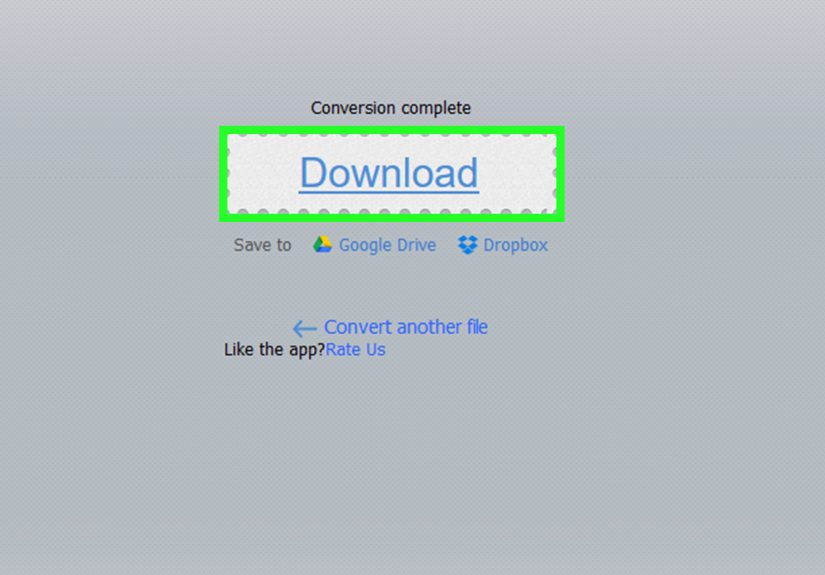
- Find the podcast’s official website (not just the app listing). Look for an episode page with a “Download,” “Listen,” or three-dot menu.
- Use the episode’s Download option if it exists. Prefer wording like “Download MP3” or “Download episode.”
- Save the file with an .mp3 extension (for example:
Episode-42.mp3). - Confirm it’s an MP3: Right-click the file → Properties (Windows) / Get Info (Mac) and check file type. Or open it in a media player and view codec info.
Pro tip: Avoid “fake downloads”
If clicking “Download” gives you a tiny file like .m3u, .pls, or a webpage, that’s not the audioit’s a playlist/shortcut. Go back and look for a link that points to an actual audio file (often ending in .mp3).
Best use cases
- You want the highest-quality original audio without re-encoding.
- You need to keep metadata (show title, episode number) intact.
- You’re archiving episodes and want a simple, repeatable process.
Method 2: Use the Podcast RSS Feed to Grab the MP3 Link
Podcasts are distributed through RSS feeds. In many feeds, each episode includes an <enclosure> element that points to the audio file URL. If you can find the feed, you can often find the direct MP3 link.
Step-by-step: Find the RSS feed
- Check the podcast’s website for an RSS icon or a “Subscribe” page.
- Look for “RSS” in the show’s directory listing (some directories display it, some hide it, some treat it like a state secret).
- If you have an Apple Podcasts listing, the RSS feed may be linked from the show’s official site or publisher page (Apple’s ecosystem ultimately consumes a feed).
Step-by-step: Extract the MP3 URL from the feed
- Open the RSS feed URL in a browser. You’ll see XML text (don’t panicthis is normal).
- Use Find (Ctrl+F / Cmd+F) and search for
enclosure. - Locate the episode you want by scanning nearby
<title>or<pubDate>entries. - Copy the audio URL from the enclosure’s
url="..."attribute. - Paste the URL into your browser and download, or right-click the link (if your browser makes it clickable) and choose Save.
Example: What you’re looking for
In a typical RSS feed, the enclosure looks like this:
If the URL ends in .mp3, you’re basically done. If it ends in .m4a (or something else), you can still download itthen use Method 3 to convert it to MP3.
Bonus: A simple PowerShell download (Windows)
If you already have the direct audio URL, you can download it via PowerShell without wrestling your browser’s “Downloads” folder chaos:
Reminder: Only download content you’re allowed to access. If an episode is behind a paywall or membership feed, use the official method provided by the publisher.
Method 3: Convert an Existing File to MP3 (VLC, Audacity, or FFmpeg)
If you already have a podcast episode saved as M4A, AAC, WAV, or another format, converting to MP3 is straightforward. Choose the tool that matches your comfort level:
- VLC: best “I want it done in 60 seconds” option.
- Audacity: best if you want editing, cleanup, or reliable podcast-focused export settings.
- FFmpeg: best for batch conversion and automation.
Option A: Convert to MP3 with VLC (GUI)
- Open VLC Media Player.
- Go to Media → Convert/Save.
- Click Add and choose your podcast file (e.g.,
episode.m4a). - Click Convert/Save.
- Under Profile, select Audio – MP3 (or a similar MP3 profile).
- Choose a destination filename that ends with
.mp3. - Click Start.
Common VLC gotcha: If your output file doesn’t end in .mp3, VLC might still convert the audio but save it with the wrong extension (which makes it look “broken” until you rename it).
Option B: Convert to MP3 with Audacity (great for podcasts)
- Open Audacity.
- Go to File → Import → Audio, then select your episode file.
- (Optional) Do quick cleanup:
- Trim long silence
- Normalize volume
- Convert stereo to mono if it’s pure speech
- Go to File → Export → Export as MP3.
- Select your quality settings (see the Best MP3 Settings section).
- Fill in metadata tags if you want (artist/show name, episode title, year).
Audacity note: In modern Audacity versions on Windows and Mac, MP3 export is typically built-in, so you usually don’t need to separately install an MP3 encoder.
Option C: Convert to MP3 with FFmpeg (fast + batch-friendly)
If you like command-line tools (or you have 200 episodes and a limited tolerance for repetitive clicking), FFmpeg is your friend.
Basic conversion example:
CBR example (predictable file sizes):
Batch conversion idea (conceptual): Convert a whole folder by looping through files. The exact loop syntax depends on your shell (PowerShell vs Command Prompt vs Bash), but the key is the same: ffmpeg -i input -codec:a libmp3lame output.mp3.
Quality reality check: Converting from one lossy format (like AAC/M4A) to another lossy format (MP3) can cause a tiny quality loss. For spoken-word podcasts, it’s often negligibleespecially if you choose sensible settings.
Option D: Online converters (when you can’t install software)
Online tools can convert audio formats in your browser. They’re convenient, but keep these rules in mind:
- Privacy: Don’t upload sensitive recordings.
- File limits: Long episodes may exceed size limits.
- Quality controls: Choose a bitrate appropriate for voice (often 64–128 kbps).
Best MP3 Settings for Spoken-Word Podcasts
For podcasts that are mostly voice, you can save space without making your host sound like they’re calling from inside a toaster.
Good starting points
- Mono voice: 64–96 kbps (often plenty for talk shows)
- Stereo voice/music mix: 96–128 kbps
- Sample rate: 44.1 kHz is common; 48 kHz is also fine if your source is 48 kHz
- VBR vs CBR: VBR can be more efficient; CBR can be more predictable
Metadata and naming (future-you will thank you)
- Use consistent filenames like:
ShowName_Ep042_Title.mp3 - Add ID3 tags (show, episode title, track number, year)
- Keep a folder structure:
Podcasts/Show Name/Season 03/
Troubleshooting: When MP3s Play Hide-and-Seek
“I downloaded it in my podcast app, but I can’t find the file.”
Many apps download episodes for offline playback inside the app, not as a file you can export. If you need an MP3 you can move around, use the podcast’s official download option or the RSS enclosure link (Method 1 or 2).
“My file says .mp3 but won’t play.”
- It might not be an MP3 (just misnamed). Check codec info in a player that shows details.
- The download may be incomplete. Re-download the file.
- Try opening it in VLC; VLC plays almost everything and can reveal what the file really is.
“VLC created an output file, but it’s weird / wrong / silent.”
- Make sure you selected an audio-only profile (not a video profile).
- Make sure your destination filename ends in
.mp3. - Try converting the same file with Audacity or FFmpeg to compare results.
“The episode is huge.”
Spoken audio can usually be compressed more than music. If you’re archiving, try exporting mono at 64–96 kbps. If you’re sharing, balance quality and sizeyour group chat didn’t consent to a 400 MB file.
FAQ: Legal, Quality, and “Why Won’t Spotify Give Me a File?”
Is it legal to convert podcasts to MP3?
Generally, downloading or converting for personal use is often allowed when the publisher provides access to the audio (like a public RSS feed or official download). But podcast licensing variesespecially for paid feeds, bonus episodes, or copyrighted material. When in doubt, follow the publisher’s rules and terms.
Why can’t I export podcasts from some apps as MP3 files?
Some apps are designed for listening, not file management. They may store downloads in app-managed locations, encrypted containers, or formats that aren’t meant to be copied out. If you need an actual MP3 file, go straight to the publisher’s official source or the RSS feed.
Will converting reduce quality?
If you convert from a lossy format (AAC/M4A) to MP3, there can be minor quality loss. For voice-only podcasts, it’s usually smallespecially if you choose reasonable settings. If the original is already MP3, downloading it directly is best.
Real-World Experiences: What Usually Happens (and How to Win)
In real life, converting podcasts to MP3 rarely fails because the technology is hardit fails because the audio is hiding behind one of three classic obstacles: where the file is, what format it’s in, and how your device wants to “help.”
Experience #1: The “Download” button that downloads… everything except audio.
A common scenario: you click “Download,” expecting an MP3, and your browser saves a webpage (HTML) or a tiny playlist file. That’s your cue to switch strategies. If the podcast page is using an embedded player, the real MP3 is usually referenced somewhere elseoften through the show’s RSS feed. Once you learn the magic word enclosure, the fog lifts: the feed usually contains a direct file URL. The “win” here is recognizing when you’re downloading the wrapper instead of the gift.
Experience #2: The podcast app is great at listening and terrible at being a file cabinet.
People often assume: “If it’s downloaded, it’s on my phone as a file.” Sometimes yes, sometimes nope. Many apps keep downloads in app-only storage. That’s not a bug; it’s a design choice. The practical workaround is to treat the app as a playernot a source. Use the app to discover episodes, then use the official website or RSS feed to download the actual audio file you can move between devices. This is especially important if you’re building a personal archive or transferring episodes to a non-smart device.
Experience #3: Conversions that technically workbut feel wrong.
VLC conversions can succeed but still produce confusing results (wrong extension, unexpected bitrate, odd metadata). The trick is to keep your process boring and consistent:
- Always name the output with
.mp3at the end. - Use an audio-only MP3 profile.
- Test-play the first converted file before converting the other 99.
Once you do that, VLC becomes a reliable “convert it and move on” tool.
Experience #4: “Why is my podcast 10x bigger now?”
This happens when you convert an efficiently compressed file (like AAC) into a high-bitrate MP3 without meaning to. Spoken-word audio doesn’t need music-grade settings. If your goal is portability, pick a voice-friendly bitrate (often 64–96 kbps mono). It usually sounds fine and saves a shocking amount of space. In other words: your storage isn’t a charitydon’t donate extra megabytes without a reason.
Experience #5: Metadata is the difference between “organized” and “audio soup.”
When you’re collecting MP3s, you quickly learn that filenames matter. “episodefinalFINAL2.mp3” is not a long-term strategy. Add a naming system (show + episode number + short title), and consider tagging files so your phone, car stereo, or music player can sort them cleanly. This is the boring part that pays off every single time you’re driving and trying to find “that one episode where the guest said the thing.”
Bottom line: Start with the easiest path (direct MP3 download). If that fails, go to RSS. If the file isn’t MP3, convert with VLC/Audacity/FFmpeg using podcast-appropriate settings. That’s the whole game.