Table of Contents >> Show >> Hide
- Why Run a Web Server on an Android Phone?
- Two Paths: Web Server Apps vs. Termux (Pocket Linux)
- Quick Start: Serve a Website in 60 Seconds
- Level Up: Running Nginx or Apache on Android
- Dynamic Web Apps: Node.js and Python on Your Phone
- Keeping It Alive: Android Background Limits, Doze, and Sleepy Phones
- Making Your Phone-Server Reachable
- Performance: Can a Phone Handle It?
- Security Checklist: Don’t Publish a Free Vulnerability Demo
- Use Cases That Actually Make Sense
- Troubleshooting: The Greatest Hits
- Conclusion
- Field Notes: of Real-World Experience
Somewhere, a traditional server rack is quietly judging you right now. Meanwhile, your Android phone is in your pocket
thinking, “I have eight CPU cores, a gigabit Wi-Fi chip, and a suspicious amount of free time. Put me in, coach.”
And honestly? It can. A webserver can absolutely run on an Android phonesometimes surprisingly wellif you understand
what Android is great at (being a phone) and what it is not (being a 24/7 data center that never naps).
In this guide, we’ll walk through realistic ways to run a web server on Android, from quick local demos to
semi-serious setups using Termux, Nginx/Apache, Node.js, and Python. We’ll also cover the “real world” stuff people
forget to mentionbattery optimization, background limits, tunnels, security, and why your phone gets warm when you
ask it to do grown-up jobs.
Why Run a Web Server on an Android Phone?
Let’s get the obvious question out of the way: “Why would you do that?” Valid. But there are genuinely useful
scenarios where hosting on a phone is not only possible, but convenient.
- Local demos and prototypes: Show a client a working site without deploying to the cloud.
- Offline kiosks: Museums, events, classroomsone phone can serve a local web app over Wi-Fi.
- Learning and tinkering: A pocket Linux environment is a fantastic way to practice web hosting fundamentals.
- Emergency “it just needs to be online” moments: A temporary status page or lightweight API.
- IoT dashboards: Serve a simple UI to control devices on the same network.
If your goal is “host my high-traffic business website on a phone forever,” you can… but you also can eat soup with a
fork. The better question is: “Is it the right tool?” We’ll help you decide.
Two Paths: Web Server Apps vs. Termux (Pocket Linux)
Option A: Dedicated Web Server Apps (Fastest Start)
There are Android apps that run an HTTP server with a tap. Great for quick file sharing or local HTML demos. The
upside: super simple. The downside: limited flexibility, fewer “real server” features, and you’re relying on an app
whose update schedule might be… vibes-based.
Option B: Termux (Most Power, Most Control)
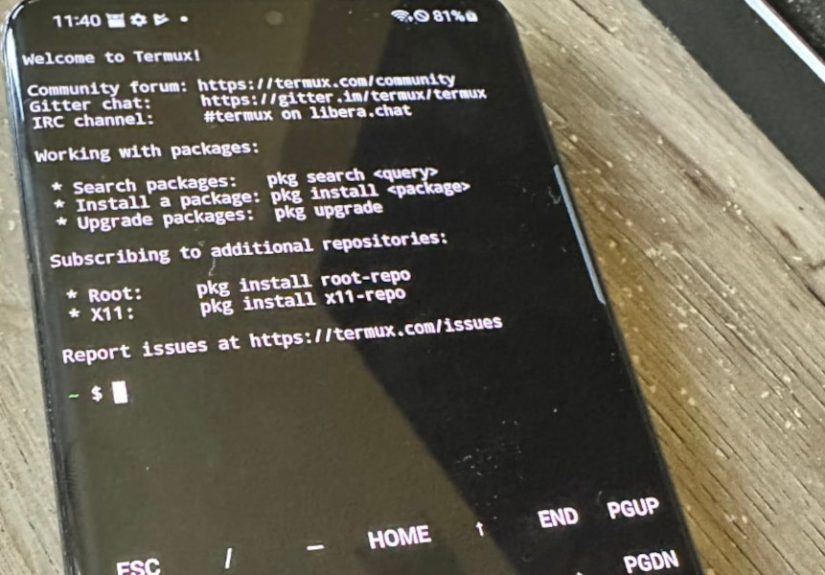
Termux is the fan-favorite approach because it gives you a terminal and a Linux-like environment on Android, without
needing root. That means you can install real web server software (Nginx, Apache), runtimes (Node.js, Python), and
tooling (Git, SSH). It’s basically “tiny server mode” for your phoneminus the tiny server chassis.
Quick Start: Serve a Website in 60 Seconds
If you just need to serve static files (HTML/CSS/JS) on your local network, Python can do it with one command. This
is the easiest “webserver runs on Android phone” proof-of-life.
Step 1: Install Termux and update packages
Step 2: Install Python
Step 3: Serve your folder
Now open a browser on your phone and go to http://127.0.0.1:8000. If you want other devices on the
same Wi-Fi to access it, use your phone’s local IP address:
http://PHONE_IP:8000.
Important reality check: Python’s built-in server is meant for development and basic file servingnot production.
It’s perfect for quick demos, but not for “I just exposed this to the internet, what could go wrong?”
Level Up: Running Nginx or Apache on Android
When you want better performance, routing, caching, or reverse proxy features, you’ll want a real web server. The two
classics are Nginx and Apache HTTP Server. On Android via Termux, you typically run them
on higher ports (like 8080) because binding to ports below 1024 usually requires elevated privileges.
Nginx on Android (Termux)
Nginx is lightweight and efficientgreat for serving static content and acting as a reverse proxy in front of your
Node/Python app.
If Nginx starts but you can’t reach it, check what port it’s listening on and update the config to a non-privileged
port like 8080. Your config file location in Termux can differ by package, but the idea is the same:
change the listen directive to 8080, then reload Nginx.
Apache on Android (Termux)
Apache is still a solid choice, especially if you like .htaccess-style configuration or need certain modules.
Want to run a dynamic app (Node/Flask) behind Apache? That’s where reverse proxy rules come in. In normal Linux
environments, Apache can act as a gateway/reverse proxy to route requests to an application server.
Dynamic Web Apps: Node.js and Python on Your Phone
Node.js (Express) on Android
Node.js is a popular choice for lightweight APIs, real-time apps, and quick prototypes. On Android, Termux can install
Node.js and run it like you would on a laptop.
Create a minimal server:
Run it:
Binding to 0.0.0.0 makes it accessible to other devices on your network (assuming Android and your Wi-Fi
allow it).
Python (Flask) on Android
Flask is great for small APIs or a lightweight web UI. It’s easy to start, but remember: the built-in development
server is for development. For production-like setups, you’d normally pair Flask with a WSGI server and put Nginx in
front. On a phone, you can still mimic that pattern for learning and internal tools.
Keeping It Alive: Android Background Limits, Doze, and Sleepy Phones
Here’s the part where Android reminds you it’s an operating system designed to save battery, not to host your
side-project empire. Android can restrict background execution and network activity, especially when the device is
idle or the app hasn’t been used recently. Translation: your server might get paused, throttled, or killed when your
phone decides it’s bedtime.
Use Termux Services for “More Persistent” Daemons
Termux has a termux-services package that uses a service manager approach (runit) to start and supervise
background processes like web servers. This is a big step up from “I left a terminal tab open and hoped for the best.”
Even with service supervision, Android can still be aggressive. The practical advice: keep the phone awake when you
truly need uptime, plug it into power, and expect that long-term reliability will always be a little… negotiable.
Making Your Phone-Server Reachable
Hosting is one thing. Letting other people reach your Android phone webserver is another. There are three common
levels: local network, direct internet exposure (port forwarding), and tunnels.
1) Local Wi-Fi Access (Safest and Easiest)
If your phone and laptop are on the same Wi-Fi, you can usually access the server via the phone’s IP address and
the chosen port (for example, http://192.168.1.50:8080). This is perfect for demos, kiosks, and internal tools.
2) Port Forwarding (Works, but Comes With Sharp Edges)
Port forwarding on your router can expose your phone server to the internet. It can also expose you to the internet.
Those are not the same thing. If you forward a port, you are inviting unsolicited traffic to knock on your door.
That can be okay for experienced admins with hardened services, but it’s risky for casual experiments.
3) Tunnels (The “I Want This Online Without Router Gymnastics” Option)
Tunneling services create an outbound connection from your phone to a provider, then map a public URL back to your
local server. The big advantages: no port forwarding, no public IP required, and often HTTPS “just happens.”
ngrok
ngrok is a popular way to expose a local server securely for demos and testing. If your webserver is on port 8080:
Cloudflare Tunnel
Cloudflare Tunnel is another strong option. A lightweight daemon (cloudflared) creates outbound-only
connections to Cloudflare’s network, which is appealing because it avoids opening inbound ports on your home network.
This can be a cleaner approach for personal services and internal tools.
HTTPS: Your Browser Wants a Lock Icon, Not a Lecture
If you’re keeping everything local, HTTP may be fine. If you’re going public, use HTTPS. Some tunnel providers give
you HTTPS automatically. If you’re configuring your own domain and TLS, there are two common approaches:
- Let’s Encrypt: A free, automated certificate authority using the ACME protocol. Great for standard public HTTPS.
- Cloudflare Origin CA certificates: Useful when your origin only receives proxied traffic through Cloudflare and you want encryption between Cloudflare and your origin.
Performance: Can a Phone Handle It?
Modern phones are fast. They also have constraints that servers don’t: thermal throttling, battery drain, and
“my pocket is not a data center aisle.” A phone can comfortably serve a small site or a low-traffic API. But if you
start doing heavy TLS handshakes, image processing, or a database with lots of writes, you’ll feel itin heat, speed,
and battery percentage that drops like it’s trying to win a race to zero.
Practical performance tips
- Prefer static hosting when possible: serve HTML/CSS/JS directly via Nginx.
- Use a reverse proxy: Nginx in front of Node/Flask is a classic pattern for a reason.
- Keep logs under control: tiny storage + unlimited logs = eventual sadness.
- Plug it in: “always-on server” and “battery-powered device” are philosophical enemies.
Security Checklist: Don’t Publish a Free Vulnerability Demo
Running a webserver on Android is fun. Getting your phone scanned by bots five minutes after you open a port is less
fun. Treat this like real hosting:
- Keep packages updated: update Termux packages regularly.
- Don’t expose development servers: Python’s simple server and Flask dev server are not production defenses.
- Use authentication: even basic password protection beats “open buffet API.”
- Hide version details where possible: reduce leaked server info (for example, Apache hardening practices often recommend limiting version exposure).
- Prefer tunnels over port forwarding: reduce inbound attack surface on your home network.
Use Cases That Actually Make Sense
If you want ideas beyond “because I can,” here are practical wins:
- Conference demo rig: your phone serves a landing page over a hotspot for attendees.
- Offline museum guide: visitors connect to a local Wi-Fi and load the guide in their browser.
- Classroom lab: students learn HTTP basics using a local server without cloud accounts.
- Field operations dashboard: a lightweight internal web app accessible to the team on site.
Troubleshooting: The Greatest Hits
“It works on my phone but not on my laptop.”
- Make sure the server binds to
0.0.0.0, not only127.0.0.1. - Confirm both devices are on the same network (guest Wi-Fi can block device-to-device traffic).
- Check Android firewall/VPN settings that might block inbound connections.
“My server stops overnight.”
- Android may restrict background activity when idle.
- Keep the device charging and prevent deep sleep when uptime matters.
- Use
termux-servicesto supervise the process, but remember Android still makes the final call.
“I exposed it to the internet and now I regret everything.”
- Stop forwarding ports. Rotate credentials. Review logs.
- Use a tunnel and add authentication.
- Assume anything public will be probedbecause it will.
Conclusion
A webserver runs on an Android phone more easily than most people expect. For local demos, kiosks, learning, and
lightweight internal tools, it’s genuinely usefuland kind of delightful. With Termux, you can run real stacks
(Nginx/Apache + Node/Python), manage services, and even put your phone behind a tunnel with HTTPS.
The key is respecting the environment: Android is optimized for battery life and user experience, not 24/7 hosting.
If you treat your phone-server like a clever, temporary mini-host (and not a replacement for real infrastructure),
you’ll have a blastand you’ll keep your eyebrows un-singed.
Field Notes: of Real-World Experience
The first time I hosted a website from a phone, it wasn’t out of necessityit was out of curiosity and a mild desire
to impress exactly one person (me). I grabbed an old Android device that had been retired to a drawer, installed
Termux, and spun up a tiny static site with Nginx. The feeling was equal parts “I’m a wizard” and “this is the most
unnecessary thing I’ve ever done.” Both were correct.
The practical win showed up immediately: local demos became effortless. Instead of uploading files to a hosting
provider, waiting for DNS, or juggling preview URLs, I could walk into a room, connect everyone to a shared Wi-Fi,
and say, “Go to this address.” It felt like running a mini intranet. For workshops, it was gold. People could load
the site on their laptops without needing internet access, which also meant fewer “the venue Wi-Fi ate my homework”
moments.
Then reality arrived, wearing steel-toed boots: Android power management. The phone would quietly suspend things when
the screen was off for a while. Sometimes the server survived; sometimes it vanished like a magician who forgot the
second half of the trick. Installing termux-services helped because it gave my processes supervision and a cleaner
start/stop workflow. But it didn’t turn Android into Linux-on-a-box. The long-running stability improved most when I
kept the phone plugged in, disabled aggressive battery optimizations where possible, and accepted that “always on”
means “always paying attention.”
The second real-world lesson was about exposure. I tested port forwarding once. Once. Within a short time, logs started
filling with random probes for admin panels and common vulnerabilities. It wasn’t personalbots just do bot things.
That experience taught me a rule I still use: if the project is a demo, use a tunnel; if it’s serious, host it on
infrastructure designed for seriousness. Tunnels were the sweet spot: I could share a public URL for a preview,
keep HTTPS, and avoid opening ports on my router.
Over time, I stopped thinking of the phone as “a server” and started thinking of it as “a portable web appliance.”
It’s fantastic for short-term hosting, prototypes, and controlled environments. It’s not ideal for long-term uptime
or high-traffic production use. But for what it isan always-available computer with networking in your pocketit’s a
ridiculously fun platform for learning and building. Also, it makes a great party trick, which is the only metric
that truly matters.