Table of Contents >> Show >> Hide
- What Streaming TV and Movies Really Need to Work Well
- How to Fix Buffering, Freezing, and Endless Loading
- How to Improve Streaming Picture Quality
- How to Manage Subtitles, Captions, and Audio
- How to Use Downloads for Offline Viewing
- How to Protect Your Streaming Account
- How to Set Up Parental Controls and Kids Profiles
- How to Cut Streaming Costs Without Losing Your Mind
- How to Choose the Best Streaming Device
- Common Streaming Problems and Fast Fixes
- Privacy Tips for Smart TVs and Streaming Devices
- Extra Experiences and Practical Lessons From Real Streaming Life
- Conclusion
Streaming TV and movies should feel easy: pick a show, hit play, and immediately enter the sacred couch-zone where snacks are legal tender and “just one more episode” is a lifestyle. But in real life, streaming sometimes behaves like a moody houseplant. One night your 4K movie looks glorious; the next night it buffers so hard you start remembering cable with suspicious fondness.
The good news? Most streaming problems are fixable without becoming the neighborhood IT department. Whether you use Netflix, Hulu, Prime Video, Disney+, HBO Max, Apple TV, YouTube, Roku, Fire TV, Chromecast, a smart TV, or a game console, the same practical rules apply: keep your apps updated, protect your account, understand your internet speed, use downloads wisely, and know where to poke when the picture freezes.
This guide brings together real-world streaming TV help, movie-watching how-tos, troubleshooting tips, and smart habits for getting better quality, fewer errors, safer family viewing, and less remote-control rage. Let’s make your streaming setup smoother than a movie trailer voice-over.
What Streaming TV and Movies Really Need to Work Well
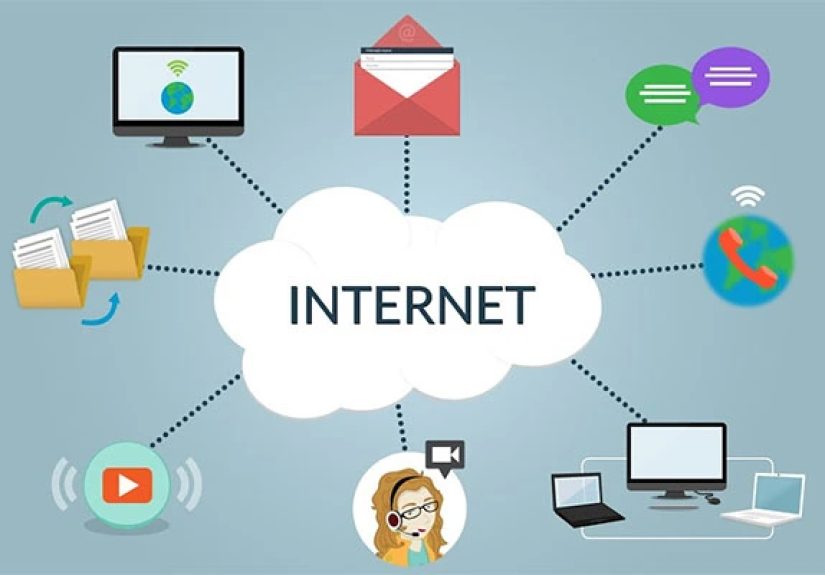
Streaming services deliver video over the internet instead of through traditional cable or satellite. That sounds simple, but several things have to cooperate: your subscription, your device, your app, your Wi-Fi, your TV settings, and the streaming service itself. When one piece gets cranky, the whole experience can wobble.
For standard-definition video, a modest internet connection may work. For HD streaming, you generally need a stronger connection. For 4K Ultra HD, your connection, device, HDMI cable, display, and plan must all support high-resolution playback. In other words, buying a 4K TV does not magically make every movie look like it was filmed by angels with cinema cameras.
Quick streaming setup checklist
- Use a streaming plan that supports the video quality you want.
- Make sure your TV or device supports HD, 4K, HDR, Dolby Vision, or Dolby Atmos when needed.
- Keep streaming apps updated.
- Use a strong Wi-Fi signal or wired Ethernet when possible.
- Check that your HDMI cable supports the resolution and refresh rate you want.
- Restart your device occasionally, because even smart TVs need a nap.
How to Fix Buffering, Freezing, and Endless Loading
Buffering is the villain in every streaming household. It usually happens when your device cannot download enough video data fast enough to keep playback smooth. The cause might be weak Wi-Fi, too many devices using bandwidth, an outdated app, a congested streaming server, or a router that has been running since the age of dinosaurs.
Step 1: Restart the app and device
Close the streaming app completely, then reopen it. If that does not help, restart your smart TV, Roku, Fire TV, Apple TV, phone, tablet, console, or computer. A restart clears temporary glitches and forces the device to reconnect cleanly. It is basic, yes, but basic works often enough to deserve respect.
Step 2: Restart your modem and router
Unplug your modem and router for about 30 seconds, then plug them back in. Wait until the connection is fully restored before trying again. If your router is hidden behind a cabinet, under a pile of books, or wedged next to a microwave, move it to a more open spot. Wi-Fi does not enjoy obstacle courses.
Step 3: Test your internet speed near the streaming device
Run a speed test on the same device or near the same room where you stream. A speed test from your phone next to the router may look great, while your TV across the house struggles like it is receiving internet by carrier pigeon. For 4K streaming, aim for a strong, stable connection with room for other devices in the home.
Step 4: Lower video quality temporarily
Many streaming apps automatically choose the best available quality, but “best” can become “buffering festival” when your Wi-Fi is unstable. If your service allows manual quality settings, switch from 4K to HD or from HD to data saver mode. The picture may be slightly less crisp, but at least your movie will not pause every time someone breathes near the router.
How to Improve Streaming Picture Quality
If your movie looks blurry, pixelated, too dark, washed out, or oddly colored, the issue may not be the streaming service alone. Picture quality depends on your plan, bandwidth, app settings, TV settings, content availability, and device compatibility.
Check your subscription plan
Some services limit resolution by plan. If your plan only supports HD, your 4K TV will still show the content in HD. Before blaming your television, confirm whether your subscription includes 4K, HDR, or premium audio features.
Use the correct profile and playback settings
Profiles may have different maturity restrictions, language settings, autoplay choices, and viewing histories. If your recommendations look like they belong to a mysterious toddler or your quality settings seem wrong, check whether you are using the correct profile.
Turn off unnecessary motion smoothing
Many TVs include motion smoothing, motion interpolation, or “soap opera effect” settings. These features can make movies look unnaturally smooth, as if a serious drama was filmed for a daytime appliance commercial. For films, try Cinema, Movie, or Filmmaker Mode when available.
Confirm HDR compatibility
HDR can make bright highlights and dark scenes look better, but only when your TV, streaming device, HDMI cable, app, and content all support it properly. If HDR looks gray, dim, or strange, try updating your device software, checking HDMI settings, or temporarily disabling HDR to compare.
How to Manage Subtitles, Captions, and Audio
Subtitles and closed captions are not just for foreign-language films. They are also essential when actors whisper, explosions interrupt dialogue, or someone in your house decides now is the perfect time to make a smoothie.
Turn captions on inside the streaming player
Most streaming apps include a speech bubble, keyboard, audio, or captions icon during playback. Select it to choose subtitle language, closed captions, or audio language. If captions do not appear, check both the app settings and your device accessibility settings.
Fix audio sync problems
If lips and dialogue do not match, restart the app first. Then check whether the issue happens across multiple apps or only one title. If it happens everywhere, inspect your TV audio delay settings, soundbar settings, HDMI ARC or eARC connection, and Bluetooth headphones. Wireless audio devices can introduce delay, especially if the connection is weak.
Use night mode or volume leveling
Some devices and TVs offer night mode, dialogue enhancement, or volume leveling. These features reduce giant jumps between quiet scenes and loud action sequences. They are especially helpful if you enjoy action movies but also enjoy not being evicted by your family at midnight.
How to Use Downloads for Offline Viewing
Downloads are perfect for flights, commutes, hotel Wi-Fi, road trips, and emergency entertainment when the internet disappears. Many major streaming services allow downloads on phones or tablets, although availability depends on the title, plan, region, device, and licensing rules.
Download before you travel
Do not wait until you are standing at the airport gate with 12% battery and public Wi-Fi slower than cold syrup. Open your streaming app at home, choose your movies or episodes, and download them while connected to reliable Wi-Fi.
Check expiration dates
Downloaded titles often expire after a certain period or after you start watching. If a movie vanishes from your downloads, it may not be personal. Licensing rules are simply doing their mysterious little dance.
Manage storage
High-quality downloads can devour storage quickly. If your device keeps complaining about space, delete finished episodes, lower download quality, or store only what you realistically plan to watch. Be honest: you probably do not need six seasons downloaded for a two-hour train ride.
How to Protect Your Streaming Account
Your streaming account contains payment details, viewing history, profiles, device access, and sometimes purchase options. Treat it like a digital front door, not a sticky note passed around at a party.
Use a strong, unique password
Do not reuse the same password across multiple services. If one account is compromised, reused passwords can put everything else at risk. A password manager can help create and store stronger logins.
Review connected devices
Most major platforms let you review or sign out devices linked to your account. If you see an unfamiliar device, sign it out and change your password. This is also useful after staying in a hotel, visiting relatives, or logging in on a shared TV.
Set purchase controls
For services that allow rentals, purchases, add-ons, or channel subscriptions, enable a PIN or purchase restriction. This helps prevent accidental spending, especially in homes with children, guests, or adults who click buttons faster than they read.
How to Set Up Parental Controls and Kids Profiles
Streaming libraries are huge, which is wonderful until a child looking for cartoons discovers a crime thriller with a title that sounds suspiciously like a friendly animal show. Parental controls help keep viewing age-appropriate.
Create separate profiles
Use individual profiles for adults, teens, and children. Kids profiles usually simplify the interface and filter content by maturity level. Separate profiles also protect recommendations, so your homepage does not become a chaotic blend of preschool songs, horror films, and cooking competitions.
Set maturity ratings
Most major streaming platforms allow profile-level maturity limits. Choose the rating that fits the viewer’s age and your household rules. Some services also let you block specific titles.
Lock adult profiles
If your service supports profile locks, use them. A kids profile is only useful if children cannot simply switch to an adult profile called “Dad” and start exploring the cinematic universe of things they are not ready for.
How to Cut Streaming Costs Without Losing Your Mind
Streaming began as the cheaper, simpler alternative to cable. Then everyone launched a platform, movies scattered like confetti, and suddenly your subscriptions looked like a tiny mortgage. The trick is to manage streaming like a rotating menu, not a permanent buffet.
Rotate subscriptions
Subscribe to one or two major services at a time, watch what you want, then pause or cancel before moving to another. This works especially well for platforms that release full seasons at once.
Use watchlists before subscribing
Keep a list of shows and movies you want from each service. When the list is long enough, subscribe for a month. This prevents paying monthly for a service you open only to scroll, sigh, and return to the same comfort sitcom.
Check bundles carefully
Bundles can save money, but only when you actually use the included services. Do the math before signing up. A bundle of five apps is not a bargain if four of them become decorative icons.
Cancel add-on channels you forgot about
Prime Video, Hulu, Apple TV, Roku, and other platforms may let you subscribe to extra channels. Review your subscriptions every month or two. Forgotten add-ons are the couch crumbs of digital billing.
How to Choose the Best Streaming Device
Smart TVs are convenient, but dedicated streaming devices often get better app support, faster updates, and smoother navigation. Roku, Apple TV, Amazon Fire TV, Chromecast with Google TV, game consoles, and built-in smart TV systems all have strengths.
Choose based on your ecosystem
If you use iPhones, AirPods, and Apple services, Apple TV may feel natural. If you shop through Amazon and use Alexa, Fire TV may fit. Roku is known for broad app support and simple navigation. Google TV works well for users who rely on Google services and voice search.
Look for 4K and HDR support
If you own a 4K TV, buy a streaming device that supports 4K, HDR10, Dolby Vision, and Dolby Atmos if those features matter to you. Also confirm that your TV supports the same formats. Compatibility is a team sport.
Do not ignore the remote
A good remote can make the entire streaming experience better. Look for voice search, volume controls, a mute button, backlit keys, rechargeable batteries, or private listening features. The best streaming device is the one you can operate without accidentally opening three apps and renting a movie in Spanish.
Common Streaming Problems and Fast Fixes
The app will not open
Restart the device, update the app, clear cache if available, uninstall and reinstall the app, and check whether the service is experiencing an outage.
The movie plays but the screen is black
Check HDMI connections, restart the device, disable VPNs that may interfere with playback, and make sure your display supports the content format.
The sound works but the video freezes
Restart playback, lower video quality, update the app, restart your router, and test another title to see whether the issue is content-specific.
Your purchased movie is missing
Confirm you are signed in with the correct account. For YouTube or Google purchases, check the correct library section and make sure you are not using the wrong profile, channel, or brand account.
Live TV is delayed
Streaming live TV often has a delay compared with cable or antenna broadcasts. This is normal because the stream must be encoded, delivered, buffered, and played through your app.
Privacy Tips for Smart TVs and Streaming Devices
Smart TVs and streaming devices often include advertising IDs, viewing data, voice controls, and content recognition settings. You may not be able to stop every form of data collection, but you can reduce it.
Review privacy settings
Open your device settings and look for privacy, advertising, voice, microphone, and smart TV experience options. Disable personalized ads or ad tracking when possible.
Turn off automatic content recognition
Some smart TVs use automatic content recognition to identify what appears on your screen, including content from connected devices. If privacy matters to you, look for this feature and turn it off.
Limit microphone access
Voice search is convenient, but not everyone wants a microphone-enabled remote or TV listening for commands. Review microphone permissions and disable access for apps or devices that do not need it.
Extra Experiences and Practical Lessons From Real Streaming Life
After helping people troubleshoot streaming setups, one lesson becomes obvious: the problem is rarely “the internet” in a vague, dramatic sense. More often, it is a small mismatch hiding in plain sight. A living room TV may be too far from the router. A streaming stick may be plugged into an older HDMI port. A family may be streaming 4K movies, gaming online, uploading videos, and attending video calls at the same time, then wondering why the movie looks like it was painted with mashed potatoes.
One of the best streaming habits is to build a simple routine. Once a month, update your apps, restart your streaming device, review subscriptions, and delete unused downloads. This takes less time than scrolling through a homepage while saying, “There is nothing to watch,” which is the official anthem of modern entertainment.
Another useful experience: Wi-Fi placement matters more than most people expect. A router stuffed in a closet, placed behind a TV, or surrounded by metal objects can create weak signal zones. Moving the router into an open location can improve streaming more than buying yet another subscription. If your TV supports Ethernet and your router is nearby, a wired connection can make streaming steadier, especially for 4K movies and live sports.
Families should also agree on profile rules. Give each person a profile and use it consistently. This protects recommendations and watch history. Without profiles, one account can become a hilarious disaster: cartoons next to documentaries, romantic comedies next to monster movies, and a recommendation engine that appears to be having an identity crisis.
For travelers, downloads are the difference between calm entertainment and airport sadness. Download episodes the night before, open the app once before leaving to confirm the titles actually play, and bring a charger. Also, do not rely on hotel Wi-Fi for high-quality streaming. Hotel networks can be crowded, restricted, or oddly hostile to smart TVs and casting devices.
For budget-conscious viewers, the best approach is subscription rotation. Keep one core service, rotate a second service monthly, and cancel anything you are not actively watching. Add reminders before free trials end. Streaming companies are very friendly when you sign up and remarkably quiet when the bill renews.
Finally, remember that streaming should serve your life, not become a second job. Use watchlists, set parental controls, protect your passwords, reduce privacy tracking, and keep your setup simple. A great streaming system is not the one with the most apps. It is the one that lets you sit down, find something good, press play, and enjoy the show before your popcorn gets cold.
Conclusion
Streaming TV and movies can be wonderfully convenient, but the best experience comes from knowing a few smart how-tos. Keep your apps updated, strengthen your Wi-Fi, use the right video settings, manage profiles, download before traveling, protect your account, and review subscriptions before they quietly multiply. With the right setup, streaming becomes what it was always supposed to be: easy entertainment, not a weekly troubleshooting ritual starring you, a remote, and mild emotional damage.