Table of Contents >> Show >> Hide
- The quick answer
- Why the rice “hack” doesn’t work for laptops (and can make things worse)
- The first 10 minutes: what to do immediately (your laptop’s emergency room)
- Do this instead: the safe dry-out plan that actually helps
- Water vs. “not-water”: why coffee and soda are laptop supervillains
- Should you clean with isopropyl alcohol?
- When to call a pro (and why it’s often worth it)
- After drying: the “first power-on” checklist
- FAQ: the questions people ask while hovering over a bag of rice
- Conclusion: skip the rice, save the laptop
- Experiences & lessons people learn the hard way (so you don’t have to)
A drink just met your laptop, and now you’re staring at it like it’s a tiny, expensive aquarium.
Somewhere in the back of your brain, an ancient internet chant begins: “Put it in rice.”
For a wet laptop, that advice is about as helpful as sprinkling breadcrumbs on a sinking boat.
Rice can’t pull liquid out of tightly packed laptop internals fast enough, and it can introduce dust and grit
into vents, ports, and keyboards. What actually saves a water-damaged laptop is speed, power control,
and the right kind of drying (plus cleaning if the spill wasn’t plain water).
The quick answer
Nodon’t use rice to save a wet laptop. Instead, shut it down immediately, disconnect power,
drain and blot (don’t rub), and use airflow + time. If you can safely open it, disconnect the battery.
For extra help, use silica gel (a real desiccant) in a sealed containerthen wait long enough
before powering on.
Why the rice “hack” doesn’t work for laptops (and can make things worse)
1) Rice is a slow, weak drying agent for this job
Rice absorbs moisture from the airslowly. Your laptop’s problem isn’t “humid vibes.” It’s liquid trapped under
keycaps, around connectors, and sometimes on energized circuits. By the time rice does anything meaningful,
corrosion may already be throwing a party on your motherboard.
2) Rice adds mess: dust, starch, and tiny particles
Laptops have vents, speaker grilles, ports, hinge gaps, and keyboard openingsbasically a dozen places for rice dust
to move in rent-free. Even Apple warns that rice particles can cause issues for devices; the same “small stuff in small openings”
problem applies to laptops, too.
3) The real enemy isn’t the waterit’s electricity + corrosion
A spill doesn’t always kill electronics instantly. The most expensive damage often happens when power is still present:
liquid bridges contacts, short-circuits components, and starts corrosion. That’s why “just checking if it still turns on”
is the tech equivalent of poking a bear with a fork.
The first 10 minutes: what to do immediately (your laptop’s emergency room)
Step 1: Kill the powerfast
- Unplug the charger immediately.
-
If it’s on: shut it down. If the screen is frozen or it won’t respond, hold the power button
to force it off. - If your laptop has a removable battery, remove it. If it doesn’t, don’t panicjust keep it powered off.
Step 2: Disconnect everything
Remove USB devices, SD cards, external drives, dongles, and anything else connected. You’re reducing possible short paths
and making the laptop easier to handle.
Step 3: Blotdon’t wipe like you’re polishing a bowling ball
Use a lint-free cloth or paper towel to blot visible liquid. Rubbing can push liquid deeper into the keyboard
and seams. Think “gentle CPR,” not “aggressive cleaning montage.”
Step 4: Drain using gravity (without shaking it like a maraca)
If the spill hit the keyboard, tilt the laptop so the liquid can escapeoften a “tent” shape or an inverted V is helpful.
Avoid violent shaking; it can spread liquid to places it hadn’t reached yet.
What NOT to do in the first 10 minutes
- Don’t turn it back on “to see if it works.”
- Don’t plug it in “to check charging.”
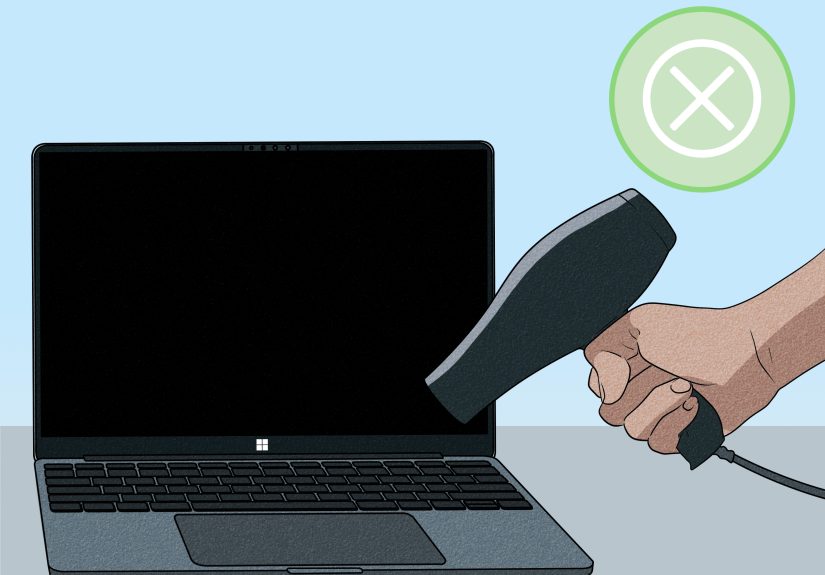
- Don’t use a hair dryer or high heat (you can warp plastics and drive moisture deeper).
- Don’t use compressed air to blast liquid inward.
- Don’t put it in rice (unless your goal is “crunchy keyboard”).
Do this instead: the safe dry-out plan that actually helps
1) Set up a drying station with airflow
Place the laptop on an absorbent towel in a dry area. Aim a fan across it (not into it like a leaf blower). Gentle airflow
speeds evaporation without forcing liquid into deeper layers.
2) If you’re comfortable opening the bottom cover, disconnect the battery
This is optional, but it’s one of the biggest “save vs. toast” factorsbecause it removes power from the system.
If your laptop design allows it and you have the right tools:
- Power off (already done), unplug, and work on a clean, static-safe surface.
- Open the bottom panel and disconnect the battery connector if accessible.
- If the spill was significant and you see moisture, stop and consider professional service.
If you’re not comfortable opening it, don’t force it. A stripped screw is annoying; a punctured battery is a “call the fire department” kind of day.
3) Use silica gel (not rice) if you want a “drying booster”
Silica gel packets (the “DO NOT EAT” packs from shoes and electronics) absorb moisture far more effectively than rice.
For laptops, you’re not burying the machineyou’re creating a dry micro-environment:
- Find a large plastic bin or storage container with a lid (or a big zipper bag for smaller laptops).
- Place a layer of silica gel packets at the bottom.
- Place the powered-off laptop above them (ideally elevated on a small rack or folded towel).
- Add more silica around the sides (not inside ports), seal it, and leave it alone.
No silica? Airflow and time still beat rice. The goal is controlled drying, not pantry rituals.
4) Wait long enough (this is where most people fail)
For a basic water spill with quick power-off, 24–48 hours is a common minimum before you even think about testing.
For bigger spillsor anything sugary, salty, or acidicassume longer, and strongly consider professional cleaning.
Water vs. “not-water”: why coffee and soda are laptop supervillains
Plain water can evaporate without leaving much behind. Coffee, tea, soda, sports drinks, wine, and especially salt water
leave residue that can keep conducting electricity and accelerate corrosion. Even if the laptop “seems fine” after drying,
sticky residue can cause phantom key presses, trackpad weirdness, and failure weeks later.
If the spill was sugary/salty
- Prioritize professional inspection/cleaning if the device matters (work laptop, school laptop, expensive ultrabook).
- If you open it and see residue on the board, the right fix is cleaningnot just waiting.
Should you clean with isopropyl alcohol?
Sometimes. High-purity isopropyl alcohol (often 90%+) is commonly used in electronics cleaning because it evaporates quickly and can help remove residue.
But it’s not a magic potion you pour into a laptop like you’re seasoning a cast-iron pan.
Safe-ish use cases
- You have the laptop open, battery disconnected, and you can see spill residue on a non-powered area.
- You’re using small amounts on a soft brush or lint-free swab to clean corrosion/residue gently.
- You let everything dry completely before reassembly.
When to skip DIY cleaning
- You can’t confidently identify what you’re touching.
- The spill was large and reached the motherboard.
- You see heavy corrosion, sticky syrup-like residue, or the laptop was powered on during the spill.
When to call a pro (and why it’s often worth it)
Here’s a good rule: if your laptop costs more than your monthly grocery bill, treat a major spill like a real repair situation.
Professional techs can open the machine, disconnect power properly, clean corrosion, and check for damage that “drying” alone won’t fix.
Strong “go to a shop” signals
- The laptop was on when liquid went in.
- You spilled coffee/soda/alcohol/salt water (anything with residue).
- It shut off by itself, won’t power on, or smells like burnt electronics.
- Keys/trackpad act strange after drying.
Also note: many manufacturers treat liquid exposure as accidental damage and may not cover it under standard warranty.
If you have accidental damage protection, check your coverage before attempting anything that could complicate a claim.
After drying: the “first power-on” checklist
- Inspect: look for moisture in ports, under keys, and around vents.
- Reassemble only if you opened it and everything is fully dry.
-
Power on once. If it boots, immediately back up your data (cloud + external drive).
A laptop that survives a spill can still fail later from corrosion. - Watch for warning signs: random shutdowns, lines on the screen, keyboard misbehavior, charging issues, fan roaring for no reason.
FAQ: the questions people ask while hovering over a bag of rice
Can I put my laptop in rice if I don’t have silica gel?
You can, but it’s unlikely to help and may introduce dust and particles. Airflow + time is the better “no-special-tools” plan.
How long should I wait before turning a wet laptop back on?
Typically 24–48 hours minimum for small water spills with immediate shutdown. Longer for bigger spills or anything sugary/salty.
When in doubt: wait longer or get it inspected.
Should I use a hair dryer on a wet laptop?
Avoid high heat. It can warp parts and push moisture deeper. A fan and a dry room are safer.
What if the laptop got wet in the backpack but seems fine?
Still power it off and dry it thoroughly. Hidden moisture can corrode connectors and cause problems latereven if day one looks normal.
Conclusion: skip the rice, save the laptop
If your laptop gets wet, the smartest move isn’t raiding your pantryit’s cutting power fast, draining and blotting correctly,
drying with airflow, and using silica gel if you want a real moisture absorber. And if the spill was anything more exciting than plain water,
a professional cleaning can prevent the slow-motion disaster of corrosion.
Experiences & lessons people learn the hard way (so you don’t have to)
The most common “wet laptop” story usually starts the same way: a cup of coffee within arm’s reach and a human being who believes
they are coordinated. Spoiler: gravity disagrees. In repair forums and tech support communities, you see patterns repeat so often
they feel like a scripted TV showexcept the villain is a latte.
One classic scenario: someone spills water, immediately wipes the keyboard like they’re buffing a car, then flips the laptop over,
then flips it back, then shakes it a little, then sets it down, then… turns it on “for just a second.” That last part is where the plot twists.
Even a tiny amount of liquid can bridge contacts while power is present. The laptop might boot once, giving false confidence, and then
die later when corrosion finishes the job. The lesson: your patience is more valuable than your troubleshooting instincts in the first 48 hours.
Another frequent tale is the “it was only a few drops” spillusually soda. Sugary drinks are deceptively brutal because they leave conductive,
sticky residue that doesn’t evaporate cleanly. People report keyboards that work for a week and then start typing ghost characters like the laptop
is possessed. Trackpads get jumpy. Charging becomes inconsistent. The fix often isn’t more drying; it’s cleaning the residue off the internals.
The lesson: if it’s sweet, salty, or acidic, think “cleanup,” not just “dry out.”
Then there’s the rice attempt. With phones, people can at least imagine the device surrounded by grains. With laptops, the “rice method” usually
becomes a weird workaround: placing bowls of rice nearby, or setting the laptop on top of rice in a tray, or stuffing rice in a bag and hoping
the humidity magically migrates. Sometimes the laptop survivesnot because rice is powerful, but because the user finally leaves it alone long enough
to dry. That creates the myth’s greatest trick: confusing coincidence with causation. The lesson: if you want a drying assistant, use silica gel packs;
if you want the placebo effect, set a timer and don’t touch anything.
A more practical “experience-based” win is what people do before a spill ever happens. Folks who keep cloud backups on (or routinely back up to
an external drive) panic less and make better decisions. They’re more willing to shut the laptop down immediately because they aren’t terrified of losing
files. They can take the time to dry properly, or bring it to a shop, without gambling everything on a risky power-on test. The lesson: backups don’t just
protect datathey protect your decision-making under stress.
Finally, there’s the “it dried, so I’m safe” misconception. Many users report that a laptop can appear normal for days or weeks after a spill and then
develop problems laterespecially if any residue remained. That’s why the best “aftercare” habit is: once it boots, back up immediately, watch for weirdness,
and consider a professional check if the spill was serious. The lesson: surviving the spill is only half the story; preventing corrosion is the sequel.