Table of Contents >> Show >> Hide
- First: Confirm You’re Using the Right Capture Source
- Quick Triage: What “Not Working” Looks Like (Pick Your Symptom)
- Troubleshooting Steps (Start Here, Stay Calm)
- 1) Run OBS as Administrator (Yes, Really)
- 2) Double-Check Game Capture Mode Settings
- 3) Try Borderless (or Windowed) Mode for Stubborn Games
- 4) Fix the #1 Laptop Problem: OBS and the Game Are on Different GPUs
- 5) Eliminate Conflicts: Overlays, FPS Counters, and “Helpful” Tools
- 6) Use the Two Game Capture Switches People Forget Exist
- 7) DirectX 12 and API Quirks: If You Have a DX11 Option, Test It
- 8) The “Why Is It Cropped?” Fix: Reset Transform
- 9) Update the Boring Stuff (Because It’s Secretly Not Boring)
- 10) If Game Capture Still Won’t Work: Pivot Strategically
- Game-Specific Gotchas (Common Offenders)
- Stop Guessing: Get a Clean OBS Log (It’s the Receipt)
- Mini-FAQ
- Real-World Experiences (500+ Words): What Usually Works When Nothing Else Does
- Conclusion
You hit Start Recording, your mic sounds great, your game sounds great… and your video looks like a minimalist art film titled
“Black Rectangle, 2026”. If OBS Game Capture is not working (or it’s showing a black screen, freezing, or capturing the wrong thing),
this guide will walk you through the fixes that actually matterwithout the “have you tried turning reality off and on again?” vibes.
We’ll go from quick wins to the deeper stuff: admin permissions, capture modes, GPU mismatches on laptops, overlay conflicts, anti-cheat limitations,
DirectX quirks, and when to pivot to Window Capture or Display Capture. By the end, you’ll have a repeatable checklist instead of a growing collection
of frustrated bookmarks.
First: Confirm You’re Using the Right Capture Source
OBS gives you multiple ways to capture video, and choosing the wrong one is like trying to make a smoothie with a fork: technically possible, emotionally
damaging, and not recommended.
- Game Capture (what you want for most PC games): hooks into DirectX/OpenGL for efficient capture and best performance.
- Window Capture: captures a specific window. Great for many games in borderless/windowed mode, launchers, and “Game Capture won’t hook this title” scenarios.
- Display Capture: captures your whole monitor. Most compatible, but can be heavier and may capture everything (including your “definitely not nervous” desktop clutter).
If you’re on a single monitor and running a game in true exclusive fullscreen, it may stop rendering when you alt-tabso OBS preview can look “dead”
even though the recording is fine. That’s normal, not cursed.
Quick Triage: What “Not Working” Looks Like (Pick Your Symptom)
Different symptoms usually point to different root causes:
- Black screen (audio is fine): often GPU mismatch (laptops), overlays/conflicts, anti-cheat blocks, or permissions.
- Game Capture won’t detect the game: wrong mode selected, game launches on a different GPU, or the game blocks hooking.
- Frozen frame / stuttering capture: conflicts with overlays/FPS tools, or graphics API issues (sometimes DX12).
- Wrong window captured: “Capture any fullscreen application” grabbing the wrong thing, or multiple capture sources fighting.
- Capture is cropped / tiny / weirdly positioned: transform settings got stuck (surprisingly common).
Troubleshooting Steps (Start Here, Stay Calm)
1) Run OBS as Administrator (Yes, Really)
Some games require OBS to run as admin to capture properly. It’s not a “nice-to-have,” it’s the difference between working video and the void.
Try this firstespecially for competitive titles or games with aggressive protection.
- Close OBS.
- Right-click OBS → Run as administrator.
- Test Game Capture again.
If that fixes it, set OBS to always run as admin (Windows shortcut → Properties → Compatibility → “Run this program as an administrator”).
2) Double-Check Game Capture Mode Settings
Add one Game Capture source per scene when troubleshooting. Multiple capture sources can clash and make you think the universe hates you.
In the Game Capture properties, choose the right mode:
- Capture any fullscreen application: best if you play true fullscreen and only one game is running.
- Capture specific window: best for borderless/windowed, or when you want precision.
- Capture foreground window with hotkey: best if you bounce between games/apps and want to avoid reconfiguring mid-session.
If you use “Capture specific window,” make sure the game is already running before opening the dropdownotherwise OBS can’t pick a window that doesn’t exist yet.
3) Try Borderless (or Windowed) Mode for Stubborn Games
Some titles simply don’t play nicely with hooking in exclusive fullscreen. Switch the game to Borderless Fullscreen (or plain windowed),
then try Game Capture again. If it still fails, jump to Window Capture for that game.
4) Fix the #1 Laptop Problem: OBS and the Game Are on Different GPUs
On laptops and multi-GPU systems, this is the classic “everything looks fine but capture is black” problem. If OBS runs on the integrated GPU
while your game runs on the discrete GPU (or vice versa), Game Capture may fail.
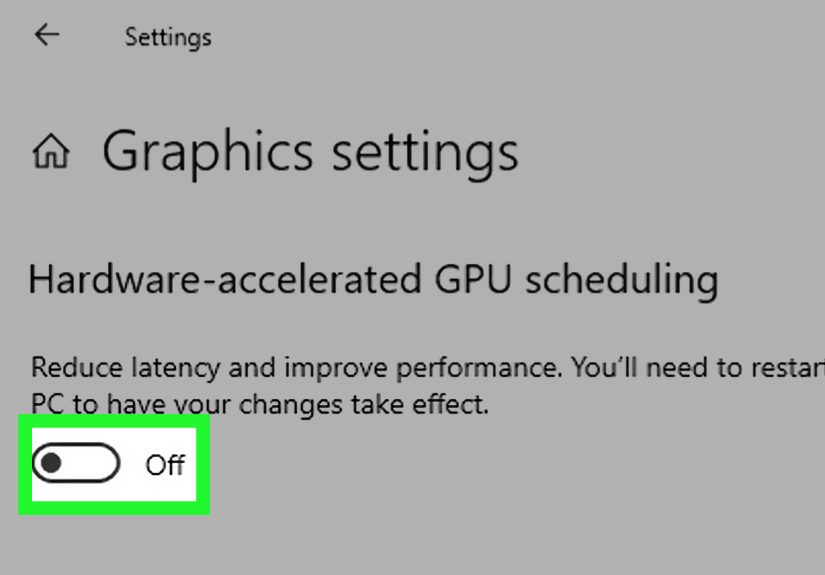
Windows 11 / Windows 10 (1809+): set GPU preference for OBS:
- Close OBS.
- Go to Settings → System → Display → Graphics.
- Add OBS (browse to
obs64.exe). -
For Game Capture and Window Capture, set OBS to High performance.
(For Display Capture on some systems, you may need Power saving.) - Reopen OBS and test.
If your laptop also provides NVIDIA/AMD control panel overrides, make sure they don’t contradict Windows Graphics settings. When they fight, you lose.
5) Eliminate Conflicts: Overlays, FPS Counters, and “Helpful” Tools
Overlays and monitoring tools are frequent capture killers because they hook into graphics pipelinesjust like OBS does. Two hookers enter, one hooker leaves.
Temporarily disable or close:
- Discord in-game overlay
- Steam overlay
- NVIDIA/AMD overlays (recording, performance overlays)
- MSI Afterburner / RivaTuner Statistics Server (RTSS)
- Third-party FPS counters, RGB tools, “game booster” utilities
Special note: RTSS is a known conflict. If you must keep RTSS, look for settings that improve compatibility (some versions provide alternate hooking methods).
6) Use the Two Game Capture Switches People Forget Exist
In Game Capture properties, two options often change everything:
- Use anti-cheat compatibility hook: helps with some protected games, but may reduce capture performance.
- Capture third-party overlays (such as Steam): only enable if you actually need overlay capture (and only if it doesn’t cause conflicts).
If your capture is black, try toggling the anti-cheat hook on/off and retest. Don’t change ten settings at oncemake one change, test, then move on.
7) DirectX 12 and API Quirks: If You Have a DX11 Option, Test It
Some games behave differently depending on graphics API. If a game offers DX11 and DX12, and capture is unstable in DX12, test DX11.
This is especially worth trying if you get crashes, weird frame pacing, or Game Capture hooks intermittently.
8) The “Why Is It Cropped?” Fix: Reset Transform
Sometimes Game Capture works… but the image is stuck at the wrong size or position. Fix it in seconds:
- Right-click the captured source in the preview.
- Transform → Reset Transform.
- Transform → Fit to Screen.
9) Update the Boring Stuff (Because It’s Secretly Not Boring)
Update OBS Studio, update your GPU drivers, and install Windows updates. Capture issues can come from outdated graphics components, especially after major OS updates.
10) If Game Capture Still Won’t Work: Pivot Strategically
There’s no prize for suffering. If a game blocks Game Capture hooking, use the best alternative:
- Window Capture for many protected games (borderless/windowed).
- Display Capture if Window Capture fails (watch for performance and privacy).
- Capture card for consolesor for PC setups where you want maximum isolation and stability.
Game-Specific Gotchas (Common Offenders)
Some games are repeat offenders. If you’re trying to capture one of these, skip the guesswork:
- Call of Duty: often needs OBS run as administrator.
- Valorant: frequently requires administrator mode due to its protection model.
- Counter-Strike 2: often works better in borderless/windowed with Window Capture; some anti-injection policies can block Game Capture.
- Destiny 2: commonly recommended to use borderless/windowed + Window Capture rather than Game Capture.
- Fortnite: if DX12 causes crashes or performance issues while capturing, test DX11.
- League of Legends: the launcher/lobby and the in-game client can behave differentlymany creators use separate scenes and auto-switching.
- Roblox: often better with Window Capture than Game Capture.
Stop Guessing: Get a Clean OBS Log (It’s the Receipt)
When troubleshooting gets messy, the OBS log is your truth serum. If you ever ask for help in forums or from a tech friend, they’ll want this.
- Close OBS and reopen it (so the log is clean).
- Reproduce the problem for ~30 seconds (open the game, attempt capture, let it fail).
- Stop recording/streaming.
- In OBS: Help → Log Files → Upload Current Log File.
- Share the link with whoever is helping you (or use it to compare changes after each fix).
Mini-FAQ
Why is the preview black but my recording is fine?
Exclusive fullscreen games can stop rendering when you alt-tab, making OBS preview look black. Test with a short recording to confirm.
If the file looks good, it’s not a capture failureit’s fullscreen behavior.
Should I use “Capture any fullscreen application” or “Capture specific window”?
If you only play one fullscreen game and want simplicity, “any fullscreen” is easy. If you want reliability, especially in borderless/windowed,
“specific window” is often better. If you switch games/apps frequently, use the hotkey foreground mode.
Does disabling overlays really matter?
Yes. Overlays hook into the same places OBS does. If capture fails or stutters, turning them off is one of the fastest ways to identify conflicts.
Real-World Experiences (500+ Words): What Usually Works When Nothing Else Does
Let’s talk about the situations that happen in actual streaming lifewhen you’ve already tried the “top 10 fixes” list and your Game Capture still looks
like a black hole auditioning for a NASA documentary.
Scenario 1: “It worked yesterday, and today it’s broken.”
This is usually a silent change: a Windows update, a GPU driver update, an overlay update, or a game update that tweaks anti-cheat behavior. The fastest
way out is a controlled rollback of complexity: close everything that hooks into games (Discord overlay, Steam overlay, NVIDIA overlay, Afterburner/RTSS),
run OBS as administrator, and test with a single fresh Game Capture source in a blank scene. If it suddenly works, re-enable tools one at a time until the
culprit reveals itself. It’s not glamorous, but it’s the only way to avoid randomly flipping switches for hours and convincing yourself you “fixed it”
when it actually just got tired of failing.
Scenario 2: “Laptop black screen, desktop works fine.”
Laptop capture problems are their own genre. The most common plot twist: the game launches on the discrete GPU, but OBS is running on the integrated GPU.
Game Capture tries to hook across that boundary and fails. The “aha” fix is using Windows Graphics settings to force OBS to High performance for
Game Capture / Window Captureor, in some setups, forcing OBS to the iGPU for Display Capture if that’s the only thing black-screening. The most
frustrating part is that the system may insist it’s using the “right” GPU while actually doing the opposite. If you suspect this, trust the OBS GPU
guidance and re-test after every change with OBS fully closed and reopened.
Scenario 3: “Competitive shooter + anti-cheat = nope.”
Some games simply do not allow the style of injection/hooking that Game Capture usesespecially in strict, competitive environments. You can waste an
entire weekend trying to make it work, or you can accept reality and switch to borderless fullscreen plus Window Capture. It might not be as “perfect” as
Game Capture, but it’s stable, and stability is what your viewers will notice. Also, if a title supports multiple graphics APIs (DX11 vs DX12),
capturing on DX11 can be dramatically less temperamental. When you’re streaming, “slightly less fancy” beats “completely dead” every time.
Scenario 4: “It captures… but it’s cropped, tiny, or misaligned.”
This one feels like a prank. The capture is technically working, but it’s stuck at the wrong size. People reinstall OBS for this.
Don’t be those people. Reset Transform. Fit to Screen. Done. If you’ve ever fixed this in five seconds after spending two hours elsewhere,
congratulations: you’re officially part of the club.
Scenario 5: “Nothing works, so I used Display Capture and forgot my desktop existed.”
Display Capture is the reliable friend who shows up even when everyone else flakes. But it’s also the friend who loudly reads your notifications out
loud at dinner. If you must use Display Capture, do yourself a favor: enable Do Not Disturb / Focus, close private tabs, and consider using a dedicated
streaming Windows user account. “Oops, wrong monitor” is not a brand.
The big lesson from all these cases is simple: troubleshoot like a scientist, not like someone trying to win a fistfight with settings. Change one thing,
test, and document what happened. OBS isn’t randomit’s just honest about the messy ecosystem it lives in (drivers, overlays, anti-cheat, GPUs, Windows).
Once you treat it like a system, not a slot machine, Game Capture stops being scary.
Conclusion
When OBS Game Capture isn’t working, the fix is usually one of a few repeat offenders: admin permissions, the wrong capture mode, laptop GPU mismatch,
overlay conflicts, or a game that refuses to be hooked. Start with the quick wins (run as admin, simplify your scene, confirm mode), then move into GPU
settings and conflict hunting. If a game blocks hooking, don’t force itswitch to Window Capture or Display Capture and keep your stream stable.
And remember: the goal isn’t “perfect capture theory.” The goal is your stream looking great and you staying sane.