Table of Contents >> Show >> Hide
- Before You Start: What “Switching Accounts” Actually Means
- Quick Checklist So You Don’t Accidentally Nuke Your Good Stuff
- How to Switch Epic Games Accounts: 10 Steps
- Step 1: Identify your switching scenario (PC-only vs console-linked)
- Step 2: Verify which Epic account you’re currently signed into
- Step 3: Gather your “account keys” (email access + security code readiness)
- Step 4: Sign out of the Epic Games Launcher
- Step 5: Sign out of the Epic website and any “external login” accounts (optional but powerful)
- Step 6: If the Launcher keeps logging you into the wrong account, clear the Launcher cache
- Step 7: Sign in to the Epic account you actually want to use
- Step 8 (Console path): Check “Linked Accounts” and unlink the console account from the wrong Epic account
- Step 9 (Console path): Watch for linking restrictionsand remove them only if you truly must
- Step 10: Relink, test, and lock it down (2FA + Sign Out Everywhere if needed)
- Common “Switching” Problems (and the Fix That Usually Works)
- FAQ: The Questions Everyone Asks (Usually After Doing Step 8 First)
- Extra: of Real-World Switching Experiences (So You Don’t Learn the Hard Way)
- Conclusion
Switching Epic Games accounts sounds simplelike changing hats. In real life, it’s more like changing hats while
the hat is glued to your head, your console, your browser cookies, and that one laptop you used in 2021.
The good news: it is doable, and you don’t need a degree in “Password Reset Engineering.”
You just need a clean, careful sequenceespecially if you’re switching accounts for Fortnite, Rocket League, Fall Guys,
or any situation where progress is tied to the account you’re signed into.
This guide walks you through a practical, no-drama method to switch accounts on PC (Epic Games Launcher) and on consoles
(PlayStation, Xbox, Nintendo Switch). You’ll also get quick fixes for the classic “Why am I in the wrong account again?”
problemand the big “Wait, can I merge accounts?” reality check.
Before You Start: What “Switching Accounts” Actually Means
On PC (Epic Games Launcher / Epic Games Store)
On a PC, switching is mostly a sign-out/sign-in situation. You log out of the Launcher (and sometimes the website session too),
then log into the other account. If the Launcher keeps “helpfully” signing you back into the wrong account, you may need to clear
its cache.
On Consoles (PlayStation, Xbox, Nintendo Switch)
Consoles are different. Your console profile (PSN/Xbox/Nintendo Account) gets linked to an Epic account.
So “switching” often means unlinking the console account from one Epic account and then linking
it to anotherwhile respecting Epic’s linking rules and restrictions.
Quick Checklist So You Don’t Accidentally Nuke Your Good Stuff
- Know which Epic account has the progress/purchases you care about. That’s your “keep this one safe” account.
- Confirm the email address and display name for both accounts (especially if one is an older “auto-created” console account).
- Turn on 2FA if you haven’t (not required to switch, but it’s the difference between “secure” and “oops”).
- Understand the big rule: you generally can’t freely bounce one console account between unlimited Epic accounts without restrictions.
How to Switch Epic Games Accounts: 10 Steps
-
Step 1: Identify your switching scenario (PC-only vs console-linked)
If you’re switching accounts on a shared PC, you’ll mostly deal with the Launcher and browser sessions.
If you’re switching Fortnite accounts on a console, you’ll deal with linked accounts and possible linking restrictions.
Knowing which path you’re on prevents 80% of “why didn’t that work?” moments. -
Step 2: Verify which Epic account you’re currently signed into
On the Epic website, sign out (if needed), then sign back in and check the account settings area for your display name and email.
On the Launcher, look at the profile icon area to confirm the account.Example: If your browser keeps logging you into your sibling’s account, you might be “switching” the wrong thing.
Confirm firstthen proceed. -
Step 3: Gather your “account keys” (email access + security code readiness)
Switching often triggers security checks. Make sure you can access the email for the account you’re logging into.
If you plan to use “Sign out everywhere” or adjust security settings, you’ll likely need a verification code. -
Step 4: Sign out of the Epic Games Launcher
In the Epic Games Launcher, click your profile icon (upper-right), then select Sign Out.
Close the Launcher afterwarddon’t leave it running in the background like a sneaky tab that refuses to die. -
Step 5: Sign out of the Epic website and any “external login” accounts (optional but powerful)
If you ever log in using PlayStation/Xbox/Nintendo/Google/Apple/Steam buttons, your browser session can keep dragging you back
to the wrong place. Sign out of the Epic website, and if you keep getting redirected to the wrong Epic account, sign out of the
external account in your browser too (or use a private/incognito window). -
Step 6: If the Launcher keeps logging you into the wrong account, clear the Launcher cache
The Epic Games Launcher can get “sticky” due to cached web data. Clearing the Launcher cache (often the webcache folder)
is a common fix when you log out but it signs you back into the wrong account anyway.After clearing cache, restart your computer (or at least fully restart the Launcher), then try signing in again.
-
Step 7: Sign in to the Epic account you actually want to use
Open the Launcher and sign in with the correct Epic account credentials. If you’re using an external login button
(like PlayStation or Nintendo), double-check you’re signed into the right external account in your browser first.Pro tip: If you manage multiple accounts, a password manager and distinct display names are your best friends.
Your future self will thank you. -
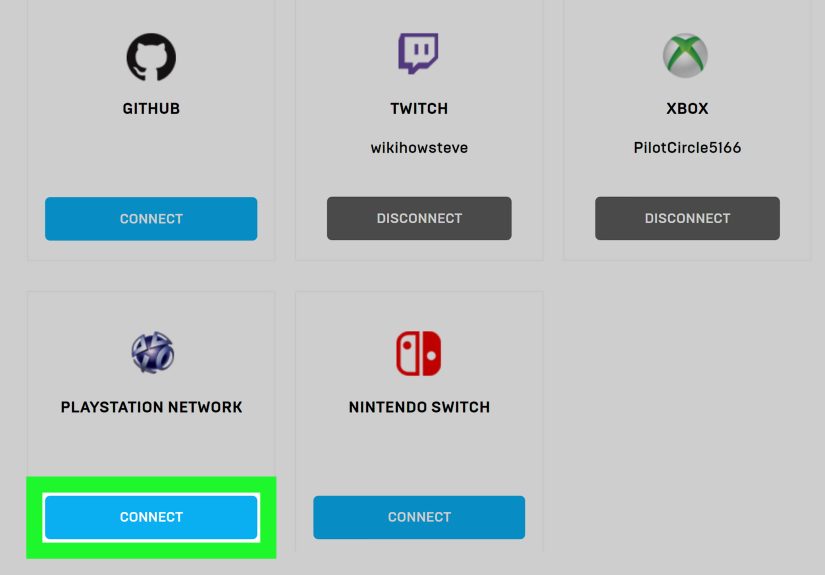
Step 8 (Console path): Check “Linked Accounts” and unlink the console account from the wrong Epic account
If your console profile is linked to the wrong Epic account, log into the Epic account that currently holds that link,
go to Linked Accounts / Connections, and choose Unlink for the console platform.
Follow the on-screen instructions carefully.Important: Some console-linked “auto-created” Epic accounts are missing details (email/password/display name).
In that case, you may need to finish setting up that Epic account before you’re allowed to unlink it. -
Step 9 (Console path): Watch for linking restrictionsand remove them only if you truly must
Epic can apply a linking restriction after an account is linked. If you’re trying to link a different console account than before,
you may need to remove the restriction. This is a “measure twice, click once” step because it can have cooldown limits
(for example, Epic warns that restriction removal can be limited to once every 365 days for some scenarios).If you’re unsure whether you need restriction removal, pause and confirm which accounts are linked wherebecause this is the step
that can turn a quick switch into a long wait. -
Step 10: Relink, test, and lock it down (2FA + Sign Out Everywhere if needed)
Once you’ve signed into the correct Epic account, link your console account (if applicable), then launch the game and verify:
correct username, correct cosmetics/progress, correct friends list.If you suspect someone else has access or you’ve logged in on many devices, use Epic’s Sign out everywhere option
and enable 2FA to keep the account stable after switching.
Common “Switching” Problems (and the Fix That Usually Works)
Problem: “I keep getting signed into the wrong Epic account in my browser.”
- Use an incognito/private window for Epic sign-in.
- Clear browser cookies/cache for Epic and the external login provider.
- Sign out of the external account (PlayStation/Xbox/Nintendo/Google/Apple/Steam) in the browser, then retry.
Problem: “I log out of the Launcher, but it logs me right back in.”
- Fully exit the Launcher (check Task Manager on Windows or Activity Monitor on Mac).
- Clear the Launcher cache/webcache, then relaunch and sign in again.
- If the issue persists, check Epic’s service statussometimes it’s not you, it’s the internet being the internet.
Problem: “My console account was connected to another Epic account.”
- Confirm whether your console is linked to a “full” Epic account or an auto-created one missing details.
- Sign in using the console icon on Epic’s sign-in page to identify the linked Epic account.
- Complete missing account details if required, then unlink and relink properly.
Problem: “Will switching accounts move my skins / purchases / progress?”
Generally, progress and purchases stay with the Epic account they were earned on. Switching accounts doesn’t “transfer” items;
it simply changes which account you’re using on that device. That’s why choosing the correct account before linking is such a big deal.
FAQ: The Questions Everyone Asks (Usually After Doing Step 8 First)
Can I merge two Epic/Fortnite accounts?
Epic previously offered an account merge feature for Fortnite, but it ended years ago. Today, the practical approach is choosing
one primary account and linking devices to it (when allowed) rather than expecting a merge.
Does unlinking delete my Epic account or wipe my progress?
Unlinking a console account doesn’t automatically delete your Epic account. Your Epic account still exists, and its data remains tied to it.
What changes is which Epic account your console profile is connected to.
Can one Epic account link to multiple platforms?
Yesan Epic account can typically be linked to different platform types (for example, one Nintendo account, one PlayStation account,
one Xbox account, and one Steam account) at the same time. The limitation is usually about multiples of the same platform type.
What’s the safest way to switch accounts on a shared family PC?
Create separate Windows user profiles (or at least separate browser profiles), sign out of the Launcher each time, and avoid saving passwords
on shared browsers. It’s less exciting than a new Fortnite season, but it prevents the “Who bought this?” arguments.
Extra: of Real-World Switching Experiences (So You Don’t Learn the Hard Way)
Let’s talk about what switching accounts feels like in the wild, where perfect instructions meet imperfect humans. The most common story
goes like this: you get a new PC, install the Epic Games Launcher, andbecause you’re moving fastclick the first “Sign in with Google”
button you see. Congratulations, you’re now in the “wrong” Epic account. Nothing looks familiar. Your library is empty. Your friends list
is quieter than a group chat during finals. Panic sets in. The fix is usually simple (sign out, sign back in), but the emotional journey
is dramatic enough to deserve its own loading screen tip.
Another classic: the “console auto-account surprise.” Someone starts Fortnite on a console years ago, skips the full registration, and Epic
quietly creates an account behind the scenes. Later, that person builds a proper Epic account on PC and tries to use it on the console.
The console says it’s already connected to another account, and suddenly everyone is an amateur detective: “Which email did we use?”
“Did we use an email?” “Why does this account not have a password?” This is where finishing the account setup mattersadding the missing
email/password/display name so you can actually manage the link like an adult (even if you’re doing it at 1 a.m. with snacks and regret).
Shared devices create their own mini soap operas. A sibling logs in “just to claim the free game,” and the Launcher stays logged in.
Next person opens Fortnite and ends up playing on the wrong account, earning XP and unlocking stuff… for someone else. It’s like doing
chores in the wrong house: a lot of effort, zero personal benefit. The practical solution is boring but effective: always sign out after
using the Launcher, consider a separate Windows login, and use a private browser window if you’re switching often.
Then there’s the “I can’t link it again” moment. People unlink a console account expecting to relink it freely, only to hit a restriction.
That restriction isn’t there to ruin your day; it exists to reduce fraud and account hijacking chaos. But it does mean you should treat
unlinking like pulling a fire alarm: do it when necessary, not casually. If you’re switching because you forgot which account is which,
step back and verify firstbecause the smartest switch is the one you only do once.
Finally, the best switching experience is the one that ends with security. After you’re in the right account, enable 2FA, review connected
accounts, and consider using “Sign out everywhere” if your login history includes “old laptop,” “friend’s PC,” and “that one internet café
you swear you’ll never use again.” The goal isn’t just switchingit’s staying switched, staying secure, and getting back to gaming without
turning account management into your main quest.
Conclusion
Switching Epic Games accounts is straightforward when you treat it like a process, not a button. On PC, it’s usually a clean sign-out/sign-in,
plus a cache reset if the Launcher is being stubborn. On consoles, it’s all about linked accountsconfirm what’s connected, unlink carefully,
respect restrictions, and relink only when you’re sure you’ve chosen the correct Epic account.
If you take one idea from this guide, let it be this: verify first, unlink second. It saves time, prevents surprises,
and keeps your favorite account (and its progress) right where it belongs.