Table of Contents >> Show >> Hide
- What Does “Rebuild Database” Mean on PlayStation?
- What Problems Can Rebuilding the PS4 or PS5 Database Fix?
- What Rebuilding the Database Will Not Do
- Before You Start: A Few Smart Precautions
- How to Rebuild the PS5 Database
- How to Rebuild the PS4 Database
- How Long Does a Database Rebuild Take?
- Will Rebuilding the Database Delete Games, Saves, or Apps?
- When Should You Rebuild the Database?
- Other Ways to Speed Up Your PlayStation
- Troubleshooting: What If Rebuilding the Database Does Not Work?
- Final Thoughts: A Small Fix That Can Make a Big Difference
- Real-World Experiences Rebuilding PS4 & PS5 Databases
- SEO Tags
If your PlayStation has started acting like it woke up on the wrong side of the SSD, you are not alone. Slow menus, game icons that refuse to disappear, random stutters, odd launch errors, and “why is this taking forever?” moments can all make a PS4 or PS5 feel older than it really is. The good news is that one of the easiest maintenance tricks on Sony’s consoles does not involve buying a new drive, sacrificing your weekend, or whispering motivational speeches to your HDMI cable.
It is called rebuilding the database. Despite sounding like something only an IT department would enjoy, it is actually a simple Safe Mode tool that helps your console reorganize how it indexes content. In plain English, it can help your PlayStation find what it needs more efficiently. Think of it less like demolition and more like cleaning out a messy closet where all the shoes are technically still there, but somehow none of them are where they should be.
In this guide, you will learn what rebuilding the PS4 and PS5 database really does, when it makes sense to use it, how to do it step by step, what it can fix, what it cannot fix, and how to avoid turning a small slowdown into a full-blown gaming crisis. By the end, you should know exactly how to use this feature to speed up your PlayStation and troubleshoot common annoyances without accidentally choosing the nuclear options in Safe Mode.
What Does “Rebuild Database” Mean on PlayStation?
On both PS4 and PS5, the database is essentially the console’s organized record of installed games, apps, stored content, and certain system references. Over time, especially if you install and delete a lot of games, move content around, experience crashes, or deal with interrupted updates, that index can get messy. When that happens, your console may not be broken, but it may become less efficient at locating and presenting data.
Rebuilding the database tells the system to rescan storage and recreate that index. That is why the feature is often recommended when you have system feature issues, strange home-screen behavior, slow menu navigation, or game-related glitches that do not seem tied to one obvious cause.
The key point is this: rebuilding the database is not the same as resetting your PlayStation. It is not the same as initializing the console, and it is definitely not the same as reinstalling system software. Those other Safe Mode options can erase data. Database rebuilding is the maintenance-friendly option people usually try before anything dramatic.
What Problems Can Rebuilding the PS4 or PS5 Database Fix?
If your console is having a truly bad day, rebuilding the database can sometimes smooth things out. It is especially useful when the problem feels broad and annoying rather than catastrophic and obvious.
Common signs it may help
- Home screen menus feel slow or laggy
- Games take longer than usual to appear or launch
- Installed content looks disorganized or icons linger after deletion
- Your PS4 or PS5 stutters while navigating the interface
- You see certain system or application read errors
- After a crash or failed update, the console behaves oddly
- Disc-based or installed games seem harder to load than usual
In practical terms, rebuilding the database is a good first troubleshooting step when the console still turns on and works, but everything feels slightly wrong. It is the PlayStation equivalent of tidying your desk before deciding you need a whole new office.
What Rebuilding the Database Will Not Do
Let’s save you from magical thinking. Rebuilding the database is helpful, but it is not a miracle cure wrapped in a Safe Mode menu. It will not transform a worn-out hard drive into a race car. It will not fix a failing power supply, a broken HDMI port, overheating caused by dust buildup, or a damaged disc drive. It also will not give a PS4 the raw speed of a PS5, no matter how much you believe in personal growth.
It also may not solve problems caused by:
- Hardware failure
- A corrupted game installation that needs reinstallation
- Outdated system software
- Network issues affecting downloads or online play
- Severe storage problems that require repair, reset, or replacement
If your PlayStation keeps crashing after a rebuild, freezes constantly, overheats, or throws repeat error codes, you may need to move on to other fixes such as clearing cache, updating system software, reinstalling a game, checking ventilation, testing storage health, or in worst-case scenarios, resetting the system.
Before You Start: A Few Smart Precautions
Rebuilding the database is generally a safe maintenance step, but a little preparation never hurts. You do not need to panic, but you also do not want your console losing power halfway through because someone kicked the cord during an intense search for snacks.
Do this first
- Make sure the console is fully powered off, not in Rest Mode
- Use a wired USB connection for the controller in Safe Mode
- Leave enough time for the process to finish without interruption
- Back up important saves if you have not done that recently
- Do not unplug the system while the rebuild is running
On PS5, it is also worth checking whether a simple cache clear may help if your issue is minor. But if the console feels messy at a system level, the database rebuild is often the stronger move.
How to Rebuild the PS5 Database
The PS5 hides this option inside Safe Mode under a submenu called Clear Cache and Rebuild Database. It sounds a bit dramatic, but the actual process is straightforward.
Step-by-step instructions for PS5
- Turn off your PS5 completely. Do not use Rest Mode.
- Press and hold the power button on the console.
- Keep holding until you hear the second beep, which usually comes after about seven seconds.
- Connect your DualSense controller with a USB cable.
- Press the PS button on the controller.
- From the Safe Mode menu, select Clear Cache and Rebuild Database.
- Select Rebuild Database.
- Confirm and let the process finish.
- The PS5 will restart when it is done.
If your PS5 was suffering from sluggish menus, odd app behavior, or minor storage-related weirdness, you may notice improvements immediately after the restart. If nothing changes, at least you have ruled out one of the easiest fixes first.
How to Rebuild the PS4 Database
The PS4 process is similarly easy, though the menu layout is a little different. On PS4, Rebuild Database appears directly in Safe Mode rather than inside a combined cache-and-database submenu.
Step-by-step instructions for PS4
- Turn off your PS4 completely.
- Press and hold the power button.
- Release it after the second beep.
- Connect your DualShock 4 controller with a USB cable.
- Press the PS button on the controller.
- In Safe Mode, choose Rebuild Database.
- Confirm the action and wait.
- Let the system restart automatically when the rebuild is complete.
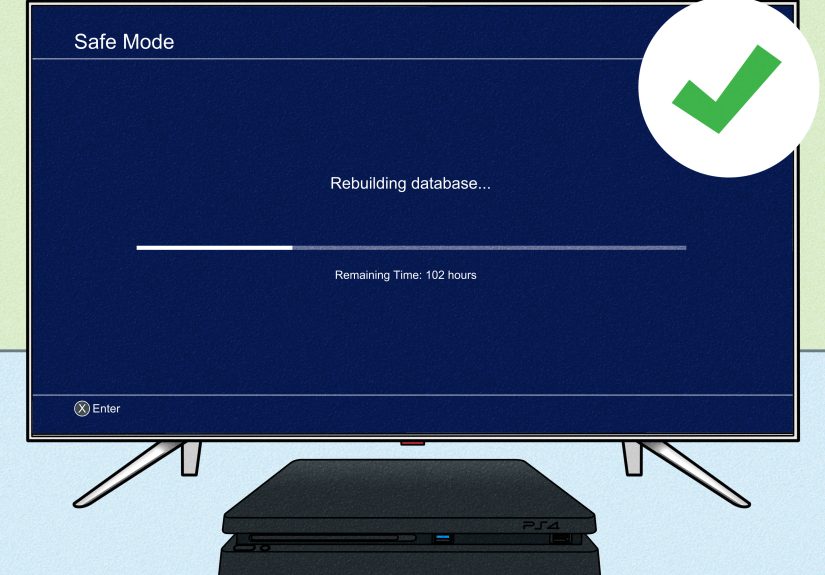
On older or fuller PS4 systems, this process may take longer than expected. That is normal. A heavily used PS4 with lots of installed games and years of digital clutter may need a lot more time than a newer or lightly used console.
How Long Does a Database Rebuild Take?
This is the part where nobody wants to hear “it depends,” but unfortunately it depends. The time can vary from just a few minutes to several hours. The biggest factors are how much data is on the system, how full the drive is, how fragmented the storage has become over time, and whether you are dealing with a PS4 hard drive or the PS5’s internal SSD architecture.
Generally speaking:
- A lightly used console may finish in minutes
- A full console with many installs and deletes may take much longer
- PS5 often completes faster than PS4 in real-world use
- External storage setups can add complexity to troubleshooting
The best approach is simple: start the process when you are not in a rush, and let it finish without interruption. This is not the moment to decide you urgently need to move furniture around your entertainment center.
Will Rebuilding the Database Delete Games, Saves, or Apps?
Under normal circumstances, no. Rebuilding the database is considered a non-destructive troubleshooting step. It is meant to reorganize and refresh the console’s content index, not wipe your installed library or erase your save data.
That said, smart PlayStation owners treat backups like seat belts. Most days, nothing dramatic happens. But when something weird does happen, you will be glad you were prepared. If you have PlayStation Plus cloud saves or an external backup solution, use them regularly. Good habits are boring right up until they save your 87-hour RPG file.
When Should You Rebuild the Database?
You do not need to do this every weekend as part of some sacred gamer ritual. Rebuilding the database is best used when symptoms suggest the console’s content index may be messy or corrupted, not as a daily superstition.
Good times to use it
- After repeated crashes or incomplete installs
- When the home screen is unusually slow
- When a deleted game icon still hangs around
- When apps or games refuse to launch properly
- After system behavior changes following an update
- When troubleshooting specific read or application errors
Bad times to use it
- As a random weekly habit with no symptoms
- As a substitute for cleaning dust and improving airflow
- When the real issue is obviously your internet connection
- When the console has serious hardware problems that need repair
In short, use it when your PlayStation seems disorganized, not when you are simply bored and looking for a settings menu adventure.
Other Ways to Speed Up Your PlayStation
If you want the best performance boost possible, rebuilding the database works best as part of a bigger maintenance routine. It is one tool, not the entire toolbox.
Helpful performance tips for PS4 and PS5
- Keep system software updated
- Delete games and apps you no longer use
- Make sure the console has proper airflow
- Clean dust from vents and surrounding space
- Reinstall a problem game if only one title is acting up
- Use internal storage strategically for frequently played titles
- Check for drive-related issues if performance keeps degrading
For PS4 owners especially, storage condition can matter a lot. A very old hard drive, a nearly full drive, or years of stop-and-go installs can make the system feel sluggish. In those cases, rebuilding the database may help, but it is sometimes part of a larger story about aging hardware.
Troubleshooting: What If Rebuilding the Database Does Not Work?
If your PS4 or PS5 still feels slow or unstable after a database rebuild, do not immediately jump to the worst conclusion. Start narrowing the issue down.
Try these next
- Update the console’s system software
- Clear cache if you have not already done so on PS5
- Delete and reinstall the specific game causing trouble
- Check for overheating or ventilation problems
- Test whether the issue happens across all games or only one
- Back up data and consider reset options only if necessary
- Seek repair support if hardware failure seems likely
If your console is caught in repeated boot problems, read errors, or Safe Mode loops, the database rebuild may simply be the first rung on a longer troubleshooting ladder. That does not mean it failed. It means the issue is bigger than indexing alone.
Final Thoughts: A Small Fix That Can Make a Big Difference
Rebuilding the PS4 or PS5 database is one of those rare tech tips that is both easy and genuinely useful. It will not perform wizardry, but it can absolutely help when your PlayStation feels bloated, sluggish, or generally off its game. Since it is a non-destructive Safe Mode option, it is often the smartest first move before you consider more invasive fixes.
For PS5 owners, the process lives under Clear Cache and Rebuild Database. For PS4 users, it is a direct Safe Mode option. In either case, the goal is the same: rescan storage, rebuild the content index, and give your console a cleaner internal roadmap. That can mean smoother navigation, fewer annoying glitches, and a system that feels more like a gaming machine and less like a grumpy filing cabinet.
If your PlayStation has been slow, weird, or dramatically less cooperative than usual, this is one of the best places to start. It costs nothing, takes only a few steps, and might save you from a lot of unnecessary frustration. Not bad for a feature most people only discover after typing “why is my PS5 acting possessed?” into a search bar.
Real-World Experiences Rebuilding PS4 & PS5 Databases
One of the most interesting things about rebuilding a PlayStation database is that the experience varies wildly depending on the person, the console, and the problem they are trying to solve. Some players run the process and come back ten minutes later to a system that feels noticeably smoother. Others start it on a packed PS4 and discover they have accidentally scheduled a long, silent lesson in patience. Both experiences are normal.
A common story from PS4 owners is that the console slowly gets worse over time instead of breaking all at once. Menus start hesitating. Downloads finish, but the system takes forever to recognize them. Game tiles linger after deletion like uninvited houseguests. In those situations, rebuilding the database often feels surprisingly effective because the system was not truly dying; it was just disorganized. The improvement may not be magical, but even a modest reduction in lag can make the console feel younger.
PS5 owners tend to describe the process a little differently. Because the PS5 is already fast, problems stand out more when they happen. Instead of “this whole console feels old,” the complaint is often “why is this one part suddenly weird?” Maybe a game refuses to launch correctly. Maybe the home screen feels inconsistent after a crash. Maybe an update went sideways and left the system acting moody. In those cases, rebuilding the database is less about chasing a giant speed boost and more about restoring normal behavior. The best result is often that the console simply goes back to feeling invisible again, which is exactly what good tech should do.
Another real-world lesson is that expectations matter. If a console is overheating because the vents are clogged with dust, rebuilding the database will not solve that. If a hard drive is physically failing, the feature cannot perform a miracle. But when the issue is software clutter, indexing confusion, or aftermath from interrupted installs, this Safe Mode option punches above its weight. It is simple, free, and low-risk, which is why so many troubleshooting guides recommend it early.
There is also a small emotional arc to the whole thing. First comes annoyance. Then comes cautious hope. Then comes staring at the screen wondering whether the progress is actually moving. Finally, there is either relief or the realization that a bigger fix is needed. That is normal too. The smartest players treat database rebuilding as a strong first step, not the only step. When it works, it feels satisfying because you solved the problem without deleting your life. When it does not, you still learned something valuable: the issue likely goes deeper than simple system clutter.
In practice, the best experience comes from using the feature at the right moment. Not as a superstition. Not as a monthly ritual. Just when your PlayStation starts dropping hints that its internal organization is getting messy. Used that way, rebuilding the PS4 or PS5 database is less of a secret hack and more of a smart maintenance habit. And honestly, any fix that can reduce lag without deleting your save files deserves a little respect.