Table of Contents >> Show >> Hide
- Can You Play Clash Royale on PC?
- Before You Start: What You Need
- Method 1: Play Clash Royale on PC with Google Play Games
- Method 2: Play Clash Royale on PC with an Android Emulator
- Google Play Games vs Emulator: Which Method Should You Choose?
- Best PC Settings for Clash Royale
- How to Sync Clash Royale Progress from Mobile to PC
- Common Problems and Easy Fixes
- Safety Tips for Playing Clash Royale on PC
- Is Playing Clash Royale on PC Better Than Mobile?
- Extra Experience: What Playing Clash Royale on PC Really Feels Like
- Final Verdict: The Best Way to Play Clash Royale on PC
Want to play Clash Royale on your PC without squinting at a phone screen like you are decoding ancient runes? Good news: you can. Whether you want smoother aiming with a mouse, a bigger battlefield, easier recording for content, or just the comfort of leaning back at your desk while your Hog Rider does questionable things to enemy towers, playing Clash Royale on PC is easier than ever.
This guide explains how to play Clash Royale on PC using two practical methods: the official Google Play Games route and the Android emulator route. The first method is the recommended option because it is supported, simple, and built for Windows. The second method is an alternative for players who want more emulator-style controls or already use Android apps on their computer. Either way, the goal is the same: get into the Arena, protect your towers, and avoid placing a Skeleton Army directly into a Valkyrie like it personally insulted your family.
Note: The safest and most recommended method is Google Play Games on PC. If you use any third-party emulator, avoid modified APKs, bots, macros, cheats, scripts, or tools that change gameplay. Always download from official sources and follow Supercell’s rules.
Can You Play Clash Royale on PC?
Yes, you can play Clash Royale on a Windows PC. Supercell made Clash Royale officially playable on PC through Google Play Games, which means you no longer have to rely only on unofficial workarounds. This is a big deal for players who prefer a monitor, keyboard, and mouse setup over tapping a small touchscreen during a chaotic overtime push.
The PC version uses the same core gameplay as mobile. You still build decks, manage elixir, place cards, defend towers, join clans, compete in events, and chase trophies. Your strategy does not magically improve just because your screen is larger, unfortunately. A badly timed Rocket is still a badly timed Rocket, only now you can watch the disaster in high resolution.
Before choosing a method, you should understand the difference between the two main options:
- Google Play Games on PC: The official and recommended way for Windows users.
- Android emulator: A third-party option, such as BlueStacks, that runs Android apps on your computer.
Before You Start: What You Need
Before installing anything, check that your computer is ready. Clash Royale is not the heaviest game in the world, but running mobile games on PC still requires a stable setup. You will usually need a Windows computer, a reliable internet connection, enough storage space, and a Google account. If you want to keep your progress across devices, you should also connect your Clash Royale account to Supercell ID.
Recommended Preparation Checklist
- A Windows 10 or Windows 11 PC
- At least 8 GB of RAM for a smoother experience
- SSD storage with free space available
- Hardware virtualization enabled in BIOS or Windows settings
- A Google account for installing the game
- A Supercell ID to sync progress safely
If you are moving from mobile to PC, do not skip the Supercell ID step. It is the bridge between your old progress and your new setup. Without it, you may end up staring at a fresh beginner account while your real deck sits somewhere else, probably judging you.
Method 1: Play Clash Royale on PC with Google Play Games
Best for: Most players, beginners, returning players, and anyone who wants the official PC method.
Google Play Games on PC is the cleanest way to play Clash Royale on a Windows computer. It is designed to bring supported Android games to PC with better screen size, keyboard and mouse support, progress syncing, and a more official experience. For Clash Royale players, this means you can download the game from the PC version of Google Play and play without hunting through random files online.
Step 1: Download Google Play Games for PC
Open your browser and search for Google Play Games for PC. Download the installer from Google’s official site. Avoid third-party download pages because they may bundle extra software you did not ask for. Nobody wants to install a “free system optimizer” that optimizes your patience into dust.
Step 2: Install and Sign In
Run the installer and follow the setup instructions. You may be asked to enable Windows Hypervisor Platform or hardware virtualization. This helps your PC run Android games more efficiently. After installation, sign in with your Google account.
Step 3: Search for Clash Royale
Inside Google Play Games, use the search bar and type Clash Royale. Open the game page, click install, and wait for the download to finish. Once installed, launch the game from your library.
Step 4: Log In with Supercell ID
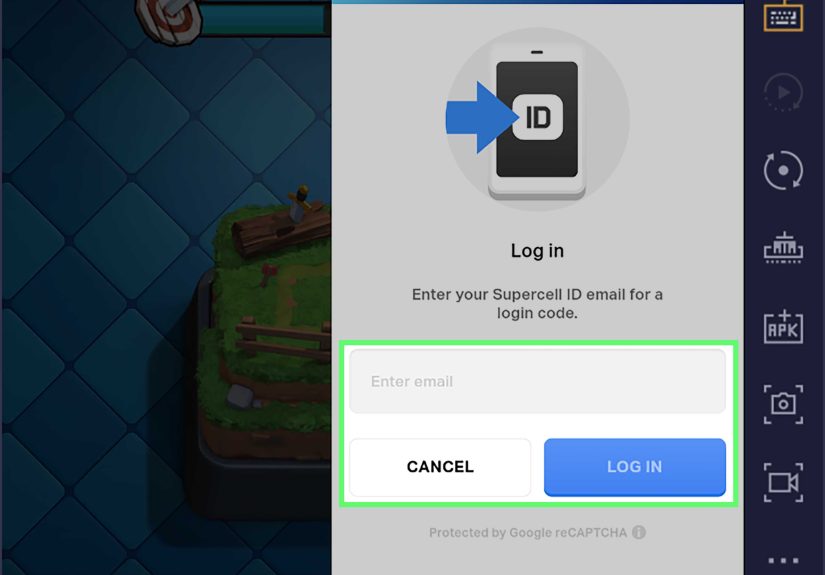
When Clash Royale opens, go to the in-game settings and log in with Supercell ID if you already have an account. This should load your existing progress, cards, arena level, clan, cosmetics, and other saved data. If you are starting fresh, you can create a Supercell ID after completing the initial setup.
Why Google Play Games Is the Best Option
The official route is smoother for most people because it is built specifically for supported PC gameplay. You get improved controls, a bigger screen, and cross-device syncing. You can play on your phone during the day and switch to your computer later, though you cannot play the same account on two devices at the exact same time. If you launch the account on PC, the mobile session may be logged out, which is normal.
Another advantage is simplicity. There is no need to manually install APK files, configure complicated emulator instances, or guess which Android version works. You install the platform, download Clash Royale, sign in, and start playing. For most players searching for Clash Royale PC download, this is the route to choose first.
Method 2: Play Clash Royale on PC with an Android Emulator
Best for: Players who already use Android emulators, want custom control mapping, or cannot use Google Play Games on PC.
An Android emulator is software that creates an Android-like environment on your computer. Popular emulators allow you to sign in to Google Play, install mobile apps, and run games from your desktop. BlueStacks is one of the best-known names in this space, though there are other emulators as well.
That said, this method comes with more caution. Supercell’s official PC support is through Google Play Games. If you choose an emulator, use it responsibly. Do not use cheats, scripts, automation, modified game files, or APK downloads from random websites. If something promises “unlimited gems,” “auto-win decks,” or “secret champion unlocks,” close the tab and maybe wash your hands afterward.
Step 1: Download an Emulator from Its Official Website
Go to the official website of a trusted emulator such as BlueStacks. Download the latest compatible version for Windows. Do not download emulator installers from suspicious mirrors, pop-up ads, or video descriptions that look like they were written by a keyboard with hiccups.
Step 2: Install the Emulator
Run the installer and complete setup. For better performance, enable virtualization on your PC if the emulator recommends it. Close unnecessary background apps before launching the emulator, especially browsers with 47 tabs open. Yes, we all do it. No, the computer does not appreciate it.
Step 3: Open Google Play Inside the Emulator
Once the emulator opens, sign in to the Google Play Store. Search for Clash Royale, install it, and open the game from the emulator home screen.
Step 4: Adjust Controls and Performance Settings
Most emulators let you adjust resolution, frame rate, graphics settings, and control mapping. For Clash Royale, simple mouse controls usually work best because the game is based on precise card placement. You may map keys for quick actions, but avoid automation or macros that could create unfair gameplay.
Step 5: Sign In with Supercell ID
Just like with the official method, use Supercell ID to recover your progress. This is especially important when using an emulator because updates can occasionally cause compatibility issues. A connected account is easier to recover than an account floating around the digital wilderness with no backpack and no snacks.
Google Play Games vs Emulator: Which Method Should You Choose?
| Feature | Google Play Games on PC | Android Emulator |
|---|---|---|
| Official support | Yes, recommended for PC | Third-party option |
| Ease of setup | Very easy | Moderate |
| Account syncing | Works with Supercell ID | Works with Supercell ID |
| Custom controls | Basic PC controls | More customization |
| Best for | Most players | Advanced users |
| Risk level | Lowest | Higher if misused |
For most people, Google Play Games is the better choice. It is official, cleaner, and easier to maintain. Choose an emulator only if you have a specific reason, such as needing control customization or compatibility with other Android apps.
Best PC Settings for Clash Royale
Once the game is installed, a few quick tweaks can make the experience much better. Clash Royale is a fast game, and even a small delay can turn a perfect defense into a royal barbecue.
Use a Stable Internet Connection
Wi-Fi is fine, but wired Ethernet is better if your connection is unstable. Clash Royale battles are short, intense, and extremely sensitive to lag. A one-second freeze can be the difference between stopping a Balloon and watching your tower vanish like it had somewhere better to be.
Play in Full Screen or a Large Window
A bigger screen is one of the best reasons to play Clash Royale on PC. Full screen makes it easier to track troops, spells, elixir, and tower health. However, some players prefer a windowed setup so they can keep guides, deck notes, or music nearby.
Keep Controls Simple
Clash Royale does not need a complicated keyboard layout. Your mouse is usually enough for dragging and dropping cards. The key is precision. Practice placing troops at exact tiles, especially for cards like Tornado, Skeletons, Cannon, Tesla, and buildings used to pull win conditions.
Close Heavy Background Programs
Before playing, close video editors, huge downloads, and unnecessary browser tabs. This helps reduce stutter and improves responsiveness. Your PC should be focusing on defending your tower, not rendering twelve shopping carts you forgot about.
How to Sync Clash Royale Progress from Mobile to PC
The easiest way to keep your progress is through Supercell ID. Open Clash Royale on your phone first, go to settings, and connect your account to Supercell ID. Use an email address you can access because you may need a verification code. Then open Clash Royale on PC and log in with the same Supercell ID.
After logging in, your account should appear with your player name, trophies, cards, and clan. Always double-check before confirming account switches. If the game asks whether you want to load an existing village or account, read carefully. One rushed tap can create a tiny panic episode, and nobody needs that before ladder matches.
Common Problems and Easy Fixes
Clash Royale Does Not Appear in Google Play Games
Make sure your region supports Google Play Games on PC and that your system meets the minimum requirements. Also update Google Play Games and restart your computer. If the game still does not appear, your PC may not be eligible or the game may be temporarily unavailable in your catalog.
The Game Feels Laggy
Check your internet connection first. Then close background apps, update graphics drivers, and make sure virtualization is enabled. If you are using an emulator, lower the resolution or allocate more RAM and CPU cores if your system can handle it.
Your Account Progress Is Missing
Do not start upgrading random cards on a new account in panic mode. First, confirm that you logged in with the correct Supercell ID email. Check your mobile device to make sure the original account is connected. If you still cannot access it, use in-game support.
Mouse Controls Feel Strange
Give yourself a few matches to adjust. Playing Clash Royale with a mouse feels different from tapping a phone screen. Try casual modes or friendly battles before jumping into trophy pushing. Your first few matches may feel like your cards are wearing roller skates, but it gets better.
Safety Tips for Playing Clash Royale on PC
When downloading anything related to Clash Royale on PC, stay boring in the best possible way. Use official websites, official app stores, and normal login methods. Do not install “special PC versions,” modified APKs, gem generators, unlock tools, or suspicious plug-ins. These can put your account and computer at risk.
Also avoid sharing your Supercell ID code with anyone. That code is for logging in, not for “verification,” “free rewards,” or “clan admin approval.” If someone asks for it, they are not helping you. They are trying to take your account while wearing a fake mustache.
Is Playing Clash Royale on PC Better Than Mobile?
It depends on your style. PC gives you a bigger screen, more comfortable posture, and potentially smoother performance. It is also better for streaming, recording, or playing while seated at a desk. Mobile, however, still feels natural because Clash Royale was designed around touch controls. Many players can place cards faster on a phone because their muscle memory is already trained.
If you are serious about improving, try both. Use PC for longer sessions, practice, and content creation. Use mobile for quick matches, daily rewards, and playing on the go. The best platform is the one where you make fewer mistakes, react faster, and do not accidentally Fireball a lonely Ice Spirit while the enemy pushes the other lane.
Extra Experience: What Playing Clash Royale on PC Really Feels Like
After playing Clash Royale on PC for a while, the first thing you notice is how much easier it is to see everything. On a phone, your thumb can block part of the battlefield at the worst possible moment. On PC, the Arena feels more open. You can track both lanes, monitor elixir trades, and notice small details like troop spacing, spell timing, and whether your opponent is trying to bait your Log for the third time in a row. Spoiler: they probably are.
The second big difference is comfort. Long mobile sessions can make your hands tired, especially if you play on a smaller device. On PC, your posture may feel more relaxed, especially with a decent chair and monitor height. This helps during longer ladder sessions, clan wars, or challenge runs where focus matters. Clash Royale is a quick game, but playing ten matches in a row can feel surprisingly intense when every mistake costs trophies.
Mouse placement also changes the rhythm of the game. On mobile, tapping and dragging cards is fast and direct. On PC, you may need a little time to build precision. At first, you might place a defensive building one tile too high or drop a troop slightly late. After practice, though, mouse control becomes reliable. The trick is to slow down just enough to be accurate without becoming passive. In Clash Royale, hesitation is expensive. Elixir does not wait politely while you consider your life choices.
One underrated benefit of PC play is easier learning. You can keep a deck guide, replay notes, or matchup list open nearby. For example, if you are learning Hog Earthquake, you can keep reminders about Cannon placements, Queen timing, or when to pressure opposite lane. If you are using a bait deck, you can track which spells the opponent has used. This turns your PC setup into a mini training station instead of just a bigger phone.
PC is also excellent for recording gameplay. If you want to review your matches, make YouTube Shorts, stream to friends, or capture funny moments, desktop tools are more convenient. Watching replays on a larger screen can reveal mistakes you miss on mobile. Maybe you overspent elixir. Maybe you defended with the wrong card. Maybe you used Mirror on Goblins because your brain briefly disconnected from the server. It happens.
However, PC is not automatically better. Some players remain faster on mobile because the game’s original touch design feels more natural. If you compete seriously, test both platforms before deciding where to push trophies. Play friendly battles, classic challenges, or casual modes until your PC controls feel natural. The best setup is not the fanciest one; it is the one that helps you make smart decisions under pressure.
Overall, playing Clash Royale on PC is worth trying, especially through Google Play Games. It gives the game a fresh feel without changing what makes it fun: quick battles, clever deck building, dramatic defenses, and the emotional roller coaster of watching a 1 HP tower survive. Whether you are a casual player or a trophy grinder, PC play can make the Arena feel bigger, clearer, and more comfortable.
Final Verdict: The Best Way to Play Clash Royale on PC
If you want the easiest and safest setup, use Google Play Games on PC. It is the official method, works well for Windows users, supports account syncing through Supercell ID, and avoids the extra complications of emulators. For most players, this is the answer to how to play Clash Royale on your PC.
If Google Play Games does not work on your system, an Android emulator can be an alternative, but it requires more caution. Download only from official sources, avoid modified files, and never use tools that automate or alter gameplay. Your account is more valuable than a sketchy “free gems” button designed by someone named totally_not_a_scam.exe.
In the end, Clash Royale on PC is still Clash Royale: fast, strategic, funny, frustrating, and occasionally dramatic enough to deserve background music. Set it up properly, protect your account, practice your placements, and enjoy the bigger Arena.