Table of Contents >> Show >> Hide
- Introduction: Let Siri Do the Reading While You Keep Your Hands Free
- Before You Start: What You Need
- How to Have Siri Read Your Text Messages: 8 Steps
- Step 1: Make Sure Siri Is Turned On
- Step 2: Ask Siri to Read Your Messages Manually
- Step 3: Turn On Announce Notifications
- Step 4: Enable Announcements for the Messages App
- Step 5: Use AirPods, Beats, or Supported Headphones
- Step 6: Turn On Siri Message Announcements in CarPlay
- Step 7: Let Siri Announce Messages Through the iPhone Speaker
- Step 8: Reply by Voice and Adjust Confirmation Settings
- Extra Method: Use Spoken Content to Read Text on Screen
- Why Siri Might Not Be Reading Your Text Messages
- Privacy Tips Before Letting Siri Read Messages Aloud
- Best Siri Commands for Reading and Replying to Texts
- Real-Life Experience: What It Is Actually Like Using Siri to Read Messages
- Conclusion
Note: The exact menu names on your iPhone may vary slightly by iOS version, region, and device. On newer iPhones, you may see Apple Intelligence & Siri; on others, you may see Siri or Siri & Search. The core idea is the same: turn on Siri, enable Announce Notifications, and allow Messages to be read aloud.
Introduction: Let Siri Do the Reading While You Keep Your Hands Free
There are moments when reading a text message is simply inconvenient. Maybe you are driving, cooking dinner with suspiciously sticky fingers, walking the dog, wearing gloves, or pretending to be productive while your phone lights up across the room. That is where Siri can step in like a tiny digital assistant with excellent pronunciation and no fear of awkward group chats.
Learning how to have Siri read your text messages is useful for convenience, accessibility, safety, and multitasking. On iPhone, Siri can read incoming messages automatically through supported AirPods, Beats headphones, CarPlay, and, with the right accessibility setting, even the iPhone speaker. You can also ask Siri to read unread messages, the last message from a specific person, or a new message that arrives while your hands are busy.
This guide walks you through eight clear steps to make Siri read texts aloud, explains the best settings to check, and includes practical troubleshooting tips. Whether you want Siri to announce text messages while driving or simply want your iPhone to read messages out loud while you fold laundry like a responsible adult, the setup is easier than you might expect.
Before You Start: What You Need
Before turning Siri into your personal message narrator, make sure your iPhone is ready. You need an iPhone with Siri enabled, the Messages app set up, and a working internet or cellular connection for many Siri features. For automatic message announcements, you will get the best experience with supported AirPods, Beats headphones, or CarPlay. If you want Siri to announce notifications through the iPhone speaker, you may need to turn on that option in Accessibility settings.
Also, remember that Siri reads what your iPhone receives. That means private messages may be spoken aloud. If your roommate, coworker, date, or overly curious cat is nearby, think twice before letting Siri announce every message at full volume.
How to Have Siri Read Your Text Messages: 8 Steps
Step 1: Make Sure Siri Is Turned On
Start by confirming that Siri is active on your iPhone. Open Settings, then go to Siri, Siri & Search, or Apple Intelligence & Siri, depending on your iOS version. Turn on the options that let you activate Siri by voice or button, such as Listen for “Siri” or “Hey Siri” and Press Side Button for Siri.
This step matters because Siri cannot read text messages if Siri is not listening in the first place. Think of it as hiring a personal assistant, then locking them outside the office. Once Siri is enabled, test it by saying, “Siri, what time is it?” If Siri answers, you are ready to move on.
Step 2: Ask Siri to Read Your Messages Manually
The fastest method is simply to ask. Activate Siri and say one of these commands:
- “Read my unread messages.”
- “Read my last message.”
- “Read my last message from Mom.”
- “Do I have any new messages?”
Siri will check your Messages app and read available messages aloud. If there is a message you can reply to, Siri may ask whether you want to respond. You can dictate your reply, listen while Siri repeats it back, and then confirm before sending. This is ideal when you want control instead of having every message announced automatically.
Step 3: Turn On Announce Notifications
For automatic reading, open Settings and look for Notifications or Siri. Then tap Announce Notifications and turn it on. On many newer iPhones, the path may be Settings > Apple Intelligence & Siri > Announce Notifications. On other versions, it may appear under Settings > Notifications > Announce Notifications.
This feature allows Siri to announce incoming notifications from supported apps, including Messages. When a new text arrives, Siri can announce the sender and read the message aloud through supported headphones, CarPlay, or other available announcement settings.
Step 4: Enable Announcements for the Messages App
Turning on Announce Notifications is only half the job. You also need to make sure the Messages app is allowed to use it. In the Announce Notifications menu, scroll to the list of apps and tap Messages. Turn on Announce Notifications for Messages.
Depending on your iOS version, you may be able to choose whether Siri announces only time-sensitive and direct messages or all notifications. For most people, direct messages are enough. If you join extremely active group chats, choosing all notifications can turn Siri into a sports commentator for your social life. Choose wisely.
Step 5: Use AirPods, Beats, or Supported Headphones
Siri’s message reading works especially well with supported AirPods and Beats headphones. When your headphones are connected and Announce Notifications is enabled, Siri can read incoming text messages without you touching your iPhone. This is one of the smoothest ways to have Siri read text messages while walking, commuting, exercising, or pretending not to hear someone ask you to help move furniture.
If you receive several notifications at once, Siri may summarize or announce them in sequence. You can usually stop the announcements by removing an earbud or using your headphone controls. This makes the feature helpful without becoming too intrusive.
Step 6: Turn On Siri Message Announcements in CarPlay
If you use Apple CarPlay, Siri can announce incoming messages while you drive. Open Settings, tap Notifications, then tap Announce Notifications. Choose CarPlay and turn on message announcements.
When this feature is active, Siri can announce that a message arrived and read it aloud. If the message is long, Siri may tell you who sent it and give you the option to ask for the full message. This is helpful because it reduces the temptation to look down at your iPhone. Still, hands-free does not mean distraction-free, so use it carefully and keep your attention on the road.
Step 7: Let Siri Announce Messages Through the iPhone Speaker
If you want Siri to read messages aloud without headphones, check the accessibility settings. Go to Settings > Accessibility > Siri, then look for Announce Notifications on Speaker. Turn it on if available. Then tap Announce Notifications and choose which apps Siri can announce.
This option can be useful at home, in the kitchen, or when your iPhone is on a desk nearby. It is also helpful for users who rely on spoken notifications for accessibility. Just remember: speaker announcements are public. If someone texts you, “Do not tell anyone this,” Siri may immediately become the least trustworthy person in the room.
Step 8: Reply by Voice and Adjust Confirmation Settings
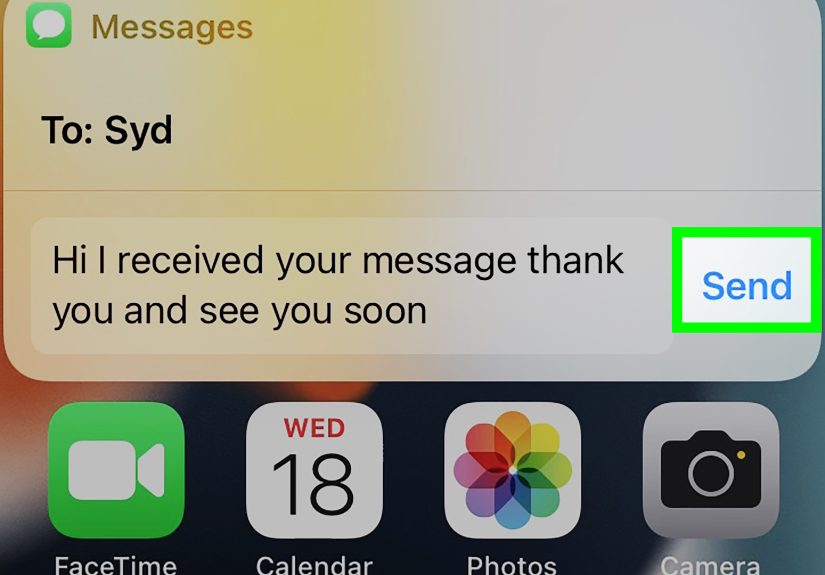
After Siri reads a message, you can often reply by voice. Say something like, “Reply, I’ll be there in ten minutes,” or “Tell Alex I’m on my way.” Siri may repeat your message and ask for confirmation before sending. This prevents embarrassing dictation mistakes, such as sending “I love soup” when you meant “I’ll leave soon.”
If you are confident in Siri’s dictation, you may see an option called Reply Without Confirmation. Turning it on lets Siri send replies faster, but it also removes a safety check. For important messages, professional conversations, or anything involving money, romance, or your boss, keeping confirmation on is usually the smarter choice.
Extra Method: Use Spoken Content to Read Text on Screen
Siri is not the only way to make your iPhone read text aloud. If you want your iPhone to speak selected text or read what is on the screen, use Spoken Content. Go to Settings > Accessibility > Spoken Content. Turn on Speak Selection if you want a Speak button to appear after selecting text. Turn on Speak Screen if you want to swipe down with two fingers from the top of the screen and have iPhone read the visible content.
This is especially useful if you want to hear older messages, long conversations, articles, emails, or notes. It is not exactly the same as asking Siri to read unread text messages, but it gives you more flexibility. You can also adjust the speaking rate, choose a voice, and enable highlighting so you can follow along visually.
Why Siri Might Not Be Reading Your Text Messages
Announce Notifications Is Off
The most common reason is simple: Announce Notifications is not enabled. Check both the main Announce Notifications switch and the Messages-specific setting. If either one is off, Siri may stay silent.
Your Headphones Are Not Supported or Connected
Automatic announcements often depend on compatible headphones or CarPlay. Make sure your AirPods or Beats are connected and charged. If they are connected to another device, your iPhone may not send announcements where you expect them.
Focus Mode Is Blocking Notifications
Focus modes such as Driving, Sleep, Work, or Do Not Disturb can silence or limit notifications. Open Settings > Focus and check whether a Focus is active. You can customize which people and apps are allowed through.
Messages Notifications Are Disabled
Go to Settings > Notifications > Messages and confirm that notifications are allowed. If Messages notifications are off, Siri has nothing to announce.
Siri Needs a Restart
Sometimes the most advanced technology in your pocket needs the oldest tech solution in the book: turn it off and on again. Restart your iPhone, reconnect your headphones, and test Siri with a simple command.
Privacy Tips Before Letting Siri Read Messages Aloud
Having Siri read text messages is convenient, but privacy matters. Avoid turning on speaker announcements in shared spaces unless you are comfortable with others hearing your messages. Be careful with financial alerts, two-factor authentication codes, medical updates, work messages, and private conversations.
You should also be cautious with suspicious texts. If Siri reads a message claiming that you won a prize, missed a package delivery, or must urgently click a link, pause before responding. Text scams often use pressure and curiosity to make people act quickly. Do not dictate sensitive information to unknown senders, and do not tap links from suspicious messages.
Best Siri Commands for Reading and Replying to Texts
Here are some natural commands that work well in everyday situations:
- “Siri, read my unread messages.”
- “Siri, read my last text.”
- “Siri, read my last message from Jordan.”
- “Siri, reply, I’m driving and will text you later.”
- “Siri, send a message to Taylor saying I’ll be there at 6.”
- “Siri, do I have any new messages?”
Speak clearly, use contact names as they appear in your Contacts app, and keep replies short. Siri handles simple messages better than long, dramatic speeches. Save the emotional novel for later.
Real-Life Experience: What It Is Actually Like Using Siri to Read Messages
Using Siri to read text messages sounds like a tiny feature, but in real life it can change how you use your iPhone. The first time you hear Siri announce a message through AirPods, it feels surprisingly smooth. You are walking outside, your phone is in your pocket, and suddenly Siri says who texted you and reads the message. No fumbling. No stopping in the middle of the sidewalk. No awkward phone juggling while carrying coffee, keys, and your questionable life choices.
The most helpful experience is during driving. With CarPlay and Announce Notifications turned on, Siri can let you know when an important message arrives without requiring you to look at the screen. For example, if someone texts, “I’m outside,” Siri can read it aloud, and you can reply, “Be there in two minutes.” That is much safer and easier than reaching for your iPhone. Still, it is important to use judgment. If traffic is heavy, the best reply is often no reply at all. Siri is helpful, but Siri is not a substitute for paying attention.
At home, the speaker option can be surprisingly useful. Imagine cooking with wet hands and receiving a message about whether to add more groceries to the list. Instead of washing your hands, unlocking your phone, and smearing flour across the screen like a baking-themed crime scene, you can ask Siri to read the message. Then you can reply by voice and keep moving.
There are also moments when the feature is not ideal. Group chats can become noisy fast. If you have a family thread, a fantasy football group, or friends who communicate entirely through memes and dramatic punctuation, automatic announcements may become too much. In that case, set Messages to announce only direct or time-sensitive notifications, or turn off announcements temporarily.
Another lesson from daily use: confirmation matters. Siri dictation is good, but not perfect. It may misunderstand names, slang, or background noise. Keeping reply confirmation turned on can save you from sending something weird. A quick review before sending is worth it, especially for work messages. Nobody wants to send “I approve the duck” when the project needed “I approve the doc.”
For accessibility, Siri reading messages aloud can be more than a convenience. It can reduce eye strain, help users with low vision, and make communication easier when looking at the screen is difficult. Combined with Spoken Content, Speak Screen, and adjustable voices, the iPhone becomes much more flexible. You can listen to messages, long notes, or selected text at a speed that feels comfortable.
The best setup for most people is simple: enable Siri, turn on Announce Notifications, allow Messages, connect supported headphones, and keep reply confirmation on. Then adjust from there. If Siri talks too much, narrow the notification settings. If Siri is too quiet, check headphone volume and notification settings. If Siri reads messages at the wrong time, review Focus modes. Once tuned properly, Siri becomes less like a gimmick and more like a practical hands-free assistant.
Conclusion
Knowing how to have Siri read your text messages makes your iPhone more useful, safer, and more accessible. You can ask Siri to read unread texts manually, enable automatic announcements for Messages, use AirPods or CarPlay for hands-free listening, and reply by voice when appropriate. The key is choosing the right setup for your routine.
If you want maximum privacy, use manual Siri commands. If you want convenience while walking or driving, use Announce Notifications with supported headphones or CarPlay. If you need spoken access on the iPhone itself, check Accessibility settings and Spoken Content. Once everything is set up, Siri can help you stay informed without constantly grabbing your phone. That is good for your focus, your safety, and possibly your screen’s survival rate.