Table of Contents >> Show >> Hide
- Why Japanese Apps Don’t Show Up on Your iPhone or iPad
- Method 1: Change Your Existing Apple Account Region to Japan
- Method 2: Use a Separate Japanese Apple Account for Media & Purchases
- Do You Need a VPN to Get Japanese Apps?
- Common Problems and How to Fix Them
- Is It Safe to Download Japanese Apps This Way?
- Best Tips for a Smooth Japanese App Store Experience
- Real-World Experiences: What It’s Actually Like to Use Japanese Apps on iPhone or iPad
- Final Thoughts
If you have ever searched the App Store for a Japanese game, transit app, streaming platform, dictionary, or shopping app and found absolutely nothing, welcome to the club. Your iPhone is not broken. Apple is just being very Apple about regional storefronts. In plain English, the App Store you see is tied mostly to your Apple Account’s country or region, not just the language on your device or the place where you happen to be standing while holding a coffee and making increasingly dramatic sighing noises.
The good news is that getting Japanese apps on your iPhone or iPad is usually very doable. The less-fun news is that there are rules, a few roadblocks, and just enough account settings to make you question your life choices. This guide walks you through the easiest ways to access Japanese apps, explains what actually works, and helps you avoid the classic mistakes like switching the wrong setting, using a VPN for the wrong reason, or accidentally tangling your main Apple Account in a bureaucratic knot.
If your goal is to download Japanese-only apps on iPhone or iPad, the two main paths are simple: change your current App Store region to Japan, or use a separate Japanese Apple Account for Media & Purchases. For most people, the second option is cleaner, safer, and much less annoying.
Why Japanese Apps Don’t Show Up on Your iPhone or iPad
Before we get into the fix, let’s deal with the mystery. Many people assume that changing the iPhone language to Japanese or setting the device region to Japan will unlock the Japanese App Store. Sadly, no. That would be too convenient.
What matters most is the country or region associated with the Apple Account you use for the App Store. If your account is tied to the United States, Vietnam, Canada, or anywhere else, you will see that storefront’s app catalog. If a developer only publishes an app in Japan, it may not appear at all in your current store, or you may see the dreaded message that the app is not available in your country or region.
That happens for several reasons. Some apps are limited by licensing. Some are restricted by local laws. Others are simply launched in Japan first because the developer is targeting a Japanese audience. In short, the app is not hiding from you personally. It is just living in a different digital neighborhood.
Method 1: Change Your Existing Apple Account Region to Japan
This method is the most direct. You keep using your current Apple Account, but you switch its App Store country or region to Japan. After that, your iPhone or iPad will show the Japanese App Store for that account.
When This Method Makes Sense
This option works best if you genuinely want to use the Japan App Store as your main storefront for a while. Maybe you live in Japan, are moving there, spend long periods there, or mostly want Japanese apps going forward. If you only want one or two Japan-only apps while keeping your normal store untouched, skip ahead to Method 2.
What to Check Before You Switch
- Cancel active subscriptions tied to your current App Store region.
- Spend any remaining Apple Account balance.
- Clear unpaid balances or billing issues.
- Check for pre-orders, rentals, or pending purchases.
- Review Family Sharing, because that can block region changes.
- Be prepared to enter payment and billing details for Japan if Apple asks.
This is where many people hit the wall. Apple does not love half-finished account housekeeping. If your account still has loose ends, the region change may not go through.
How to Change App Store Country to Japan on iPhone or iPad
- Open Settings.
- Tap your name.
- Tap Media & Purchases.
- Tap View Account.
- Tap Country/Region.
- Tap Change Country or Region.
- Select Japan.
- Review and agree to the terms.
- Enter the requested payment and billing information.
Once the switch is complete, open the App Store again and search for the Japanese app you want. If all goes well, it should appear like a magician finally deciding to do their job.
Pros and Cons of Switching Your Main Region
Pros: It is straightforward, official, and clean if you truly want Japan as your main App Store region.
Cons: It can disrupt subscriptions, payment settings, purchase sharing, and your normal storefront. It may also be inconvenient if you regularly need apps from your original country.
Method 2: Use a Separate Japanese Apple Account for Media & Purchases
This is usually the easiest way to get Japanese apps on an iPhone or iPad without turning your main account upside down. You keep your normal Apple Account for iCloud, messages, photos, backups, and everyday life, and use a separate Japanese Apple Account only for App Store downloads and purchases.
Think of it as having one key for your house and another key for the weird little shed where the good snacks are hidden.
Why This Method Is Often Better
If your primary account has active subscriptions, family sharing, payment history, or a lot of app purchases, changing its region can be a pain. A secondary Japanese Apple Account avoids most of that drama. You are not replacing your full Apple identity. You are only changing the account used for Media & Purchases.
How to Create a Japanese Apple Account
- Sign out of the App Store purchase account if needed, not necessarily iCloud.
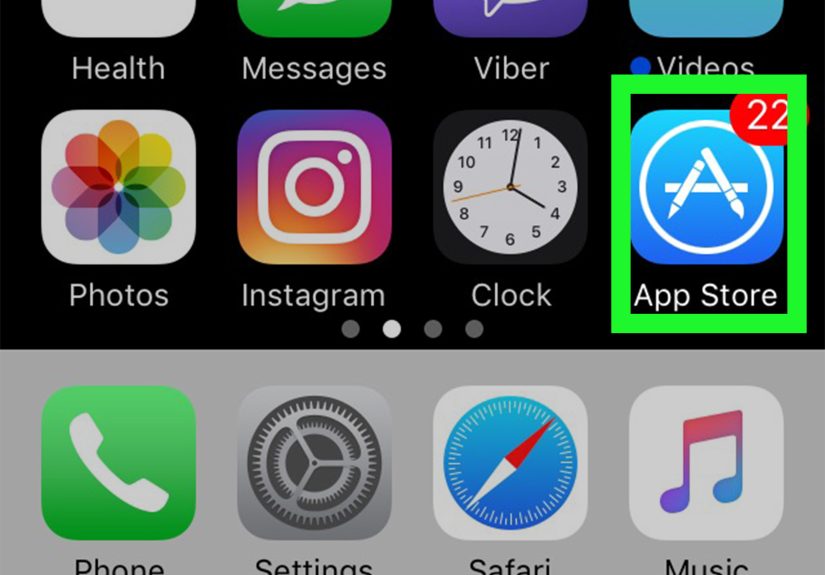
- Open the App Store.
- Create a new Apple Account.
- Select Japan as the country or region during setup.
- Complete the account verification steps.
You may be prompted for payment and billing details depending on the setup flow and what you want to download later. Some people create the account first, then complete details when downloading an app. Apple’s prompts can vary slightly, so follow the on-screen instructions carefully.
How to Sign In With the Japanese Account Without Signing Out of iCloud
- Go to Settings.
- Tap your name.
- Tap Media & Purchases.
- Tap Sign Out.
- Tap Media & Purchases again.
- Choose the option to sign in with a different Apple Account.
- Enter your Japanese Apple Account credentials.
This signs the App Store into the Japanese account while leaving your main iCloud account alone. That means your photos, contacts, messages, and device backup stay tied to your primary Apple setup. Much less chaos. Much more inner peace.
What Happens After You Download the App
Once you install the Japanese app, it usually stays on your device even if you later sign back into your original App Store account. However, updates, re-downloads, or purchase-related prompts may require the Japanese purchases account again. So do yourself a favor and save those login details somewhere safe.
Do You Need a VPN to Get Japanese Apps?
Usually, no. This is one of the biggest misunderstandings around region-locked apps on iPhone and iPad.
A VPN changes your internet connection route and can help with privacy or web access in some situations, but it does not magically rewrite the App Store country attached to your Apple Account. If the Japanese app is unavailable in your current storefront, a VPN alone generally will not solve that. The real fix is usually the App Store account region.
That said, a VPN can still be useful after installation for certain apps or services that check your network location, especially streaming, news, or location-sensitive tools. But it is not the main key that opens the Japanese App Store door.
Common Problems and How to Fix Them
The App Still Says “Not Available in Your Country or Region”
Double-check which Apple Account is signed into Media & Purchases. People often create a Japanese account successfully, then forget the App Store is still signed into the old one. Your iCloud account and your App Store purchases account are not always the same thing.
Apple Won’t Let You Change Regions
This usually means one of four things: you have active subscriptions, store credit left over, an unpaid balance, or a Family Sharing issue. Clean up those items and try again.
The App Downloads, but It Still Doesn’t Work Properly
Some Japanese apps require more than just access to the Japan App Store. They may ask for a Japanese phone number, a local address, local payment support, or actual in-country service availability. In other words, downloading the app and fully using the service are sometimes two different missions.
You Can’t Update the App Later
If the app was originally downloaded with the Japanese Apple Account, you may need to sign back into that account under Media & Purchases for updates or re-downloads. This is why a secondary account is convenient but not completely hands-off forever.
Is It Safe to Download Japanese Apps This Way?
Yes, as long as you are doing it through Apple’s normal App Store and account settings. That is the official route. The riskier approach is hunting random IPA files on sketchy websites that look like they were designed during a power outage in 2009. Avoid that path.
Also use normal security common sense. Check the developer name, read reviews if possible, and understand what permissions the app wants. A Japanese app can be excellent, but you should still know whether it wants your microphone, camera, contacts, location, and possibly your firstborn child.
Best Tips for a Smooth Japanese App Store Experience
- Use a separate Japanese Apple Account if you want the least disruption.
- Keep your login details saved securely for future updates.
- Do not confuse device region with App Store region.
- Do not expect every Japanese app to work fully outside Japan.
- Use translation tools if the app has little or no English support.
- Check app screenshots and descriptions carefully before downloading.
If you are into Japanese games, productivity apps, transit tools, manga platforms, or language-learning apps, this setup can open a much better app selection. It just works best when you treat it like account management rather than a magic trick.
Real-World Experiences: What It’s Actually Like to Use Japanese Apps on iPhone or iPad
In real life, people usually try to get Japanese apps for one of a few very specific reasons. Some want mobile games that launch in Japan before they reach the rest of the world. Some are studying Japanese and want native apps for dictionaries, reading practice, or local news. Others are travelers trying to install train, map, shopping, or ticketing apps before a trip. And then there are the dedicated fans who simply want access to Japan-exclusive services because the local versions elsewhere feel watered down. All of these are perfectly understandable. The App Store is global in theory, but in practice it can feel like a set of velvet ropes with a very strict clipboard manager standing nearby.
One common experience is that the setup feels harder than the download. Once a Japanese App Store account is working, actually getting apps is easy. The frustrating part is the account prep: dealing with subscriptions, making sure the correct Apple Account is signed into Media & Purchases, and remembering which login was used for which app. The first time around, many users assume they need to sign out of iCloud completely. Then panic arrives. Photos, notes, and contacts suddenly feel emotionally important. The good news is that most people do not need to sign out of iCloud at all if they are only switching the purchases account.
Another very normal experience is discovering that downloading a Japanese app does not guarantee full access. This happens a lot with streaming, banking, payment, ticketing, and region-sensitive services. The app installs just fine, the icon appears, hope rises, and then the app asks for a Japanese phone number, local verification, or location access that confirms you are not actually in Japan. That is not a failure of the App Store method. It simply means the service itself has extra requirements beyond installation.
Language is another practical factor. Even users who can read some Japanese are often surprised by how specialized the vocabulary can be inside local apps. Train apps, shipping tools, resale marketplaces, or finance apps can be full of shorthand, form labels, and service terms that are not exactly beginner-friendly. Many people end up using screenshot translation, Apple’s built-in text tools, or a second device just to work through signup screens. It is manageable, but it helps to expect a little trial and error instead of a perfectly polished bilingual experience.
The most positive experience people report is simple: once the setup is done, it feels worth it. Japan-only apps can be genuinely excellent, especially in gaming, transit, media, organization, and language immersion. The design is often thoughtful, the niche features are stronger, and some apps fill needs that the global store just does not cover. So while getting Japanese apps on your iPhone or iPad may require a few extra steps, the payoff is real. It is less like breaking into a secret club and more like finally finding the correct entrance after walking around the building three times.
Final Thoughts
If you are wondering how to get Japanese apps on your iPhone or iPad, the simplest answer is this: use the Japan App Store through the correct Apple Account settings. You can either switch your existing account region to Japan or, even better for many users, create a separate Japanese Apple Account and use it only for Media & Purchases.
The second method is usually the sweet spot. It gives you access to Japanese iPhone apps without disrupting your main iCloud life. Just remember that the App Store region matters more than your device language, your physical location, or your hopes and dreams. And while some apps may still need local credentials after download, getting the right App Store setup is the big first step that makes the rest possible.