Table of Contents >> Show >> Hide
- What Is Advrcntr2.dll, and Why Does Nero Care So Much?
- What Usually Causes the Advrcntr2.dll Missing Error?
- What Not to Do First
- How to Fix Advrcntr2.dll Is Missing Errors in Nero
- 1. Restart your computer
- 2. Save your Nero license details before removing anything
- 3. Uninstall Nero properly
- 4. Use Nero’s official cleanup tool if leftover traces remain
- 5. Restart again after cleanup
- 6. Reinstall Nero from an official or original source
- 7. Update Nero after reinstalling
- 8. Check whether the file is in the right place
- 9. Run a malware scan if the error still appears
- 10. Repair Windows system files only if the problem seems broader than Nero
- 11. Try compatibility settings for very old Nero versions
- 12. Use Microsoft’s install/uninstall troubleshooter if removal is blocked
- Why Reinstalling Nero Works Better Than Replacing the DLL Manually
- How to Tell If the Problem Is Nero or Windows
- Real-World Troubleshooting Experiences and Patterns
- Final Thoughts
- SEO Tags
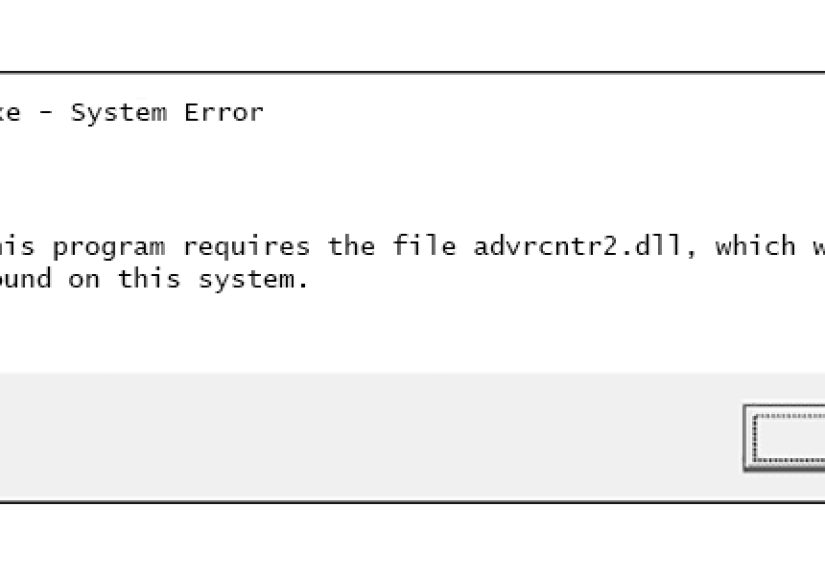
If Nero suddenly throws the message “This program requires the file advrcntr2.dll, which was not found on this system”, your PC is basically telling you, “I had one job, and now one important piece of Nero has wandered off.” Annoying? Yes. Unfixable? Not even close.
The good news is that this is usually a software-specific problem, not a sign that your whole computer is about to burst into digital flames. In most cases, the error points to an incomplete Nero uninstall, a corrupted Nero installation, a misplaced Nero DLL file, or security software that quarantined something it should have left alone. The fix is usually much more boring than dramatic: remove Nero properly, clean up leftover traces, reinstall it from a legitimate source, and only then move on to deeper Windows repair steps if needed.
This guide walks through the safest and smartest way to fix an advrcntr2.dll missing error in Nero without falling into the classic internet trap of downloading mystery DLL files from sketchy websites. Because that path rarely ends with victory and often ends with more pop-ups, more malware, and more regret.
What Is Advrcntr2.dll, and Why Does Nero Care So Much?
Advrcntr2.dll is a Nero-related dynamic link library used by older Nero burning components. When it is deleted, corrupted, blocked, or left behind in the wrong state after an update or uninstall, Nero can no longer load the functions it expects. That is when you see errors like:
- This program requires the file advrcntr2.dll, which was not found on this system.
- ADVRCNTR2.DLL MISSING
- File advrcntr2.dll not found
The error is most commonly tied to older Nero versions, especially legacy burning suites, demo installs, or systems where Nero was removed incompletely. In plain English: Nero left crumbs, Windows stepped on them, and now everyone is upset.
What Usually Causes the Advrcntr2.dll Missing Error?
Before you fix the problem, it helps to know what usually causes it. The most common reasons include:
- An incomplete Nero uninstall that removed some files but left behind broken references
- A failed Nero update or reinstall
- Security software that quarantined a Nero component
- Leftover temporary files or corrupted install data
- A much broader Windows file corruption issue
- Malware pretending to be a DLL file or interfering with legitimate program files
That list matters because it tells you something important: this error is not usually fixed by manually downloading one DLL and tossing it into System32 like a magician throwing glitter at a broken toaster.
What Not to Do First
Do not download advrcntr2.dll from random DLL websites
This is the biggest mistake people make. Third-party DLL download sites often offer outdated, tampered, or completely wrong files. Even when the file looks right, it may not match your Nero version, your Windows setup, or the exact component that broke. Best case, the error stays. Worst case, you introduce a security problem.
Do not copy the file into Windows system folders just because a forum post said so
For Nero-related errors, dumping the file into C:Windows or C:WindowsSystem32 is not the clean fix. In fact, older troubleshooting references warn that if you find advrcntr2.dll there, it may not even be the legitimate Nero file.
Do not go wild with third-party uninstallers and registry cleaners
That sounds backward, but official Nero guidance is clear: aggressive uninstall tools can remove files while still leaving broken registry traces behind. Translation: you can end up with the exact kind of half-removed install that causes this error in the first place.
How to Fix Advrcntr2.dll Is Missing Errors in Nero
1. Restart your computer
Yes, the oldest joke in tech support is still step one. But it is step one for a reason. If the error appeared after a crash, update, or interrupted uninstall, a clean restart can clear a temporary lock or incomplete process.
If the message disappears after rebooting, congratulations. You have defeated the error with the digital equivalent of turning it off and on again. If not, keep going.
2. Save your Nero license details before removing anything
If you are using a licensed copy of Nero, make sure you have your serial number, account access, installer, or proof of purchase before uninstalling. There is no thrill in successfully fixing a DLL error only to realize you now cannot reactivate the software.
3. Uninstall Nero properly
Use Windows to uninstall Nero through Programs and Features or the modern Installed apps area, depending on your version of Windows. If Nero includes its own uninstaller entry, use that first. This is the cleanest starting point and avoids random manual surgery on program folders.
4. Use Nero’s official cleanup tool if leftover traces remain
This is where many successful fixes happen. Older troubleshooting guides refer to Nero General CleanTool, while current Nero support points users toward Nero FirstAidKit to remove remaining traces of previous Nero installations.
If the normal uninstall does not fully remove Nero, use Nero’s official cleanup method. This is especially useful if:
- Nero no longer appears correctly in the uninstall list
- The error remains even after uninstalling
- A previous install or demo version was removed badly
- You already tried reinstalling once and the same error returned
This step matters because advrcntr2.dll missing errors often come from broken leftovers, not just the missing file itself.
5. Restart again after cleanup
After uninstalling and running Nero’s cleanup utility, restart the computer. This helps release locked files and clears out pending changes before you reinstall. It is not glamorous, but clean troubleshooting rarely is.
6. Reinstall Nero from an official or original source
Now reinstall Nero using the original disc, your official downloaded installer, or the legitimate installer tied to your Nero account. This is the safest way to restore the correct version of advrcntr2.dll to the proper Nero folder.
Do not mix files from one Nero version with installers from another. Old multimedia suites are surprisingly dramatic about version mismatches.
7. Update Nero after reinstalling
Once the installation is complete, apply any available Nero updates for your version. Some old DLL-related issues are tied to buggy builds, partial upgrades, or compatibility quirks. Updating right after reinstalling helps close that gap.
8. Check whether the file is in the right place
For older Nero setups, the legitimate file is commonly associated with Nero’s shared program area, often under a path like:
C:Program FilesCommon FilesAheadLib
If you find a copy sitting in C:Windows or C:WindowsSystem32, do not assume you struck gold. That can be a sign of a bad manual “fix,” the wrong file, or something more suspicious.
9. Run a malware scan if the error still appears
If reinstalling Nero does not fix the problem, run a full scan with Microsoft Defender or your trusted antivirus. This is not paranoia; it is a sensible next step. Some DLL errors happen because security software removed a file, while others happen because malware is impersonating one.
If the error is paired with weird pop-ups, browser redirects, missing icons, or programs failing across the system, stop thinking “Nero issue” and start thinking “something bigger is wrong.”
10. Repair Windows system files only if the problem seems broader than Nero
If multiple apps are acting strange, Windows itself feels unstable, or you suspect wider corruption, run Windows repair tools. Start with an elevated Command Prompt and use:
DISM /Online /Cleanup-Image /RestoreHealth
sfc /scannow
These commands are useful for repairing corrupted Windows system files. They are not the primary fix for a Nero-specific DLL issue, but they are worth using when the problem seems to have spread beyond Nero.
11. Try compatibility settings for very old Nero versions
If you are running an older Nero build on a newer version of Windows, compatibility mode may help. Use the Program Compatibility Troubleshooter or manually test older compatibility settings. This is especially relevant when the software installs but behaves like it just woke up in the wrong decade.
12. Use Microsoft’s install/uninstall troubleshooter if removal is blocked
If Nero refuses to uninstall cleanly, or Windows keeps acting like the program is both installed and not installed at the same time, Microsoft’s Program Install and Uninstall troubleshooter can help fix corrupted uninstall entries and registry-related blocks.
Why Reinstalling Nero Works Better Than Replacing the DLL Manually
It is tempting to think the fix is just “get the missing file.” But software does not work like a box of spare screws. A DLL file has to match the correct program version, install path, dependencies, and registry references. Nero may also expect related shared files and services to be present.
That is why a proper uninstall-and-reinstall cycle works better than manual file copying. You are not just restoring one file. You are restoring the relationship between the file, the program, and Windows.
How to Tell If the Problem Is Nero or Windows
Here is a simple rule of thumb:
- If only Nero throws the error, the fix is probably a Nero reinstall or cleanup issue.
- If several programs report missing DLL files, the problem may involve malware, system corruption, or broken runtime components.
- If the error appeared right after uninstalling a Nero trial, leftover traces are a strong suspect.
- If the file turns up in strange system folders, do not trust it automatically.
That little bit of diagnosis can save you from wasting an hour on the wrong repair path.
Real-World Troubleshooting Experiences and Patterns
In real support discussions over the years, the advrcntr2.dll missing error tends to show up in a few repeat scenarios. One common story starts with someone uninstalling an old Nero demo or trial version, thinking everything is gone, and then getting the error the next time they try to burn a disc, open a video-related Nero feature, or even launch a file type that had been associated with Nero. The uninstall looked successful on the surface, but traces were still hanging around underneath like party guests who missed the hint that the event was over.
Another common experience involves users trying the fastest-looking fix first: they search the DLL name, download a file from a third-party site, drop it into System32, and hope for the best. Sometimes the error message changes, which feels encouraging for about fifteen seconds. Then Nero still fails, another warning appears, or the system starts behaving oddly. That pattern is exactly why safer troubleshooting guides push people away from random DLL downloads and back toward a clean reinstall.
There are also cases where the error shows up after security software quarantines something during an update or after a failed install. In those situations, the person often swears they “did not do anything,” which is usually half true. They did not intentionally break Nero, but a blocked file, a half-finished update, or a cleanup routine did it for them. Running a full scan and then reinstalling from a trusted source tends to solve that combination more reliably than manual tinkering.
Older systems add another twist. Some people get Nero installed, but the program behaves unpredictably on newer versions of Windows. It may launch, complain about the missing DLL, or fail only when a certain module is called. That is where compatibility mode sometimes earns its paycheck. It does not fix every ancient program, but it can help older Nero builds act a little less confused on modern systems.
One of the most useful patterns from real troubleshooting threads is this: people who fully remove Nero, restart, use Nero’s official cleanup utility, restart again, and then reinstall from a legitimate installer usually have the highest success rate. People who skip the cleanup step often wind up right back where they started. The difference is not magic. It is leftovers. Broken paths, stale registry references, partial shared files, and abandoned temp data can keep pointing Nero toward pieces that no longer exist.
There are also cases where the error turns out not to be a Nero problem at all, at least not entirely. A user may first notice the advrcntr2.dll message, then discover other apps crashing or Windows components acting strangely. In that kind of story, Nero is just the first loud complainer, not the root cause. Running DISM, SFC, and a proper malware scan becomes much more important there, because the missing Nero DLL is only one symptom in a bigger chain reaction.
The big takeaway from these real-world experiences is simple: the boring fix is often the best fix. Clean uninstall. Official cleanup. Legitimate reinstall. Update. Scan. Then move to Windows repair tools only if the issue clearly extends beyond Nero. It is not flashy, but it beats turning your computer into a science fair project built entirely out of random DLL files and hope.
Final Thoughts
If you are trying to fix Advrcntr2.dll is missing errors in Nero, the smartest approach is not to hunt down the DLL manually. It is to repair the installation chain that broke in the first place. In most cases, that means uninstalling Nero properly, using Nero’s official cleanup tool when needed, reinstalling from a legitimate installer, and scanning for malware if the error refuses to go quietly.
Think of it this way: if one brick falls out of a wall, you can try to jam a random brick into the gap. Or you can fix the wall correctly. Nero is the wall. The DLL is the brick. Be kind to Future You and fix the wall.