Table of Contents >> Show >> Hide
- First, what does “Marketplace in my feed” actually mean?
- Quick reality check: Can you truly “delete” Marketplace?
- Step 1: Hide the Marketplace tab from your shortcut/tab bar (mobile)
- Step 2: Use Feeds (and Friends) to avoid Marketplace-style suggestions
- Step 3: Tell Facebook to show less Marketplace content (train the feed)
- Step 4: Turn off Marketplace notifications (so it stops “checking in”)
- Step 5: Reduce shopping-related ads and topics (optional, but helpful)
- Step 6: Desktop tips (Facebook on a computer)
- Troubleshooting: If you can’t find the settings shown above
- Quick checklist: The easiest “Marketplace cleanup” plan
- Conclusion: You can’t delete Marketplace everywherebut you can make it irrelevant
- Real-World Experiences: What People Notice When They Try This (and What Actually Works)
- Experience #1: “I hid the Marketplace icon… and the listings still showed up.”
- Experience #2: “My notifications were the real problem.”
- Experience #3: “Feeds is my new defaultHome is for when I’m bored.”
- Experience #4: “The algorithm learns… but only if you’re consistent.”
- Experience #5: “Facebook moved the setting again.”
You open Facebook to see your cousin’s new puppy, your friend’s vacation photos, and maybe one (1) mildly chaotic group post.
Instead, your feed serves you a used treadmill from 2011, a “barely worn” couch that’s somehow missing a leg, and a mysterious listing titled
“FREE: Box of wires (probably important)”.
If you’re here to delete Facebook Marketplace from your feed, I’ve got good news and “Facebook good news.”
The good news: you can dramatically reduce Marketplace clutterhide the Marketplace tab, stop the notifications, and train your feed to show fewer
Marketplace-style recommendations. The “Facebook good news”: you usually can’t remove Marketplace 100% forever from every corner of the app, because
Meta treats Marketplace like a built-in feature, not an optional app you uninstall.
Still, with the right settings and a couple of smart habits, you can make Marketplace go from “in your face” to “where did it go?”which is basically
modern digital success.
First, what does “Marketplace in my feed” actually mean?
People usually mean one (or more) of these things:
- The Marketplace tab/icon (in the shortcut/tab bar at the top or bottom of the app).
- Marketplace-style posts in Home (product recommendations, “suggested” listings, shopping-style content).
- Marketplace notifications (price drops, saved searches, messages, “hot deals,” and other attention confetti).
This guide tackles all threeso you can choose a “light cleanup” or go full “feed detox.”
Quick reality check: Can you truly “delete” Marketplace?
In most cases, nonot in the way you’d delete an app from your phone. Marketplace is baked into Facebook.
But you can do the next best thing:
- Hide or unpin the Marketplace tab so it’s not sitting in your shortcut bar.
- Use the Feeds/Friends experience so your main scrolling time avoids algorithmic shopping content.
- Turn off Marketplace notifications so it stops tapping you on the shoulder.
- Hide and “see less” Marketplace-like suggestions so the algorithm gets the message.
Step 1: Hide the Marketplace tab from your shortcut/tab bar (mobile)
This is the closest thing to “removing Marketplace” that most people want. If your goal is: “I don’t want to see that Marketplace icon every time I open Facebook”,
start here.
Option A (fastest): Press-and-hold the Marketplace icon
- Open the Facebook app.
- Find the Marketplace icon in your shortcut/tab bar (top on many Android layouts; bottom on many iPhone layouts).
- Press and hold the icon.
- Select something like Hide, Hide from shortcut bar, or Unpin.
Hide usually removes it from the bar. Unpin often sets it to “Auto,” meaning Facebook may bring it back if you interact with Marketplace.
If you truly want it gone, choose Hide when available.
Option B (more control): Remove Marketplace from settings
If the press-and-hold menu doesn’t show up (or you want a “set it and forget it” approach), use settings instead:
- Tap Menu (the three lines / “hamburger” icon).
- Go to Settings & privacy → Settings.
- Look for a section like Preferences.
- Tap Shortcuts, Tab bar, Navigation bar, or Shortcut bar (Facebook’s wording can vary).
- Find Marketplace and set it to Hidden (or toggle it off).
Pro tip: If Facebook lets you choose between Auto and Hide, pick Hide. Auto is Facebook’s way of saying,
“We’ll see how long this boundary lasts.”
Step 2: Use Feeds (and Friends) to avoid Marketplace-style suggestions
Facebook’s main Home feed is heavily recommendation-driven. That’s where “suggested” content (including shopping-ish posts) likes to sneak in.
If you want a calmer experience, spend more time in Feeds (and, where available, Friends).
How to switch to Feeds
- Open Facebook.
- Tap Menu.
- Find Feeds (sometimes under “All shortcuts” or a similar list).
- Browse posts in a more “classic” styletypically more focused on content from people and Pages you follow.
Feeds is your best defense if your main complaint is: “Why is my Home feed a shopping mall?”
You can still use Home when you want the algorithm to entertain youbut Feeds is where you go when you want the algorithm to stop juggling power tools in your face.
What about a Friends-only feed?
In some places (notably the U.S. and Canada in recent rollouts), Facebook has also pushed a more friends-focused tab designed to show content from friends
without a lot of recommended extras. If you see a Friends tab option, it can be a great “Marketplace-free-ish” lane for daily scrolling.
Best move: Pin Feeds (or Friends) to your tab bar so it becomes your default “I just want updates” button.
Then you’ll naturally spend less time in the algorithm-heavy Home feed where Marketplace-like recommendations are more common.
Step 3: Tell Facebook to show less Marketplace content (train the feed)
Even if you hide the Marketplace icon, Facebook can still show product-y suggestions in Home. To reduce that, you need to “grade” what you see.
Think of it as teaching the algorithm what not to bring to the potluck.
When you see a Marketplace-style suggestion in your feed
- Tap the three dots (⋯) on the post.
- Choose Hide post or See less (wording varies).
- If there’s an option like Not interested, use it.
- If Facebook asks why, pick the closest reason (e.g., “I don’t want to see this”).
Do this consistently for a few days. You’re not just cleaning today’s feedyou’re nudging Facebook’s ranking system away from shopping content over time.
One tap won’t change everything, but repeated feedback usually helps.
Use “Manage suggested content” where available
Facebook also provides tools to manage certain types of suggested content. If you see a “Suggested for you” post or recommendation block,
use the options menu to hide it or indicate you want less of it.
Tip: If Marketplace listings keep returning in a specific category (like cars, rentals, or furniture), be extra consistent about hiding those posts.
Algorithms love patternsand yes, that includes your pattern of “Please stop showing me sectional sofas.”
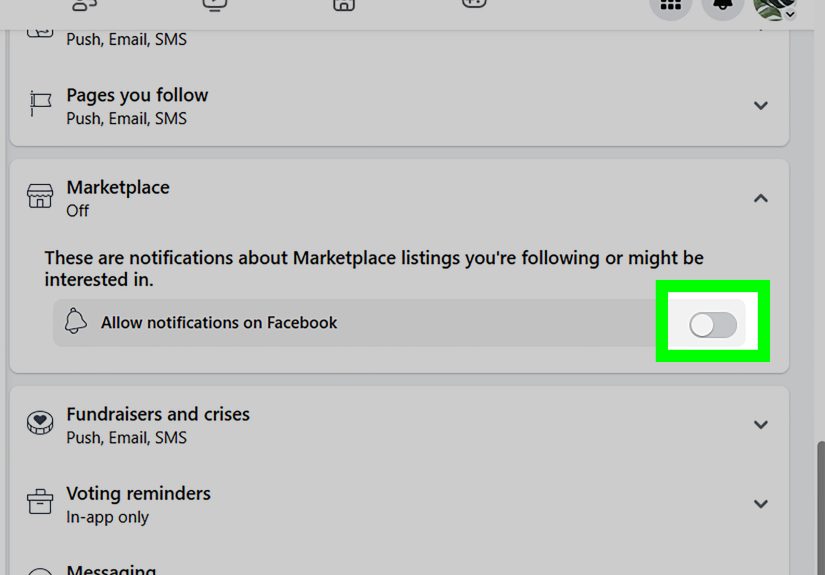
Step 4: Turn off Marketplace notifications (so it stops “checking in”)
For many people, the real annoyance isn’t the feedit’s the constant notifications. If Marketplace keeps buzzing your phone,
shutting off Marketplace notifications can feel like instant peace.
Typical path (varies slightly by device/app version)
- Tap Menu.
- Go to Marketplace.
- Open your Marketplace profile (often a person icon or “profile” button).
- Tap Settings.
- Tap Notifications.
- Turn off categories you don’t want (updates, saved searches, tips, recommendations, etc.).
If you still want messages from buyers/sellers but hate everything else, look for separate toggles for:
Messages, Updates, Saved searches, and Recommendations.
Keep the essential ones, mute the noise.
Step 5: Reduce shopping-related ads and topics (optional, but helpful)
Marketplace and ads aren’t the same thing, but they often feel like siblings who borrow each other’s clothes.
Adjusting ad preferences can reduce certain shopping themes showing up around your feed experience.
What you can realistically do
- Use Ad topics controls to see less of certain ad categories (where Facebook offers that option).
- Hide individual ads and mark them as irrelevant.
- Review ad preference settings so you’re not feeding the algorithm extra “shopping signals.”
This won’t “delete Marketplace,” but it can reduce the overall feeling that Facebook is trying to sell you a kayak at 2 a.m.
Step 6: Desktop tips (Facebook on a computer)
On desktop, Facebook’s layout can be less customizable than the mobile app. Still, you have options:
Clean up what you see
- Use the three dots on unwanted posts: Hide, See less, Not interested.
- If you spot a Feeds option, try using it more often than Home.
- Keep Marketplace out of sight by avoiding the Marketplace link in the left sidebar and removing it from any quick-access areas you can edit.
If your goal is “I never want to accidentally click Marketplace,” hiding the mobile tab is usually the bigger win.
Desktop tends to behave more like a fixed layout, depending on your account and current interface.
Troubleshooting: If you can’t find the settings shown above
Facebook changes labels and menus like it’s getting paid per rename. If the exact words don’t match your screen, try these fixes:
- Update the app: Newer builds tend to include the tab/shortcut controls more reliably.
- Search inside Settings: If Facebook offers a search bar in Settings, try “shortcuts,” “tab bar,” “navigation,” or “Marketplace.”
- Try the press-and-hold method: It often works even when the settings path feels hidden.
- Expect rollouts: Some accounts get features earlier (or later). If you don’t see tab customization, check again after updates.
Quick checklist: The easiest “Marketplace cleanup” plan
If you want the fastest path to a calmer Facebook experience, do these three things:
- Hide Marketplace from your tab/shortcut bar (press-and-hold or Settings).
- Switch to Feeds (and pin it if possible) for day-to-day scrolling.
- Turn off Marketplace notifications except messages (if you still use Marketplace occasionally).
Conclusion: You can’t delete Marketplace everywherebut you can make it irrelevant
Facebook Marketplace isn’t a removable app for most accountsit’s a built-in feature. But you absolutely can reclaim your feed:
hide the Marketplace tab, stop the notifications, use Feeds/Friends for less “suggested” content, and train Facebook by hiding Marketplace-style posts.
Do those consistently, and your feed starts feeling like your feed againless yard-sale chaos, more actual humans you know.
Real-World Experiences: What People Notice When They Try This (and What Actually Works)
When people say they want to “delete Facebook Marketplace from feed,” they’re usually reacting to a specific moment: they open the app for something simple,
and suddenly they’re staring at a carousel of items they never searched for. The frustration isn’t just that Marketplace existsit’s that it shows up where it
wasn’t invited. Based on common patterns users describe, here’s what the experience typically looks like when you apply the steps in this guide.
Experience #1: “I hid the Marketplace icon… and the listings still showed up.”
This is the most common surprise. Hiding the Marketplace tab is like taking a neon sign off your front porchit removes the visual temptation,
but it doesn’t automatically change what Facebook decides to recommend in Home. People who feel “it didn’t work” usually only did Step 1.
The turning point is Step 2 (using Feeds/Friends) and Step 3 (hiding Marketplace-style suggestions). After a few days of consistent “Hide post” / “See less,”
users often notice fewer product blocks and fewer “recommended listing” style postsespecially if they also stop clicking on shopping-related content.
Experience #2: “My notifications were the real problem.”
A lot of users don’t mind Marketplace existingthey mind Marketplace acting like a coworker who pings you “quick question” every 20 minutes.
Turning off Marketplace notifications can feel like instant relief. People often keep only message notifications (if they sell items occasionally)
and disable everything else: saved search alerts, random “updates,” and “tips.” The biggest “aha” is realizing you don’t have to quit Marketplace to stop
Marketplace from interrupting your day.
Experience #3: “Feeds is my new defaultHome is for when I’m bored.”
Many people describe Feeds as the closest thing to old-school Facebook: more posts from friends and fewer algorithmic detours.
The practical routine that seems to stick is this:
Open Facebook → tap Feeds (or Friends) immediately → scroll with less junk.
Once Feeds is pinned to the tab bar, it becomes muscle memorylike choosing the quiet checkout lane at the grocery store.
Users who do this often report that Marketplace content “disappears” for themnot because it’s gone, but because they’re spending less time in the area
where Facebook injects the most recommendations.
Experience #4: “The algorithm learns… but only if you’re consistent.”
This one is both encouraging and mildly annoying. People frequently say: “I hid one post and nothing changed.”
That’s normal. Facebook’s ranking systems tend to respond to repeated signals. The users who see real improvement usually:
- Hide multiple Marketplace-style posts over several days (not just one).
- Avoid clicking listings “just to look” (which can teach Facebook you enjoy them).
- Use Feeds/Friends as the default scrolling environment.
A practical example: If someone accidentally clicked a few car listings last month, they might see a wave of vehicle recommendations for a while.
The fix is boring but effective: keep hiding those suggestions and stop engaging with them. Over time, the recommendations usually fade.
Experience #5: “Facebook moved the setting again.”
If you feel like the menu labels change every time you finally learn them… you’re not imagining it.
Many users report that one week it’s called “Shortcut bar,” then it’s “Tab bar,” then it’s “Navigation bar.”
That’s why the press-and-hold method is so popular: it bypasses the scavenger hunt.
The most successful approach is to remember the goal (hide/unpin Marketplace) rather than memorizing the exact wording Facebook uses today.
Bottom line from these real-world patterns: Hiding the Marketplace icon removes temptation, Feeds reduces exposure, and consistent “See less” signals reduce recommendations.
Combine all three, and Marketplace goes from “why is this here?” to “oh right, that exists.”