Table of Contents >> Show >> Hide
- What Is a Gmail Draft, Exactly?
- How to Delete a Draft in Gmail on Desktop
- How to Delete a Draft in the Gmail App on Android
- How to Delete a Draft in Gmail on iPhone or iPad
- What Happens When You Delete a Draft in Gmail?
- How to Delete a Scheduled Email That Returned to Drafts
- How to Find Old Drafts Faster Before Deleting Them
- Why Drafts Sometimes Keep Reappearing
- Common Mistakes to Avoid When Deleting Gmail Drafts
- Best Practices for Managing Gmail Drafts
- Final Thoughts
- Experiences People Commonly Have with Deleting Gmail Drafts
- SEO Tags
If your Gmail Drafts folder looks like a graveyard of half-written replies, abandoned shopping lists, and one suspiciously emotional email you wisely never sent, you are not alone. Gmail makes it wonderfully easy to save messages for later. Unfortunately, “later” has a habit of turning into “why do I have 47 drafts?”
The good news is that deleting a draft in Gmail is simple once you know where to look. The slightly less cheerful news is that deleting a draft is not quite the same as deleting a regular email. In many cases, a discarded draft does not behave like a normal message that sits in Trash waiting for a comeback tour. So before you tap, click, or go full inbox minimalist, it helps to know exactly what happens.
In this guide, you will learn how to delete a draft in Gmail on desktop, Android, and iPhone or iPad. We will also cover how to delete multiple drafts at once, what happens after deletion, how to avoid accidental losses, and a few smart cleanup habits that can keep your Drafts folder from turning into a digital junk drawer.
What Is a Gmail Draft, Exactly?
A Gmail draft is any email you started but did not send. Gmail automatically saves unsent work as you type, which is great when life interrupts you, your Wi-Fi disappears, or your brain suddenly decides that the perfect sentence can wait until tomorrow.
Drafts can come from:
- New emails you started and never finished
- Replies you began in an existing email thread
- Scheduled emails you canceled and sent back to Drafts
- Messages you intentionally saved to edit later
That last one sounds organized. The first three are usually how people end up with a Drafts folder that feels like a time capsule of unfinished business.
How to Delete a Draft in Gmail on Desktop
If you are using Gmail in a web browser on your computer, deleting a draft is usually the fastest and easiest method. The desktop version gives you the best visibility, especially if you want to remove multiple drafts in one go.
Method 1: Delete a Single Draft from the Drafts Folder
- Open Gmail in your browser and sign in.
- In the left sidebar, click Drafts. If you do not see it, click More to expand the menu.
- Open the draft you want to remove.
- In the compose window, click the trash can or Discard draft icon.
Poof. The draft is gone. No dramatic exit speech. No confetti. Just gone.
Method 2: Delete Multiple Drafts at Once on Desktop
If your Drafts folder is overflowing, deleting drafts one by one is the digital equivalent of cleaning a beach with tweezers. Bulk deletion is the better move.
- Go to Drafts in Gmail.
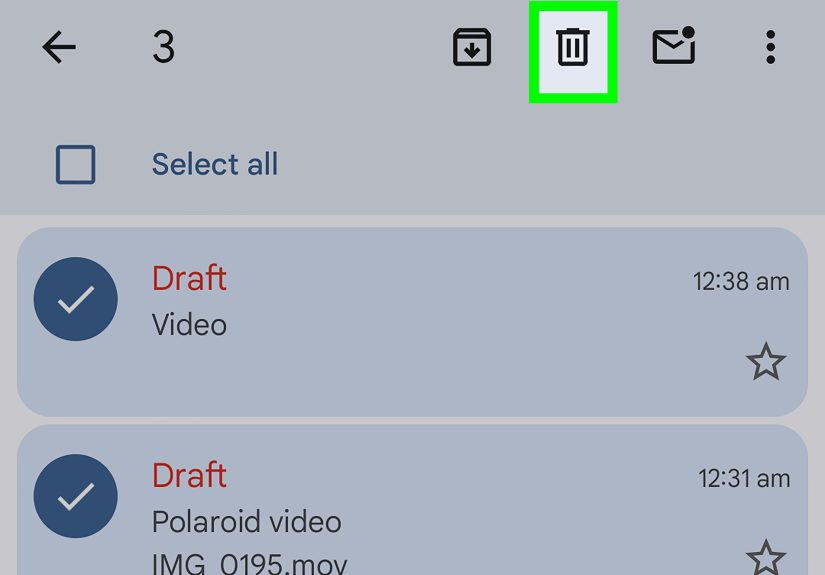
- Check the box next to each draft you want to delete.
- Click the Delete icon at the top of the page.
If you have a lot of drafts, you can also use the main checkbox to select all drafts visible on the page. This is especially handy if your inbox organization style is “I’ll deal with it someday,” and someday has finally arrived.
Desktop Tip: Use Gmail Shortcuts to Move Faster
If you use Gmail heavily, keyboard shortcuts can save time. For example, once shortcuts are enabled in Gmail settings, g then d jumps to Drafts, and the # key deletes a selected message. This is not essential, but it does make you look alarmingly efficient.
How to Delete a Draft in the Gmail App on Android
On Android, the Gmail app keeps things fairly straightforward. The only catch is that the exact layout can vary a little depending on app version, phone brand, or whether you are viewing the draft in a list or inside the compose screen.
Delete a Draft from the Drafts List
- Open the Gmail app.
- Tap the Menu icon in the top-left corner.
- Tap Drafts.
- Touch and hold the draft you want to delete.
- Tap the Delete or trash icon.
If you want to delete several drafts, keep selecting them and then tap the trash icon at the top.
Delete a Draft While It Is Open
If the draft is already open on your screen, look for the trash can or Discard option inside the compose view. Tap it, and the draft will be removed.
On some Android devices, Gmail also lets you configure swipe actions for faster message cleanup. That is more useful for inbox mail than drafts, but if you are cleaning everything everywhere all at once, it can still help.
How to Delete a Draft in Gmail on iPhone or iPad
If you use Gmail on iPhone or iPad, the process is very similar to Android, though some labels and button positions may look a little different.
Delete a Draft from the Drafts Folder
- Open the Gmail app on your iPhone or iPad.
- Tap the Menu icon.
- Tap Drafts.
- Touch and hold the draft you want to delete.
- Tap the Delete icon.
Need to delete more than one? Select multiple drafts, then tap Delete. Quick, clean, and deeply satisfying.
Delete a Draft While Editing It
If you are actively editing a draft, tap the draft to open it and use the trash can or discard option in the compose screen. Depending on your app version, the icon may appear at the bottom or near the top controls.
In other words, if the draft is staring right at you, you usually do not need to back out to the Drafts list first.
What Happens When You Delete a Draft in Gmail?
This is the part people often misunderstand, and it matters.
Deleting a normal Gmail message usually moves it to Trash, where it can often be restored for a limited time. Deleting a draft is different. A discarded draft is generally not recoverable from Trash the way a regular email is.
That means if you delete a draft by accident, Gmail may not give you a safety net. So before deleting an important unsent message, take a second to make sure you really mean it. Your future self may be less forgiving than your present self.
Important Difference: Delete vs. Undo Send
There is also a big difference between deleting a draft and undoing a sent email.
- Delete draft: Removes an unsent message you were working on.
- Undo Send: Pulls back a message you just sent during Gmail’s cancellation window and returns it to draft form.
So if you send an email and panic one second later, you do not need to delete a draft. You need to hit Undo quickly. Gmail gives you a short cancellation period, and you can increase that window in settings on desktop.
How to Delete a Scheduled Email That Returned to Drafts
This catches people off guard all the time. If you schedule an email and later cancel the scheduled send, Gmail usually sends that message back to Drafts. It does not disappear automatically.
So if you cancel a scheduled email and decide you never want to send it, here is what to do:
- Go to Drafts.
- Open the returned email.
- Delete it using the trash can or discard option.
This applies on both desktop and mobile, which is helpful if you scheduled a message at midnight and woke up the next morning wondering why it came back like a boomerang.
How to Find Old Drafts Faster Before Deleting Them
If you only want to delete certain drafts, finding them first is half the battle. Here are a few easy ways to narrow things down:
Use the Drafts Label
The obvious method is often the best. Open Drafts and sort through the list.
Search Gmail
You can search for keywords, sender names, or phrases you remember typing in the draft. This works well when the draft is buried inside a long thread and you do not feel like scrolling until your wrist files a complaint.
Look for Reply Drafts Inside Conversations
Sometimes a draft is attached to an existing thread rather than standing out as a separate item in your mind. Open the conversation and check for the unsent response.
Why Drafts Sometimes Keep Reappearing
If you delete a draft and it seems to come back, the problem is often not supernatural. It is usually one of these:
- A sync delay between your phone and Gmail servers
- An email app on another device still holding an older version
- A draft that exists in a conversation thread you did not fully remove
- A temporary app or browser glitch
Because Gmail syncs across devices, changes made on one device can affect what you see elsewhere. If something odd happens, refresh Gmail, reopen the app, or check the draft on desktop to see the clearest version of what is really there.
Common Mistakes to Avoid When Deleting Gmail Drafts
1. Deleting Too Fast
If the draft contains notes, links, or a carefully worded response you may need later, copy the content somewhere safe before deleting it. One tap is faster than regret, but regret lasts longer.
2. Confusing Drafts with Templates
A Gmail draft is not the same thing as a Gmail template. Templates are saved reusable messages on desktop Gmail. If you delete a draft, you are only deleting that unsent message, not your official saved template.
3. Assuming Trash Will Save You
This is the big one. Many users assume every deleted item goes to Trash. Drafts do not always play by that rule.
4. Forgetting About Canceled Scheduled Emails
Canceling a scheduled email does not erase it. It usually goes back to Drafts. If you want it gone, you still need to delete it manually.
Best Practices for Managing Gmail Drafts
If your Drafts folder constantly fills up, a few habits can make a big difference:
- Review Drafts once a week and remove outdated messages
- Finish or delete reply drafts before they get lost in busy threads
- Copy important unsent content into Docs or notes before cleaning up
- Use templates for messages you send often instead of saving endless near-duplicates as drafts
- Set a longer Undo Send window so fewer rushed messages need cleanup later
A clean Drafts folder does not just look nice. It reduces clutter, lowers the risk of sending the wrong unfinished message, and makes Gmail feel less like a digital attic.
Final Thoughts
Learning how to delete a draft in Gmail is a small skill, but it solves a surprisingly common headache. Whether you are on desktop, Android, or iPhone, the process is simple once you know where the Drafts label and delete controls live. The real trick is understanding that draft deletion is not always reversible, so it pays to be a little careful before you click.
If you only need to remove one awkward half-written email, Gmail makes it easy. If you need to wipe out a mountain of unfinished messages, bulk deletion on desktop and multi-select on mobile can save serious time. Either way, your Drafts folder does not have to stay messy forever.
Think of it as inbox self-care. Less clutter. Fewer ghost drafts. More peace.
Experiences People Commonly Have with Deleting Gmail Drafts
One of the most common experiences people describe is opening Gmail with full confidence, spotting a pile of old drafts, and thinking, “I’ll clean these up in two minutes.” Then they discover one of those drafts is attached to a reply thread from six months ago, another is a canceled scheduled email they forgot about, and a third contains notes they accidentally used as an email body instead of a personal reminder. Suddenly, deleting drafts becomes less like taking out the trash and more like sorting a mystery box from your own brain.
Many users also run into the classic accidental-delete moment. They tap the trash can while editing, assume the draft will sit safely in Trash, and then realize Gmail treated that draft more like a disappearing act than a recyclable item. That experience tends to teach the same lesson very quickly: if a draft contains anything important, copy it before deleting it. People usually learn this exactly once. The second time, they become much more cautious, which is a polite way of saying mildly paranoid.
Another frequent experience happens across devices. Someone starts an email on a laptop, opens Gmail on their phone later, edits the draft there, and then wonders why the version on desktop looks different. Because Gmail syncs drafts, changes can show up everywhere, and deleting the draft on one device can affect the others. This surprises people who expect each device to keep its own separate copy. Gmail is helpful, but it is not sentimental. One deleted draft can vanish across the board.
There is also the surprisingly common “scheduled send boomerang” experience. A user schedules an email, changes their mind, cancels it, and assumes the email has been deleted. Later, they open Drafts and there it is again, alive, well, and waiting. That moment is usually followed by one of two reactions: relief that the email was not lost, or annoyance that the cleanup is still not finished. Either way, it teaches people that canceling and deleting are not the same thing.
Then there are the power users, the folks who eventually turn draft cleanup into a system. They review Drafts weekly, delete old replies, save reusable text as templates instead of random drafts, and keep a longer Undo Send window in case they move too fast. These users are not necessarily more organized by nature. They have simply been humbled by Gmail enough times to adapt. And honestly, that may be the most relatable email story of all.