Table of Contents >> Show >> Hide
- Why Change the Calendar Alert Sound on an iPhone?
- How to Change the Calendar Alert Sound on an iPhone
- How to Make Calendar Alerts Easier to Notice
- How to Change Default Calendar Alert Times on iPhone
- Why Your iPhone Calendar Alert Sound May Not Be Working
- Best Practices for Choosing a Calendar Alert Sound
- Quick Example: A Better Setup for Busy Days
- Real-World Experiences With Changing the Calendar Alert Sound on iPhone
- Final Thoughts
- SEO Tags
Note: On newer iPhones, you may see the sound option under Settings > Notifications > Calendar. On older iOS versions, you may find it under Settings > Sounds or Settings > Sounds & Haptics > Calendar Alerts. Apple loves consistency almost as much as cats love baths.
If your iPhone calendar alert sounds like a polite whisper from another dimension, you are not alone. A lot of people miss appointments not because they forgot the event, but because the alert tone was too soft, too boring, too easy to confuse with another notification, or buried under a mountain of Focus settings and notification tweaks. The good news is that changing the Calendar alert sound on an iPhone is usually quick. The even better news is that you can also make calendar notifications louder, more noticeable, and less likely to vanish into the digital void.
This guide walks you through how to change the Calendar alert sound on an iPhone, what to do if the sound option seems missing, how to adjust related settings like volume and haptics, and how to troubleshoot silent calendar reminders. Along the way, we will cover practical examples, simple fixes, and a few real-world experiences that prove one thing: a tiny sound change can save a surprisingly large amount of chaos.
Why Change the Calendar Alert Sound on an iPhone?
The default iPhone notification setup works fine for some people, but calendar alerts are not just any alerts. These reminders often mean doctor appointments, school pickups, work meetings, interviews, birthdays, bill deadlines, and that one lunch you promised not to forget this time. If your Calendar alert sounds too similar to mail, reminders, or general notifications, your brain may tune it out. That is not a personality flaw. That is just modern life being loud and your phone being unhelpfully subtle.
Changing the Calendar alert sound on an iPhone can help you:
- Recognize event reminders instantly
- Separate calendar notifications from texts, mail, and app alerts
- Choose a louder or sharper tone
- Pair the sound with stronger haptics
- Reduce the chances of missing important events
Think of it as assigning your schedule its own voice. Preferably one that does not sound like a shy spoon tapping a teacup.
How to Change the Calendar Alert Sound on an iPhone
Method 1: Change It Through Notifications
On many recent iPhone versions, the most direct route is through the Calendar notification settings.
- Open the Settings app.
- Tap Notifications.
- Scroll down and tap Calendar.
- Make sure Allow Notifications is turned on.
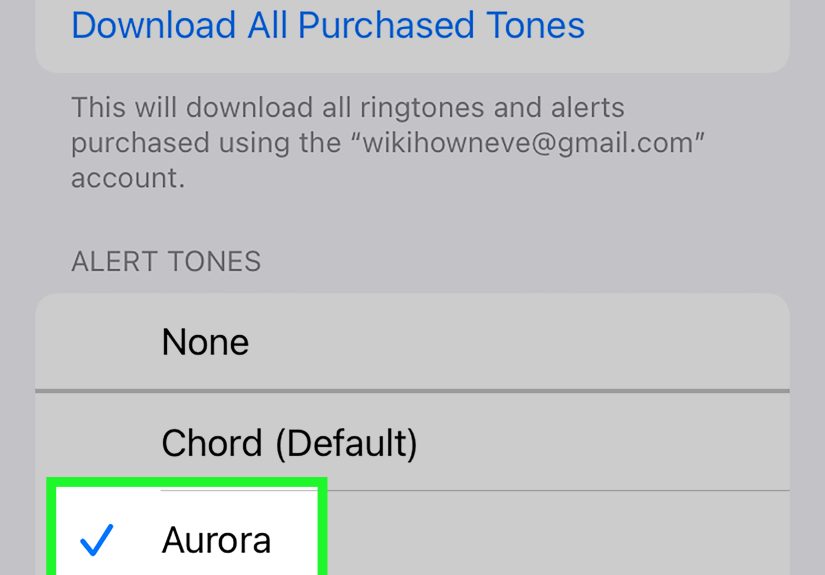
- Tap Sounds.
- Select the alert tone you want to use.
- Tap back to save your choice.
That is the main answer to the question, “How do I change the Calendar alert sound on my iPhone?” If your iPhone shows the Sounds option here, this is usually the cleanest path.
Method 2: Change It Through Sounds & Haptics
Some iPhones and iOS versions still present Calendar alert settings under the sound menu rather than the app’s notification page.
- Open Settings.
- Tap Sounds & Haptics.
- Find Calendar Alerts.
- Tap it.
- Choose a new tone from the available alert sounds.
If you see this menu, congratulations: your iPhone is being straightforward today. Take the win.
Method 3: Use a Purchased Tone
If the built-in sounds all feel like they were designed by a committee of very calm librarians, you can also use tones purchased through Apple’s Tone Store.
- Go to Settings > Sounds & Haptics.
- Open Calendar Alerts or another relevant alert category if your version uses that layout.
- Tap Tone Store at the top, if available.
- Browse and purchase a tone.
- Return to the alert list and select your new tone.
If you bought tones in the past, you may also be able to download them again using Apple’s option to restore purchased tones. Handy, especially if you once spent real money on a tone and refuse to let that investment die in silence.
How to Make Calendar Alerts Easier to Notice
Changing the sound is step one. Making sure you can actually hear or feel it is step two.
Turn Up the Ringer and Alerts Volume
If your calendar sound is technically correct but practically inaudible, volume may be the real issue.
- Go to Settings > Sounds & Haptics.
- Under Ringer and Alerts, move the slider to the right.
- Optionally enable Change with Buttons if you want to adjust alert volume with the side buttons.
This matters because Calendar alerts are tied to alert volume, not your music volume. So yes, your playlist can be booming while your calendar reminder sounds like a mouse sneezing.
Adjust Haptics for Better Feedback
Sometimes the best calendar reminder is not a sound at all. It is a vibration that feels like your phone has developed a strong opinion.
- Open Settings > Sounds & Haptics.
- Tap Haptics.
- Choose a setting that works for you, such as allowing haptics in silent mode if you want physical feedback even when the phone is muted.
If you often keep your iPhone on silent, a stronger haptic setup can be the difference between making it to your meeting and discovering it happened 23 minutes ago.
Use Visual Alerts Too
If you work in noisy places or tend to leave your phone face down, visual alerts can help.
- Go to Settings > Accessibility > Audio/Visual.
- Turn on LED Flash for Alerts, if desired.
This can be useful if audible alerts are easy to miss. Just remember that visual flash behavior may depend on your device state and settings, so do a quick test after enabling it.
How to Change Default Calendar Alert Times on iPhone
Changing the sound is one thing. Changing when you hear it is just as important.
- Open Settings.
- Tap Apps.
- Tap Calendar.
- Tap Default Alert Times.
- Choose separate defaults for Birthdays, Events, and All-Day Events.
This is especially useful if your calendar reminders keep arriving either way too early or at the exact moment you needed to have already left the house. A better alert sound helps, but a better alert time saves your dignity.
Why Your iPhone Calendar Alert Sound May Not Be Working
If you changed the Calendar alert sound and still are not hearing it, here are the most common culprits.
1. Notifications for Calendar Are Turned Off
Go to Settings > Notifications > Calendar and make sure Allow Notifications is enabled. Also check the notification style options such as Lock Screen, Notification Center, and Banners.
2. Focus Mode Is Silencing Notifications
Focus modes can reduce interruptions, which is wonderful until they reduce the exact interruption you needed. If Work, Sleep, or another Focus is active, Calendar notifications may be limited depending on your setup.
Check Settings > Focus and review whether Calendar is allowed to notify you during that Focus mode.
3. Scheduled Summary Is Delaying Alerts
Notification Summary can bundle less urgent alerts and deliver them later. If you want your Calendar alerts immediately, review Settings > Notifications > Scheduled Summary or Summarize Notifications and make sure Calendar is not being handled in a way that delays it.
4. The Phone Is in Silent Mode and Haptics Are Limited
If your iPhone is silent and haptics are disabled or minimized, you may not notice calendar reminders at all. Check both the mute state and your haptics settings.
5. The Alert Volume Is Too Low
This one gets people all the time. If the Ringer and Alerts slider is set low, your calendar notification can be working perfectly while sounding like it is trying not to bother anyone.
6. The Event Itself Has No Alert
Even with default alert times set, some events may not include alerts the way you expect. Open the event in Calendar and confirm that an alert is attached.
Best Practices for Choosing a Calendar Alert Sound
Not all alert tones are created equal. Some sound sophisticated. Some sound urgent. Some sound like a robot tapping on cutlery. Pick the one that matches your life.
Choose a Sound That Stands Apart
If your texts, reminder alerts, and calendar alerts all sound similar, your brain may lump them together. A distinct sound makes the alert easier to identify instantly.
Test It in Real Conditions
Try your chosen tone while your phone is in a pocket, on a desk, across the room, or inside a bag. The best alert in theory can become the world’s least impressive sound when wrapped in denim and buried under paperwork.
Use Stronger Sounds for Important Routines
If you rely on calendar alerts for work meetings, medication reminders, class times, or travel plans, choose a sound that is crisp and noticeable rather than soft and decorative.
Pair Sound With Timing
A great sound does not help much if the reminder arrives two minutes before you need to leave for a 40-minute drive. Adjust sound and timing together for the best result.
Quick Example: A Better Setup for Busy Days
Let’s say you have a packed Thursday: a 9:00 a.m. team meeting, an 11:30 a.m. dentist appointment, and a 3:00 p.m. school pickup reminder. Here is a smarter setup:
- Use a sharper Calendar alert sound than your mail or text tone
- Increase Ringer and Alerts volume to a clearly audible level
- Enable haptics in silent mode
- Set event alerts 30 to 60 minutes in advance where travel is involved
- Review Focus mode so work hours do not silence personal events you still need to see
That setup turns your iPhone from “occasional suggestion machine” into “actually useful personal assistant.” Which is what we were promised in the first place.
Real-World Experiences With Changing the Calendar Alert Sound on iPhone
One of the most common experiences people have is realizing they were hearing their calendar alerts all along, but they never recognized them as calendar alerts. That sounds silly until you remember how many iPhone sounds blend together. A soft ping arrives, you assume it is mail, and then an hour later you discover you just ignored the reminder for a video interview, a prescription refill, or your cousin’s birthday dinner. Changing the Calendar alert sound fixes that confusion immediately because it gives your schedule its own audio identity.
Another common experience happens with people who keep their phones on silent almost all day. Students, office workers, parents in meetings, and anyone who has ever attended a movie without becoming the villain of the room often depend more on vibration than sound. When they change the calendar tone but forget to update haptics, they still miss reminders. Once they pair a stronger haptic setting with a more distinct alert, the experience changes dramatically. Instead of “Did my phone do something?” it becomes “Ah, that is definitely a calendar reminder.”
There is also the classic bag problem. A calendar alert can sound perfectly loud on a kitchen table, then disappear completely inside a backpack, purse, or coat pocket. Many users discover that the “prettiest” sound is not the most practical one. A cleaner, higher-pitched tone often cuts through everyday noise better than a mellow chime. This is especially true for commuters, parents on the go, and people working in busy places like classrooms, retail stores, or shared offices.
Some people run into frustration because they assume changing the sound is the only step required. Then they still miss alerts and think the iPhone is broken. In real life, the issue is often a mix of things: low alert volume, a Focus mode filtering notifications, a summary feature delaying the alert, or event reminders set too close to the start time. The experience of “I changed the sound and nothing improved” usually turns into “Oh, right, my phone was doing exactly what I accidentally told it to do.” Not the most glamorous discovery, but definitely a useful one.
Parents often report one of the biggest benefits from customizing the Calendar alert sound. Family schedules are chaotic by nature. Between school pickups, appointments, sports practice, medication times, and birthday reminders, the calendar becomes less of a luxury and more of a survival tool. A stronger, unique alert can reduce the mental load because it removes the split-second guesswork every time the phone makes a noise. That tiny bit of clarity matters more than people expect.
Professionals feel the same way, just with fewer soccer cleats involved. If you work from your phone or manage a packed schedule, a distinct Calendar alert helps separate “this can wait” from “this starts in ten minutes.” It is one of those small settings that seems trivial until you live with it for a week and realize you are missing fewer deadlines, arriving more prepared, and glancing at your phone with less confusion. That is a pretty great return on a setting that takes less time to change than brewing a cup of coffee.
Final Thoughts
If you have been wondering how to change the Calendar alert sound on an iPhone, the fix is usually simple: open your notification or sound settings, pick a more useful tone, then make sure volume, haptics, and timing all support that choice. The best setup is not just louder. It is clearer, more intentional, and better matched to the way you actually use your phone every day.
In other words, do not let your schedule whisper. Give it a sound you will actually notice.