Table of Contents >> Show >> Hide
- What Does “Favorites” Mean on YouTube Today?
- How to Add a Video to Your Favorites on YouTube: 9 Steps
- Step 1: Sign in to Your YouTube Account
- Step 2: Find the Video You Want to Save
- Step 3: Click or Tap the Save Button
- Step 4: Create a New Playlist Called “Favorites”
- Step 5: Choose the Playlist Privacy Setting
- Step 6: Save the Video to Your Favorites Playlist
- Step 7: Add More Videos to the Same Favorites Playlist
- Step 8: Find Your Favorites Later
- Step 9: Organize, Edit, or Remove Videos as Needed
- Alternative Ways to Favorite a YouTube Video
- Common Problems When Saving YouTube Favorites
- Best Practices for Managing YouTube Favorites
- Why Adding Videos to Favorites Is Useful
- Desktop vs. Mobile: Is the Process Different?
- Personal Experience: What Saving YouTube Favorites Actually Feels Like
- Conclusion
YouTube is the world’s biggest rabbit hole. One minute you are watching a serious tutorial about fixing a leaky faucet, and the next you are three videos deep into a man teaching his parrot to sing theme songs from the 1980s. The problem is not finding videos. The problem is finding them again.
That is where YouTube favorites come in. Technically, modern YouTube may not always show a big button labeled “Favorite” the way older versions of the site once did. Today, the practical way to add a video to your favorites on YouTube is to save it to a playlist, add it to Watch Later, like the video, or create a private playlist called “Favorites.” Simple, tidy, and much better than texting yourself 47 video links like a digital raccoon hoarding shiny things.
This guide walks you through exactly how to add a video to your favorites on YouTube in 9 easy steps. You will also learn how to organize saved videos, choose the right privacy setting, find your favorites later, and avoid common mistakes that make playlists messy.
What Does “Favorites” Mean on YouTube Today?
On older YouTube interfaces, “Favorites” was a more obvious feature. Today, the word “favorites” is often used casually to mean videos you want to save and return to later. YouTube mainly handles this through playlists, the Watch Later list, and liked videos.
The best modern solution is to create a playlist named “Favorites.” This gives you full control over what goes into the list, whether other people can see it, and how your videos are arranged. You can make the playlist private if it is just for you, public if you want to share your excellent taste with the world, or unlisted if you only want people with the link to see it.
How to Add a Video to Your Favorites on YouTube: 9 Steps
Step 1: Sign in to Your YouTube Account
Before you can save a video to your favorites, sign in to YouTube with your Google account. This is important because saved videos, playlists, liked videos, and Watch Later are connected to your account. If you are not signed in, YouTube may let you watch videos, but it cannot properly remember your saved favorites across devices.
On desktop, click the “Sign in” button in the top-right corner of YouTube. On mobile, open the YouTube app and tap the profile icon. Once you are signed in, your saved videos can follow you from your laptop to your phone, tablet, or smart TV.
Step 2: Find the Video You Want to Save
Use YouTube search, your home feed, a channel page, or a shared link to open the video you want to add to your favorites. This could be a music video, recipe, workout routine, coding lesson, product review, travel vlog, or that one comedy clip you swear you will show everyone at dinner.
Open the video’s watch page. This is the page where the video plays and where you can see buttons such as Like, Share, Download, Clip, Thanks, or Save, depending on your device and location.
Step 3: Click or Tap the Save Button
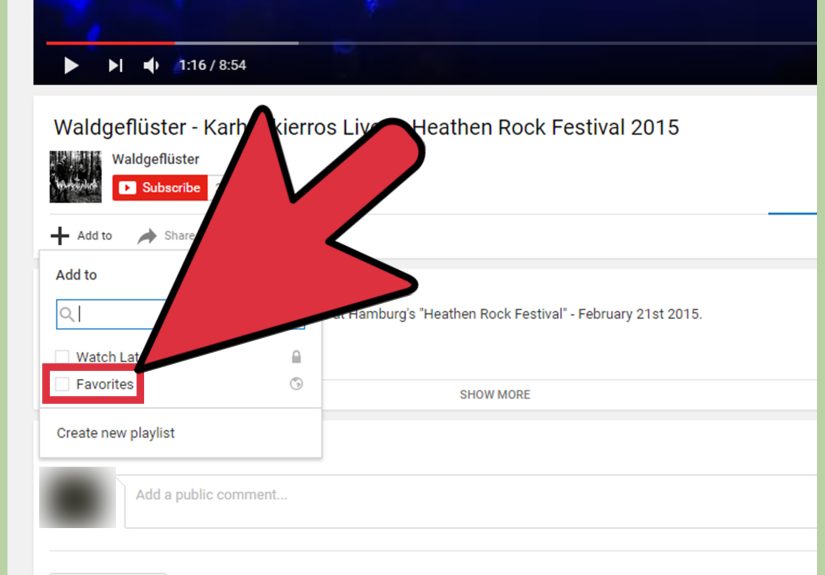
Below the video, look for the “Save” option. On some versions of YouTube, you may need to click the three-dot menu first, especially on desktop or when saving a Short. On mobile, the Save button often appears under the video, although YouTube occasionally changes button placement. Translation: if YouTube moves the furniture again, check the three-dot menu before panicking.
When you click or tap Save, YouTube will show a list of playlists. You may see built-in options like Watch Later, along with playlists you have created yourself.
Step 4: Create a New Playlist Called “Favorites”
If you do not already have a Favorites playlist, choose “Create new playlist.” Name the playlist something clear and easy to remember, such as “Favorites,” “My Favorite YouTube Videos,” “Best Tutorials,” or “Videos Worth Rewatching.”
A simple name is usually best. If you call it “Stuff I Might Need Someday Maybe,” future you will not be impressed. “Favorites” is short, searchable, and obvious.
Step 5: Choose the Playlist Privacy Setting
Next, choose a privacy setting for the playlist. YouTube gives playlist owners different visibility options. A public playlist can be seen and shared by anyone. An unlisted playlist can be viewed by anyone with the link. A private playlist is only visible to you.
For most personal favorites, private is the smartest choice. Your saved meditation videos, guitar lessons, productivity hacks, and oddly specific “how to clean a toaster safely” tutorial can remain your business. Choose public only if you want other people to browse the playlist on your channel.
Step 6: Save the Video to Your Favorites Playlist
After naming your playlist and selecting privacy, click or tap “Create.” YouTube will add the current video to that playlist. You may see a quick confirmation message at the bottom of the screen telling you the video was saved.
That is it. The video is now in your YouTube favorites, even if YouTube calls the action “Save to playlist” rather than “Add to favorites.” The wording may be different, but the result is the same: your video is stored where you can find it later.
Step 7: Add More Videos to the Same Favorites Playlist
Once your Favorites playlist exists, adding more videos is even faster. Open another video, click or tap Save, then check the box next to your Favorites playlist. If the playlist is already selected, the video may already be saved there.
You can use this method to build a useful library over time. For example, you might save dinner recipes, study guides, travel planning videos, music performances, home repair tutorials, or educational explainers. A good favorites playlist is like a personal video bookshelf, except it does not collect dust or require a tiny Allen wrench to assemble.
Step 8: Find Your Favorites Later
To find your saved favorites on desktop, open YouTube and look at the left-side menu. You may see a section for Playlists, Library, or You, depending on the current interface. Click your Favorites playlist to view the saved videos.
On the mobile app, tap the “You” tab or Library-style section near the bottom of the screen. Scroll until you see your playlists, then open Favorites. From there, you can play a video, remove one from the playlist, or keep browsing like a responsible adult who definitely did not save 19 cake-decorating videos at midnight.
Step 9: Organize, Edit, or Remove Videos as Needed
A favorites playlist is most useful when it stays organized. Over time, remove videos you no longer need, reorder important ones, and create separate playlists if your list becomes too large. For example, instead of keeping everything in one giant Favorites playlist, you might create smaller playlists such as “Favorite Music,” “Favorite Recipes,” “Favorite Tech Tutorials,” and “Favorite Fitness Videos.”
On many YouTube playlist pages, you can edit the title, update the description, change privacy, reorder videos, or remove individual videos. Keeping your favorites organized makes it easier to find exactly what you need without scrolling through a chaotic museum of your past interests.
Alternative Ways to Favorite a YouTube Video
Use Watch Later for Quick Saving
If you simply want to save a video temporarily, Watch Later is a convenient option. It is built into YouTube and works like a quick holding area for videos you plan to watch soon. It is perfect for videos you do not want to lose but may not consider true favorites yet.
Think of Watch Later as your “I will get to this eventually” shelf. Your Favorites playlist, on the other hand, should be reserved for videos you genuinely want to keep.
Use the Like Button
Liking a video can also help you find it again, because YouTube stores liked videos in a private list. However, liking a video is not always the best substitute for a Favorites playlist. You may like a video to support a creator, agree with a point, or appreciate the content, but that does not necessarily mean you want to rewatch it.
For serious organization, use playlists. For quick appreciation, use likes. For maximum digital neatness, use both.
Create Topic-Based Favorites Playlists
If you save many videos, one Favorites playlist may become crowded quickly. Topic-based playlists are easier to manage. You might create playlists for “Favorite Cooking Videos,” “Favorite YouTube Tutorials,” “Favorite Music Performances,” “Favorite Home Improvement Videos,” or “Favorite Study Resources.”
This method is especially useful for students, creators, researchers, hobbyists, and anyone who uses YouTube as more than entertainment. When your saved videos are grouped by topic, YouTube becomes less like a noisy mall and more like a helpful library with better thumbnails.
Common Problems When Saving YouTube Favorites
You Cannot Find the Save Button
If you do not see Save under the video, look for the three-dot menu. YouTube sometimes places saving options behind menus, especially on Shorts, mobile screens, or updated layouts. The exact button location can change, but the Save or Save to playlist option is usually nearby.
The Video Saved to the Wrong Playlist
YouTube may automatically save a video to the last playlist you used. If that happens, open the Save menu again and change the selected playlist. Uncheck the wrong playlist and check Favorites. This small habit can prevent your cooking tutorials from ending up in your workout playlist, unless your workout is aggressively whisking pancake batter.
Your Favorites Playlist Is Public by Accident
If privacy matters to you, check your playlist setting. Open the playlist, select the privacy option, and switch it to Private if you do not want others to see it. This is especially important if your favorites include personal learning topics, private research, or videos you simply do not want attached to your public channel identity.
You Added Too Many Videos
A giant playlist can become hard to use. If your Favorites playlist has hundreds of videos, split it into categories. Create separate lists for music, tutorials, travel, health, recipes, business, entertainment, or whatever fits your habits. Organization is not glamorous, but neither is spending 20 minutes searching for one video titled “You NEED to see this!”
Best Practices for Managing YouTube Favorites
First, name your playlists clearly. A playlist called “Favorites” is fine, but if you save a lot of content, use more specific names. Clear names improve your own user experience and make public playlists easier for viewers to understand.
Second, choose privacy intentionally. Private playlists are best for personal use. Public playlists are useful if you want to share resources, build a channel library, or recommend videos to an audience. Unlisted playlists are useful for sharing with a small group without making the list broadly discoverable.
Third, review your favorites every now and then. Videos can be deleted, made private, or become outdated. A software tutorial from five years ago may no longer be accurate. A recipe may still be delicious, unless it involves one of those suspicious “three-ingredient cakes” that somehow requires twelve ingredients and a leap of faith.
Fourth, avoid using one playlist for everything. YouTube is easier to use when your saved videos have a system. Even a simple structure can help: Watch Later for temporary saves, Favorites for your best videos, and topic playlists for specific interests.
Why Adding Videos to Favorites Is Useful
Saving YouTube videos is not just about convenience. It can improve how you learn, plan, work, and relax. If you use YouTube for education, favorite playlists help you build a personal study library. If you use it for entertainment, they help you collect videos you genuinely enjoy. If you create content, playlists can help you study editing styles, thumbnail ideas, titles, pacing, and audience engagement.
Favorites also save time. Instead of searching for the same video again, you can open your playlist and get straight to it. This is especially helpful for videos with generic titles, popular songs, or tutorials that are hard to distinguish from dozens of similar results.
For families, favorites can also help create safe, useful collections. Parents might build private playlists of educational videos, craft tutorials, or kid-friendly songs. Teachers can organize classroom resources. Fitness fans can save workout routines. Home cooks can collect recipes that do not require a culinary degree, a blowtorch, or emotional support.
Desktop vs. Mobile: Is the Process Different?
The basic idea is the same on desktop and mobile: open a video, choose Save, select or create a playlist, and confirm the save. The main difference is where the buttons appear. Desktop screens have more room, so options may appear below the video or in a side menu. Mobile screens are smaller, so YouTube often hides extra actions behind icons or menus.
If you are helping someone else, the easiest instruction is this: “Open the video, tap Save, and choose the Favorites playlist.” If they cannot see Save, tell them to tap the three dots. That solves many interface mysteries without requiring a support ticket, a magnifying glass, or a dramatic sigh.
Personal Experience: What Saving YouTube Favorites Actually Feels Like
Anyone who uses YouTube regularly knows that saving videos sounds simple until your account becomes a digital attic. At first, adding a video to favorites feels like a small action. You see a helpful tutorial, click Save, and move on with your life. Then another video appears. Then another. Suddenly, your Favorites playlist contains a guitar lesson, a slow cooker recipe, a speech about discipline, a video about cleaning sneakers, and a 42-minute documentary on deep-sea creatures. None of these are bad choices. Together, however, they create the energy of a garage sale hosted by your attention span.
The biggest lesson from real YouTube use is that saving is only half the job. The other half is naming and organizing. A playlist called Favorites is a great starting point, but it becomes much more useful when paired with smaller, purpose-driven playlists. For example, if you are learning a skill, create a playlist just for that skill. If you are planning a trip, create a travel playlist. If you are collecting recipes, separate dinner ideas from desserts. Otherwise, you will spend more time searching your saved videos than watching them.
Another practical experience: Watch Later is best treated as temporary. It is tempting to dump every interesting video into Watch Later, but that list can grow faster than laundry on a busy week. Use Watch Later for videos you plan to view soon. Use Favorites for videos you know you want to revisit. That small difference keeps your saved content cleaner and easier to manage.
Privacy is another detail people often overlook. Many users create playlists without checking whether they are public, private, or unlisted. If a playlist is personal, make it private from the beginning. It is not that your favorite pasta tutorials are scandalous, but not every saved list needs an audience. Private playlists are perfect for personal research, hobbies, study materials, or guilty-pleasure comfort videos. Yes, the three-hour compilation of cozy coffee shop ambience deserves respect and privacy.
It also helps to clean playlists every month or two. Some saved videos lose value over time. A tech tutorial may become outdated after an app update. A product review may no longer matter once the product is discontinued. A motivational video may not hit the same way after you have heard it fifteen times. Removing old videos makes your Favorites playlist feel fresh and intentional.
One of the best uses of YouTube favorites is building a personal learning path. Suppose you want to learn photography. You can save beginner camera guides, lighting tutorials, editing walkthroughs, and composition lessons into one playlist. Instead of relying on YouTube’s algorithm to decide what comes next, you create your own mini-course. The same approach works for cooking, coding, fitness, language learning, music, home repair, and almost any hobby.
In daily life, adding videos to favorites is a small habit that pays off. It prevents lost links, saves time, reduces repeated searches, and helps turn YouTube from an endless scroll machine into a useful tool. The trick is to be intentional. Save the videos that truly matter, organize them by topic, keep personal playlists private, and review them occasionally. Do that, and your YouTube Favorites playlist becomes less of a junk drawer and more of a well-labeled treasure chest.
Conclusion
Adding a video to your favorites on YouTube is easy once you understand how YouTube handles saving today. Instead of looking for an old-fashioned Favorite button, use the Save feature and create a playlist called Favorites. From there, you can choose privacy settings, add more videos, find them later, and organize everything into a cleaner system.
The best approach is simple: use Watch Later for temporary saves, use Likes to support videos you enjoy, and use a Favorites playlist for videos worth keeping. With a little organization, YouTube becomes more than a place to stumble into random recommendations. It becomes your own searchable library of tutorials, entertainment, inspiration, music, recipes, and ideas.