Table of Contents >> Show >> Hide
- Quick Triage: Is It Your Chromebook or the Wi-Fi Network?
- The 90-Second Fixes (Start Here)
- If Wi-Fi Connects but Says “No Internet”
- If Your Chromebook Won’t Connect to Any Wi-Fi Network
- Specific Error Messages and What They Usually Mean
- Work/School Chromebook? Watch for Managed-Device Roadblocks
- Last Resorts (When Easy Fixes Didn’t Cut It)
- A Simple “Do This in Order” Checklist
- of Real-World Experiences (What Usually Happens in the Wild)
- Conclusion
There are two kinds of people: those who say “Wi-Fi is down” and those who immediately restart the router like they’re defusing a bomb. If your Chromebook won’t connect to Wi-Fi, you’re probably doing the second thing alreadyso let’s make your troubleshooting smarter, faster, and way less rage-inducing.
This guide walks you through quick wins first (the “90-second miracles”), then deeper fixes (the “okay, now we’re getting serious”), and finally last-resort options (the “I love you, Chromebook, but you’re on thin ice” section). Along the way, you’ll learn why each fix worksso you’re not just pressing buttons like it’s a game show.
Quick Triage: Is It Your Chromebook or the Wi-Fi Network?
Before we blame your Chromebook, confirm whether the problem is actually the network.
- Test another device (phone, tablet, smart TV). If nothing connects, your Chromebook is innocent. Your router is the drama.
- Check your Wi-Fi name (SSID) shows up on the Chromebook. If the network doesn’t appear at all, you may have a signal, band, or hardware issue.
- Try a hotspot from your phone. If your Chromebook connects to the hotspot but not your home Wi-Fi, the router’s settings are the likely culprit.
The 90-Second Fixes (Start Here)
1) Make sure Wi-Fi isn’t actually turned off
This sounds obviousuntil it isn’t. On Chromebooks, Wi-Fi can be disabled via Quick Settings, Airplane mode, or network policy on managed devices.
- Click the time in the bottom-right corner.
- Confirm Wi-Fi is toggled on and Airplane mode is off.
- Select your network and try again.
2) “Forget” the network and reconnect (the classic)
If your Chromebook is stuck with an old password, a stale security handshake, or a corrupted saved profile, forgetting the network forces a clean reconnect.
- Settings → Network → Wi-Fi → Known networks
- Find your network → click More (three dots) → Forget
- Reconnect and re-enter the password carefully (yes, carefully).
Pro tip: If your router has both 2.4 GHz and 5 GHz bands, try the other band after you forget and rejoin. Some environments are oddly hostile to one band.
3) Restart the Chromebook (not just “close the lid”)
Closing the lid is not the same as restarting. Chromebooks can keep a network session “half-alive,” like a zombie app that refuses to die.
- Click the time → Power icon → shut down.
- Wait 10 seconds.
- Turn it back on and reconnect.
4) Restart the router/modem the right way
If multiple devices are struggling, restart your network equipment in a clean order:
- Unplug modem + router (and any extenders/mesh nodes if possible).
- Wait 30 seconds (long enough for the “memory” to clear).
- Plug in the modem first; wait until it stabilizes.
- Plug in the router; wait until Wi-Fi is broadcasting normally.
If Wi-Fi Connects but Says “No Internet”
This is the “connected… but emotionally unavailable” scenario. Your Chromebook joins the network, but internet access fails. Here’s what usually causes itand how to fix it.
1) Check VPN and proxy settings
A VPN or proxy can break connectivityespecially on school/work devices or when a browser extension gets “helpful.”
- Settings → Network → VPN → turn it off temporarily.
- Settings → Network → your Wi-Fi → Proxy → set to Auto or No proxy (unless your organization requires one).
If internet instantly returns, you’ve found the culprit. Re-enable your VPN later and test again.
2) Switch DNS (fast, safe, and surprisingly effective)
If websites won’t load but Wi-Fi connects, DNS is often the quiet villain. Try a public DNS like Google’s.
- Settings → Network → your Wi-Fi network
- Go to Network or Advanced → DNS
- Select Custom and enter:
- 8.8.8.8
- 8.8.4.4
If your network uses a special DNS (some parental controls do), switching DNS may bypass itso if you’re in a managed household or office, confirm before making it permanent.
3) Try another website style to reveal captive portals
On public Wi-Fi (hotels, airports, apartments), you may need to accept terms on a sign-in page (a “captive portal”). Sometimes it won’t pop automatically.
- Open an Incognito window.
- Try loading a plain, non-login page to trigger the portal.
- If your network shows “Sign in required,” click it in the Wi-Fi panel.
If Your Chromebook Won’t Connect to Any Wi-Fi Network
If your Chromebook refuses home Wi-Fi, phone hotspot, coffee shop Wi-Fieverythinguse this ladder: basic → advanced → last resort.
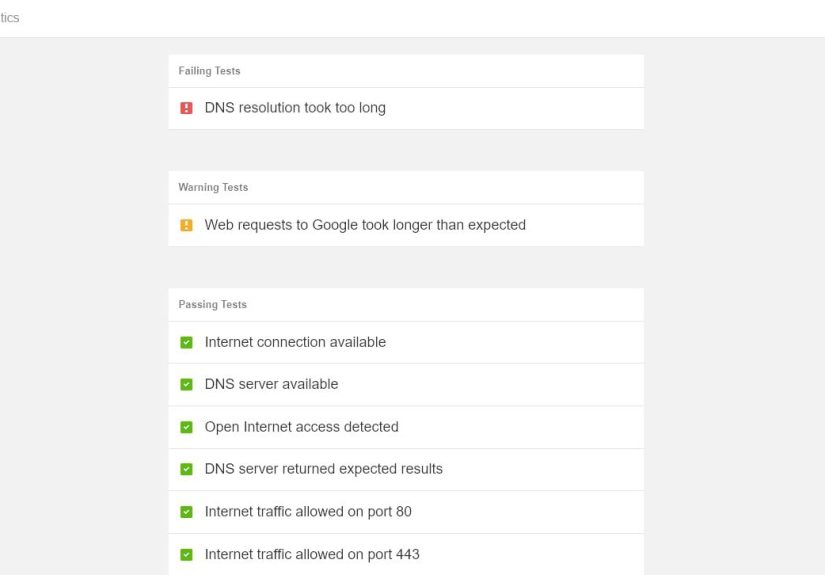
1) Run ChromeOS Diagnostics (built-in sanity check)
ChromeOS includes a Diagnostics tool that can check connectivity and sometimes point to Wi-Fi hardware trouble.
- Open Launcher → search Diagnostics
- Look for network/Wi-Fi tests and review results
If Diagnostics consistently flags the Wi-Fi adapter, that’s a strong sign the issue is hardware or driver-level.
2) Update ChromeOS (when possible)
Updates can fix network bugs, driver issues, and weird compatibility problems. If you can connect to any network (even a phone hotspot), do it.
- Settings → About ChromeOS
- Check for updates
- Restart when prompted
3) Hard reset the Chromebook (clears hardware-level glitches)
This is different from a Powerwash. A hard reset refreshes hardware states and can fix stubborn Wi-Fi weirdness.
- Most Chromebooks: hold Refresh and tap Power.
- Some tablet models use a different key combo (often Power + Volume).
Good news: A hard reset typically doesn’t erase your files. Still, it’s smart to keep important work synced to Google Drive.
4) Check router security settings (WPA2/WPA3 can matter)
Sometimes the router is set to a security mode your Chromebook doesn’t love. Common friction points include:
- WPA3-only mode on some routers (older Chromebooks may fail to authenticate)
- WPA2/WPA3 mixed mode causing intermittent “bad password” errors
- Rare cases: Protected Management Frames (PMF) settings too strict
If you control the router, try WPA2-Personal temporarily as a test. If the Chromebook connects immediately, you’ve identified a compatibility problem (and you can decide whether to keep WPA2 or troubleshoot WPA3 settings further).
5) Separate your Wi-Fi bands (2.4 GHz vs 5 GHz)
Band steering (where the router automatically moves devices between 2.4 and 5 GHz) can confuse some devices. If possible:
- Create separate SSIDs (example: HomeWiFi-2G and HomeWiFi-5G).
- Connect the Chromebook to each band and compare stability.
Rule of thumb: 2.4 GHz travels farther; 5 GHz is faster but weaker through walls.
Specific Error Messages and What They Usually Mean
“Bad password” (but you’re 100% sure it’s correct)
This is often not your typing. It can be:
- A saved network profile mismatch (forget the network and reconnect).
- Router security handshake issues (test WPA2-Personal temporarily).
- A stuck authentication state (restart Chromebook and router).
If the password works on other devices, focus on the Chromebook’s saved network profile and the router’s security mode.
“Out of range” when you’re basically hugging the router
This can happen if:
- Your router is broadcasting on a channel your Chromebook struggles with.
- Your Chromebook is trying to connect to the wrong band.
- There’s interference from extenders or mesh nodes.
Try rebooting extenders/mesh nodes, separating SSIDs, and adjusting Wi-Fi channels on the router if you’re comfortable doing so.
Wi-Fi keeps turning off or dropping randomly
Frequent disconnects are often caused by signal issues, congestion, or router configuration. Quick improvements:
- Move closer to the router (yes, reallytest before buying new gear).
- Disconnect unused devices (smart home overload is real).
- Try the other band (2.4 GHz is sometimes more stable).
- Update ChromeOS and restart router/Chromebook.
Work/School Chromebook? Watch for Managed-Device Roadblocks
If your Chromebook is managed by a school or employer, your network options might be restricted. You may see:
- Blocked Wi-Fi networks
- Required certificates for enterprise Wi-Fi
- Disabled VPN/proxy changes
- Rules around captive portals
In these cases, the “fix” might be contacting your IT adminbecause the settings you need are locked for a reason (usually security, sometimes chaos).
Last Resorts (When Easy Fixes Didn’t Cut It)
1) Try Ethernet or a USB Wi-Fi adapter
If your Chromebook supports it (via USB-C hub or adapter), try Ethernet. If Ethernet works, the internet is fine and the Wi-Fi path is the issue.
A USB Wi-Fi adapter can also be a workaround if the internal Wi-Fi hardware is failingespecially on older models.
2) Powerwash (factory reset) the Chromebook
Powerwash is the “wipe it clean and start over” option. It often fixes deep configuration issues, but it removes local data.
- Back up downloads and local files.
- Settings → Advanced → Reset settings → Powerwash
If your Chromebook is managed, a Powerwash may trigger re-enrollment and restore the same restrictionsso don’t do it without permission.
3) When to suspect hardware failure
It might be hardware if:
- Your Chromebook can’t see any Wi-Fi networks at all (even in busy places).
- Diagnostics flags the Wi-Fi adapter repeatedly.
- Powerwash + hard reset + updates change nothing.
If you’re under warranty, contact the manufacturer. If it’s older, compare repair cost to replacementChromebooks are often cheaper to replace than to perform major board work.
A Simple “Do This in Order” Checklist
- Test another device on the same Wi-Fi
- Toggle Wi-Fi / Airplane mode
- Forget network → reconnect
- Restart Chromebook (full shutdown)
- Restart modem/router properly
- Disable VPN/proxy
- Change DNS to 8.8.8.8 / 8.8.4.4
- Run Diagnostics
- Update ChromeOS (via hotspot if needed)
- Hard reset (Refresh + Power)
- Check router security (test WPA2)
- Powerwash
of Real-World Experiences (What Usually Happens in the Wild)
In real life, Chromebook Wi-Fi problems rarely show up as a neat, textbook issue. They arrive more like a sitcom: your Chromebook refuses to connect five minutes before a Zoom interview, your kid’s homework portal is due at midnight, or your laptop decides today is the day it hates the router you’ve owned for three years.
One very common experience is the “new router, old device” clash. Someone upgrades to a shiny Wi-Fi 6 router, turns on every modern security feature, and suddenly the Chromebook starts throwing “bad password” errorseven though the password works on phones and newer laptops. In many of these cases, the password isn’t the problem; it’s the security handshake. Switching the router to WPA2 temporarily (or adjusting WPA3/mixed mode settings) often makes the Chromebook connect instantly. It feels ridiculouslike your laptop is refusing to enter a building because it doesn’t like the doorknobbut it’s a real compatibility pattern.
Another classic: the “connected, no internet” loop. People assume the Wi-Fi is broken, but the issue turns out to be a proxy setting left behind by a school network, a VPN that’s trying (and failing) to auto-connect, or DNS settings that don’t match the network. The experience is usually the same: Gmail loads once, then everything stops working, and the browser spins like it’s auditioning for a role as a ceiling fan. Turning off VPN/proxy and switching DNS fixes it so often that it’s worth checking earlyespecially if the Chromebook was previously used in a managed environment.
Public Wi-Fi creates its own special storyline: the captive portal that won’t appear. At hotels or apartments, the Chromebook connects, but you never get the sign-in page, so it looks like the internet is down. People refresh websites, reboot the Chromebook, and even blame the hotel staff (who, in fairness, are not personally responsible for the internet). What typically helps is opening an Incognito window and trying a simple site to trigger the login prompt. Once the portal appears and you accept the terms, everything works like nothing happenedbecause Wi-Fi problems love making you feel overdramatic.
Finally, there’s the “it only breaks in one room” experience. The Chromebook connects perfectly in the kitchen, but in the bedroom it drops every few minutes. That’s usually not the Chromebook being moodyit’s signal strength, interference, or band steering. The fix is often boring but effective: move closer, switch to 2.4 GHz for stability, or add a mesh node. It’s not glamorous, but neither is yelling at a Wi-Fi icon.
Conclusion
If your Chromebook won’t connect to Wi-Fi, start with the fast fixes (toggle, forget/reconnect, restart), then move into the “connected but no internet” suspects (VPN/proxy/DNS), and only then bring out the heavy tools (Diagnostics, hard reset, Powerwash). Most problems are solvable without replacing anythingespecially when you troubleshoot in a smart order instead of randomly clicking settings like you’re trying to unlock a secret level.