Table of Contents >> Show >> Hide
- Why Classic Macintosh Nostalgia Still Hits So Hard
- What “Macintosh Emulation” Actually Means
- The Charm of the Classic Mac Experience
- Best Ways to Take an Emulated Stroll Today
- What You Can Actually Do in a Classic Mac Emulator
- How to Get Started Without Ruining the Nostalgia
- Why Emulated Mac History Matters in 2026
- Tips for a Better “Macintosh Memory Lane” Session
- Common Questions About Classic Mac Emulation
- Conclusion: The Best Kind of Time Travel Is Clickable
- Extended Experience: A 500-Word Emulated Walk Through Classic Macintosh Life
If you’ve ever wanted to time-travel without messing up the space-time continuum (or your modern laptop), classic Macintosh emulation is about as close as it gets. One click and suddenly you’re staring at a tiny monochrome desktop, a smiling Mac, and a user interface that somehow feels both primitive and weirdly elegant. It’s like visiting your childhood home and discovering the wallpaper is exactly as loud as you remembered.
This guide takes a friendly, in-depth walk through the world of classic Mac emulatorswhat makes old Macintosh systems so memorable, which emulation options exist today, how to get started responsibly, and why the experience still matters. Whether you’re a longtime Mac fan, a design nerd, a retro-gaming scavenger, or just curious about what computing looked like before “the cloud” became a thing people said with a straight face, this is your ticket to an emulated stroll down Macintosh memory lane.
Why Classic Macintosh Nostalgia Still Hits So Hard
The original Macintosh didn’t just launch a product lineit helped popularize a more approachable way of using computers. Instead of memorizing command-line instructions, users could point, click, drag icons, and interact visually. That sounds normal now, but in 1984 it felt downright magical.
And the magic wasn’t only technical. It was aesthetic. Early Macintosh systems had personality: compact screens, playful icons, neat typography, a desktop metaphor people could actually understand, and software that invited experimentation. The Mac felt like a machine built for humans first and manuals second. (A controversial philosophy in some corners of computing, then and now.)
That’s a big reason Macintosh nostalgia remains powerful. It’s not just “old software.” It’s a snapshot of a moment when personal computing still felt handmade, intimate, and full of delightful quirks.
What “Macintosh Emulation” Actually Means
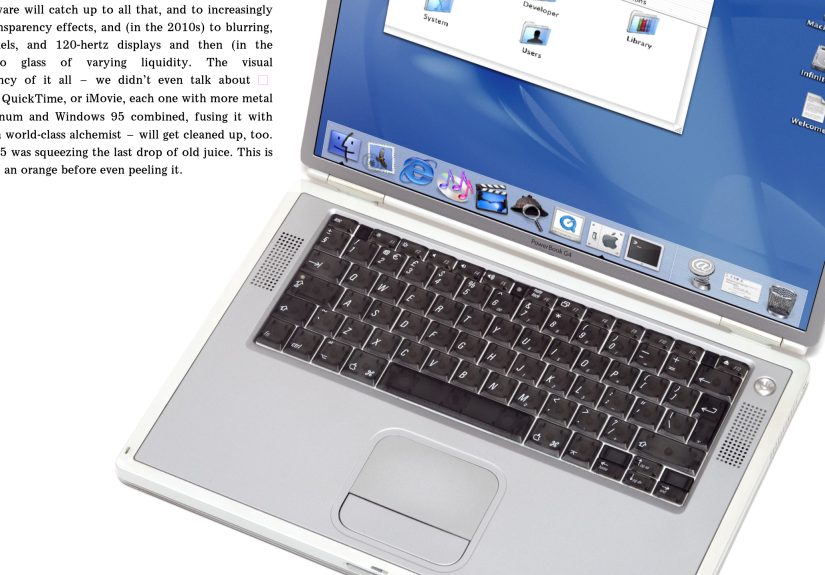
Macintosh emulation lets modern computers recreate older Mac hardware and software environments. In plain English: your current machine pretends to be an old Mac so you can run classic Mac OS versions and apps.
A Mac OS emulator can recreate different eras of the classic Macintosh experience, from early black-and-white systems to later 68k and PowerPC-based environments. Depending on the emulator, you may need ROM files, system software images, and a little patience. Orthanks to browser-based projectsyou may be able to jump straight in with almost no setup.
Emulation vs. Virtualization (Quick Reality Check)
These terms get mixed up a lot. Emulation usually means software simulates different hardware, which is how a modern system can run much older Macintosh software. Virtualization usually means running a compatible OS on similar hardware more directly. For classic Mac systems, what most people want is emulation.
The Charm of the Classic Mac Experience
Before we compare tools, it helps to understand what people are chasing when they boot System 6 or System 7 in an emulator.
1) The Interface Feels Intentional
The Mac menu bar at the top of the screen and the desktop-centered workflow became iconic for a reason: it reduced friction and taught users a consistent pattern. Even today, many interface conventions feel like descendants of those early design ideas.
2) Constraints Made Software Memorable
Early Macs had tiny amounts of memory by modern standards. Developers had to be clever, which often led to software that was focused, lightweight, and surprisingly polished. No 400-MB “notes app” herejust tools that opened fast and got to work.
3) Creative Software Was a Big Deal
Programs like MacPaint and MacWrite weren’t just bundled appsthey were proof of concept. They showed people what a mouse-and-window interface could do. Later, HyperCard pushed things further by making interactive stacks and multimedia ideas feel accessible to curious users, teachers, and tinkerers.
Best Ways to Take an Emulated Stroll Today
There isn’t one “best” classic Mac emulator for everyone. The right choice depends on whether you want instant nostalgia, deep tinkering, or broad software compatibility.
Infinite Mac (Best for Instant Browser Nostalgia)
If you want the easiest on-ramp, Infinite Mac is a fantastic place to start. It’s browser-based, fast to launch, and designed to make classic Macintosh and NeXT software easy to explore from modern devices. Think of it as the “show me the desktop now” option.
Why people love it:
- No complicated install process for a first taste
- Great for quick demos, curiosity, and nostalgia hits
- Easy way to compare different classic system releases
- Perfect for writers, designers, and educators who want to illustrate computing history
It’s also great for people who thought they wanted a weekend tinkering project, but actually wanted a five-minute dopamine burst and a screenshot of MacPaint. Both are valid.
Basilisk II (Best for 68k Mac Software Tinkering)
Basilisk II is a longtime favorite for running 68k Macintosh software. It’s open source and capable, but it’s more of a classic enthusiast’s tool than a casual curiosity click. You typically need your own Mac OS copy and a Macintosh ROM image to use it properly.
This is the path for people who enjoy setup screens, configuration files, and the sentence “I finally got it working” as a life achievement.
SheepShaver (Best for Classic PowerPC Mac OS Apps)
SheepShaver focuses on classic PowerPC Mac OS applications and supports later pre–Mac OS X environments than Basilisk II. It’s a strong choice if your nostalgia lives closer to late-era classic Mac workflows, education software, or PowerPC-era apps.
Like Basilisk II, it usually requires appropriate ROM and system software files, so it’s best for users comfortable with a more hands-on setup.
Mini vMac (Best for Early Compact Mac Purists)
Mini vMac is beloved by retro computing fans who want a focused early Macintosh experienceespecially the compact, black-and-white era. It’s often recommended for people chasing the feel of the Macintosh Plus and similar early systems.
If your dream is hearing startup vibes in your head while using a tiny monochrome desktop and pretending a floppy disk is a completely normal storage strategy, Mini vMac is your people.
What You Can Actually Do in a Classic Mac Emulator
A lot, honestly. Retro emulation isn’t just for staring at old menus (though, to be fair, the menus are excellent).
Rediscover Classic Apps
You can explore tools like MacPaint and MacWrite, poke around utilities, and experience how productivity software felt when “feature creep” was still in its larval stage.
Play Vintage Macintosh Games
Browser-based archives and emulator-friendly collections make it possible to revisit many classic titles. Games are often the gateway drug here: one quick round becomes two hours of “Wait, this is actually still fun.”
Explore HyperCard and Early Interactive Media
HyperCard is a huge part of Macintosh memory lane. It gave users a creative, almost pre-web way to build linked multimedia experiences. Exploring old HyperCard stacks today feels like opening a time capsule from an alternate internetone where curiosity and experimentation ruled.
Study Interface and Software Design History
For designers, developers, and UX writers, classic Mac systems are a masterclass in constraints, clarity, and consistency. Even when the visuals feel dated, the design decisions often feel surprisingly modern.
How to Get Started Without Ruining the Nostalgia
Yes, it is possible to overcomplicate this. Let’s not.
Option A: Start in the Browser
If you’re new, start with a browser-based experience like Infinite Mac. It gives you instant context for what classic Mac OS felt like and helps you figure out what era you care about most before committing to a more technical setup.
Option B: Install a Desktop Emulator
If you want more control, try Basilisk II, SheepShaver, or Mini vMac. This route is better for enthusiasts who want custom disk images, file exchange, and deeper compatibility testing.
Respect Licensing and ROM Requirements
This part matters: many desktop emulators require ROM images and copies of classic Mac system software. Make sure you’re using software and ROMs you have the right to use. Retro computing is more fun when it doesn’t come with a side quest in legal confusion.
Why Emulated Mac History Matters in 2026
Classic Macintosh emulation is more than nostalgia tourism. It’s digital preservation.
Software is cultural history. Old interfaces, educational programs, games, art tools, and HyperCard stacks tell us how people learned, worked, and created. Without emulation and archival efforts, much of that experience becomes inaccessibleeven if screenshots survive.
That’s why projects from preservation-minded communities and archives matter so much. They don’t just save files; they preserve interaction. And interaction is the whole point. Reading about an early Mac desktop is one thing. Clicking through it yourself is a completely different experience.
Tips for a Better “Macintosh Memory Lane” Session
- Pick an era first: Early compact Mac? System 7 school-lab era? Late classic Mac OS? Your nostalgia target changes the best emulator choice.
- Use a real keyboard: Especially for longer sessions. Retro charm fades quickly when you’re fighting input issues.
- Try one app at a time: Don’t start with a giant compatibility checklist. Start with one thing you remember (or wish you remembered).
- Take screenshots: Half the fun is comparing UI ideas across decades.
- Treat it like a museum you can touch: Explore slowly. Click weird menu items. Open desk accessories. Poke around.
Common Questions About Classic Mac Emulation
Is a browser emulator good enough?
For many people, yes. If your goal is exploration, nostalgia, or learning, browser-based classic Mac emulation is often the best starting point. Desktop emulators are better when you want maximum control.
What’s the difference between Basilisk II and SheepShaver?
In simple terms: Basilisk II is a great fit for 68k-era classic Mac software, while SheepShaver is geared toward classic PowerPC Mac OS apps. Some enthusiasts use both depending on the software they want to run.
Can I use an emulator for retro Mac gaming and productivity apps?
Absolutely. Many people use emulators for classic Macintosh games, old educational software, and iconic creative tools. Availability and setup depend on the emulator and software source.
Conclusion: The Best Kind of Time Travel Is Clickable
An emulated stroll down Macintosh memory lane is part nostalgia trip, part design lesson, and part digital archaeology. It reminds us that great user experiences are not always about adding morethey’re often about removing friction, focusing attention, and making computers feel human.
Whether you jump into Infinite Mac for instant retro joy or spend a weekend setting up Basilisk II, SheepShaver, or Mini vMac, you’re not just revisiting old software. You’re interacting with a chapter of computing history that still shapes modern interfaces, workflows, and creative tools today.
And if you end up spending 45 minutes drawing in MacPaint “just to test it,” don’t worry. That’s not procrastination. That’s research. Probably.
Extended Experience: A 500-Word Emulated Walk Through Classic Macintosh Life
Here’s what a modern emulated Macintosh memory lane session often feels like in practice.
You open a browser-based classic Mac emulator, expecting a quick peek. Maybe five minutes. Ten if you’re feeling adventurous. Then the desktop appears, and suddenly your brain starts doing that strange thing where old visual cues unlock forgotten muscle memory. The menu bar at the top looks familiar. The icons look tiny and serious. The whole screen feels calmno notifications, no pop-ups asking you to rate your experience, no AI assistant trying to summarize your grocery list.
You click around slowly at first. There’s a little hesitation, like entering a house that used to belong to someone you loved. Then you open a desk accessory. Then another. You launch MacPaint. The brush tools feel simple, almost toy-like, but not in a bad way. They feel direct. You don’t need a tutorial. You just start drawing. A wobbly cat. A house. A face. A very ambitious landscape that immediately turns into abstract weather.
Next you try MacWrite, and it’s impossible not to notice how focused it feels. No ribbon menus. No floating panels multiplying like rabbits. Just writing. The constraints become part of the charm. You stop thinking about optimization and start thinking about sentences. That’s a rare feeling on modern computers, where every app seems one update away from becoming a social network.
Then comes the deeper nostalgia moment: exploring old games or HyperCard stacks. This is where emulation really earns its keep. Screenshots and YouTube clips can show you how something looked, but they can’t replicate the pace of the interactionthe way menus open, the way windows move, the way an old interface teaches you its logic one click at a time. HyperCard in particular feels like discovering a prototype version of the web built by artists, teachers, and curious weirdos. It’s brilliant, a little messy, and deeply human.
If you move from a browser setup to a desktop emulator like Basilisk II or SheepShaver, the experience changes again. It becomes less “museum visit” and more “workbench project.” You configure files, test system versions, troubleshoot little issues, and celebrate tiny victories. When you finally get the environment running the way you want, it feels earned. You’re not just using an emulatoryou’re maintaining a miniature historical machine.
What makes the whole experience memorable isn’t only the nostalgia. It’s the perspective. Classic Mac emulation shows how much of modern computing was already there in seed form: visual navigation, human-centered design, creative software, and the idea that computers could be personal in both function and personality. The hardware is older, the screens are smaller, and the storage is hilariously limited, but the core design ambition still feels fresh.
That’s why an emulated stroll down Macintosh memory lane isn’t just for retro fans. It’s for anyone who wants to understand where today’s digital habits came fromand maybe recover a little of the simplicity we lost somewhere between floppy disks and infinite tabs.