Table of Contents >> Show >> Hide
- Quick Navigation
- Screen Overlay, in Plain English
- Why Android Lets Apps Use Screen Overlays
- The Permission Names You’ll See (They’re All Talking About the Same Thing)
- How Screen Overlays Work Under the Hood (No Computer Science Degree Required)
- The Dark Side: Tapjacking, Trick Taps, and Why Overlays Can Be Risky
- “Screen Overlay Detected”: What It Means (and Why It Shows Up at the Worst Possible Time)
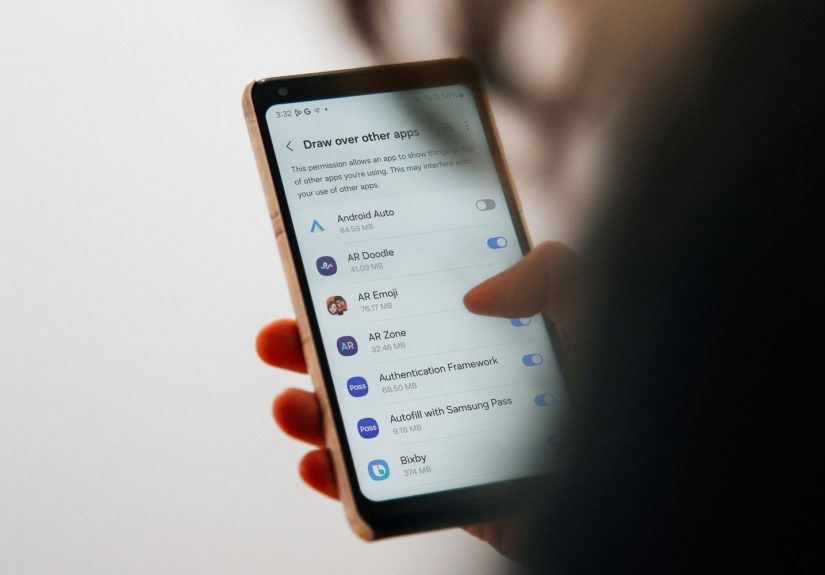
- How to Find and Turn Off Screen Overlay (Draw Over Other Apps)
- When You Should Allow “Draw Over Other Apps” (and When You Absolutely Shouldn’t)
- Developer Corner: Building Overlay Features Without Being “That App”
- FAQ: Android Screen Overlay Questions People Actually Ask
- Conclusion: Screen Overlays Are UsefulWhen You’re the One in Control
- Real-World Experiences With Android Screen Overlays (500-ish Words of “Yep, Been There”)
If you’ve ever seen a little chat bubble hovering over everything, a blue-light filter tinting your screen like it’s sunset at 2 PM,
or a mysterious message yelling “Screen overlay detected” right when you’re trying to tap “Allow”… congratulations.
You’ve met Android’s screen overlay.
This guide blends practical, real-world guidance commonly found across major U.S.-based Android help resources, security write-ups,
and device-support pagesthen rewrites it into one friendly explanation you can actually enjoy reading (yes, even the permission parts).
Screen Overlay, in Plain English
An Android screen overlay is when one app displays something on top of another appwithout fully switching screens.
Think of it like a transparent “sticky note” that can float above whatever you’re doing.
Overlays can be obvious (like a big chat bubble) or subtle (like a dimming layer, a filter, or a tiny control bar).
Android often groups this capability under a special permission commonly labeled Draw over other apps or
Display over other apps.
Is this the same as “floating windows” or “chat bubbles”?
Similar idea, different implementation. Some floating features are built into Android (like system “bubbles” or picture-in-picture),
while others are classic “overlay permission” behavior. The big difference: the more “system-native” a feature is, the less risky it tends to be,
and the more controlled it is by the OS.
Screen overlay is not a screen protector
Quick sanity check: a screen overlay is software. It won’t physically protect your phone from your cat launching it off the couch.
(Android has many talents. Anti-gravity is not one of them.)
Why Android Lets Apps Use Screen Overlays
Because sometimes an app needs to help you without constantly interrupting you. When used responsibly,
overlays can improve usability and accessibility.
Common legitimate uses
- Messaging bubbles that let you reply while staying in another app.
- Blue-light filters and screen dimmers that tint or darken your display.
- Screen recorders with floating controls (start/stop, microphone toggles).
- Clipboard tools or assistant panels that surface suggestions on top of other apps.
- Accessibility helpers that add on-screen buttons for navigation or shortcuts.
In other words: overlays are the “helpful sidekick” feature of Android… when they’re not being the “suspicious trench coat guy”
lurking near your permission prompts.
The Permission Names You’ll See (They’re All Talking About the Same Thing)
Android and phone makers love giving the same feature multiple names. For screen overlays, you might see:
- Draw over other apps
- Display over other apps
- Appear on top
- Screen overlay
- Special app access (the menu category where it lives)
On some devices (especially Samsung/One UI variations), the wording and menu path can look different,
but the concept is the same: an app is allowed to place a layer above other apps.
How Screen Overlays Work Under the Hood (No Computer Science Degree Required)
Android apps normally draw inside their own “lane.” An overlay is like getting permission to briefly drift into someone else’s lanestill legal,
but now everyone needs to pay attention.
Traditionally, overlays are tied to a special capability often associated with system-level windowing behavior.
Android treats this as high-impact access, which is why it’s separated from normal app permissions like Camera or Location.
Why Android is picky about overlays on certain screens
Modern Android versions increasingly block overlays from covering sensitive system areas (like certain Settings screens,
permission dialogs, and other security-critical flows). The OS does this to reduce the chance that a malicious overlay could trick you into tapping
something you didn’t intend.
Translation: Android is trying to make sure you’re tapping the real button, not a fake button wearing a mustache.
The Dark Side: Tapjacking, Trick Taps, and Why Overlays Can Be Risky
Overlays are powerful because they can sit above other apps. That power can be abused.
One of the biggest risks is tapjacking (also called clickjacking): a malicious app displays an overlay that leads you to tap
something different than what you think you’re tapping.
What tapjacking can look like
- You think you’re tapping “Play,” but you’re actually tapping “Grant admin access.”
- You think you’re closing a popup, but you’re approving an install or permission.
- You think you’re tapping “No thanks,” but the real button underneath says “Allow.”
Android has added multiple defenses over timewarnings, restrictions, safer overlay types, and blocks on sensitive UI elements.
But the core reality remains: if you grant overlay permission to the wrong app, you’re giving it a very convincing disguise kit.
The “two-permission combo” problem
Security researchers have noted that overlays become especially dangerous when combined with other powerful capabilities,
such as accessibility services. Overlays can distract you; accessibility can potentially automate actions. Together, they can create nasty scams.
That doesn’t mean accessibility is badaccessibility features are essential. It means you should be extra cautious if a random app wants
both “draw over other apps” and deep accessibility control.
“Screen Overlay Detected”: What It Means (and Why It Shows Up at the Worst Possible Time)
The “Screen overlay detected” message is Android’s way of saying:
“Hold up. Something is floating on top of this screen, and I can’t guarantee your tap is safe.”
This warning became famous on certain Android versions when users tried to grant permissions and Android refused until overlays were disabled.
It often appears when you’re:
- Granting app permissions (Camera, Microphone, Storage, etc.)
- Approving installs or security-sensitive actions
- Confirming actions inside Settings
Common culprits (usually not evil, just… in the way)
- Blue-light filters / night screen overlays
- Screen dimmers
- Chat heads / bubbles from messaging apps
- Floating launchers or shortcut panels
- Screen recorder toolbars
- “Cleaner,” “booster,” or ad-heavy utility apps (these deserve extra suspicion)
Why Android blocks you instead of politely asking
Because a polite request can be ignored, and a blocked permission screen can’t be trick-clicked.
The warning is annoying… but it’s annoying in the same way seat belts are annoying.
How to Find and Turn Off Screen Overlay (Draw Over Other Apps)
The menu path depends on your Android version and manufacturer, but the goal is the same:
find the list of apps that can display over other apps, then toggle off the one causing problems.
General path (works on many Android versions)
- Open Settings
- Tap Apps (or Apps & notifications)
- Look for Special app access (sometimes under Advanced)
- Tap Display over other apps / Draw over other apps
- Review the list and toggle Off for apps you don’t trustor temporarily disable likely culprits
Samsung-style wording you may see
On many Samsung devices, support guidance commonly frames it as a “Screen Overlay” function that must be disabled while granting permissions.
The fix usually still leads back to the “appear on top/draw over other apps” list.
If you can’t enable it: “restricted settings” speed bump
On newer Android versions, apps installed from outside the Play Store (sideloaded) may have “restricted settings.”
That can block powerful permissionsincluding overlaysuntil you explicitly allow restricted settings for that app.
If you see that kind of block, look in the app’s settings screen for an option similar to Allow restricted settings.
A practical troubleshooting method when you don’t know the culprit
- Temporarily turn off overlay permission for the obvious suspects (filters, recorders, chat bubbles).
- Try the action again (grant permission, confirm install, etc.).
- If the problem disappears, re-enable overlays one by one until the culprit reveals itself.
Yes, it feels like playing detective. No, you don’t get a tiny badge. Android owes you a tiny badge.
When You Should Allow “Draw Over Other Apps” (and When You Absolutely Shouldn’t)
This permission isn’t automatically dangerous. It’s just powerful. Here’s how to decide.
Generally okay to allow (if you trust the app)
- A major messaging app using chat bubbles
- A reputable screen recorder that needs floating controls
- A well-known blue-light filter with transparent behavior
- An accessibility tool from a trusted developer with clear purpose
Think twice (or just say no)
- Apps that feel ad-driven, shady, or “too good to be true”
- Random “phone booster” utilities demanding tons of special permissions
- Apps that want overlays and deep accessibility control without a strong reason
- Anything you installed from a sketchy link at 2 AM (we’ve all been there… but still)
A safe compromise: “only when I’m using it” behavior
If an app only needs overlays occasionally (like a recorder), keep it off by default and turn it on temporarily.
It’s one extra tap for youand a whole lot fewer opportunities for nonsense.
Developer Corner: Building Overlay Features Without Being “That App”
If you’re building Android apps: overlays can be useful, but users are right to be skeptical.
The best overlay UX is the one that feels safe, minimal, and optional.
Better alternatives to full overlays
- Notifications and quick actions (less intrusive, more trusted)
- Bubbles (system-supported conversational UI where available)
- Picture-in-picture for video (system-managed)
- In-app UI with clear “Enable overlay” explanation and user choice
Protect your own app from overlay trickery
If your app contains sensitive actions (payments, permissions, account changes), consider defenses that prevent interaction when the window is obscured.
Android provides mechanisms that allow apps to detect or filter touches when another window overlays them.
The goal isn’t paranoia. It’s respecting that overlays exist and designing so your users can’t be trick-tapped into regret.
FAQ: Android Screen Overlay Questions People Actually Ask
Is “screen overlay” a virus?
Not automatically. Many legitimate apps use overlays. But malware can abuse overlays, so the key is whether you trust the app
and whether the overlay behavior matches what the app claims it needs.
Why can’t I tap buttons in certain apps?
Some apps intentionally block taps or show warnings when an overlay is active, especially on sensitive screens.
This can look like buttons “not working,” but it’s often a security measure.
Does overlay permission drain battery?
The permission itself doesn’t drain battery, but the app using it might. Constant on-screen effects, filters, floating toolbars,
and background activity can add overheadespecially if the app is poorly optimized.
Why does Android make this permission so hard to find?
Because it’s not a casual permission like Camera. It’s in “Special access” for a reason:
Android wants you to pause and think before handing it out.
Conclusion: Screen Overlays Are UsefulWhen You’re the One in Control
Android’s screen overlay feature is basically a superpower: it lets apps float helpful UI on top of other apps.
That’s great for chat bubbles, filters, and floating controlsbut it can also be abused for tapjacking and trick taps.
If you run into “Screen overlay detected,” treat it as a helpful warning, not an insult.
Find which app is overlaying, toggle it off, finish the sensitive action, then re-enable it only if you trust it.
Your phone should work for younot for the app that thinks every screen is its personal stage.
Real-World Experiences With Android Screen Overlays (500-ish Words of “Yep, Been There”)
My first real encounter with Android screen overlays wasn’t dramatic. It was worse: it was confusing.
I was trying to enable a permission for an app (something normal, like Camera access), and Android hit me with
the legendary popup: “Screen overlay detected.” No explanation, no “here’s the app doing it,” just a stern warning like
my phone had suddenly turned into a substitute teacher.
Naturally, I did what any reasonable person does: I tapped everything. Nothing worked. I restarted the phone. Still nothing.
I stared at the screen like it owed me rent. Then I remembered I had installed a blue-light filter the night before because I’d read
somewhere that my eyeballs were slowly turning into raisins. That filter was quietly sitting on top of everything like a tinted ghost.
Once I found the “Draw over other apps” menu, it felt like opening a closet and discovering half your apps had been borrowing your clothes.
Messaging app? Overlay. Screen recorder? Overlay. A “battery saver” tool I didn’t remember installing? Overlay.
(That last one got uninvited immediately. If an app needs overlay permission to “save battery,” it’s probably saving battery the way a raccoon
“saves” shiny objects.)
The funniest part is how normal overlays feel when they behave. Chat bubbles are genuinely helpful. Floating controls for recording are convenient.
Even a simple dimming overlay is nice when you’re doomscrolling in the dark and don’t want your phone to flashbang your retinas.
But the moment you’re dealing with permissions or Settings, overlays become the friend who keeps talking while you’re trying to give directions:
“Not now, buddy. This is important.”
Over time, my “overlay rules” became simple. First: if a big-name app asks for it and the reason makes sense, finetemporarily.
Second: if a random utility app asks for it, I assume it’s planning a magic trick where my wallet disappears.
Third: if anything ever triggers “Screen overlay detected” again, I don’t panicI go straight to Special app access, turn off overlays for the obvious
culprits, and get on with my life.
The biggest lesson? Screen overlays aren’t the enemy. Mystery overlays are.
If you keep overlay permission limited to apps you trust, your Android stays both useful and secure
and you won’t have to negotiate with your phone’s substitute teacher personality ever again.