Table of Contents >> Show >> Hide
- What Private Listening on Roku Actually Means
- What You Need Before You Start
- How to Connect AirPods to Roku TV on iPhone
- How to Connect AirPods to Roku TV on Android
- Step-by-Step Roku App Setup for Private Listening
- Can You Pair AirPods Directly to a Roku TV?
- Why People Love This Feature
- What Private Listening Does Not Do
- Troubleshooting: If Roku TV and AirPods Refuse to Cooperate
- Alternative Ways to Listen Privately on Roku
- Best Tips for a Better AirPods and Roku Experience
- Final Thoughts
- Real-World Experiences With Roku TV and AirPods for Private Listening
- SEO Tags
If you have ever wanted to watch a late-night thriller on your Roku TV without waking the whole house, congratulations: you are exactly the kind of person private listening was invented for. Maybe your partner is asleep, your roommate is studying, your dog already judges your life choices, or you just want to hear every line of dialogue without cranking the TV loud enough to alert the neighbors. Whatever the reason, using AirPods with a Roku setup is a smart little quality-of-life upgrade.
Here is the part that confuses a lot of people: in most cases, you do not connect AirPods directly to a Roku TV the same way you would connect them to an iPhone. Instead, the most reliable method is to pair your AirPods to your phone or tablet, open the Roku mobile app, and use Roku’s Private Listening feature. It sounds slightly roundabout, but in real life it is easy, fast, and surprisingly useful once you know where the headphone icon lives.
This guide walks through exactly how to connect AirPods for private listening on Roku TV, what you need before you begin, how the setup differs on iPhone and Android, and what to do when the whole arrangement decides to be dramatic. We will also cover the newer Bluetooth wrinkle: some compatible Roku streaming devices support direct Bluetooth headphone pairing, and some Roku remotes include a headphone jack, but the phone-and-app method is still the best universal option for most Roku TV owners.
What Private Listening on Roku Actually Means
Private Listening is Roku’s way of sending TV audio somewhere other than your room speakers. Depending on your device, that “somewhere else” can be a pair of wired headphones plugged into a compatible Roku remote, Bluetooth headphones paired to certain compatible Roku streaming devices, or headphones connected to the phone or tablet running the Roku app.
For AirPods users, the easiest path is usually this:
- Pair AirPods with your iPhone, iPad, or Android phone.
- Connect that phone to your Roku TV using the official Roku mobile app.
- Turn on the headphone icon inside the app.
- Listen privately through your AirPods while the TV speakers stay quiet.
That is the magic trick. Not smoke. Not mirrors. Just a phone doing the audio relay work.
What You Need Before You Start
1. A Roku TV or Roku device
This method works with Roku TVs and many Roku streaming devices. If you are using a Roku TV from brands like TCL, Hisense, Sharp, Philips, or Roku’s own TV lineup, the process is essentially the same from the user side.
2. The Roku mobile app
You need the official Roku app on a compatible Apple or Android phone or tablet. If you do not have the app, nothing catastrophic happens, but private listening does not happen either.
3. AirPods that are already charged
Dead earbuds are not known for their teamwork. Make sure your AirPods and charging case have enough battery before you start, especially if you are planning a movie marathon that begins with “just one episode” and ends at 2:14 a.m.
4. The same Wi-Fi network
Your Roku TV and your phone need to be on the same Wi-Fi network for the Roku app to find and control the device properly. This is one of the biggest setup issues people run into. If your home network splits into multiple bands or guest networks, double-check that both devices are on the same one.
How to Connect AirPods to Roku TV on iPhone
If you use an iPhone, this is the smoothest version of the setup because Apple makes AirPods pairing about as easy as humanly possible.
- Turn on Bluetooth on your iPhone.
- Go to the Home Screen.
- Open the AirPods case near the iPhone. If you use AirPods Max, take them out of the Smart Case and hold them near the phone.
- Follow the on-screen pairing instructions.
- Download and open the Roku app.
- Tap Remote in the app.
- Let the app find your Roku TV. If needed, tap Devices, then connect manually.
- Once connected, tap the headphones icon to enable Private Listening.
- Start playing your show or movie on Roku.
If your AirPods are already paired to your iPhone, the process is even easier. You are basically just telling the Roku app, “Please stop using the TV speakers and send the sound to my ears instead.”
How to Connect AirPods to Roku TV on Android
Yes, AirPods work with Android too. They just behave like standard Bluetooth headphones instead of doing the Apple-only instant pairing dance.
- Turn on Bluetooth on your Android phone.
- Put the AirPods into pairing mode. For many models, that means opening the case and holding the setup button until the status light flashes white.
- On your Android device, open Bluetooth settings and select your AirPods from the available devices list.
- Install and open the Roku app.
- Tap Remote, connect to your Roku TV, and then tap the headphones icon.
- Play content on your Roku TV and listen through the AirPods.
The experience is almost the same once everything is connected. The only real difference is the initial AirPods pairing process.
Step-by-Step Roku App Setup for Private Listening
If you want the short version you can bookmark and use later, here it is:
- Make sure Roku TV and phone are on the same Wi-Fi.
- Pair AirPods to your phone.
- Open the Roku mobile app.
- Tap Remote.
- Connect to your Roku TV.
- Tap the headphones icon.
- Confirm that audio is coming through AirPods, not the TV.
That is the whole setup in a nutshell. It looks like several steps on paper, but once you do it once, it becomes one of those “why didn’t I start using this ages ago?” features.
Can You Pair AirPods Directly to a Roku TV?
Usually, no. That is the answer most people need.
For most Roku TVs, AirPods are not paired directly to the television in the same way they pair to a phone, tablet, or Apple TV. The universal workaround is to connect the AirPods to your mobile device and then use the Roku app’s Private Listening feature.
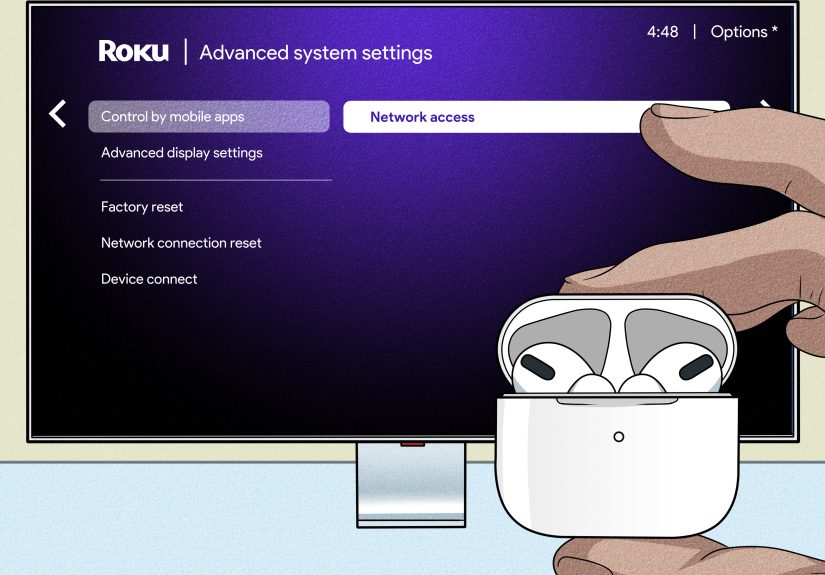
That said, Roku’s ecosystem has become a little more flexible over time. Some compatible Roku streaming devices now support Bluetooth headphones directly through Headphone Mode, and certain Roku remotes let you plug in wired headphones through a built-in 3.5mm jack. Those options are real, but they do not apply to every Roku TV in every living room. If your main goal is simply “I want to use AirPods with Roku tonight,” the mobile-app method is the safest bet.
Why People Love This Feature
Late-night watching without family complaints
This is the obvious use case, and also the best one. Private listening lets you keep the dramatic soundtrack, whispered dialogue, and random explosion sequence to yourself.
Better dialogue clarity
Some shows seem determined to make the dialogue too quiet and the action too loud. Watching through AirPods can make speech easier to follow, especially in apartments, dorms, or noisy homes.
Noise isolation
If you own AirPods Pro or AirPods Max, noise cancellation can make your watching experience feel cleaner and more immersive. You are not changing the Roku audio format itself, but you are changing how clearly you hear it.
More personal volume control
You can listen at a comfortable level without blasting the TV for everyone else. This is especially useful if two people in the room have very different opinions on what counts as “normal volume.”
What Private Listening Does Not Do
Private listening is great, but it is not wizardry.
- It does not automatically mean your AirPods are paired directly to the TV.
- It does not work well if your phone and Roku are on different networks.
- It may not apply to every external device connected to the TV in the same way it applies to Roku-delivered content.
- It is only as reliable as your Wi-Fi connection and your phone battery.
That last point sounds boring, but it matters. A weak network can turn your private movie night into a tiny festival of lag, dropouts, and irritation.
Troubleshooting: If Roku TV and AirPods Refuse to Cooperate
Make sure both devices are on the same Wi-Fi
This is the first thing to check. If your phone is on a guest network, VPN, or different Wi-Fi band that blocks device discovery, the Roku app may not see the TV at all.
Update the Roku app
If the headphones icon is missing, outdated software is a common reason. Updating the app is often the least glamorous fix and the most effective one.
Update Roku software
If your Roku TV is behind on system updates, app-based features may not behave properly. A quick software check can save you unnecessary frustration.
Check AirPods battery and Bluetooth connection
If your AirPods appear connected but you hear nothing, confirm they are actually the active audio output on your phone. Also make sure the volume is turned up on the phone itself.
Review mobile app permissions and network settings
Some phones need local network permissions enabled for the Roku app. If mobile app control is restricted on the Roku side, the app can also fail to connect. In stubborn cases, restart the Roku TV, restart the phone, and reconnect everything from scratch.
Alternative Ways to Listen Privately on Roku
Compatible Roku remotes with a headphone jack
Some Roku remotes support private listening by letting you plug wired headphones directly into the remote. It is delightfully old-school and still very effective.
Compatible Roku streaming devices with Bluetooth headphone support
Some newer compatible Roku streaming devices support direct Bluetooth headphone pairing. If your specific model offers that feature, you may be able to skip the phone relay method entirely. Just remember: this is more common on certain Roku streaming players than on Roku TVs as a category.
TV headphone jack or external Bluetooth transmitter
If your television has a headphone output, that can work with wired headphones. Some users also use an external Bluetooth transmitter connected to the TV’s audio output. That route can be useful, but it is more of a hardware workaround than a native Roku solution.
Best Tips for a Better AirPods and Roku Experience
- Charge your AirPods and your phone before long viewing sessions.
- Keep the phone close by for a more stable connection.
- Use a strong home Wi-Fi network instead of a weak guest setup.
- Lower the chance of lag by closing extra apps on your phone.
- Double-check the active audio output if sound suddenly switches back to speakers.
- Turn private listening off when you are done so the next person using the TV is not confused by the eerie silence.
Final Thoughts
If you are trying to connect AirPods to a Roku TV for private listening, the biggest thing to remember is this: your AirPods usually connect to your phone, and your phone connects to your Roku through the Roku app. Once that clicks, the whole setup becomes much less mysterious.
For most people, it takes only a few minutes to get working, and the payoff is excellent. You get late-night watching without waking anyone, cleaner audio in noisy rooms, and a more personal viewing experience overall. It is not flashy. It is not futuristic. It is just incredibly useful, which is often better.
And honestly, in a world full of overcomplicated tech, a feature that lets you quietly watch TV with earbuds and zero drama deserves a standing ovation. A very quiet standing ovation, obviously.
Real-World Experiences With Roku TV and AirPods for Private Listening
In everyday use, private listening on Roku feels less like a “feature” and more like one of those small conveniences that quietly changes your routine. The first time many people try it is usually out of necessity: someone is sleeping, someone is working, or someone in the house has already heard enough of your crime documentary obsession for one week. Once it works, though, it quickly becomes something you reach for on purpose.
One of the best experiences is late-night viewing. Instead of lowering the TV so much that every whispered line sounds like ancient prophecy, AirPods let you hear details clearly while the room stays silent. This is especially nice with dialogue-heavy dramas, documentaries, and sports commentary, where missing a few words can leave you wondering why everyone on screen suddenly looks so serious.
Apartment living is another place where this setup shines. Shared walls have a magical ability to make every action scene feel louder than it probably is. Using AirPods with Roku can make movie nights feel more relaxed because you are not constantly adjusting the volume up and down. You hear what you want to hear, and the people around you hear blissful nothing.
There is also the convenience factor. Once your AirPods are already paired to your phone, starting private listening becomes second nature. Open the Roku app, tap Remote, hit the headphones icon, done. It is not exactly a cinematic ritual, but it is fast enough that it never feels annoying. That matters. Any feature that requires too many steps tends to get abandoned, no matter how useful it sounds in theory.
For some users, AirPods can also make Roku viewing feel more immersive. If you have AirPods Pro or AirPods Max, the passive seal or active noise cancellation can help cut down distractions from the room around you. That means fewer interruptions from traffic, kitchen noise, chatty siblings, or the universal household soundtrack of doors opening and closing right when the plot gets important.
Parents often like this setup because it gives them a way to watch something after a child has gone to sleep without turning the whole evening into a stealth operation. Students and roommates like it because it gives them privacy in shared spaces. People with different hearing preferences like it because one person can enjoy stronger, clearer audio without making the room louder for everybody else.
The experience is not perfect every single time. If the Wi-Fi is weak, or if your phone decides to juggle too many tasks at once, you may notice connection hiccups. And if you forget that your AirPods are still the active output on your phone, you can spend a full minute wondering why the TV has gone silent. Still, those are manageable annoyances, not deal-breakers.
Overall, the real-world experience of using AirPods with Roku TV for private listening is simple: it makes watching TV easier, quieter, and more personal. It is one of those practical tech tricks that does not feel flashy on a spec sheet, but once it becomes part of your routine, it is hard to imagine not having it.