Table of Contents >> Show >> Hide
- What Does “Error Was Encountered During Authentication” Mean on Roblox?
- Fix 1: Check If Roblox Is Down
- Fix 2: Refresh the Login Session
- Fix 3: Clear Roblox Cookies and Cache
- Fix 4: Disable Browser Extensions Temporarily
- Fix 5: Make Sure Your Browser Is Supported and Updated
- Fix 6: Check Your Date and Time Settings
- Fix 7: Restart Your Device and Router
- Fix 8: Turn Off VPN, Proxy, or Unusual Network Tools
- Fix 9: Allow Roblox Through Firewall and Security Software
- Fix 10: Update or Reinstall the Roblox App
- Fix 11: Solve Two-Step Verification Problems
- Fix 12: Reset Your Roblox Password
- Fix 13: Check for Account Security Issues
- Fix 14: Try Another Device or Network
- Fix 15: Contact Roblox Support
- Quick Fix Checklist
- Real-World Experience: What Usually Works Best
- Conclusion
Few things can ruin a perfectly good gaming session faster than Roblox slamming the digital door with the message: “An error was encountered during authentication. Please try again.” One minute you are ready to jump into Blox Fruits, Adopt Me!, Brookhaven, or whatever universe currently owns your free time. The next minute, Roblox acts like your login is a suspicious raccoon trying to sneak into a buffet.
The good news: this Roblox authentication error is usually fixable. The bad news: there is no single magic button labeled “Stop Being Weird, Roblox.” The problem can come from Roblox servers, expired login sessions, corrupted browser cookies, outdated apps, inaccurate system time, VPN conflicts, firewall blocks, two-step verification issues, or account security problems.
This guide walks you through the most reliable fixes in the smartest order, so you do not waste an hour reinstalling everything when the real issue is just a stale browser cookie wearing a tiny villain cape.
What Does “Error Was Encountered During Authentication” Mean on Roblox?
Authentication is the process Roblox uses to confirm that you are really you. When you enter your username, password, passkey, email code, or two-step verification code, Roblox checks that information against its systems. If something breaks during that handshake, you may see an authentication failed message.
In plain English, Roblox is saying: “I tried to verify this login, but something went wrong.” That “something” might be on Roblox’s side, your device, your browser, your network, or your account settings.
Common signs of the issue
You may be dealing with this Roblox login error if:
- You can open Roblox but cannot sign in.
- You see “An error was encountered during authentication. Please try again.”
- The Roblox app logs you out repeatedly.
- Two-step verification codes do not work.
- The error appears on one device but not another.
- Roblox works in the browser but not the desktop app, or the other way around.
- You get kicked back to the login screen after entering correct details.
Because the error can have several causes, the best approach is to start with quick checks and move toward deeper fixes only if needed.
Fix 1: Check If Roblox Is Down
Before blaming your Wi-Fi, browser, phone, laptop, cat, or the neighbor’s microwave, check whether Roblox itself is having service problems. Authentication errors often appear during server outages, login incidents, or maintenance periods.
Visit the official Roblox status page and look for problems related to login, website access, player services, or authentication. If Roblox is reporting an active incident, the best fix is patience. Yes, patience is the least exciting troubleshooting step in human history, but it works when the servers are the problem.
How to tell if it is a server-side issue
It is probably a Roblox-side problem if:
- Many players are reporting the same login issue at the same time.
- The error appears on every device you try.
- You cannot log in from the browser, mobile app, or desktop app.
- Roblox status shows degraded performance or an active outage.
If the official status page looks normal, continue with the fixes below.
Fix 2: Refresh the Login Session
Sometimes Roblox is not angry; it is just confused. A login session can expire, get stuck, or fail to refresh properly. Start with a clean sign-in attempt.
- Close Roblox completely.
- Close the browser or app you used to log in.
- Wait about 30 seconds.
- Open Roblox again.
- Log in manually instead of relying on saved login data.
If you are using a browser, open a private or incognito window and try logging in there. If Roblox works in private mode, your regular browser data, extensions, or cookies are likely causing the authentication error.
Fix 3: Clear Roblox Cookies and Cache
Old cookies are one of the most common causes of Roblox login problems. Cookies help websites remember sessions, preferences, and account-related details. But when login cookies become outdated or corrupted, Roblox may reject the authentication attempt.
Think of it like showing up at airport security with a boarding pass from last Tuesday. Technically, it looks official. Practically, nobody is letting you through.
Clear Roblox data in Chrome
- Open Chrome.
- Click the three-dot menu in the upper-right corner.
- Go to Settings.
- Select Privacy and security.
- Choose Delete browsing data.
- Select Cookies and other site data and Cached images and files.
- Choose a time range, preferably All time if the issue keeps returning.
- Click Delete data.
Clear Roblox data in Microsoft Edge
- Open Edge.
- Click the three-dot menu.
- Go to Settings.
- Select Privacy, search, and services.
- Under clear browsing data, choose what to clear.
- Select cookies and cached files.
- Clear the data and restart the browser.
Clear Roblox cookies on Safari
On Mac, open Safari settings, go to privacy options, manage website data, and remove Roblox-related data. On iPhone or iPad, you can clear Safari history and website data from the Settings app. After clearing cookies, restart the device before logging in again.
Important note: clearing cookies may log you out of other websites. It will not delete your Roblox account, Robux, avatar items, or game progress.
Fix 4: Disable Browser Extensions Temporarily
Browser extensions can interfere with Roblox login pages, captcha verification, scripts, cookies, and security checks. Ad blockers, privacy blockers, script blockers, VPN extensions, and cookie managers are common suspects.
Try this simple test:
- Disable all browser extensions.
- Restart the browser.
- Try logging into Roblox again.
- If it works, turn extensions back on one by one.
- When the error returns, you have found the troublemaker.
Pay special attention to extensions that block tracking, modify requests, force HTTPS rules, or manage cookies. These tools can be useful, but sometimes they protect your browser so aggressively that Roblox cannot complete authentication.
Fix 5: Make Sure Your Browser Is Supported and Updated
Roblox recommends using updated browsers such as Chrome, Firefox, Microsoft Edge, or Safari. If your browser is outdated, login pages may not load correctly, security challenges may fail, or Roblox may reject the session.
Update your browser, restart it, and try again. If the authentication error appears only in one browser, test another. For example, if Chrome fails, try Edge or Firefox. If Roblox works elsewhere, the issue is probably browser-specific.
Best browser test
Use this quick comparison:
- Works in another browser: clear cache, remove extensions, or reset the original browser.
- Fails in every browser: check network, device time, Roblox status, and account security.
- Works in browser but not app: update or reinstall the Roblox app.
Fix 6: Check Your Date and Time Settings
This fix sounds almost too simple, but inaccurate device time can cause login and authentication problems. Many online services rely on secure certificates, time-based tokens, and verification windows. If your computer or phone thinks it lives in the wrong hour, day, or century, Roblox may reject authentication.
On Windows
- Open Settings.
- Go to Time & language.
- Select Date & time.
- Turn on Set time automatically.
- Turn on Set time zone automatically if available.
- Click Sync now.
On iPhone or iPad
- Open Settings.
- Tap General.
- Tap Date & Time.
- Enable Set Automatically.
On Android
- Open Settings.
- Search for Date and time.
- Enable automatic date, time, and time zone.
- Restart Roblox.
After correcting the time, close Roblox completely and attempt a fresh login.
Fix 7: Restart Your Device and Router
Yes, “turn it off and on again” is the old reliable of tech support. It is also old reliable because it works more often than people want to admit.
Restarting your device clears temporary memory, closes stuck background processes, and refreshes network connections. Restarting your router can also fix DNS hiccups, unstable Wi-Fi, or stale network sessions.
Best restart method
- Close Roblox.
- Restart your computer, phone, tablet, or console.
- Unplug your router for 30 seconds.
- Plug it back in and wait until the connection is stable.
- Open Roblox and log in again.
If Roblox works on mobile data but not on Wi-Fi, your home network is likely part of the problem.
Fix 8: Turn Off VPN, Proxy, or Unusual Network Tools
VPNs and proxies can trigger login problems because they change your apparent location, IP address, and network path. Roblox may treat the login as suspicious, especially if you switch between locations quickly.
Temporarily disable:
- VPN apps
- Proxy settings
- Browser VPN extensions
- Custom DNS tools
- Network filtering apps
Then try logging in again. If the Roblox authentication error disappears, reconnect using a different VPN server or play without the VPN. For school, office, or public networks, Roblox may be restricted by the administrator.
Fix 9: Allow Roblox Through Firewall and Security Software
Firewalls and antivirus tools are designed to block suspicious connections. Unfortunately, they sometimes look at Roblox and say, “Absolutely not, little block person.” If Roblox cannot communicate with its servers, authentication can fail.
What to check
- Allow Roblox through Windows Security or your antivirus firewall.
- Make sure Roblox is not blocked by parental control software.
- Check whether your router has strict filtering enabled.
- Disable third-party security tools temporarily only for testing.
- Do not leave your firewall turned off permanently.
If turning off a firewall briefly fixes the issue, turn it back on and add Roblox as an allowed app instead of playing with protection disabled.
Fix 10: Update or Reinstall the Roblox App
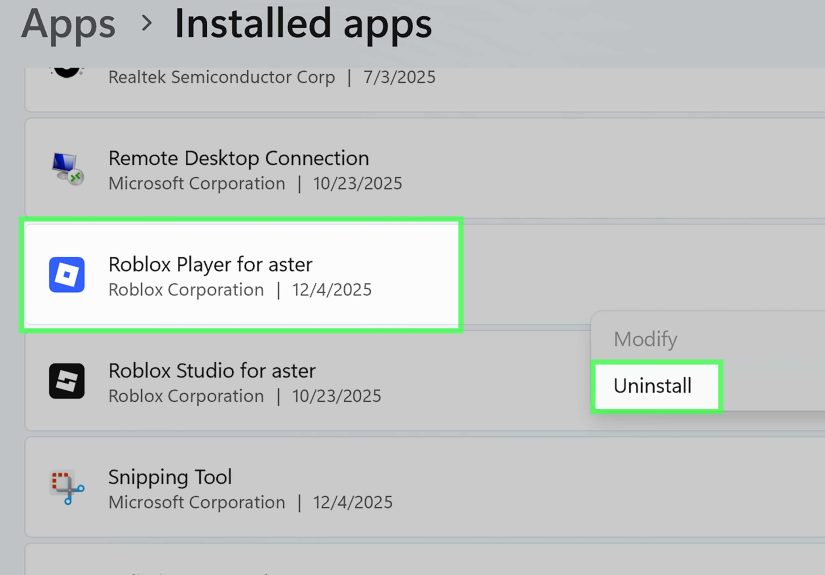
If the error appears in the Roblox desktop app or mobile app, the installation may be outdated or damaged. Reinstalling gives Roblox a clean copy of the app and often clears app-level problems that browser fixes cannot touch.
On Windows
- Close Roblox completely.
- Open Settings.
- Go to Apps.
- Find Roblox and uninstall it.
- Restart your computer.
- Download Roblox again from the official Roblox website or Microsoft Store.
On Mac
- Quit Roblox.
- Move Roblox from Applications to Trash.
- Restart your Mac.
- Open Roblox in Safari or another supported browser.
- Install Roblox again when prompted.
On Android
- Open Settings.
- Go to Apps.
- Select Roblox.
- Tap Storage.
- Clear cache first, then test.
- If needed, uninstall and reinstall Roblox from Google Play.
On iPhone or iPad
- Press and hold the Roblox app icon.
- Delete the app.
- Restart the device.
- Reinstall Roblox from the App Store.
Reinstalling Roblox does not delete your Roblox account or purchases because those are tied to your account, not the local app installation.
Fix 11: Solve Two-Step Verification Problems
If your password is correct but Roblox fails during a verification step, the problem may be with two-step verification. Email codes, authenticator app codes, backup codes, and passkeys all depend on timing and account configuration.
If your email code does not arrive
- Check spam, junk, promotions, and social folders.
- Make sure you are checking the email attached to the Roblox account.
- Add Roblox’s no-reply email address to contacts if messages are being filtered.
- Use Resend Code or Start Over on the verification screen.
If your email code does not work
Roblox verification codes can expire. Do not keep entering the same old code like you are trying to convince a vending machine to respect your dollar bill. Request a fresh code and enter the newest one only.
If your authenticator app code fails
- Open the authenticator app and use the current code.
- Do not use a code that has almost expired.
- Make sure your phone time is set automatically.
- Try another verification method if you previously set one up.
If you lost access to your authenticator app and do not have recovery codes, you will need to contact Roblox Support. Avoid any website or video claiming it can “bypass” Roblox two-step verification. That is not a fix; that is a giant red flag wearing sunglasses.
Fix 12: Reset Your Roblox Password
If Roblox keeps rejecting login attempts, reset your password using the official account recovery option. This is especially important if you suspect your account details were changed, saved passwords are outdated, or someone else may have accessed the account.
- Go to the Roblox login page.
- Select Forgot Password or Username?
- Use the email address or phone number connected to your account.
- Follow the reset instructions.
- Create a new password that you do not use anywhere else.
A strong password should be unique, long, and difficult to guess. Do not reuse your email password, school password, or the legendary family password that is somehow still “summer2020.”
Fix 13: Check for Account Security Issues
If Roblox suddenly asks for verification methods you never set up, or your password reset emails are not arriving, your account may have been compromised. In that case, treat the authentication error as a security warning, not just a technical glitch.
Warning signs
- Your password no longer works.
- Your email or phone number was changed.
- You receive login alerts you do not recognize.
- Your Robux, limited items, or avatar items changed unexpectedly.
- Two-step verification was enabled without your permission.
If you suspect hacking, scan your device for malware, remove suspicious browser extensions, reset your email password, then contact Roblox Support with as much account ownership information as possible. Include your username, verified email or billing email, purchase receipts if available, and a clear explanation of what happened.
Fix 14: Try Another Device or Network
Testing another device is one of the fastest ways to narrow the issue. If Roblox fails on your PC but works on your phone, your account is probably fine. The problem is likely the PC, browser, app installation, firewall, or network settings.
Try these combinations:
- Browser on computer
- Roblox desktop app
- Mobile app on Wi-Fi
- Mobile app on cellular data
- Another browser
- Another trusted network
This test is not glamorous, but it gives you useful clues. Troubleshooting without clues is just clicking things with hope, and hope is not a network protocol.
Fix 15: Contact Roblox Support
If nothing works, contact Roblox Support. This is the right move when the issue involves account ownership, missing verification access, suspected hacking, billing email proof, or persistent login failure across all devices.
When submitting a support request, be specific. Instead of writing “Roblox broken help,” include:
- Your Roblox username.
- The exact error message.
- The device and browser or app you used.
- When the problem started.
- Steps you already tried.
- Whether you can access your account on any other device.
- Any account ownership proof, if requested.
A clear support request saves time and reduces back-and-forth. Support teams are not mind readers, even if sometimes we desperately wish they were.
Quick Fix Checklist
If you want the fastest path, follow this order:
- Check Roblox server status.
- Close and reopen Roblox.
- Try a private browser window.
- Clear Roblox cookies and cache.
- Disable browser extensions.
- Update your browser.
- Sync your device date and time.
- Restart your device and router.
- Turn off VPN or proxy temporarily.
- Allow Roblox through firewall/security software.
- Update or reinstall Roblox.
- Reset your password.
- Contact Roblox Support if account access is still blocked.
Real-World Experience: What Usually Works Best
In everyday troubleshooting, the Roblox “Error Was Encountered During Authentication” message usually falls into a few familiar patterns. The first pattern is the “it was Roblox all along” situation. A player tries five different fixes, gets annoyed, checks the status page, and discovers a login outage. In that case, the best repair tool is a snack and a little patience. If Roblox services are having trouble, no amount of clearing cache will personally convince the servers to behave.
The second pattern is the browser cookie problem. This one is extremely common because Roblox login sessions depend on stored browser data. A user may have been logged in for weeks, switched accounts, updated the browser, used an extension, or had a session expire in the background. Suddenly, Roblox cannot authenticate properly. Clearing cookies and cached files often fixes this quickly. A useful example: if Roblox fails in regular Chrome but works in an incognito window, that is a huge hint that cookies or extensions are involved. In that case, do not immediately reinstall Roblox. Clean the browser first.
The third pattern involves device time. This one surprises people because it feels unrelated. A laptop with the wrong date or a phone using manual time settings may fail secure login checks. Authentication systems often depend on accurate clocks, especially when codes, tokens, and certificates are involved. If someone says, “My password is correct, but Roblox still refuses me,” checking automatic time settings is worth doing before deeper repairs.
The fourth pattern is the VPN or network conflict. Roblox may work perfectly at home but fail at school, work, hotels, public Wi-Fi, or while a VPN is active. Public and managed networks often block gaming traffic, restrict ports, or interrupt login verification. VPNs can also make your login look unusual if your account normally signs in from one country and suddenly appears from somewhere else. Testing mobile data is a great shortcut. If Roblox works on cellular but not Wi-Fi, the account is probably not the issue.
The fifth pattern is two-step verification confusion. Players sometimes request several codes and then enter an older one. Others check the wrong email inbox or forget that their authenticator code changes every few seconds. The safest approach is to use the newest code, enter it quickly, and make sure the device time is automatic. If backup codes are lost and the authenticator app is gone, there is no legitimate bypass. Roblox Support is the correct route.
The sixth pattern is app corruption. On mobile or desktop, reinstalling Roblox can fix damaged files, outdated builds, or app data that refuses to refresh. However, reinstalling should not be the first move unless the error appears only in the app. If the browser login also fails, the issue may be account, network, or server related.
The most practical lesson is simple: troubleshoot like a detective, not like a panicked button-masher. Test one thing at a time. Start with server status, browser data, time settings, and network checks. Then move to reinstalling and support. This approach saves time, protects your account, and prevents you from deleting half your computer in the name of “fixing Roblox.” Your avatar deserves better. So does your sanity.
Conclusion
The Roblox authentication error can look scary, but most cases are caused by fixable issues: server outages, expired sessions, corrupted cookies, blocked browser scripts, wrong device time, VPN conflicts, firewall restrictions, outdated apps, or two-step verification problems. Start with the simple fixes first. Check Roblox status, refresh your session, clear cache and cookies, update your browser, sync your clock, and test another network. If the problem points to your account, reset your password or contact Roblox Support.
Most importantly, never use third-party tools that promise to bypass verification or unlock accounts. Legitimate fixes protect your account. Shady shortcuts are how people lose their accounts, Robux, and rare items faster than a noob walking into a boss fight with confidence and no plan.
Note: This guide is intended for legitimate Roblox account access and troubleshooting. Do not attempt to bypass Roblox security features, two-step verification, passkeys, or account ownership checks.