Table of Contents >> Show >> Hide
- What Is Pandora, Exactly?
- Step 1: Pick the Right Pandora Plan
- Step 2: Create Your Pandora Account
- Step 3: Create Your First Station
- Step 4: Teach Pandora With Thumbs Up and Thumbs Down
- Step 5: Use Pandora Modes to Change the Vibe
- Step 6: Add Variety So Your Station Does Not Get Stuck
- Step 7: Understand the Difference Between Stations and Playlists
- Step 8: Make a Playlist on Pandora Premium
- Step 9: Download Music for Offline Listening
- Step 10: Use Pandora on More Than Your Phone
- Best Beginner Tips for Getting Better Recommendations Fast
- Common Beginner Mistakes to Avoid
- Is Pandora Good for Beginners?
- Real Beginner Experiences With Pandora
- Conclusion
- SEO Tags
If you have ever opened Pandora, stared at the screen, and thought, “Cool… but where do I poke this thing first?” you are in exactly the right place. Pandora is one of those apps that can feel incredibly simple and slightly mysterious at the same time. You type in an artist, music starts playing, and somehow the app knows you were one bad day away from listening to nothing but breakup ballads and dramatic 2000s pop.
This beginner’s guide walks you through how to use Pandora from the ground up: creating an account, choosing the right plan, building stations, using Thumbs Up and Thumbs Down, trying Pandora Modes, making playlists, downloading for offline listening, and getting the app to behave on your phone, computer, car, or smart speaker. If you are brand-new to music streaming or just new to Pandora, this guide will help you go from confused tapper to confident listener.
What Is Pandora, Exactly?
Pandora is a music and podcast streaming service that combines two listening styles. First, it is famous for personalized radio stations, where you start with a song, artist, genre, or mood and Pandora builds a station around it. Second, if you pay for the right tier, Pandora also works like an on-demand service, letting you search and play specific songs, albums, and playlists.
That is the big beginner-friendly idea: Pandora is at its best when you let it learn your taste. Instead of forcing you to manually build everything from scratch, it helps shape your listening based on what you like, skip, replay, and rate. In other words, Pandora does not just play music. It slowly becomes that friend who says, “You liked that? Great. I have seventeen more songs with the same emotional damage and snare drum energy.”
Step 1: Pick the Right Pandora Plan
Before you do anything else, decide how you want to listen. Pandora works very differently depending on your plan.
Free Pandora
The free version is best for people who like radio-style listening and do not mind ads. You can create stations based on artists, songs, or genres, use Thumbs to improve recommendations, and listen to podcasts. For many beginners, this is a perfectly fine place to start because it lets you learn the app before paying a cent.
Pandora Plus
Pandora Plus is made for listeners who want a smoother radio experience. It removes ads from music, gives you more control with skips and replays, improves audio quality, and adds limited offline listening. If you mostly want personalized stations and do not care much about building your own playlists, Plus is often the sweet spot.
Pandora Premium
Pandora Premium adds full on-demand listening. That means you can search and play specific songs, albums, and playlists when you want them, create your own playlists, and download more music for offline listening. If you want Pandora to behave more like Spotify or Apple Music while still keeping its radio DNA, this is the plan to choose.
Pandora Premium Family
If multiple people in your household want their own listening profiles, the Family plan is the practical option. Everyone gets their own account, which matters because Pandora recommendations are intensely personal. One person’s mellow jazz station should not be hijacked by someone else’s gym playlist that sounds like a robot bench-pressing thunder.
At the time of writing, Pandora’s direct website pricing commonly lists Plus at $4.99 per month, Premium at $10.99 per month, and Premium Family at $17.99 per month, though prices and promotions can change. If you are unsure, start free, test the app for a week, then upgrade only if you want more control.
Step 2: Create Your Pandora Account
Getting started is easy. Download the Pandora app on your phone or tablet, or visit the Pandora website on your computer. Tap or click Sign Up, enter your account details, and follow the prompts.
Once you are in, Pandora will usually ask what kind of music or artists you like. Do not overthink this step. You are not naming your future child. Just pick a few artists, songs, or genres you genuinely enjoy. Pandora uses your early choices to build a starting point for recommendations.
If you already know your taste is all over the place, that is fine too. Pandora handles mixed listening pretty well. You can like indie folk, classic R&B, modern country, movie scores, and the occasional embarrassing throwback hit. The app has seen worse. It has probably seen someone who listens to death metal and soft piano sleep music in the same hour.
Step 3: Create Your First Station
Stations are the core of Pandora, especially for beginners. To create one, search for an artist, song, genre, or mood, then choose the option to start a station. Pandora will use that starting point, sometimes called a seed, to build a stream of similar music.
For example:
- If you create a station from Taylor Swift, expect a blend of her music and similar artists.
- If you start from a song like “Dreams,” you may get a station built around that mood, sound, and era.
- If you start with a genre like lo-fi hip-hop, Pandora will keep the vibe broader and more atmospheric.
Your first station does not need to be perfect. In fact, it probably will not be. The real magic happens after you start interacting with it.
Step 4: Teach Pandora With Thumbs Up and Thumbs Down
If you learn only one thing in this guide, let it be this: use the Thumbs buttons.
Thumbs Up tells Pandora, “More like this, please.” Thumbs Down tells it, “Never again, and kindly escort this track out of my presence.” These buttons are not decoration. They actively shape what your station becomes over time.
How to Use Thumbs Well
- Give a Thumbs Up when a song truly fits the station you want.
- Use Thumbs Down when a track feels wrong for the vibe.
- Be consistent early on so Pandora learns faster.
- Do not thumbs every song wildly like you are grading papers in a bad mood.
Beginners often make one of two mistakes. The first is never using Thumbs, which leaves Pandora guessing. The second is using Thumbs based only on whether a song is good, instead of whether it fits the station. A great party song might still deserve a Thumbs Down on your chill evening station. Context matters.
Step 5: Use Pandora Modes to Change the Vibe
Pandora Modes are one of the best features for beginners because they let you steer a station without rebuilding it. Think of Modes like different personalities for the same station.
Common Pandora Modes
- My Station: the default mix you already know.
- Crowd Faves: more of the most popular, recognizable tracks.
- Discovery: more songs and artists you may not hear often.
- Deep Cuts: lesser-known tracks and deeper catalog picks.
- Newly Released: newer songs from artists connected to the station.
- Artist Only: heavily focused on the main artist behind the station.
Not every Mode appears on every station, so do not panic if one is missing. Pandora varies the available options based on the station. Still, Modes are incredibly useful. If your station feels too safe, switch to Discovery. If it starts wandering too far into weird territory, go back to Crowd Faves or My Station.
This is one of the reasons Pandora feels smarter than a plain playlist. You are not just playing music. You are tuning the experience.
Step 6: Add Variety So Your Station Does Not Get Stuck
If a station starts to feel repetitive, you do not always need to delete it and start over. Pandora lets you add variety by mixing in more artists or songs as extra seeds.
Say you made a station from one artist, but now everything sounds a little too similar. Add a second or third artist with a related sound. That widens the station without completely changing its identity. It is like adding seasoning, not replacing the meal.
This is especially helpful when a station keeps leaning too hard in one direction. Add variety if you want more eras, more female vocals, more upbeat tracks, more guitars, or less “every song sounds like it belongs in a sad coffee commercial.”
Step 7: Understand the Difference Between Stations and Playlists
This trips up a lot of new users, so let’s make it simple.
Stations
Stations are adaptive. They keep changing based on your feedback. You start with a seed, and Pandora keeps selecting music for you.
Playlists
Playlists are more fixed and intentional. With Pandora Premium, you can create and customize playlists, add specific songs, and let Pandora suggest matching tracks. This is perfect when you want control, such as a workout playlist, a road-trip mix, or a “please leave me alone while I answer email” background set.
If you are a beginner, use stations for discovery and playlists for occasions. That one rule will save you a lot of confusion.
Step 8: Make a Playlist on Pandora Premium
If you have Premium, creating a playlist is straightforward. Go to your collection, choose playlists, and create a new one. Then search for songs, artists, or albums to add. Pandora can also recommend tracks that match what is already in your playlist, which is handy when your brain runs out of ideas after five songs.
Good beginner playlist ideas include:
- Morning energy playlist
- Deep focus playlist
- Cleaning-the-house-like-a-movie-montage playlist
- Rainy-night playlist
- Road trip playlist
Do not worry about making the perfect playlist on day one. Most great playlists begin as chaotic little monsters and improve over time.
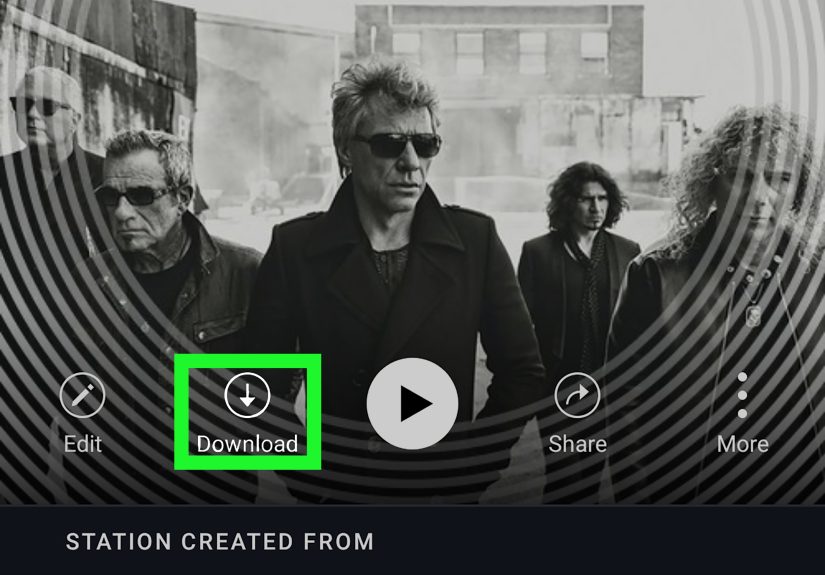
Step 9: Download Music for Offline Listening
Offline listening is a lifesaver when you travel, commute, fly, or simply refuse to let your data plan suffer. How much offline control you get depends on your subscription level.
With Plus, Pandora focuses on offline stations. With Premium, you can download more of the music you specifically want, including playlists and on-demand content. To use offline listening, download your music while you still have an internet connection, then switch to offline mode if needed.
If downloads are not working, the usual culprits are storage space, connectivity, or old app versions. In plain English: your phone might be full, your Wi-Fi may be flaky, or your app may be overdue for an update.
Step 10: Use Pandora on More Than Your Phone
Pandora is not just a phone app. You can use it on your computer through the website, in the car, on some smart speakers, on certain watches, and on supported home devices. This matters because beginners often assume they are stuck with one screen.
On Your Computer
The web version is great for longer listening sessions, especially if you work at a desk. It is also easier to manage some settings and browse your collection on a bigger screen.
In the Car
If your car setup supports it, Pandora can connect through your phone, Bluetooth, USB, or supported infotainment systems. For commuters, this is where stations shine. Press play, drive, and let Pandora handle the soundtrack.
With Smart Speakers
If you use Alexa or Google Assistant, you can often control Pandora with voice commands. That means you can ask to play a station, skip a track, or even give a Thumbs Up hands-free. Very convenient when your hands are busy cooking, cleaning, or losing a battle with fitted sheets.
On a Watch
Supported watches can make Pandora even more portable, especially for offline playback during walks or workouts. Just keep in mind that setup and offline syncing can vary by device.
Best Beginner Tips for Getting Better Recommendations Fast
- Start with three to five stations instead of fifty. Quality beats chaos.
- Use Thumbs consistently during your first week.
- Try Modes before deleting a station. Discovery and Deep Cuts can revive a tired station.
- Add variety if a station feels too narrow.
- Use Premium only if you want true on-demand control. Otherwise, free or Plus may be enough.
- Separate moods into different stations. Do not force one station to be relaxing, romantic, high-energy, and study-friendly all at once.
- Clean up your collection occasionally so old stations do not clutter your listening.
Common Beginner Mistakes to Avoid
Using One Station for Everything
A station built for workouts will not magically become a sleep station just because you are tired. Make separate stations for separate moods.
Ignoring Thumbs
If you never give feedback, Pandora can only guess. And guesswork is how you end up with a station that starts as mellow folk and somehow detours into dramatic arena rock.
Upgrading Too Early
Do not pay for Premium just because you think you are supposed to. Start with the listening style you actually want. If radio-style listening makes you happy, free or Plus may be enough.
Giving Up Too Soon
Pandora gets better as it learns. Your first hour may feel decent. Your first week can feel surprisingly accurate. Give it a little time.
Is Pandora Good for Beginners?
Yes, especially if you like music discovery but do not want to build every listening session from scratch. Pandora is one of the easiest music services for people who just want to pick a starting point and let the app do some of the work. It rewards small interactions, not technical skill.
If you are the type who wants to choose every exact song, Premium is the better fit. If you like the thrill of hearing familiar tracks mixed with pleasant surprises, Pandora’s stations are still its secret weapon.
Real Beginner Experiences With Pandora
One of the most interesting things about learning Pandora is how quickly your experience changes once you stop treating it like a normal radio app. Most beginners open Pandora expecting it to work like a giant playlist. They search an artist, press play, and then feel confused when songs by other artists show up. But that confusion usually disappears the moment they understand the point: Pandora is trying to build a listening environment, not just replay one name forever.
A new user might create a station from Fleetwood Mac because they want a soft classic-rock vibe while working. At first, the station feels broad. They get some songs they love, some they merely tolerate, and one random track that makes them glance suspiciously at the speaker like it personally insulted them. Then they start using Thumbs Up and Thumbs Down. Within a few days, the station gets noticeably better. It stops feeling generic and starts feeling familiar, like a room arranged around their taste.
Another beginner experience is realizing that Pandora Modes are not gimmicks. Someone might use the same station in different situations and discover that it can behave almost like multiple stations. My Station works during everyday listening, Discovery becomes a tool for finding new artists, and Crowd Faves is perfect when friends are over and nobody wants the musical equivalent of a surprise quiz. That flexibility often surprises new users because it makes the app feel more responsive than expected.
Then there is the moment many users decide whether they actually need Premium. Some people discover they love the radio-style format and barely care about on-demand playback. Others quickly learn they want to search any song at any time, build playlists for specific moods, and download exactly what they want for flights or gym sessions. Pandora makes that choice easier because the differences between plans become obvious in real-life use, not just on a pricing page.
Beginners also tend to enjoy Pandora more once they stop chasing perfection. The best stations are not built in one sitting. They evolve. A station you create on Monday may feel good by Friday and excellent by the end of the month. That slow improvement is part of the fun. Instead of feeling like you have to do all the work, you get the sense that the service is learning alongside you.
In practical everyday life, Pandora often shines in quiet moments: commuting to work, cooking dinner, folding laundry, walking the dog, or trying to make a Tuesday afternoon feel less like a Tuesday afternoon. It is especially good for listeners who want discovery without chaos. You still get surprises, but they are usually in the same musical neighborhood.
The most common beginner reaction after using Pandora properly for a while is simple: “Oh, now I get it.” And that is really the whole point of this guide. Once you understand stations, Thumbs, Modes, and plan differences, Pandora stops feeling confusing and starts feeling personal.
Conclusion
If you are just getting started, the easiest way to use Pandora is to begin with a few stations, give honest feedback with Thumbs, experiment with Modes, and upgrade only if you need more control. That approach keeps the learning curve low and the fun level high. Pandora works best when you let it adapt to your taste instead of expecting it to be perfect from the first tap.
Start simple. Build slowly. Use the app like a listener, not like a technician. Before long, Pandora can become one of the easiest ways to discover music that actually feels like you.