Table of Contents >> Show >> Hide
- Introduction: Why Updating Microsoft Office on a Mac Matters
- Before You Update: Check These Quick Things First
- Method 1: Update Microsoft Office on a Mac with Microsoft AutoUpdate
- Method 2: Update Microsoft Office from the Mac App Store
- Method 3: Download or Reinstall the Latest Office Version from Microsoft
- How to Confirm Microsoft Office Updated Successfully
- Microsoft Office Update Troubleshooting on Mac
- Microsoft 365 vs. Office 2024: Does Updating Work the Same Way?
- Best Practices for Keeping Office Updated on a Mac
- Real-World Experience: What Actually Makes Office Updates Smooth on a Mac
- Conclusion: The Easiest Way to Update Microsoft Office on a Mac
Note: This guide applies to Microsoft 365, Office 2024 for Mac, Office 2021 for Mac, and common Office apps such as Word, Excel, PowerPoint, Outlook, and OneNote. Menu names may vary slightly depending on whether you installed Office from Microsoft’s website or the Mac App Store.
Introduction: Why Updating Microsoft Office on a Mac Matters
Updating Microsoft Office on a Mac is one of those tiny maintenance tasks that feels optionalright up until Word freezes during a final draft, Excel refuses to open a spreadsheet, or Outlook decides your inbox is a decorative object. The good news? You do not need to be an IT wizard, Terminal magician, or someone who says “firmware” at parties to keep Office updated.
Microsoft regularly releases Office for Mac updates to improve security, fix bugs, add features, support newer versions of macOS, and make apps like Word, Excel, PowerPoint, Outlook, and OneNote run more smoothly. These updates can include performance improvements, compatibility fixes, and important security patches. In plain English: updates help your apps behave like professional tools instead of dramatic toddlers.
There are three easy ways to update Microsoft Office on a Mac: using Microsoft AutoUpdate, updating through the Mac App Store, or reinstalling/downloading the latest version from your Microsoft account when normal updates fail. The best method depends on how you originally installed Office. If you downloaded it from Microsoft, use Microsoft AutoUpdate. If you installed Office apps from the Mac App Store, use the App Store. If something is broken, missing, or outdated beyond repair, a fresh installer may save the day.
Before you begin, make sure your Mac is connected to the internet, your Office apps are closed or ready to close, and your macOS version is supported. As of recent Microsoft guidance, newer Office for Mac updates require modern macOS versions, so an old Mac operating system can block new Office updates even if your Microsoft subscription is perfectly fine.
Before You Update: Check These Quick Things First
1. Know Where Your Office Apps Came From
The update method depends on the installation source. If you downloaded Office from Microsoft.com or Microsoft365.com, Microsoft AutoUpdate is your main tool. If you installed Word, Excel, PowerPoint, or Outlook through the Mac App Store, the App Store manages updates.
Here is the simple clue: if Office appears in your Mac App Store purchase or update history, use the App Store. If not, use Microsoft AutoUpdate. Mixing the two methods usually creates confusion, like putting ketchup in coffee. Technically possible, emotionally unacceptable.
2. Save Your Work
Before installing updates, save open documents and close Office apps. Updates often require apps to restart. If Word is holding your twenty-page report hostage, save it first. If Excel has unsaved formulas that took three emotional support coffees to build, save those too.
3. Check macOS Compatibility
Microsoft Office for Mac updates depend on macOS support. If your Mac is running an older macOS version, your Office apps may still open, but you may stop receiving new feature updates or security updates. For best results, install the latest macOS version your Mac supports before updating Office.
Method 1: Update Microsoft Office on a Mac with Microsoft AutoUpdate
Microsoft AutoUpdate, often called MAU, is the official update tool for Office apps installed directly from Microsoft. This is the most common method for Microsoft 365 subscribers and users who installed Office 2024 or Office 2021 from a Microsoft account.
Step-by-Step Instructions
- Open any Microsoft Office app, such as Word, Excel, or PowerPoint.
- In the top menu bar, click Help.
- Select Check for Updates.
- Microsoft AutoUpdate will open and search for available updates.
- Select Automatically keep Microsoft apps up to date if you want future updates installed automatically.
- Click Update or Update All to install available updates.
- Wait for the updates to finish, then reopen your Office apps.
When This Method Works Best
Use Microsoft AutoUpdate if you installed Office from Microsoft’s website, your Microsoft 365 account, your workplace or school account, or an Office installer package. It is also the right method if you use Microsoft 365 Apps for enterprise or business on a Mac managed by your organization.
Microsoft AutoUpdate is convenient because it can update multiple Microsoft apps from one place. That may include Word, Excel, PowerPoint, Outlook, OneNote, Teams, OneDrive, and other Microsoft tools installed on your Mac. It also allows automatic updates, which is ideal if your personal maintenance style is “I will do it later,” where later means never.
What If “Check for Updates” Is Missing?
If you click Help and do not see Check for Updates, Microsoft AutoUpdate may be missing, outdated, blocked, or damaged. Downloading and installing the latest Microsoft AutoUpdate package usually fixes the problem. After installing it, open Word again, go to Help, and check for updates.
Pro Tip: Turn On Automatic Updates
For most users, automatic updates are the best choice. They help keep Office secure without requiring you to remember another digital chore. Your Mac already asks enough of you: passwords, permissions, storage warnings, mysterious spinning beach balls. Let AutoUpdate handle Office.
Method 2: Update Microsoft Office from the Mac App Store
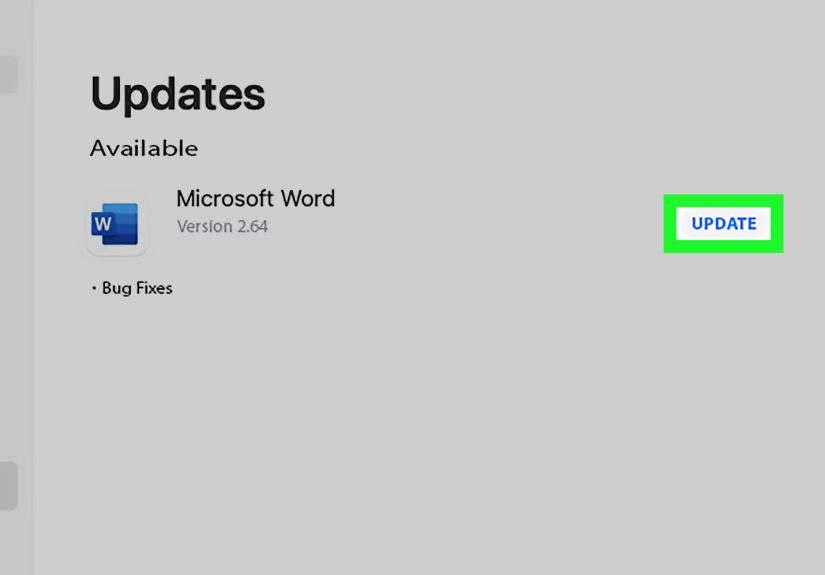
If you downloaded Microsoft 365 apps from the Mac App Store, you should update them through the App Store. This method is simple, familiar, and great for users who prefer managing apps the Apple way.
Step-by-Step Instructions
- Open the App Store on your Mac from the Dock, Launchpad, Finder, or Apple menu.
- Click Updates in the sidebar.
- Look for Microsoft apps such as Word, Excel, PowerPoint, Outlook, or OneNote.
- Click Update next to an individual app, or click Update All to update everything available.
- Wait for the download and installation to complete.
- Open the updated Office app and confirm it launches normally.
How to Turn On Automatic App Store Updates
You can also let the Mac App Store update Office apps automatically:
- Open the App Store.
- Click App Store in the top menu bar.
- Select Settings or Preferences, depending on your macOS version.
- Check Automatic Updates.
Once enabled, your Mac can automatically install updates for App Store apps, including Microsoft apps installed from the App Store. This is especially useful for people who use Office every day but do not want to manually check for updates every week.
When This Method Works Best
Use the Mac App Store method only if you installed Office apps through the App Store. If your Office apps came from Microsoft’s website, they may not appear in App Store updates. That does not mean anything is wrong. It simply means a different update system is responsible.
Common App Store Update Issues
If the App Store does not show an Office update, try signing in with the Apple Account used to install the apps. You can also restart your Mac, check your internet connection, or search for the individual Microsoft app in the App Store. If the app page shows an Update button, click it. If it shows Open, your app may already be current.
Method 3: Download or Reinstall the Latest Office Version from Microsoft
Sometimes the easiest update is not really an updateit is a clean reinstall. This method is useful when Microsoft AutoUpdate fails, Office apps will not launch, update errors keep appearing, or your installation is so old that it has started giving off “ancient software museum” energy.
Step-by-Step Instructions
- Go to the Microsoft 365 apps page in your browser.
- Sign in with the Microsoft account, work account, or school account connected to your Office license.
- Select Install apps.
- Download the Microsoft Office installer package for Mac.
- Open Finder, go to Downloads, and double-click the installer package.
- Follow the installation prompts.
- Enter your Mac login password if prompted.
- When installation finishes, open Word or another Office app.
- Sign in to activate Office if required.
- Use Help > Check for Updates afterward to confirm everything is current.
When Reinstalling Makes Sense
Reinstalling Office is helpful when regular updates are stuck, Microsoft AutoUpdate is damaged, apps crash after launching, or you recently changed Microsoft accounts. It can also help when you are moving from an older one-time purchase version to Microsoft 365 or Office 2024.
A reinstall does not normally delete your documents because your Word files, Excel spreadsheets, and PowerPoint presentations are separate from the Office applications. Still, it is smart to back up important files before making changes. Think of backups as seat belts for your documents: boring until they save you.
Do You Need to Uninstall Office First?
Not always. If you are simply refreshing a damaged installation, running the latest installer may be enough. However, if you have conflicting versions, activation problems, or old license issues, uninstalling Office first may help. After reinstalling, sign in with the correct Microsoft account to activate your license.
How to Confirm Microsoft Office Updated Successfully
After updating, open an Office app and check the version number. In most Office apps for Mac, you can click the app name in the menu bar, such as Word or Excel, then choose About Word or About Excel. A small window will show the version and license information.
If you use Microsoft AutoUpdate, you can also open Help > Check for Updates again. If no updates are available, you are current. Congratulations: your apps are updated, your Mac is happier, and somewhere a spreadsheet just became slightly less intimidating.
Microsoft Office Update Troubleshooting on Mac
Problem: Microsoft AutoUpdate Will Not Open
If Microsoft AutoUpdate does not open, install the latest version of Microsoft AutoUpdate manually. This can replace missing helper files and repair common permission-related issues. After installing it, restart your Mac and check for updates again.
Problem: Office Says macOS Is Unsupported
If Office cannot update because your operating system is too old, update macOS first. Go to Apple menu > System Settings > General > Software Update. Install the newest macOS version supported by your Mac. Then try updating Office again.
Problem: Update Downloads but Will Not Install
Close all Office apps, including Outlook, Teams, OneDrive, and OneNote. Then reopen Microsoft AutoUpdate and try again. If the update still fails, restart your Mac and make sure you have enough storage space. Large app updates need room to download, unpack, and install.
Problem: Office Updates but New Features Are Missing
Some features are only available to Microsoft 365 subscribers, not one-time purchase versions such as Office 2021 or Office 2024. Also, Microsoft sometimes rolls out features gradually. That means two Macs can have the same update but receive a feature at different times. Annoying? A little. Normal? Yes.
Microsoft 365 vs. Office 2024: Does Updating Work the Same Way?
Microsoft 365 and Office 2024 both receive updates, but they are not exactly the same product. Microsoft 365 is subscription-based and regularly receives feature updates, security updates, and cloud-connected improvements. Office 2024 is a one-time purchase version that receives security and quality updates, but it does not receive the same continuous stream of new Microsoft 365 features.
This distinction matters because users sometimes update Office 2024 and wonder why they do not see every new Microsoft 365 feature. The update may have worked perfectly; the feature may simply not be included with that license. Updating keeps your version healthier and safer, but it does not magically turn every Office license into the latest subscription edition.
Best Practices for Keeping Office Updated on a Mac
Use Automatic Updates Whenever Possible
Automatic updates are the easiest way to stay protected. Whether you use Microsoft AutoUpdate or the Mac App Store, turning on automatic updates reduces the chance that your Office apps fall behind.
Keep macOS Updated Too
Office updates and macOS updates work together. If your Mac operating system is outdated, Office may eventually stop receiving updates. Keep macOS current so Microsoft can continue delivering security and compatibility improvements.
Restart Occasionally
Some Mac users treat restarting like a rare lunar event. Do not be that person. Restarting clears temporary issues, completes installations, and gives update tools a clean start.
Check Updates Before Big Projects
If you have a major presentation, tax spreadsheet, school paper, client proposal, or business report coming up, check for updates a few days before the deadlinenot ten minutes before. Updating right before a high-pressure task is how ordinary afternoons become character-building exercises.
Real-World Experience: What Actually Makes Office Updates Smooth on a Mac
In real use, updating Microsoft Office on a Mac is usually simple, but the small details make a big difference. The most common mistake is using the wrong update method. Many people open the Mac App Store, see no Office updates, and assume Word or Excel is already current. But if Office was installed from Microsoft’s website, the App Store has nothing to manage. The correct move is to open Word, click Help, and choose Check for Updates. That one menu saves a surprising amount of confusion.
Another practical lesson: do not update while Office apps are busy. If Outlook is syncing thousands of emails, Excel has a large workbook open, and PowerPoint is connected to a presentation display, that is not the perfect moment to start an update. Close the apps first. Give the updater a clean runway. Updates are like airplanes: they perform better when nothing is parked in the middle of the landing strip.
Storage space also matters more than users expect. A Mac with almost no free storage may download an update and then fail during installation. Before updating, it helps to clear old downloads, empty the Trash, remove duplicate installers, and move large videos or archived files to external storage or cloud storage. You do not need a spotless Mac, but you do need enough breathing room.
For people using a work or school Mac, update behavior may be controlled by IT policies. Microsoft AutoUpdate might show deadlines, blocked updates, or managed settings. In that case, do not fight the system. Contact your IT department if an update seems unavailable or restricted. Corporate Macs often follow update channels designed to protect compatibility across an organization.
One of the best habits is checking updates before travel or deadlines. If you are about to fly, attend a conference, submit a school assignment, or present quarterly numbers, update Office a few days early. That gives you time to catch sign-in prompts, feature changes, or app restarts before they become urgent. Nobody wants PowerPoint asking for activation while a room full of people stares at slide one.
Finally, automatic updates are worth enabling for most home users. Manual updates are fine if you enjoy checking software versions, but most people have better hobbies. Automatic updates keep Word, Excel, PowerPoint, and Outlook closer to current with less effort. The result is fewer bugs, stronger security, and a Mac that behaves more like a helpful assistant than a tiny aluminum puzzle box.
Conclusion: The Easiest Way to Update Microsoft Office on a Mac
The easiest way to update Microsoft Office on a Mac depends on how you installed it. If Office came from Microsoft’s website or your Microsoft 365 account, use Microsoft AutoUpdate by opening an Office app and going to Help > Check for Updates. If Office came from the Mac App Store, update it through the App Store’s Updates section. If neither method works, download and reinstall the latest Office installer from your Microsoft account.
For the smoothest experience, keep macOS updated, turn on automatic updates, save your work before installing updates, and check your Office version after the update finishes. It is not glamorous, but it is effectivelike flossing, but for productivity software.
Keeping Microsoft Office updated protects your Mac, improves app performance, fixes bugs, and helps Word, Excel, PowerPoint, Outlook, and OneNote stay compatible with modern files and cloud services. A few clicks today can prevent a lot of digital drama tomorrow.