Table of Contents >> Show >> Hide
- What Does Resetting iPhone Data Usage Statistics Mean?
- Why You Should Reset iPhone Data Usage Statistics
- How to Reset Your iPhone's Data Usage Statistics: 5 Steps
- What Happens After You Reset the Statistics?
- How to Match iPhone Data Tracking With Your Billing Cycle
- Tips to Reduce Cellular Data Usage on iPhone
- Common Problems and Quick Fixes
- Real-World Experience: What Resetting iPhone Data Usage Teaches You
- Final Thoughts
- SEO Tags
Your iPhone is very good at many things: taking sharp photos, sending dramatic group chat reactions, and silently tracking how much cellular data your apps are eating. What it does not always do perfectly is match that data counter to your carrier’s billing cycle. That is where resetting your iPhone’s data usage statistics becomes useful.
If you have ever opened Settings, checked “Current Period,” and wondered why your iPhone claims you have used enough data to stream a documentary about every penguin on Earth, you are not alone. The iPhone’s data usage screen tracks cellular data from the last time the statistics were reset. If you have never reset them, that “current” period may be less “this month” and more “since the ancient era when you first bought the phone.”
This guide explains how to reset iPhone data usage statistics in five simple steps, what the reset actually does, what it does not do, and how to use the feature to manage your mobile data like a calm, organized adulteven if your video app habits suggest otherwise.
What Does Resetting iPhone Data Usage Statistics Mean?
Resetting your iPhone’s data usage statistics clears the local cellular data counter shown in Settings. It does not erase photos, messages, apps, contacts, passwords, notes, eSIMs, or your phone plan. Think of it like resetting the trip odometer in a car. The car is still there. The miles you already drove still happened. You are simply starting a fresh measurement from zero.
On iPhone, the data usage section shows how much cellular data has been used during the “Current Period.” You can also see data usage by individual apps, system services, roaming, and, on supported devices, usage related to different SIM or eSIM lines. This makes the feature helpful for spotting data-hungry apps, tracking travel data, or checking whether your streaming app is quietly behaving like it owns the place.
The important detail is that iPhone statistics may not match your carrier’s official billing records. Your carrier remains the authority for billing-cycle usage, overage charges, hotspot data, throttling thresholds, and plan-specific data rules. The iPhone counter is best used as a personal tracking tool.
Why You Should Reset iPhone Data Usage Statistics
Resetting data usage statistics is useful when you want a clean starting point. For example, if your wireless bill starts on the 15th of each month, you can reset the iPhone counter on the 15th and then check your usage throughout the billing cycle. Suddenly, “Current Period” becomes meaningful instead of being a mysterious number that looks like it was assembled by a nervous accountant.
This is especially helpful if you have a limited data plan, use prepaid cellular service, travel internationally with an eSIM, share a family plan, or frequently rely on hotspot data. It also helps you identify whether certain apps are using more cellular data than expected. Social media, video streaming, cloud backups, maps, music, email attachments, and system services can all contribute to cellular usage.
Resetting your statistics can also help after changing plans. If you recently moved from unlimited data to a smaller plan, or from a domestic plan to a travel eSIM, a reset gives you a clear baseline. No detective board. No red string. No guessing whether last month’s airport Wi-Fi disaster is still included in the total.
How to Reset Your iPhone’s Data Usage Statistics: 5 Steps
Step 1: Check Your Current Data Usage First
Before resetting anything, take a quick look at your current numbers. Open the Settings app and go to the Cellular section. In some regions, the same menu may be called Mobile Data. Scroll through the list and review “Current Period,” “Current Period Roaming,” and the app-by-app usage breakdown.
This step matters because once you reset the statistics, the previous local totals disappear from your iPhone. If you want a record, take a screenshot or write down the numbers. This is useful when comparing app usage, tracking a suspicious spike, or proving to yourself that yes, a few “quick videos” really did become 7.8 GB.
Step 2: Open the Settings App
Start from your iPhone’s Home Screen or App Library and open Settings. The Settings app is the gray gear iconthe one you probably open only when something is broken, expensive, or both.
Make sure you are using the iPhone line you want to review. If you use Dual SIM or eSIM, your iPhone may show information for the selected cellular data number. This is important for travelers, business users, or anyone who has one line for personal use and another for work.
Step 3: Tap Cellular or Mobile Data
In Settings, tap Cellular. If your iPhone uses regional language settings, the menu may say Mobile Data instead. Both labels lead to the same general place: the control center for cellular usage, roaming, app permissions, data modes, and usage statistics.
On this screen, you can also turn cellular data on or off for individual apps. If one app is using too much data, you do not have to delete it dramatically while whispering goodbye. You can simply disable its cellular access and allow it to work only on Wi-Fi.
Step 4: Scroll Down and Tap Reset Statistics
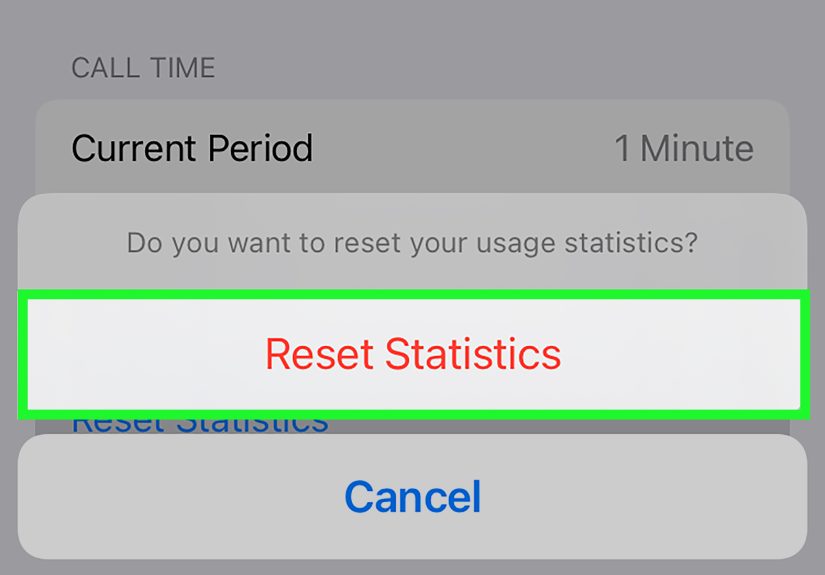
Scroll all the way to the bottom of the Cellular or Mobile Data page. You should see Reset Statistics. Tap it. Your iPhone may ask you to confirm the action. Confirm the reset, and your cellular data statistics will return to zero.
This action clears the usage counters shown on the device. It does not cancel your phone plan, remove your eSIM, erase your apps, or change your carrier’s billing records. It is a measurement reset, not a factory reset. In other words, it is safe, simple, and far less terrifying than anything involving “Erase All Content and Settings.”
Step 5: Record the Reset Date
After resetting, make a note of the date. The best time to reset iPhone data usage statistics is the first day of your carrier billing cycle. If your plan renews on the 1st, reset on the 1st. If your prepaid eSIM starts the moment you land in Paris, reset before you start using that travel data.
You can add a monthly reminder in the Reminders app or Calendar. Some newer iOS versions also support a Shortcuts action for resetting cellular data statistics, which can help users who like automation. If the action is not available on your device or setup, a simple reminder still works beautifully. Low-tech? Yes. Effective? Also yes.
What Happens After You Reset the Statistics?
After the reset, your iPhone begins counting cellular usage again from zero. As you use apps on cellular data, the numbers will climb. If you stream music, browse the web, use maps, send photos, or scroll through social media away from Wi-Fi, those apps will start showing new usage totals.
System Services may also appear in the data usage list. This area can include network-related activity from iOS features such as push notifications, software services, location-related functions, messaging services, and other background operations. You usually cannot turn off cellular data for each individual system service in the same way you can for regular apps, but the breakdown can still help explain where data went.
If the numbers rise faster than expected, check which apps are responsible. A video app using several gigabytes is not surprising. A calculator app using several gigabytes would be suspicious enough to deserve a detective soundtrack.
How to Match iPhone Data Tracking With Your Billing Cycle
For the most useful tracking, reset your iPhone’s cellular statistics at the start of each billing cycle. Then compare your iPhone’s total with your carrier’s app or website during the month. AT&T, Verizon, T-Mobile, and other U.S. carriers provide usage tools through apps, account dashboards, text codes, or customer support pages.
Your iPhone and your carrier may not always show identical numbers. Carriers may count usage according to network records, plan rules, hotspot categories, rounding methods, or delayed reporting. Your iPhone shows what the device has tracked locally. The difference is usually not a reason to panic, but it is a reason to use the carrier’s number when money is involved.
A smart routine looks like this: reset iPhone statistics on day one, check the carrier app once or twice during the month, and review app-by-app iPhone usage if something looks odd. This gives you both the official billing view and the practical “which app is guilty?” view.
Tips to Reduce Cellular Data Usage on iPhone
Use Low Data Mode
Low Data Mode can help reduce background network activity. It may pause automatic updates, background tasks, and certain syncing behavior when you are using cellular data. This is a great option for limited plans, slow connections, travel eSIMs, or those final dramatic days before your data renews.
Turn Off Cellular Data for Heavy Apps
Go to Settings, tap Cellular or Mobile Data, and scroll through the app list. Turn off cellular access for apps that do not need it. Games, video apps, cloud storage apps, and social media platforms are common candidates. They can still work on Wi-Fi, but they will stop nibbling on your mobile data like raccoons in a snack cabinet.
Watch Wi-Fi Assist
Wi-Fi Assist helps your iPhone switch to cellular data when Wi-Fi is weak. This can make browsing smoother, but it may also use cellular data when you thought you were on Wi-Fi. If you are trying to save data, scroll near the bottom of the Cellular settings page and review the Wi-Fi Assist setting.
Download Before You Leave Wi-Fi
Before commuting, flying, or road-tripping, download music, podcasts, maps, documents, and shows over Wi-Fi. Offline content is one of the easiest ways to reduce cellular data usage without turning your iPhone into a fancy paperweight.
Check Hotspot Usage
Personal Hotspot can burn through data quickly, especially if a laptop starts syncing files, updating software, or opening twenty browser tabs because apparently one tab is never enough. If you share your hotspot, check both iPhone usage and your carrier’s hotspot reporting.
Common Problems and Quick Fixes
I Do Not See Reset Statistics
Make sure you are in Settings > Cellular or Settings > Mobile Data, then scroll all the way to the bottom. The button is easy to miss because it lives below the long app list. If your app list is massive, prepare for a little thumb cardio.
My Usage Came Back Immediately
That is normal if your iPhone is actively using cellular data. Background activity, notifications, email refreshes, messaging, maps, and system services can begin counting as soon as the reset is complete.
My iPhone Usage Does Not Match My Carrier
This is also normal. Your carrier’s records are used for billing, while your iPhone’s statistics are a local tracking tool. Use your iPhone to understand app behavior, but use your carrier account to confirm official usage.
Does Resetting Statistics Save Data?
No. Resetting statistics does not reduce data by itself. It only clears the counter. To actually save data, use Low Data Mode, disable cellular access for selected apps, download content on Wi-Fi, and monitor streaming quality.
Real-World Experience: What Resetting iPhone Data Usage Teaches You
Resetting iPhone data usage statistics sounds like a tiny settings chore, but it can reveal a surprising amount about your habits. The first time many people reset their statistics at the start of a billing cycle, they discover that their “normal” usage is not as normal as they thought. Maybe maps used more data than expected during a road trip. Maybe a video app quietly became the main character. Maybe a cloud storage app decided that cellular data was the perfect time to sync a folder large enough to frighten a laptop.
One practical experience is tracking travel data. Suppose you buy a 10 GB eSIM for a week abroad. If you reset your statistics right after activating the eSIM, your iPhone becomes a simple travel data meter. After day one, you might see that you used 1.4 GB. That tells you whether your pace is safe or whether you need to stop treating mobile data like hotel buffet pancakes. Without resetting, the travel usage gets mixed into older totals, and you lose the clean picture.
Another useful experience is managing family data. Parents often hear, “I barely used my phone,” right before the family plan starts gasping for air. Resetting statistics on each iPhone at the start of the billing cycle can make the conversation more specific. Instead of blaming “the internet,” you can see whether streaming, games, social media, or hotspot usage is doing the damage. It turns a vague complaint into a fixable pattern.
Resetting also helps people who work remotely. If you use your iPhone hotspot during outages, at coffee shops, or while traveling, a fresh counter lets you measure how much data work actually consumes. A few email replies may use very little. A video meeting, cloud backup, or large file download can use a lot. Once you know the pattern, you can plan better: download files before leaving Wi-Fi, lower video quality, or save big uploads for a stronger connection.
The habit also creates awareness. Many people only think about data when something goes wrong. A reset routine turns data tracking into a quick monthly checkup. It takes less than a minute, but it can prevent surprise slowdowns, overage worries, and the classic end-of-month ritual of turning your phone into a Wi-Fi-only monk.
The biggest lesson is simple: resetting statistics does not magically make your iPhone use less data, but it makes your usage visible. And visible habits are easier to improve. Once you know which apps are data hogs, you can make smart changes without guessing. That is the difference between managing your phone and letting your phone run the tiny invisible data circus.
Final Thoughts
Learning how to reset your iPhone’s data usage statistics is one of those small tech skills that pays off every month. The five-step process is simple: check your current usage, open Settings, tap Cellular or Mobile Data, scroll down to Reset Statistics, and record the reset date. Done regularly, it turns your iPhone’s “Current Period” from a confusing number into a useful personal data tracker.
Just remember the golden rule: your carrier’s records are the official source for billing, while your iPhone is the helpful dashboard that shows which apps and services are using cellular data. Use both together, and you will have a much clearer picture of your mobile data habits.
Whether you are managing a limited data plan, preparing for travel, troubleshooting mysterious usage, or simply trying to stop your phone from acting like it has a secret streaming career, resetting your iPhone data usage statistics is a smart place to start.