Table of Contents >> Show >> Hide
- Quick Answer: The Easiest Way to Type a Heart Symbol in Windows
- What Is the Heart Symbol in Windows?
- How to Type a Heart Symbol in Windows: 7 Steps
- Best Methods Compared
- Why Alt + 3 Might Not Work
- Heart Symbol vs. Heart Emoji: What Is the Difference?
- How to Type Heart Symbols in HTML
- Where You Can Use Heart Symbols in Windows
- Practical Examples
- Troubleshooting Heart Symbol Problems
- Personal Experience: What Actually Works Best in Real Life
- Conclusion
Typing a heart symbol in Windows sounds like it should be simple. After all, we can launch rockets, video call across continents, and accidentally open twelve browser tabs while looking for one recipe. Surely typing ♥ or ❤️ should not feel like unlocking a secret keyboard dungeon.
The good news: Windows gives you several easy ways to type a heart symbol. You can use the emoji panel, an Alt code, Character Map, Microsoft Word shortcuts, copy and paste, or even HTML codes if you are writing for the web. Whether you want a clean black heart for a document, a red heart emoji for a message, or a heart symbol for a website title, this guide walks you through the most useful methods in plain English.
In this step-by-step guide, you will learn how to type a heart symbol in Windows, when to use each method, why some hearts look different across apps, and what to do when your keyboard refuses to cooperate like it has strong opinions about romance.
Quick Answer: The Easiest Way to Type a Heart Symbol in Windows
The fastest method for most Windows users is:
- Click where you want the heart symbol to appear.
- Press Windows key + . or Windows key + ;.
- Search for heart.
- Select the heart emoji or symbol you want.
For the classic text heart symbol ♥, you can also use the old-school keyboard shortcut:
Hold Alt + press 3 on the numeric keypad, then release Alt.
That shortcut creates the black heart suit symbol: ♥. It is simple, tiny, and charmingly retrobasically the keyboard equivalent of sending a mixtape.
What Is the Heart Symbol in Windows?
A heart symbol can mean several different characters, depending on what you want to type. The most common options include:
- ♥ black heart suit, often typed with Alt + 3
- ♡ white heart suit
- ❤ heavy black heart
- ❤️ red heart emoji
- 💙 💚 💛 💜 🖤 🤍 🤎 colored heart emojis
The difference matters because some hearts behave like text symbols while others behave like emoji. A text heart usually matches the font around it. An emoji heart may appear colorful and can look different depending on the app, browser, or device. That is why the same red heart may look slightly different in Microsoft Word, Gmail, Facebook, Slack, or a website comment box.
How to Type a Heart Symbol in Windows: 7 Steps
Step 1: Click Where You Want the Heart to Appear
Before using any shortcut, place your cursor in the exact spot where the heart should go. This can be inside a Word document, an email, a browser search box, a social media post, a file name, a text message app, or a note-taking tool.
This step sounds obvious, but it prevents one of the most common mistakes: opening the emoji panel while nothing is selected. Windows needs to know where to insert the symbol. Your cursor is the landing pad. The heart needs a runway.
Step 2: Open the Windows Emoji Panel
Press Windows key + . on your keyboard. You can also press Windows key + ;. Both shortcuts open the Windows emoji panel in many modern versions of Windows 10 and Windows 11.
Once the panel appears, you can search for emojis, browse categories, and insert symbols. In Windows 11, the emoji panel may also include GIFs, kaomoji, symbols, and clipboard history options, depending on your settings and version.
For most people, this is the easiest and most reliable way to type a heart emoji in Windows. You do not need to memorize codes. You do not need a numeric keypad. You simply open the panel and pick the heart that matches your moodsweet, dramatic, sparkly, broken, or “I brought snacks.”
Step 3: Search for “Heart”
In the emoji panel search box, type heart. Windows will show available heart emojis and symbols. You may see options such as red heart, blue heart, green heart, sparkling heart, broken heart, heart with arrow, two hearts, and other related symbols.
Click the one you want, and Windows will insert it into your text field. For example:
- ❤️ works well for friendly messages, captions, and social posts.
- ♥ works well for simple documents, lists, cards, and decorative text.
- ♡ works well for minimalist designs or aesthetic captions.
- 💔 works well when your Wi-Fi disconnects during a meeting.
If search does not work properly in your Windows emoji panel, browse manually through the emoji or symbols category. Windows updates occasionally change how the panel behaves, so manual browsing is a useful backup.
Step 4: Use Alt + 3 for the Classic Heart Symbol
If you want the classic heart symbol ♥, use this keyboard shortcut:
- Make sure Num Lock is turned on.
- Hold down the Alt key.
- Press 3 on the numeric keypad.
- Release the Alt key.
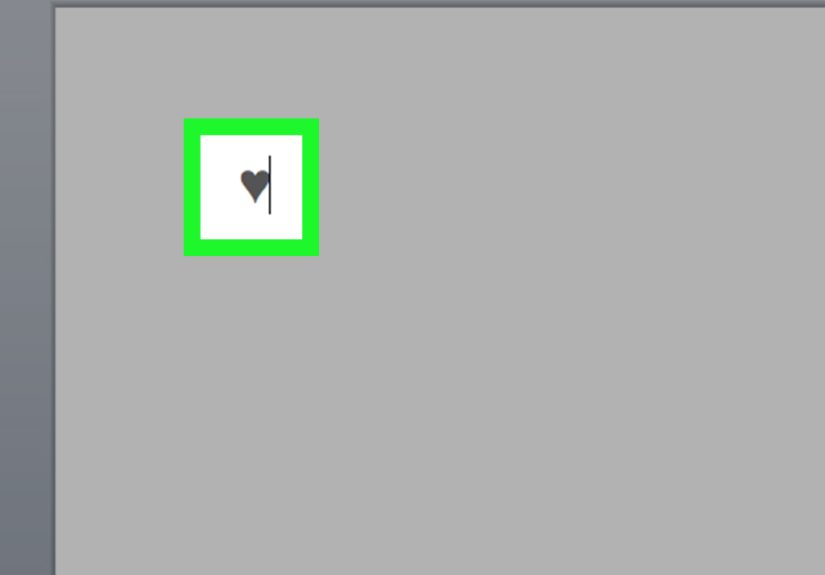
You should see this symbol: ♥
The important detail is that you usually need the numeric keypad, not the number row above the letters. On many desktop keyboards, the numeric keypad is on the right side. On laptops, you may need to use an embedded numpad, an external keyboard, or another method such as the emoji panel.
Alt + 3 is one of the oldest and best-known Windows heart shortcuts. It is especially useful in plain text fields, quick notes, and places where you want a simple symbol instead of a colorful emoji.
Step 5: Try Character Map for More Heart Symbols
Windows also includes a built-in tool called Character Map. It lets you browse, select, copy, and paste special characters from different fonts. This is helpful when you want a specific heart symbol and do not want to depend on the emoji panel.
Here is how to use it:
- Open the Start menu.
- Type Character Map.
- Open the Character Map app.
- Choose a font such as Segoe UI Symbol or Segoe UI Emoji.
- Look for a heart symbol.
- Click Select, then Copy.
- Paste it where you want using Ctrl + V.
Character Map is not the flashiest tool in Windows. It looks like it has been quietly paying rent since the early days of computing. But it works, and for special symbols, reliability beats glamour.
Step 6: Use Unicode Shortcuts in Microsoft Word
If you are typing in Microsoft Word, you can use Unicode values with Alt + X. This is especially useful for writers, editors, students, and anyone formatting documents.
Try these examples in Word:
- Type 2665, then press Alt + X to create ♥.
- Type 2661, then press Alt + X to create ♡.
- Type 2764, then press Alt + X to create ❤.
This method may not work in every app, but it is excellent inside Microsoft Word and some other Office environments. If you regularly use symbols in documents, learning a few Unicode shortcuts can save time and make you feel like a keyboard wizard with very wholesome powers.
Step 7: Copy and Paste the Heart Symbol
When all else fails, copy and paste. It is not cheating. It is productivity wearing comfortable shoes.
You can copy any of these heart symbols:
- ♥
- ♡
- ❤
- ❤️
- 💕
- 💖
- 💘
- 💔
Select the heart you want, press Ctrl + C, click where you want it, and press Ctrl + V. This method works almost everywhere: documents, emails, social media posts, spreadsheets, chat apps, and browser forms.
Best Methods Compared
| Method | Best For | Example Output | Difficulty |
|---|---|---|---|
| Windows + . emoji panel | Modern emojis and quick searching | ❤️ 💖 💙 | Easy |
| Alt + 3 | Classic text heart | ♥ | Easy if you have a numpad |
| Character Map | Finding special symbols | ♥ ♡ ❤ | Moderate |
| Unicode Alt + X | Microsoft Word documents | ♥ ♡ ❤ | Moderate |
| Copy and paste | Fast backup method | Any heart symbol | Very easy |
Why Alt + 3 Might Not Work
If Alt + 3 does not create a heart symbol, do not panic. Your keyboard has not declared war on affection. A few common issues may be causing the problem.
You Are Using the Number Row
The Alt code usually requires the numeric keypad. Pressing Alt and the number 3 above the letters often will not work. Use the keypad on the right side of a full-size keyboard.
Num Lock Is Turned Off
Make sure Num Lock is enabled. If Num Lock is off, the numeric keypad may behave like navigation keys instead of numbers.
Your Laptop Does Not Have a Numeric Keypad
Many laptops skip the dedicated keypad to save space. In that case, use the Windows emoji panel, Character Map, copy and paste, or an external USB keyboard.
The App Does Not Support That Input Method
Some apps, web forms, remote desktops, or older programs may handle keyboard shortcuts differently. If Alt + 3 fails in one app, test it in Notepad or Word. If it works there, the issue is probably the app, not Windows.
Heart Symbol vs. Heart Emoji: What Is the Difference?
The heart symbol ♥ and the heart emoji ❤️ may look similar, but they are not exactly the same.
The classic ♥ is a text symbol. It often appears in the same color as surrounding text unless you format it differently. It is compact and useful in documents, labels, bullet lists, and simple designs.
The red heart ❤️ is usually displayed as an emoji. It may appear colorful, and its design can vary by platform. Windows, Android, Apple devices, and web apps may render emoji in slightly different styles. That is normal. Emoji are like tiny actors: same script, different costumes.
For professional documents, the text heart may look cleaner. For messages, captions, and casual communication, the emoji heart usually feels warmer and more expressive.
How to Type Heart Symbols in HTML
If you are writing web content, blog posts, or HTML code, you can use HTML entities for heart symbols. This helps browsers display the correct character.
Common HTML heart codes include:
- ♥ or ♥ for ♥
- ♥ for ♥
- ❤ or ❤ for ❤
- ♡ or ♡ for ♡
For example, writing this in HTML:
Displays as:
I love Windows shortcuts ♥
If you publish online, test your page in more than one browser. Most modern browsers handle heart symbols well, but fonts and emoji rendering can still vary.
Where You Can Use Heart Symbols in Windows
Heart symbols can be used in many places, including:
- Microsoft Word documents
- PowerPoint slides
- Excel sheets
- Outlook emails
- Notepad and text files
- Social media captions
- Chat apps
- Website forms
- File names, when supported
- Design mockups and digital invitations
Just remember that not every app displays every symbol the same way. A heart emoji may appear colorful in one app and plain in another. A rare heart symbol may display as a box if the font does not support it. When appearance matters, test before publishing or sending.
Practical Examples
For a Friendly Email
Thanks so much for your help today ❤️
For a Minimalist Note
Family ♥ Friends ♥ Coffee
For a Social Media Caption
Weekend mood: sunshine, playlists, and pancakes 💛
For a Web Page
For a Valentine Card
You make ordinary days feel special ♡
Troubleshooting Heart Symbol Problems
The Heart Shows as a Square Box
This usually means the app or font does not support that character. Try changing the font to Segoe UI Symbol, Segoe UI Emoji, Arial, Calibri, or another modern font. You can also use a simpler heart such as ♥.
The Heart Looks Different After Sending
Emoji appearance depends on the receiving device or platform. A red heart sent from Windows may look slightly different on an iPhone, Android phone, or web app. The meaning is usually preserved, even if the style changes.
The Emoji Panel Does Not Open
Make sure you are pressing Windows key + . correctly. Try Windows key + ; as an alternative. Restarting the app or Windows can also help if the panel is temporarily stuck.
The Heart Symbol Appears Too Large
Emoji hearts may appear larger than regular text symbols. If you need a smaller, cleaner mark, use ♥ instead of ❤️.
Personal Experience: What Actually Works Best in Real Life
After using Windows for writing, editing, emails, blog formatting, and the occasional overly enthusiastic birthday message, the best heart-symbol method depends on the situation. The emoji panel is the method I recommend most often because it is visual, quick, and does not require memorizing anything. Pressing Windows + . feels natural once you use it a few times. It is especially helpful when you want a specific color heart, like 💙 for calm branding, 💚 for wellness content, or 💛 for cheerful social captions.
That said, the classic Alt + 3 shortcut still has a special place. It is fast, clean, and perfect when you want a simple text heart. I like it for plain notes, quick drafts, and places where a full emoji feels too loud. A red heart emoji can sometimes look like it entered the room with a marching band. The ♥ symbol, by comparison, politely knocks and brings cookies.
The biggest practical lesson is that laptop users should not rely only on Alt codes. Many modern laptops do not have a dedicated numeric keypad, and the hidden numpad setup can be confusing. If you write a lot on a laptop, the emoji panel and copy-paste method are usually smoother. Character Map is useful, but it takes more clicks, so I treat it like a backup tool rather than a daily shortcut.
For website publishing, I prefer HTML entities such as ♥ or ♥. They are predictable, easy to recognize in code, and less likely to create formatting surprises. If the article or page has a playful tone, an emoji heart can work beautifully. But for navigation labels, buttons, or professional design elements, the text heart often looks more polished.
Another useful habit is testing the symbol in the final destination. A heart may look perfect in Word but slightly different in a browser. It may look colorful in one app and monochrome in another. This is not a mistake; it is just how fonts and emoji rendering work. Before publishing a headline, email campaign, invitation, or product page, paste the heart where it will actually appear and check it there.
My favorite everyday workflow is simple: use Windows + . for emoji hearts, use Alt + 3 for the classic ♥, and keep a tiny list of favorite symbols saved in notes for quick copying. This avoids the “where did that cute heart go?” search spiral. You know the one: you start looking for a heart symbol and somehow end up reading about Unicode history at midnight. Educational? Yes. Necessary? Probably not.
In short, Windows gives you more than one way to type a heart symbol because people use hearts in different contexts. A message to a friend, a polished document, a web page, and a design mockup do not all need the same heart. Choose the method that fits your keyboard, your app, and the tone of your text. That is the real secret: the best heart symbol is not just the one you can type fastest, but the one that looks right where your reader sees it.
Conclusion
Typing a heart symbol in Windows is easy once you know the right shortcut. For most users, the fastest method is the Windows emoji panel: press Windows key + ., search for heart, and choose the symbol or emoji you want. For the classic heart symbol ♥, use Alt + 3 on the numeric keypad with Num Lock enabled.
If those methods do not fit your keyboard or app, Windows still gives you plenty of alternatives. Character Map helps you browse special symbols, Microsoft Word supports Unicode shortcuts, and copy-paste works almost anywhere. For web content, HTML entities like ♥ and ♥ keep your heart symbols clean and browser-friendly.
The main thing is to choose the right heart for the job. Use ♥ for simple text, ❤️ for warm messages, ♡ for a softer style, and colored heart emojis when personality matters. Tiny symbol, big emotional range. Not bad for something hiding inside your keyboard.