Table of Contents >> Show >> Hide
- What the Facebook Chat Sidebar Really Means Now
- How to Remove the Sidebar in Facebook Chat: 3 Easy Steps
- Why Older “Hide Sidebar” Tutorials Can Be Confusing
- Troubleshooting: If the Sidebar Still Won’t Behave
- Can You Remove the Facebook Chat Sidebar on Mobile?
- Best Reasons to Remove or Tame the Sidebar
- Common Experiences People Have With the Facebook Chat Sidebar
- Final Thoughts
- SEO Tags
If the Facebook chat sidebar is hogging screen space like it pays rent, you are not alone. Plenty of people open Facebook for one quick check, only to find a column of contacts, green dots, suggested chats, and mystery faces staring back like an uninvited reunion. The good news is that you can make Facebook chat feel a lot less noisy. The slightly annoying news is that Facebook has changed its interface so many times that old advice about a simple “Hide Sidebar” button is often outdated.
Today, removing the sidebar in Facebook chat usually means one of three things: hiding your active presence, reducing or removing the contact list clutter, or switching to a cleaner chat view on the web. In other words, the trick is less about finding one magical off switch and more about knowing which setting actually controls the chaos. Once you know where to click, the job gets much easier.
In this guide, you will learn the three easiest steps to remove or calm down the Facebook chat sidebar, what to do if random people show up there, and why some older tutorials still talk about buttons that seem to have vanished into the same dimension as your missing socks.
What the Facebook Chat Sidebar Really Means Now
Before diving into the fix, it helps to know what you are dealing with. On desktop, Facebook chat is now closely tied to Messenger and your overall Active Status. The sidebar may show online friends, recently active people, group chats, message suggestions, or uploaded contacts. That is why one person calls it the “chat sidebar,” another calls it the “contacts pane,” and a third calls it “that annoying column on the right that keeps judging me.” All three are talking about roughly the same headache.
Also, Facebook has a habit of rearranging menus just when people finally learn them. So if your account looks slightly different from a screenshot you saw somewhere else, that does not mean you are cursed. It usually means Meta moved the furniture again.
How to Remove the Sidebar in Facebook Chat: 3 Easy Steps
Step 1: Open the Chat Controls on Facebook or Messenger
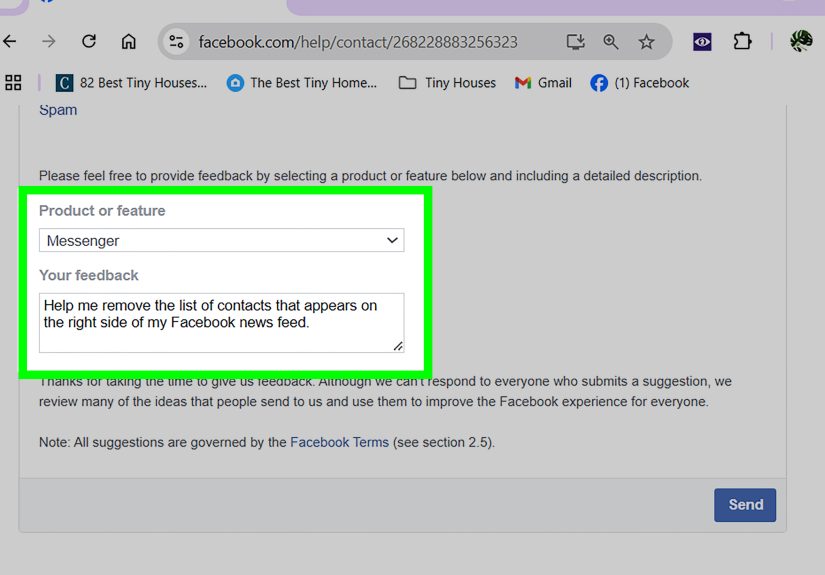
Start on the Facebook website while logged into your account. Look for the Messenger or chat icon in the top-right area of the screen. Click it to open your messages and chat controls. In some layouts, you may also need to open the full messages view from Facebook on the web.
The reason this matters is simple: Facebook does not always put sidebar controls in the actual sidebar. Sometimes the options live inside the Messenger dropdown, sometimes inside a menu marked by three dots, and sometimes inside a settings or preferences panel. Yes, it is a little like hiding the TV remote inside the freezer. No, it does not make much sense. But once you open the chat area, you are in the right neighborhood.
If you are on a mobile app, you will not usually see the same desktop-style sidebar. On mobile, the closest equivalent is your active presence, contacts list, and Messenger settings. So if your goal is to stop appearing available or reduce the clutter, you will manage that through the app’s settings rather than a true sidebar toggle.
Step 2: Turn Off Active Status
This is the big one. In many current Facebook and Messenger layouts, turning off Active Status is the easiest way to make the chat sidebar stop acting like a flashing “come talk to me” sign. Once Active Status is off, you appear offline, and the chat area usually becomes much less intrusive.
Inside the Messenger or chat settings, find Active Status or Show when you’re active. Turn it off. On some accounts, you can choose one of three options:
- Turn it off for everyone
- Turn it off for everyone except certain people
- Turn it off for only certain people
If your goal is maximum peace and minimum interruption, choose the setting for everyone. That gives you the cleanest result. If you still want your spouse, coworker, or best friend to know you are around, use one of the selective options.
There is one catch, and it is worth knowing up front: when you turn off Active Status, you may also lose the ability to see when other people are active. Facebook treats this like a trade. If you want invisibility, you often have to give up the little green-dot radar too. Fair enough. Spy mode should not be too easy.
Step 3: Remove Sidebar Clutter by Cleaning Up Contacts and Using the Cleaner Web View
If the sidebar still feels crowded, the next move is to clean up what Facebook is using to fill it. This is especially helpful if you see people you do not remember adding, old Marketplace contacts, or random phone-book suggestions that make you wonder whether your Facebook account has been socializing without you.
One common reason unfamiliar names show up is uploaded contacts. If Facebook or Messenger has synced your phone contacts in the past, those contacts can influence who appears in chat suggestions and the sidebar. Deleting uploaded contacts can reduce that clutter and make the chat list feel more relevant again.
After clearing uploaded contacts, sign out and sign back in if needed so the changes refresh properly. That extra step sounds boring, but it often helps Facebook stop showing stale sidebar suggestions.
If your real goal is not just privacy but space, use Facebook’s dedicated messages view on the web instead of the smaller chat overlay. That layout is usually cleaner and more focused than trying to manage conversations from a cramped pop-out panel. In plain English: if the sidebar is bothering you, stop using the tiny side drawer and move the conversation into the full page. Your eyes will thank you, and your browser window may finally breathe again.
Why Older “Hide Sidebar” Tutorials Can Be Confusing
You may have found older guides telling you to click a gear icon in the lower-right corner and select Hide Sidebar. That advice was once legitimate. The problem is that Facebook redesigns its interface often, and older chat layouts do not match today’s controls. Some older instructions still describe a classic sidebar that Facebook has reworked, relocated, or partially replaced.
That is why modern fixes focus more on Active Status, contact cleanup, and using the web-based messages layout. These are the controls that are still the most practical for current users. So if you are hunting for a gear icon from a 2016 screenshot and not finding it, do not worry. You are not missing it. Facebook simply moved the cheese.
Troubleshooting: If the Sidebar Still Won’t Behave
Sometimes the sidebar keeps popping back up or still looks busy even after you turn off Active Status. When that happens, try these practical fixes:
Check Every Device You Use
If you use Facebook on desktop and Messenger on your phone, your visibility settings may not feel fully “off” until you review them everywhere. Facebook and Messenger like to behave like cousins who share a closet but not a filing system.
Refresh After Deleting Contacts
If you removed uploaded contacts, give Facebook time to catch up. Logging out and back in or refreshing the page can help the sidebar stop showing old suggestions.
Use Full Messages Instead of the Tiny Chat Drawer
If the sidebar itself is the problem, open your messages in the full-page view on Facebook. It is less cramped, easier to manage, and better for long chats.
Reduce Distractions, Not Just Visibility
If your screen still feels noisy, mute chat notifications, archive old conversations, and review message requests. Sometimes the best sidebar fix is not removing every pixel of it, but making it stop shouting.
Can You Remove the Facebook Chat Sidebar on Mobile?
Not in the exact same way. Mobile apps usually do not display the desktop-style sidebar at all. Instead, they show your chats in menus, tabs, or the Messenger app interface. So on mobile, the best equivalent is turning off Active Status and trimming unnecessary contact syncing.
If your main concern is appearing online, head into the Facebook app or Messenger app settings and switch off Show when you’re active. If your concern is random people appearing in Messenger, review uploaded contacts and message requests. Different screen, same mission: less clutter, fewer interruptions, more peace.
Best Reasons to Remove or Tame the Sidebar
People usually want this fix for one of four reasons, and all of them are valid:
- Privacy: You do not want everyone knowing when you are online.
- Focus: You opened Facebook for one task, not six side conversations and an existential crisis.
- Less clutter: Too many names, dots, notifications, and suggestions make the page feel messy.
- Fewer interruptions: A quieter chat area helps you browse without being instantly recruited into a group conversation about potato salad.
In other words, removing the sidebar is not just about looks. It is about taking back control of your screen.
Common Experiences People Have With the Facebook Chat Sidebar
One of the most common experiences is opening Facebook on a desktop computer and suddenly noticing a long list of contacts on the right side, including people you barely know or have not spoken to in years. That can feel surprisingly intrusive. Maybe you sold a lamp on Marketplace last summer, or maybe you once answered a message request and now that person keeps appearing in your chat area like a digital ghost. In many cases, this happens because Facebook is blending together friends, message history, activity signals, and synced contacts. It feels random, but there is usually a reason behind the mess.
Another common experience is frustration with outdated tutorials. Someone searches “how to hide Facebook chat sidebar,” clicks a guide, and sees instructions for a cog icon tucked neatly into the lower corner. They look at their own screen, find no cog, no tidy little menu, and no mercy. This is probably the biggest reason the topic stays confusing. Facebook’s layout changes faster than some people change their coffee order. A tutorial that was perfect two years ago can feel completely useless today.
Then there is the privacy angle. A lot of users do not actually care whether the sidebar is visible at all. What they really care about is the green dot. They do not want coworkers, relatives, clients, or old classmates assuming that an online status means instant availability. Just because someone is on Facebook does not mean they are ready to discuss neighborhood drama, buy another used coffee table, or explain why they never replied to that message from February. Turning off Active Status often solves the emotional part of the problem even if the visual sidebar still exists in some form.
Some people also notice that the sidebar gets noisier after syncing contacts from a phone. Suddenly, Facebook seems to know everybody they have ever texted, called, or accidentally saved after ordering takeout. This can make the chat area feel less like a friends list and more like a chaotic guest list assembled by a very overconfident robot. When those uploaded contacts are removed, the sidebar often feels more normal again.
There is also the focus issue, which is more real than people admit. A crowded sidebar can quietly hijack your attention. You go in to check one notification, then your eyes drift to a green dot, then a group chat bubble, then a message request, and before you know it, twenty minutes are gone and you somehow know your cousin’s opinion about mulch. A cleaner layout matters because distractions on social media do not arrive with trumpets. They arrive dressed as “just one quick click.”
And finally, there is the relief people feel once they realize there is not always a single permanent “remove sidebar” switch anymore. Oddly enough, that honesty helps. Once you stop hunting for a mythical button and start using the practical tools Facebook still offers, the problem becomes manageable. Turn off Active Status. Clean up uploaded contacts. Use the full chat page instead of the tiny overlay. Mute what needs muting. Suddenly Facebook feels less like a crowded food court and more like a place you can actually navigate without bumping into everything.
Final Thoughts
If you want to remove the sidebar in Facebook chat, the fastest path is to stop looking for one magic button and start using the controls Facebook still supports. Open the chat settings, turn off Active Status, and clean up synced contacts if the list is full of random people or old clutter. If the sidebar still feels bulky, move your conversations into the full web messages view instead of wrestling with the smaller chat panel.
That combination gives most people the result they actually want: fewer interruptions, less visual noise, and a Facebook experience that feels a little more under control. Which, on modern social media, honestly counts as a small miracle.