Table of Contents >> Show >> Hide
- What Happens When You Delete Files in Box?
- How to Recover Deleted Files in Box: 10 Steps
- Step 1: Confirm the File Was Actually Deleted
- Step 2: Open Box Trash
- Step 3: Use Trash Filters to Narrow the Search
- Step 4: Search Trash by File Name, Folder Name, or File Type
- Step 5: Check the File Details Before Restoring
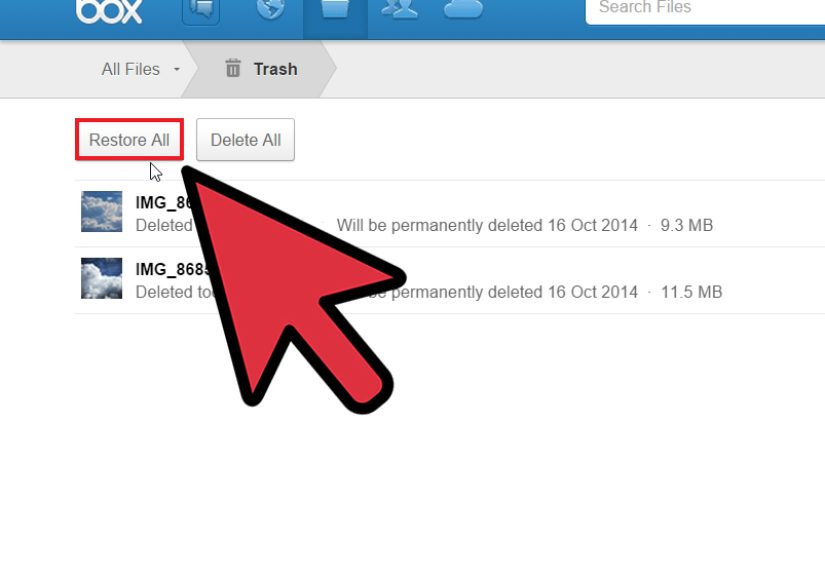
- Step 6: Select the Deleted File or Folder and Click Restore
- Step 7: Restore Multiple Deleted Files in Bulk
- Step 8: Ask the Owner or Collaborator to Check Their Trash
- Step 9: Ask a Box Administrator to Restore the File
- Step 10: If the File Is Not in Trash, Try Version History, Support, or Backup
- Recovering a Previous Version Instead of a Deleted File
- Why You Might Not See a Deleted Box File
- Best Practices to Prevent Deleted File Panic in Box
- Common Mistakes When Recovering Deleted Box Files
- Example: Recovering a Deleted Marketing Folder in Box
- Experience Notes: Practical Lessons from Recovering Deleted Files in Box
- Conclusion
Deleted the wrong file in Box? First, breathe. Second, do not start clicking around like a raccoon in a keyboard factory. Box gives users and administrators several ways to recover deleted files, restore folders, retrieve previous file versions, and investigate missing content. The key is knowing where to look, who has permission to restore the item, and how long your organization keeps deleted content before it is permanently purged.
This guide explains how to recover deleted files in Box in 10 practical steps. It covers regular Trash recovery, shared-folder deletion issues, Box version history, administrator recovery through the Admin Console, enterprise retention settings, and what to do when a file is no longer visible in Trash. Whether you accidentally deleted a quarterly report, a design folder, a contract draft, or the one spreadsheet everyone mysteriously “needed yesterday,” this walkthrough will help you move from panic to plan.
What Happens When You Delete Files in Box?
When you delete a file or folder in Box, it usually moves to Trash rather than disappearing immediately. While the item is in Trash, it can often be restored to its original location. However, the recovery window depends on the type of Box account, your organization’s enterprise settings, and whether an administrator has configured custom Trash retention rules.
For many users, deleted files remain recoverable for a set period. Business and Enterprise administrators may shorten, extend, or customize that window. In some organizations, retention policies or legal hold rules can also affect when content is permanently removed. That means two companies using Box may have different recovery timelines, even if the interface looks nearly identical.
The most important rule is simple: act quickly. The sooner you search Trash, contact the file owner, or ask an admin for help, the better your chance of recovering the deleted Box file.
How to Recover Deleted Files in Box: 10 Steps
Step 1: Confirm the File Was Actually Deleted
Before you assume disaster has arrived wearing tap shoes, confirm that the file is truly deleted. In Box, a “missing” file may have been moved, renamed, hidden inside another folder, or removed from your access because collaboration permissions changed.
Use the Box search bar to look for the file name, file type, project name, client name, or a phrase you remember from the document. If you work in shared folders, check with collaborators to see whether someone moved the item to another folder. Also review recent activity if available. Sometimes the file is not gone; it is simply hiding in a folder structure that looks like it was designed by a maze enthusiast.
Step 2: Open Box Trash
If the file was deleted, go to your Box account and open Trash. In the Box web app, Trash is typically available from the left navigation area. This is where Box stores many deleted items before they are permanently removed according to account or enterprise settings.
Trash may include files and folders you deleted, as well as deleted items you own. If you recently removed a file, it should often appear near the top of the list. For older items, search and filtering become more important.
Step 3: Use Trash Filters to Narrow the Search
Box Trash can show different views, such as items you deleted and items you own. This distinction matters. For example, if you deleted a file inside a shared folder owned by someone else, the file may be recoverable by both the folder owner and the person who deleted it, depending on collaboration status and permissions.
If you do not see the missing file right away, switch between available Trash filters. Look under “Items I Deleted” if you were the person who removed the file. Look under “Items I Own” if the deleted file belonged to you but may have been deleted by a collaborator. This small filter change can save a large amount of forehead-to-desk contact.
Step 4: Search Trash by File Name, Folder Name, or File Type
For busy Box accounts, Trash may contain many items. Use search terms connected to the deleted file, such as the exact file name, a partial file name, the project folder, or the extension, such as PDF, DOCX, XLSX, PPTX, PNG, or ZIP.
If you cannot remember the exact name, search for related words. For example, if the missing file was called “Q3 Vendor Renewal Agreement Final Final Actually Final.pdf,” try searching for “vendor,” “renewal,” or “agreement.” Box recovery is easier when you approach it like a detective, not like someone yelling “Where is it?” at a screen.
Step 5: Check the File Details Before Restoring
Before restoring an item, confirm it is the correct file or folder. Look at the file name, deletion date, owner, location, and file type. If preview is available, open the preview to verify the content. This is especially useful when several files have similar names, such as “proposal_final,” “proposal_final2,” and “proposal_final_REAL_THIS_TIME.”
If you are restoring a folder, remember that it may contain many files and subfolders. Make sure you understand where it will return and whether restoring it could reintroduce outdated material into an active workspace.
Step 6: Select the Deleted File or Folder and Click Restore
Once you find the correct item in Trash, select it and choose the Restore option. Box generally restores the file or folder to its original location. If the original parent folder still exists and you have permission to access it, the item should reappear there.
After restoring, go back to the original folder and confirm the file is available. Open it, preview it, or download it to make sure the content is intact. If other users need the file, notify them that it has been restored so they do not create duplicate emergency versions.
Step 7: Restore Multiple Deleted Files in Bulk
If an entire folder or batch of files was deleted, you may be able to select multiple items in Trash and restore them together. This is helpful when a project folder was cleaned up too aggressively or when a user accidentally deleted several related documents.
Bulk restore is convenient, but use it carefully. Restoring everything without checking can bring back obsolete drafts, duplicates, or files that were intentionally removed. When dealing with client documents, legal records, financial files, or regulated data, confirm with the file owner or administrator before restoring a large batch.
Step 8: Ask the Owner or Collaborator to Check Their Trash
Shared folders in Box can make deletion recovery a little more complicated. If you deleted a file in a folder owned by another person, the owner may also be able to recover it. If you were removed as a collaborator after deleting the item, you may no longer see that item in your Trash. In that case, the folder owner or an administrator may need to help.
Send a clear message to the owner. Include the file name, folder path, approximate deletion time, and any details that can identify the item. A message like “Can you check your Box Trash for the file named Client_Onboarding_Checklist.xlsx deleted around Monday afternoon from the Sales Enablement folder?” is much more useful than “My file vanished, please perform magic.”
Step 9: Ask a Box Administrator to Restore the File
If you are using Box through a company, school, nonprofit, or other organization, an administrator may have additional recovery options. Admins and co-admins with the right permissions can use the Admin Console and Content Manager to access managed users’ Trash, preview deleted files, download items, and restore content.
Administrators can also review enterprise Trash settings, retention policies, user activity reports, and content ownership. This is especially important when the deleted file belonged to a departed employee, a suspended account, a shared department folder, or a folder with complicated permissions.
When contacting your Box admin, provide as much information as possible:
- The file or folder name
- The original folder path
- The owner or likely owner
- The person who deleted it, if known
- The approximate deletion date and time
- Whether it was in a shared folder
- Why the file is urgent or business-critical
Good details speed up recovery. Vague requests slow everything down and may require multiple follow-up questions.
Step 10: If the File Is Not in Trash, Try Version History, Support, or Backup
If the file is not visible in Trash, do not give up immediately. There are still a few possible paths.
First, check Box version history if the issue is not a deleted file but an overwritten file. Version history lets eligible Box accounts view, download, or restore earlier versions of a file. This is useful when someone replaced a polished document with a blank file, uploaded the wrong draft, or made edits that need to be rolled back.
Second, if the item was permanently deleted from Trash, paid Box customers may have a limited recovery grace period in which Box Support may be able to help. This window is not unlimited, and recovery is not guaranteed, so contact support or your administrator immediately.
Third, check whether your organization uses a third-party backup solution for Box. Many businesses back up cloud data separately because native Trash recovery is time-limited and may not protect against every data-loss scenario, such as ransomware, accidental mass deletion, insider threats, or policy-based purge events.
Recovering a Previous Version Instead of a Deleted File
Sometimes users say “the file was deleted” when the real problem is that the correct content was overwritten. For example, someone may upload a new version of a spreadsheet that removes key tabs, or an editor may save unwanted changes over a document. In that case, Box version history may be the better solution.
To use version history, open the file in Box, access its version history from the file options or details panel, review the available versions, and choose whether to download or restore the version you need. The number of versions available depends on your Box plan and enterprise settings. Some accounts keep more versions than others, and organizations with advanced governance features may have additional controls.
A smart recovery habit is to download the older version first before restoring it over the current version. That gives you a safety copy and prevents another round of “Wait, which version was the right one?” office theater.
Why You Might Not See a Deleted Box File
If a deleted Box file does not appear in Trash, several things may be happening. The item may be owned by someone else. Your collaboration access may have changed. The Trash retention period may have expired. The file may have been permanently deleted. An enterprise retention policy may be controlling the item. Or the file may not have been deleted at all; it may have been moved or renamed.
For shared folders, ownership and permissions are especially important. Box is designed for collaboration, but collaboration also means that the person looking for the file is not always the person with recovery authority. When in doubt, involve the folder owner or your Box administrator.
Best Practices to Prevent Deleted File Panic in Box
Use Clear Folder Ownership
Every important folder should have a known owner. If a department folder belongs to a former employee or an inactive account, recovery can become unnecessarily complicated. Businesses should regularly review folder ownership and transfer ownership when roles change.
Create Naming Rules That Humans Can Understand
File recovery is much easier when documents have meaningful names. “Contract_Acme_2026_Renewal.pdf” is far better than “scan_0047.pdf.” Your future self will thank you, possibly with snacks.
Train Users Before Something Goes Wrong
Basic Box training should include how to delete, restore, search Trash, use version history, and contact an admin. Five minutes of training can save hours of panic when an important file disappears.
Review Trash and Retention Settings
Organizations should understand how long deleted files remain in Trash and whether retention policies, legal holds, or governance settings affect deletion. Admins should align these settings with compliance rules and practical recovery needs.
Use Backup for Business-Critical Data
Box Trash is helpful, but it is not a complete backup strategy. Companies that store contracts, research, financial documents, health-related records, legal files, or mission-critical project folders should consider independent backup and recovery tools.
Common Mistakes When Recovering Deleted Box Files
One common mistake is waiting too long. Deleted content may be permanently removed after the retention window expires. Another mistake is searching only your own Trash when the file belongs to someone else. A third mistake is restoring the wrong version or the wrong folder without checking details first.
Users also sometimes forget to check version history. If the file still exists but the content is wrong, Trash will not solve the problem. Version history may. Finally, many people contact support without enough information. A support request that includes the file name, owner, deletion date, and folder path is much more likely to move quickly.
Example: Recovering a Deleted Marketing Folder in Box
Imagine a marketing coordinator accidentally deletes a folder called “Spring Campaign Assets.” The folder contains social graphics, ad copy, email templates, and a very important image named “hero-banner-final-final-use-this-one.png.” The coordinator opens Box Trash, searches “Spring Campaign,” finds the folder, previews the contents, and restores it. The folder returns to its original location, and the team avoids recreating three weeks of work.
Now imagine the coordinator cannot see the folder in Trash because the folder was owned by the creative director. In that case, the creative director or Box admin should check their Trash or Content Manager. The recovery path changes because ownership and permissions matter.
Experience Notes: Practical Lessons from Recovering Deleted Files in Box
In real-world Box recovery situations, the most valuable skill is not technical wizardry. It is calm, organized investigation. People often assume a file is permanently gone when it is simply in another user’s Trash, hidden under a slightly different name, or sitting in version history. The first few minutes should be spent gathering facts, not assigning blame. Blame is a terrible search tool.
A useful recovery habit is to write down the story of the missing file before taking action. What was the file called? Where was it stored? Who owned the folder? Who had access? When was it last seen? Was it deleted, moved, renamed, overwritten, or replaced? These questions may sound basic, but they quickly separate a simple Trash restore from a permissions issue or version-history problem.
Another experience-based tip: always check whether the problem affects one file, one folder, or many folders. A single missing document may be an accidental deletion. A large number of missing files may point to a bulk action, sync issue, automation rule, compromised account, or user misunderstanding. When many files disappear at once, involve an administrator early. Admins may be able to review user activity reports, inspect managed users’ Trash, and identify patterns faster than an individual user can.
For teams, communication matters as much as the restore button. If you recover a folder, tell the people who use it. Otherwise, someone may keep working from a duplicate emergency copy and create a version-control swamp. A short message such as “The Spring Campaign folder has been restored to its original Box location; please use that folder going forward” can prevent confusion.
Organizations should also treat every deleted-file incident as a small audit. If the file was hard to find, improve naming. If no one knew the owner, fix folder ownership. If the Trash window was too short for business needs, review retention settings. If the file was business-critical and no backup existed, that is a warning sign wearing a bright orange vest.
For individuals, the best habit is to pause before deleting shared content. In Box, deleting from a collaboration folder may affect other people’s work. If you are cleaning up old files, create an archive folder first, confirm with the owner, or use naming conventions such as “Archive_2026” rather than instantly deleting everything that looks dusty. Digital spring cleaning is healthy; digital demolition is less charming.
Finally, remember that cloud storage is not magic storage. Box provides strong collaboration and recovery tools, but recovery depends on timing, permissions, settings, and account type. If a file matters to your job, your client, your grade, or your sanity, protect it with good folder structure, thoughtful permissions, version awareness, and backup planning. The best deleted-file recovery is the one you never needbut when you do need it, Box Trash, version history, admins, and support give you a solid path back.
Conclusion
Recovering deleted files in Box is usually straightforward when you act quickly and understand the recovery options. Start with Trash, use filters, search carefully, verify the file, and restore it to its original location. If the file is part of a shared folder, involve the owner or collaborator. If you use Box through an organization, contact a Box administrator for help with managed-user Trash, Content Manager, activity reports, retention settings, or advanced recovery tools.
If the file is not in Trash, check whether the issue is actually an overwritten version. Box version history may help you restore or download an earlier copy. If the file was permanently removed, contact Box Support or your administrator immediately, especially for paid accounts with a limited post-purge recovery window. For long-term protection, combine Box’s native recovery features with clear ownership, user training, smart retention settings, and reliable backup.
Deleted files are stressful, but they are not always gone forever. With the right steps, a little patience, and fewer panic-clicks, you can often bring important Box content back where it belongs.
Note: This article is based on current Box recovery practices, including Trash restore, shared-folder permissions, administrator recovery, version history, enterprise retention settings, and support-based recovery options for deleted content.