Table of Contents >> Show >> Hide
- Research Basis (No Links, Real-World Sources)
- Before You Print: Know the Non-Negotiables
- The 5-Step Method to Print Passport Photos Correctly
- Home Printing vs. Store Printing: Which Is Better?
- Most Common Rejection Triggers (And How to Avoid Them)
- Quick Troubleshooting Guide
- Mini FAQ
- Conclusion
- Experience Notes (Extended 500-Word Practical Add-On)
Printing your own passport photo sounds like one of those “easy wins” that can turn into a three-hour saga involving bad lighting, a wrinkled bedsheet, and one mildly offended printer. The good news: it really can be simple if you follow a repeatable workflow.
This guide walks you through a practical five-step process to print U.S. passport photos at home or through common U.S. photo serviceswithout wasting paper, money, or patience. You’ll learn the exact specs that matter, how to set up your photo correctly, what to check before printing, and how to avoid rejection-causing mistakes. The tone is friendly, but the standards are strictbecause passport photos are one of those rare life moments where “close enough” is not enough.
Research Basis (No Links, Real-World Sources)
This article synthesizes current guidance and service information from U.S.-focused, reputable sources, including:
- U.S. Department of State (photo requirements, online renewal photo upload guidance)
- USPS passport service pages and scheduler guidance
- USAGov passport overview
- Walgreens passport photo service pages
- CVS photo/passport service pages
- FedEx Office passport photo and renewal service pages
- The UPS Store passport/ID photo pages
- Staples passport photo services
- Walmart Photo passport print pages
- HP printer support articles for photo printing setup
- Canon support articles for media/paper settings
- Epson photo printing setup pages
No source links are inserted below per your publishing preference, but every recommendation is grounded in real, current standards and service patterns.
Before You Print: Know the Non-Negotiables
U.S. passport photo basics
- Final printed size: 2 x 2 inches
- Color photo only
- Plain white or off-white background
- Taken within the last 6 months
- Neutral expression, both eyes open, face directly toward camera
- Head size/position must fit official composition requirements
Quality rules people forget
- No heavy retouching or beauty filters
- No shadows across face/background
- No blurry focus, pixelation, or visible print-dot artifacts
- No scanning a previously printed photo and reusing it
Glasses, hats, and wardrobe reality check
In most cases, glasses are not allowed in U.S. passport photos (medical exceptions may apply with proper documentation). Hats and head coverings are limited to specific religious or medical needs. Uniform-style clothing can also create issues. Think “everyday clothes, clean contrast with background, no drama.”
The 5-Step Method to Print Passport Photos Correctly
Step 1: Capture a Compliant Photo (Start Right, Save Time)
Use a smartphone or camera, but treat this like a mini studio setup:
- Stand several feet from a white/off-white wall.
- Use soft, even lighting from both sides if possible.
- Keep camera at eye level, not above or below your face.
- Frame head and shoulders with a little extra space around you.
- Take 10–20 shots so you can pick the cleanest one.
Pro tip: A friend taking the photo is usually better than a timer selfie. Why? Less distortion and easier head alignment. Your camera roll may look like a casting call for “Serious Person #4,” but that’s normal.
Step 2: Crop and Align to U.S. Passport Specs
Once you have a good shot, crop it to passport composition. Your goal is to ensure:
- The final output is 2×2 inches
- Your head falls within required size/position range
- Face is centered and level
If you’re renewing online, digital file standards matter too (format and file size limits). If you’re applying with printed forms, focus on print clarity and exact dimensions. Either way, avoid aggressive edits. Whitening teeth to movie-poster brightness is fun for social media, not so fun for government ID.
Step 3: Build a Print-Ready Sheet (The Smart Layout Move)
Don’t print one 2×2 tiny photo floating awkwardly in the center of letter-size paper. Create a print layout:
- Use a 4×6 or 5×7 canvas
- Place multiple 2×2 copies with spacing between them
- Keep edges crisp and avoid accidental stretching
This does three things: lowers cost, improves handling, and makes cutting easier. Many U.S. retailers also process passport templates through standard photo-print workflows, which can be cheaper than in-store “full service” photo taking.
File prep checklist:
- High-resolution image (not compressed through messaging apps)
- sRGB color profile if available
- No screenshots of screenshots (yes, people do this)
- Final template checked at 100% zoom
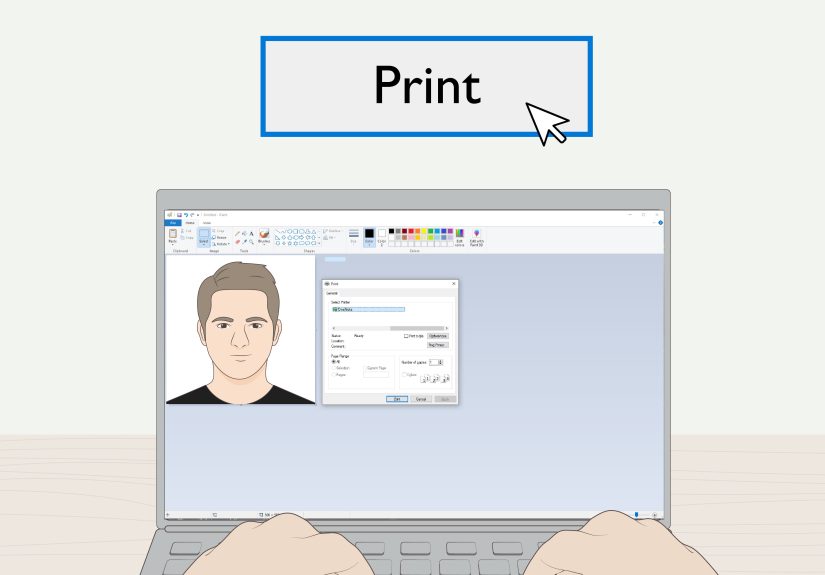
Step 4: Print with Correct Paper and Printer Settings
This is where many “good photos” become “rejectable photos.” Use photo paper and matching print settings:
- Paper: quality photo paper (matte or glossy as allowed)
- Paper size: match your template (often 4×6)
- Media type: set correctly in printer driver
- Quality mode: High/Best photo mode
- Scaling: 100% actual size (disable fit-to-page)
HP, Canon, and Epson guidance all emphasize matching paper type/size in software and driver settings for best output. If your printer supports borderless printing, test once before final output to ensure nothing important is clipped.
Micro-test method: Print a single test sheet first. Measure one photo square with a ruler. If it is not exactly 2×2 inches, stop and fix settings before burning through a stack of paper.
Step 5: Cut, Inspect, and Submit Like a Pro
Print quality is only half the gamefinishing matters too.
- Use a precision trimmer or sharp scissors.
- Cut exactly on the 2×2 boundaries.
- Check for bent corners, fingerprints, smudges, or scratches.
- Confirm face/head placement one last time.
- Store finished photos flat in a clean envelope.
If you’re mailing an application, include photos exactly as instructed for that form type. No staples through your forehead photo. That never helps.
Home Printing vs. Store Printing: Which Is Better?
Home printing is best when:
- You already own a decent photo printer
- You want multiple attempts without extra trips
- You’re comfortable checking technical specs yourself
Store printing is best when:
- You need speed (same-day, sometimes within minutes)
- You want help from staff/software checks
- Your home printer is… emotionally complicated
Typical U.S. service options people use
Common choices include Walgreens, CVS, FedEx Office, Staples, The UPS Store, USPS-connected passport services, and Walmart Photo workflows. Offerings vary by location (walk-in vs appointment, printed vs digital add-ons, and turnaround times), so verify before you go.
Most Common Rejection Triggers (And How to Avoid Them)
- Wrong size: Always measure a finished print.
- Bad lighting: Fix shadows before you crop.
- Overediting: Keep your real features.
- Low resolution: Avoid compressed messaging files.
- Background issues: Clean, plain, white/off-white only.
- Old photo: Must reflect current appearance.
- Glasses glare: In most cases, no glasses.
Quick Troubleshooting Guide
Problem: Printed face looks too dark
Increase ambient light in your capture setup, then print in high-quality mode with correct paper profile. Cheap “plain paper” settings will flatten skin tones.
Problem: Photo printed at the wrong physical size
Disable auto-scaling (“fit to page”), confirm document DPI, and reprint at actual size.
Problem: Edges get clipped in borderless mode
Turn borderless off or add safe margins in your layout.
Problem: Background looks gray or textured
Move farther from wall, increase light on background, and avoid fabric wrinkles that show pattern.
Mini FAQ
Can I print passport photos on regular printer paper?
Not recommended. Use proper photo paper for acceptable detail and durability.
Can I smile in my U.S. passport photo?
Keep expression neutral. A subtle natural look is fine, but avoid broad smiles.
Can I use the same photo for years?
Nophotos should be recent and reflect your current appearance.
Do I need two copies?
Most passport applications require two compliant prints, but always confirm for your exact application path.
Conclusion
Printing passport photos is one of those tasks that rewards precision over improvisation. If you follow the five-step methodcapture well, crop correctly, build a print-ready template, use proper print settings, and inspect final cutsyou can produce compliant results without stress.
The best strategy is simple: treat the photo like an official document, not a casual snapshot. Do one careful setup, run one test print, measure once, and move forward confidently. Your future travel self will thank you.
Experience Notes (Extended 500-Word Practical Add-On)
Here’s what people usually discover after actually going through the passport-photo-printing process in real life. First, the “photo taking” part is not the hardest partlighting is. Most homes have overhead lighting that creates shadows under the eyes and nose, which can make an otherwise perfect photo look instantly non-compliant. A quick fix that works surprisingly well is standing near a window during daytime with indirect light, then adding one lamp on the opposite side to balance shadows. That one change alone can save multiple retakes.
Second, nearly everyone underestimates the power of printer settings. You can have a great source image, then accidentally print at the wrong dimensions because the software auto-scaled it. A common scenario: the template says 2×2, but “fit to printable area” shrinks it just enough to fail inspection. People who avoid this problem tend to do one ritual every time: print a test sheet, measure one square with a ruler, and only then print final copies. It feels old-school, but it is absolutely the move.
Third, people who print at home often overcorrect with editing. They brighten too much, smooth skin, remove “imperfections,” or crank sharpness until the photo looks like a game avatar. Official photos should look like you on a normal day, not the poster for your comeback tour. A realistic image with clear detail beats a hyper-edited image every time. The winning mindset is “accurate and clean,” not “dramatic and cinematic.”
Fourth, cutting quality matters more than expected. Even if the printed image is perfect, sloppy trimming can ruin the result. Bent corners, uneven edges, and slightly off-size cuts are common mistakes. People who get consistent results usually use a simple paper trimmer instead of scissors. If scissors are all you have, cut slowly and rotate the papernot your hand angleto keep lines straight.
Fifth, store services are extremely useful when time is tight. Many people start with home attempts, then switch to a nearby retailer when deadlines get close. That hybrid approach is smart: do your own photo prep first, then use a store for final printing if needed. It can reduce cost and speed up turnaround while still keeping quality in check.
Finally, there is one emotional lesson everyone learns: passport photo work is 80% process, 20% aesthetics. If you expect an artistic portrait session, you’ll be disappointed. If you treat it like assembling a precise form, you’ll do great. In other words, your passport photo doesn’t need to be your “best photo ever.” It needs to be accurate, compliant, and unmistakably you. That’s the win condition.
Bonus practical habit: save your approved digital file and print template in a clearly named folder with date and version (for example: passport-photo-us-2026-approved-v1). If you need extra copies or related travel documents, you won’t have to restart from zero. Future-you will appreciate this small bit of organization, probably while rushing to book flights and pretending you’re totally calm.




555
555