Table of Contents >> Show >> Hide
- What Is a Pinned YouTube Comment?
- Why Pinning a Comment Matters
- How to Pin a YouTube Comment to the Top: 6 Steps
- What to Write in a Pinned Comment
- Best Practices for Pinned Comments
- Common Problems and How to Fix Them
- Example Scenarios
- Is It Better to Pin Your Own Comment or Someone Else’s?
- Real-World Experiences With Pinned Comments
- Final Thoughts
If you have ever uploaded a YouTube video and then thought, “Wow, I really wish I could tape one useful comment to the front door,” good news: you can. A pinned comment is the little VIP message that stays at the top of your video’s comment section. It can highlight a key update, answer a common question, point viewers to another video, or simply nudge people into an actual conversation instead of the digital equivalent of people walking into a room, grunting, and leaving.
For creators, brands, teachers, coaches, and anyone trying to keep a video organized, this feature is tiny but mighty. It is one of the easiest ways to guide discussion without editing your video after it is published. And best of all, you do not need a complicated tool stack, a dramatic strategy meeting, or a PhD in “content synergy.” You mostly need a YouTube account, your own video, and about 30 seconds of focus.
In this guide, you will learn exactly how to pin a YouTube comment to the top in six simple steps, why it matters, what to write in a pinned comment, and how to fix the most common problems when the option does not appear. Let’s get that comment promoted to the penthouse.
What Is a Pinned YouTube Comment?
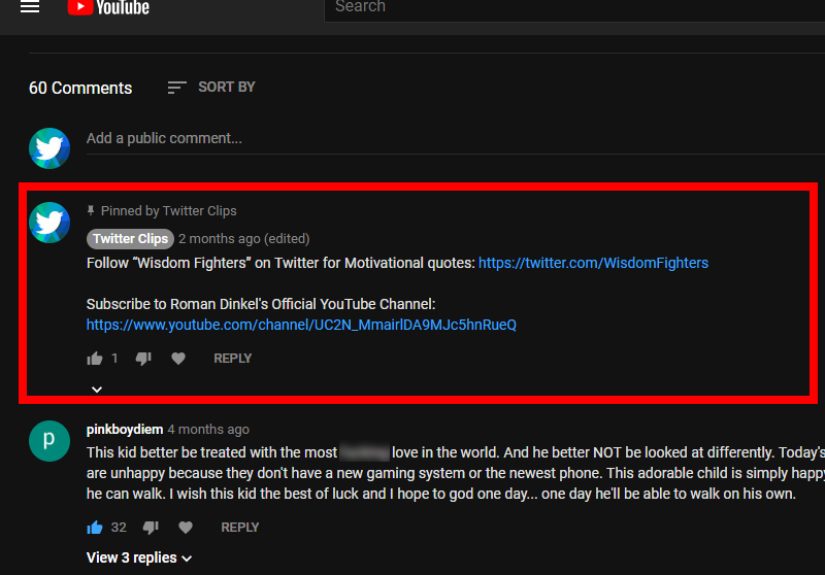
A pinned YouTube comment is a comment that stays fixed at the top of the comments section on one specific video. You can pin your own comment or a viewer’s comment. That means the pinned message gets the best real estate in the conversation, which is especially helpful when you want viewers to notice something important right away.
Creators often use pinned comments for updates, corrections, links to related videos, giveaways, FAQs, timestamps, product mentions, community questions, or a call to action like “Tell me your biggest struggle below.” It is simple, visible, and far more elegant than hoping people read line 14 of your description box.
Why Pinning a Comment Matters
Pinning a comment does not magically turn a sleepy video into a viral sensation by itself. But it does help you shape the viewer experience. Think of it as the host stand at a restaurant. The food might be amazing, but somebody still needs to greet people and point them in the right direction.
Here are a few smart reasons to pin a comment:
1. You can direct the conversation
If your video asks a question or covers a tricky topic, a pinned comment can steer viewers toward a better discussion. Instead of random one-word reactions, you can ask something specific and invite thoughtful replies.
2. You can highlight important updates
Maybe a feature changed after your video went live. Maybe a link moved. Maybe you discovered that your “easy” tutorial accidentally skipped the easy part. A pinned comment lets you correct or update information without re-uploading the video.
3. You can promote another useful resource
Creators often pin a comment linking viewers to a related tutorial, playlist, product page, newsletter, or free resource. This can help extend watch time, improve navigation, and keep people moving through your content ecosystem in a natural way.
4. You can boost engagement
A good pinned comment gives viewers a reason to reply. Instead of passively scrolling, they are invited to participate. That can make the comments section feel more active, more organized, and more welcoming.
How to Pin a YouTube Comment to the Top: 6 Steps
Here is the clean, simple process for pinning a comment on your own YouTube video.
Step 1: Sign in to Your YouTube Account
Start by signing in to the YouTube account that owns the video. This matters because only the channel owner, or someone with the right permissions, can pin a comment on that video. If you are signed into the wrong account, YouTube will not magically read your mind and hand over the controls.
If you manage multiple channels, double-check that you are inside the correct one before doing anything else. This tiny detail saves a surprising amount of confusion.
Step 2: Open the Video You Want to Manage
Go to the video where you want the pinned comment to appear. You can do this directly from your channel page, from YouTube Studio, or by opening the video itself in YouTube.
If you are using the YouTube Studio mobile app, make sure you are looking at comments for an individual video. The pin option typically appears there, not in a broad all-comments view that mixes several videos together.
Step 3: Scroll to the Comment Section
Once the video is open, scroll down to the comments section. Look for the comment you want to feature. You can pin your own comment if you want to post an announcement or call to action, or you can pin someone else’s comment if it adds value, asks a great question, or sparks the kind of discussion you want more of.
This is where strategy starts to matter. Do not pin something just because it is there. Pick the comment that actually improves the viewer experience.
Step 4: Click or Tap the Three-Dot Menu
Next to the comment, click or tap the three-dot menu, often labeled as “More.” This opens the moderation options for that specific comment. If you do not see the menu, refresh the page, make sure you are signed in, and confirm you are on your own video.
On mobile, the layout may look a little tighter, but the process is basically the same. Tap the comment options, then look for the pin command.
Step 5: Select “Pin”
From the menu, select Pin. YouTube will usually show a confirmation prompt before the change goes live. This step is important because YouTube wants to make sure you did not mean to click something else with the enthusiasm of a caffeinated squirrel.
If you already have a pinned comment on that video, YouTube will replace it with the new one. In other words, you only get one pinned comment per video at a time. There is no stacked tower of pinned comments. This is not a bulletin board in a coffee shop.
Step 6: Confirm the Action
Click PIN to confirm. Once confirmed, that comment will appear at the top of the comments section with a label showing that it has been pinned by your channel.
That is it. Six steps, no drama, no software download, and no need to whisper motivational quotes to your laptop.
What to Write in a Pinned Comment
Now that you know how to pin a YouTube comment to the top, the next question is what the comment should actually say. The best pinned comments are useful, clear, and connected to the video. They are not random. They are not stuffed with desperate marketing energy. They are there to help.
Good pinned comment ideas
Ask a question: “What part of this tutorial do you want me to cover next?”
Add an update: “Quick note: YouTube changed this setting in 2026. The new menu location is in Studio > Content.”
Share a correction: “At 2:14, I said ‘public link,’ but I meant ‘shareable link.’ Thanks for catching that.”
Offer a next step: “Watch Part 2 here after you finish this video.”
Collect feedback: “Did this method work on your phone, desktop, or both?”
A strong pinned comment usually does one of three things: informs, invites, or directs. If it does all three without sounding robotic, even better.
Best Practices for Pinned Comments
Keep it short enough to scan
People rarely approach comment sections with the focus of a graduate thesis committee. Make your point quickly. A compact, helpful comment usually performs better than a giant wall of text.
Match the tone of the video
If your video is educational, sound clear and helpful. If your content is fun and casual, keep the pinned comment warm and conversational. It should feel like part of the video experience, not like a legal notice taped to the refrigerator.
Use it to answer common viewer questions
If many viewers ask the same thing, pin the answer. This can reduce repeated confusion and save you from typing the same reply fifty times with slightly different levels of patience.
Refresh it when needed
Your pinned comment does not have to stay the same forever. If the conversation changes, the product changes, or the link changes, swap the pinned comment for a more useful one.
Common Problems and How to Fix Them
You do not see the pin option
First, make sure you are on your own video and signed into the correct channel. Also check whether your channel has access to YouTube’s advanced features. In some cases, creators need advanced features enabled before pinning is available, and that access may take time to appear across the channel.
Comments are turned off
If comments are disabled, you cannot pin anything because, well, there is nothing to pin. This can happen if the video is marked as made for kids, set to private, or affected by account restrictions. Review your comment settings inside YouTube Studio if the section is missing or unavailable.
Your previously pinned comment disappeared
This is normal if you pinned a new one. YouTube allows one pinned comment per video, so the newest pinned comment replaces the old one.
You cannot find the pinned comment on mobile
On mobile devices, viewers often need to expand the comments section to see the pinned comment. It may not be visible at a glance from the watch page.
You are trying to pin something on the wrong feature
Pinning a video comment is different from pinning a live chat message or pinning a Community post. YouTube supports several “pin” actions across the platform, but they are not all managed from the same place. Make sure you are working inside the standard comment section for the specific video you want.
Example Scenarios
For tutorial creators
Pin a comment that says: “If the menu looks different on your screen, YouTube moved the setting in a recent update. I posted the new path below.” This keeps the tutorial useful longer.
For product reviewers
Pin a comment with: “Would you buy this at the current price, or would you wait for a sale?” That question invites discussion and helps viewers compare experiences.
For educators
Pin a comment that summarizes the key takeaway and asks for the next topic students want covered. This turns passive viewers into active participants.
For brands
Pin a comment that clarifies an offer, answers a shipping question, or links to a related demo. It is a simple way to reduce friction without changing the video itself.
Is It Better to Pin Your Own Comment or Someone Else’s?
There is no single right answer. Pin your own comment when you need to deliver a message, correction, resource, or call to action. Pin someone else’s comment when it adds social proof, asks a smart question, or captures what many viewers are already thinking.
In general, pin your own comment when you want direction. Pin a viewer’s comment when you want conversation. Either way, the goal is the same: make the comment section more useful and more alive.
Real-World Experiences With Pinned Comments
In real channel management, pinned comments often end up doing more work than people expect. Many creators start using them for a simple reason, such as sharing a missing link, and then realize the feature can quietly improve the whole video experience. One of the most common experiences is that a pinned comment becomes the place where the “real” conversation begins. Instead of viewers scattering into dozens of unrelated replies, many of them gather around the top comment because it feels like the obvious doorway into the discussion.
Another common experience is that pinned comments are especially helpful for older videos. A creator might publish a tutorial in January, only to discover by June that the interface changed, a website moved, or a feature got renamed. Re-recording the video may not be worth the time, but pinning a short update instantly makes the content more accurate. For many creators, this is the difference between an old video continuing to help people and an old video becoming a museum exhibit with comments full of confusion.
Small channel owners also tend to notice that a pinned question can make the comment section feel less awkward. When there is no prompt, viewers often leave generic reactions like “Nice video” or “Thanks.” Those are pleasant, but they do not always build much community. A pinned comment that asks something specific, such as “What device are you watching on?” or “Which tip helped you most?” gives people an easy starting point. The result is usually a more natural thread and more replies between viewers, not just between the creator and the audience.
Brands and business channels often have a slightly different experience. They use pinned comments to reduce repetitive questions. If every other viewer is asking about pricing, a launch date, compatibility, or where to find the product, a pinned comment can act like a tiny customer service desk. It does not solve every support issue, but it does reduce clutter and helps viewers find answers faster.
There is also a practical lesson that many creators learn after a few tries: the best pinned comments are rarely the most promotional ones. Viewers can spot a hard sell from orbit. Comments that perform well usually feel helpful first and promotional second. A useful update, a smart question, or a relevant link tends to get a better response than a loud “BUY NOW” message wearing the emotional subtlety of a marching band.
Finally, many creators discover that pinned comments work best when they are treated as part of the publishing process, not an afterthought. They upload the video, write the description, check the thumbnail, and then add the pinned comment on purpose. Once that habit forms, the feature becomes less like a gimmick and more like a reliable finishing touch.
Final Thoughts
Learning how to pin a YouTube comment to the top is one of those small creator skills that pays off again and again. It takes almost no time, but it can improve clarity, boost engagement, answer questions, and guide viewers toward the next action you want them to take.
If you own the video, know what message matters most, and follow the six steps above, you can put that message where people are most likely to see it. That is the real power of a pinned comment: not flash, not hype, just smart placement. Sometimes the smallest tool in the toolbox is the one doing the most honest work.