Table of Contents >> Show >> Hide
- Why finding your iPhone backup matters
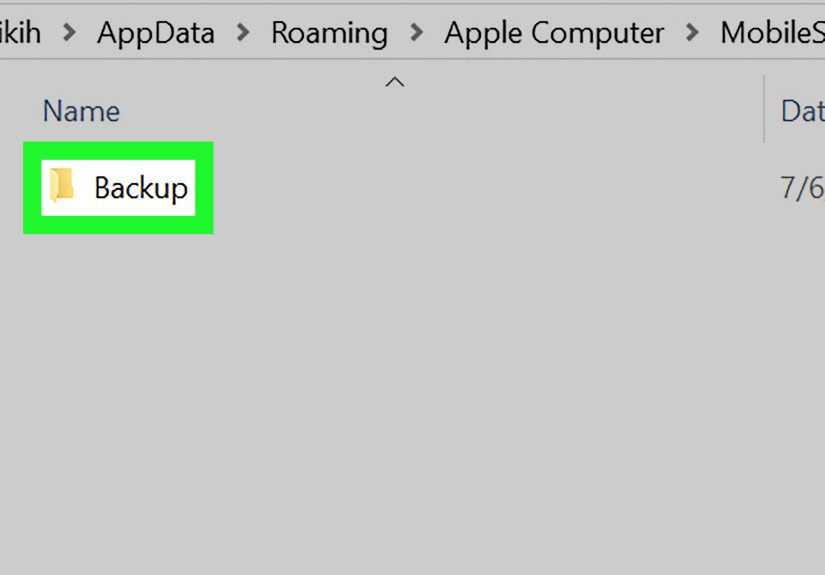
- Step 1: Confirm whether you made a local backup or only used iCloud
- Step 2: Open the most likely backup path in Windows
- Step 3: Turn on hidden items if the folder seems missing
- Step 4: Use Apple Devices or iTunes to reveal the backup from inside the app
- Step 5: Identify the right backup and do not edit it blindly
- Step 6: Copy, move, or clean up the backup carefully
- Common reasons you cannot find an iPhone backup on PC
- What real-world experience usually looks like when people search for an iPhone backup on PC
- Final thoughts
- SEO Tags
Trying to find an iPhone backup on a Windows PC can feel a little like searching for treasure in a house where every closet is labeled “Definitely Not Important.” Apple stores local backups in real folders on your computer, but the exact location depends on how you backed up your device. The path can also change based on whether you used the Apple Devices app, Microsoft Store iTunes, or the older desktop version of iTunes. In other words, the backup is usually there, but Windows is not always eager to throw a parade in its honor.
The good news is that you do not need detective-level computer skills to find it. You just need a reliable method. This guide walks through six practical steps to locate an iPhone backup on a PC, confirm that it is the correct backup, and avoid the classic mistakes that make people mutter at their monitors. Along the way, you will also learn why some users cannot find a backup at all, what those strange backup folders mean, and how to move or save a copy without wrecking anything.
If your goal is simple, this article has you covered. If your goal is “find my backup before I do something dramatic with File Explorer,” this article really has you covered.
Why finding your iPhone backup matters
A local iPhone backup on PC can be a lifesaver when you are upgrading to a new phone, recovering from a failed update, replacing a damaged device, or simply making sure your data exists somewhere other than the digital void. A computer backup usually includes most of your device data and settings, but not everything. Items already synced to iCloud, content from the App Store, and media synced from your computer are handled differently. Also, some sensitive data such as Health information, saved passwords, and Wi-Fi settings are fully included only when you create an encrypted local backup. So yes, finding the backup matters. It is not just a random folder; it is often your safety net wearing a very unglamorous file name.
Step 1: Confirm whether you made a local backup or only used iCloud
Before you start opening folders like an over-caffeinated raccoon, confirm that a local backup actually exists on your PC. Many people assume they have a computer backup when they really used iCloud instead. If that happened, there may be no local backup folder to find on the machine at all.
Ask yourself these quick questions
- Did you connect your iPhone to a Windows computer and click Back Up Now in Apple Devices or iTunes?
- Did you choose Back up all of the data on your iPhone to this computer?
- Or did you rely on iCloud Backup from your iPhone settings instead?
If you used the Apple Devices app or iTunes on your PC, you likely have a local backup. If you only used iCloud Backup, your backup is stored in Apple’s cloud, not in the usual Windows backup folder. That distinction matters because a missing folder is not always a problem. Sometimes it simply means you are searching the wrong planet.
This first step saves time. No one enjoys spending twenty minutes digging through hidden folders only to discover the backup has been floating happily in iCloud the whole time.
Step 2: Open the most likely backup path in Windows
Once you know a local backup should exist, go straight to the most likely storage path. The fastest way is through the Windows Run box or File Explorer address bar.
Common iPhone backup paths on PC
If you are using the older desktop version of iTunes, try this path first:
If you are using the Apple Devices app or iTunes from the Microsoft Store, the backup may appear under your user profile instead:
You can paste either path into the File Explorer address bar or open the Run dialog by pressing Windows + R and entering the path. Windows should take you directly to the folder if it exists. If one path comes up empty, do not panic. Try the other version. This is one of the most common reasons people think their backup vanished, when in reality it just took a different hallway.
Inside the backup location, you will usually see one or more folders that do not look friendly. They often appear as long strings of letters and numbers instead of something helpful like John’s iPhone Backup From Last Tuesday. Apple did not design this folder system to win a usability award. It was built for functionality, not emotional support.
Step 3: Turn on hidden items if the folder seems missing
One of Windows’ favorite hobbies is hiding useful folders. The AppData area is commonly hidden, which means your backup might exist even when it seems invisible at first glance.
How to show hidden files in File Explorer
- Open File Explorer.
- Click View.
- Choose Show.
- Turn on Hidden items.
Once hidden items are visible, go back to the backup path and check again. This small setting solves a surprising number of “my iPhone backup is gone” moments. It is not gone. It is just doing what hidden folders do best: hiding with great confidence.
While you are there, turning on file name extensions can also help you understand what you are looking at, though most backup contents are not files you should open or edit manually. Think of this folder as a storage vault, not a toy box.
Step 4: Use Apple Devices or iTunes to reveal the backup from inside the app
If manual folder hunting feels clunky, use the software that created the backup in the first place. Apple gives you a cleaner route through the interface.
In the Apple Devices app
- Open Apple Devices on your PC.
- Connect your iPhone if needed.
- Select your device in the sidebar.
- Go to General.
- Click Manage Backups.
From there, you can view your backup list and in many cases reveal the backup in File Explorer. This is often the easiest method because it skips the guesswork about paths.
In iTunes on PC
- Open iTunes.
- Go to Edit > Preferences.
- Click Devices.
You should see a list of stored backups. Encrypted ones usually show a lock icon. This method is especially handy if you remember making a backup but do not remember where Windows tucked it away. It is the software equivalent of asking the person who parked the car where they left it.
Step 5: Identify the right backup and do not edit it blindly
Finding the backup folder is only half the job. Next, you need to identify whether it is the backup you actually need.
What to look for
- Date modified: This is usually the quickest clue. The most recent folder activity often matches your latest backup.
- Multiple backups: If you backed up different devices or used different software setups over time, you may see more than one backup.
- Encrypted status: If you created an encrypted backup, restoring from it later will require the password.
Do not try to open random files inside the backup and start cleaning house. iPhone backups are not meant to be browsed like vacation photos. The folder structure is designed for restoration, not casual reading. Moving, renaming, or deleting individual files inside the backup can corrupt the whole thing. If you want to preserve it, copy the full backup folder, not bits and pieces like you are making a scrapbook out of your phone’s soul.
Also remember that not every piece of iPhone content lives in the backup the way people expect. Computer backups cover most settings and data, but content already synced to iCloud or media synced from another source may not appear the way you imagine. That is normal, not sabotage.
Step 6: Copy, move, or clean up the backup carefully
Once you find the backup, you have options. You can leave it alone, copy it for safekeeping, move it to external storage, or delete old backups you no longer need. The key word is carefully.
Best practices for handling an iPhone backup on PC
- Copy the entire backup folder before making changes.
- Store important backups on an external drive if your PC storage is tight.
- Delete old backups only after confirming you no longer need them.
- Keep a record of your encryption password if the backup is encrypted.
If you move a backup manually, keep the folder intact. Do not rename a bunch of files and expect Apple software to nod politely and keep working. If your storage is getting hammered, a full device backup can take up serious space, especially if your iPhone is packed with photos, messages, and app data. Backups are useful, but they are not known for being tiny.
Some advanced users redirect backup folders to another drive using symbolic links. That can work, but it also means the backup may not be in the default location anymore. If you or someone else set that up in the past, the trail may lead somewhere less obvious. In plain English: if the normal folder is empty, it may still be empty for a reason.
Common reasons you cannot find an iPhone backup on PC
If you still cannot locate the backup after all six steps, one of these common explanations is usually the culprit:
- You never created a local backup on that PC.
- You used iCloud Backup instead of a computer backup.
- You searched the wrong path for your version of iTunes or Apple Devices.
- Hidden items are turned off in File Explorer.
- You are signed into a different Windows user account than the one that created the backup.
- The backup was moved to another drive.
- A symbolic link was used, so the visible folder points somewhere else.
Most “missing backup” cases are not true mysteries. They are usually version mix-ups, hidden folders, or mistaken assumptions about where the backup was created. In tech support terms, that is actually good news. It means the problem is annoying, not catastrophic.
What real-world experience usually looks like when people search for an iPhone backup on PC
In real-world use, the search for an iPhone backup on PC usually starts with confidence and ends with someone whispering, “Why is this folder invisible?” That is because most users remember backing up their phone, but they do not remember how they backed it up. The difference between iCloud, Apple Devices, and old-school iTunes sounds small until you are trying to recover data at 11:47 p.m. with a dying charger and a strong sense of regret.
A very common experience goes like this: a user gets a new iPhone, connects the old one to the PC, opens iTunes, and thinks, “I definitely backed this up last year.” Then they open File Explorer, search “iPhone backup,” and get absolutely nothing useful. At that point, panic starts warming up in the bullpen. But usually the backup is still on the machine. It is just buried in AppData, hidden from view, and named like a witness in a spy movie.
Another classic scenario happens when someone upgraded from iTunes to the Apple Devices app and expects the backup path to stay exactly the same forever. Windows, however, likes a plot twist. Different installation methods can point to different locations. So the user checks one path, finds nothing, and assumes the backup vanished into the technological afterlife. In reality, it is often sitting quietly in another MobileSync folder, wondering why no one came to visit.
There is also the encrypted-backup surprise. Plenty of people wisely check the box to encrypt their local backup, then unwisely forget the password a year later. That creates a unique flavor of frustration. The backup exists. It is complete. It is even more useful than an unencrypted backup because it includes saved passwords, Health data, Wi-Fi settings, and other sensitive information. But without the password, it becomes the digital equivalent of a locked safe with the key launched into space.
Storage is another real-world headache. iPhone backups can get large, fast. Users often find the backup only after noticing their C drive is mysteriously gasping for air. That moment usually leads to two emotional stages: first, relief that the backup exists; second, mild outrage that it is taking up so much room. This is why many people eventually copy the full backup folder to an external drive for safekeeping. It is practical, simple, and much less dramatic than discovering you have 3 GB of free space left during a Windows update.
And then there are the people who did everything right. They created a backup, kept the password, checked the path, and stored a copy elsewhere. These people are the legends of the local-backup world. They do not show up in forums asking where the file went because they already labeled the folder, noted the date, and moved on with their lives. We should all aspire to that level of calm.
The takeaway from these real-world experiences is simple: finding an iPhone backup on PC is usually not hard once you know the two or three places to look and the software path that matches your setup. The confusion comes from hidden folders, changing apps, and human memory doing its usual cartwheels. A clear process solves most of it. Thankfully, you now have one.
Final thoughts
If you need to find an iPhone backup on PC, the smartest approach is to work methodically. First confirm whether the backup is local or in iCloud. Then check the common Windows paths, turn on hidden items, and use Apple Devices or iTunes to verify the backup from inside the app. Once you find it, treat it carefully. A backup is not exciting to look at, but it can be incredibly exciting when it saves your data.
So yes, Windows may hide the folder, Apple may name it like encrypted spaghetti, and iTunes may still look like it time-traveled from another era. But with these six steps, you can find your iPhone backup without turning your desktop into an emotional support system.