Table of Contents >> Show >> Hide
- What Counts as System Storage on a Mac?
- Before You Start
- Method 1: Use Mac Storage Settings First
- Method 2: Delete Large Files in Downloads and Documents
- Method 3: Uninstall Apps You Do Not Use
- Method 4: Remove Old iPhone and iPad Backups
- Method 5: Clear Safari History, Cache, and Website Data
- Method 6: Clean Up Mail and Messages Attachments
- Method 7: Thin Out Time Machine Local Snapshots
- Method 8: Use Safe Mode and Run Disk Utility First Aid
- What Not to Do
- How Much Space Can You Realistically Recover?
- Final Thoughts
- Experience Section: What Clearing System Storage on a Mac Feels Like in Real Life
- SEO Tags
If your Mac keeps throwing low-storage warnings while “System Storage” or “System Data” looks suspiciously large, welcome to one of macOS’s least charming magic tricks. One minute you have plenty of room, the next minute your Mac acts like it lives in a studio apartment with three roommates and a kayak.
The good news is that System Storage is usually not one giant mystery blob. It often includes caches, logs, local snapshots, temporary files, app leftovers, device backups, browser data, and other behind-the-scenes material that builds up over time. The better news is that you can trim a lot of it without doing anything reckless, dramatic, or “why is my Mac now showing a folder with a question mark?”-worthy.
This guide walks you through eight step-by-step methods to clear system storage on a Mac safely. You will start with Apple’s built-in tools, move on to the most common storage hogs, and finish with a few cleanup moves that often free up space when nothing else seems to work.
What Counts as System Storage on a Mac?
Think of System Storage as the junk drawer of macOS. Some of it is essential. Some of it is temporary. Some of it made sense three months ago and now just sits there taking up space like an ex’s hoodie you forgot to return. This category can include:
- System caches and temporary files
- Logs and app support files
- Local Time Machine snapshots
- Old iPhone or iPad backups
- Mail and Messages attachments
- Browser website data and download leftovers
- Residual files from deleted apps
Before you start deleting anything, remember one important rule: do not randomly remove files from hidden system folders unless you know exactly what they do. The goal is to clear clutter, not accidentally give your Mac a personality crisis.
Before You Start
- Back up your important files.
- Restart your Mac once before doing deep cleanup. A simple reboot can clear some temporary files on its own.
- Open Apple menu > System Settings > General > Storage so you can watch the categories change as you work.
Method 1: Use Mac Storage Settings First
This is the smartest place to begin because macOS already shows where your space is going. Sometimes the fastest cleanup is not heroic digging. It is simply letting your Mac point at the obvious mess.
Steps
- Click the Apple menu.
- Open System Settings.
- Click General, then Storage.
- Wait a few seconds while macOS calculates your categories.
- Review the recommendations, such as Optimize Storage, Empty Trash Automatically, and large-file cleanup tools.
- Click the info buttons next to categories like Applications, Documents, or iOS Files to see what is actually taking up room.
This step matters because System Storage often looks huge when the real issue is a category nearby, like giant Downloads, forgotten installer files, or old iPhone backups. Start with the dashboard before you start hunting in the weeds.
Method 2: Delete Large Files in Downloads and Documents
The Downloads folder is where ambitious file plans go to retire. DMG installers, ZIP files, duplicate PDFs, videos you watched once, and random screenshots of “important” things you definitely forgot about all love to pile up there.
Steps
- Open Finder.
- Click Go > Downloads.
- Sort files by Size or Date Added.
- Delete old installer files such as .dmg, .pkg, and zipped archives you no longer need.
- Move large files you want to keep to an external drive or cloud storage.
- Open Documents and repeat the same size-based cleanup.
- Empty the Trash when you are done.
Pay special attention to video files, screen recordings, and duplicate downloads. A single outdated macOS installer or editing export can take several gigabytes. Remove three or four of those and suddenly your Mac breathes like it just finished yoga.
Method 3: Uninstall Apps You Do Not Use
Unused apps do not just occupy app-folder space. Many of them also create support files, caches, saved states, and content libraries that quietly bloat System Storage over time.
Steps
- Go to System Settings > General > Storage.
- Open the Applications section.
- Sort the list by size.
- Delete apps you no longer use, especially large creative, gaming, or utility apps.
- Check whether the app stores additional content elsewhere, such as sample libraries, media packs, or project caches.
- Empty the Trash.
Apps like video editors, music tools, and design software are famous for keeping bonus content. GarageBand, Logic-related content, and other media-heavy tools can quietly become storage bodybuilders. If you have not opened an app in six months and it weighs more than your favorite photo library, it may be time for a respectful goodbye.
Method 4: Remove Old iPhone and iPad Backups
If you back up an iPhone or iPad to your Mac, those backups can become surprisingly large. One old backup is manageable. Four old backups from devices you no longer own? That is a storage soap opera.
Steps
- Connect your iPhone or iPad if needed, or just open Finder.
- Select your device in the Finder sidebar.
- Click the General tab.
- Click Manage Backups.
- Review the list of backups.
- Right-click any backup you no longer need and choose Delete.
- Confirm the deletion.
This method is one of the biggest wins for Macs with mysteriously high System Data. If you used local backups for years and switched to iCloud later, your Mac may still be holding old device backups like sentimental clutter in a garage attic.
Method 5: Clear Safari History, Cache, and Website Data
Browsers are tiny storage hoarders. Safari saves website data to make pages load faster, which is handy until your browser starts carrying half the internet around in its backpack.
Steps
- Open Safari.
- Click Safari > Settings.
- Select the Privacy tab.
- Click Manage Website Data.
- Remove data for individual sites or click Remove All.
- Then go to History > Clear History.
- Choose the time range and confirm.
This will not turn your Mac into a spaceship, but it can trim bloated browser storage and clear corrupted website data that sometimes causes Safari glitches. If you also use Chrome, Firefox, or Edge, check those browsers too, because Safari is not always the only snack thief in the kitchen.
Method 6: Clean Up Mail and Messages Attachments
Attachments are sneaky. A few PDFs here, some image threads there, and suddenly your Mac is storing the complete visual history of three group chats, four newsletters, and every document your dentist ever sent.
Steps for Mail
- Open Mail.
- Choose Mailbox > Erase Junk Mail.
- Then choose Mailbox > Erase Deleted Items.
- Open large messages with attachments.
- Choose Message > Remove Attachments when you no longer need them locally.
Steps for Messages
- Open Messages.
- Select a conversation.
- Click the contact or group icon at the top.
- Review attachment sections such as photos and files.
- Delete large attachments you no longer need.
- Go to View > Recently Deleted and permanently remove items there if needed.
- In Messages > Settings > General, consider changing Keep messages from Forever to a shorter period if that fits your workflow.
This method is especially useful on Macs tied to years of synced messages. One busy family group chat can contain enough videos, memes, and blurry restaurant menus to qualify as a documentary archive.
Method 7: Thin Out Time Machine Local Snapshots
Time Machine local snapshots are useful. They can help you recover files even when your external backup drive is not connected. They can also temporarily inflate System Storage and make you wonder whether your Mac has developed a secret second life.
Steps
- Open Time Machine settings from the menu bar or go to System Settings > General > Time Machine.
- Temporarily turn off Automatic Backups.
- Give macOS a little time to update storage usage.
- Restart your Mac.
- Check System Settings > General > Storage again.
- Turn Automatic Backups back on after cleanup.
This is a good middle-ground move for everyday users because it is safer than poking around with advanced commands. Local snapshots are not evil, but when storage is tight, they can be part of the reason your System Data looks like it ate a buffet.
Method 8: Use Safe Mode and Run Disk Utility First Aid
When your storage numbers look weird, updates fail, or cleanup does not seem to “stick,” Safe Mode can help. macOS clears certain system caches in Safe Mode, and Disk Utility can repair storage-structure errors that may contribute to odd behavior.
Steps for Apple silicon Macs
- Shut down your Mac completely.
- Press and hold the power button until you see Loading startup options.
- Select your startup disk.
- Hold Shift, then click Continue in Safe Mode.
- Log in, then let the Mac sit for a few minutes.
- Restart normally.
Steps for Intel Macs
- Restart your Mac.
- Immediately hold the Shift key until the login window appears.
- Log in and allow startup to finish.
- Restart normally.
Then run First Aid
- Open Disk Utility.
- Select your internal drive.
- Click First Aid.
- Let the scan and repair process complete.
This is not a magic “delete 100 GB” button. But it often helps when system caches are bloated or storage behavior feels buggy. Think of it as giving your Mac a shower, a glass of water, and a gentle reminder to pull itself together.
What Not to Do
- Do not randomly delete files from /System.
- Do not force-remove hidden files unless you know exactly what they are.
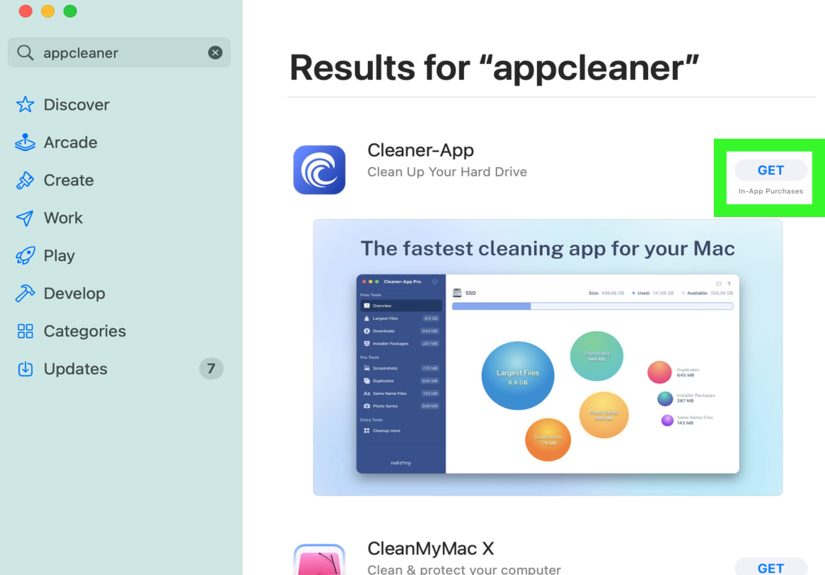
- Do not assume every “cleaner” app is necessary.
- Do not forget to empty the Trash after cleanup.
If you want the safest approach, stick with built-in storage tools first, then remove obvious clutter like backups, downloads, attachments, and unused apps.
How Much Space Can You Realistically Recover?
That depends on your Mac habits. Light users may gain 5 to 15 GB. Heavy users who keep local iPhone backups, large Mail attachments, bloated Downloads folders, and years of Messages media can recover much more. In real life, the biggest wins usually come from a boring trio: backups, installers, and attachments. Glamorous? No. Effective? Very.
Final Thoughts
If you have been wondering how to clear system storage on a Mac, the trick is not one secret button. It is a sequence of smart, safe cleanup habits. Start with the Storage pane, remove large obvious files, trim device backups, clean browser and message data, and use Safe Mode when the system needs a little nudge.
The best part is that once you do this once, the next cleanup session becomes much easier. Your Mac runs smoother, updates stop complaining, and you no longer have to stare at “System Data” like it personally betrayed you.
Experience Section: What Clearing System Storage on a Mac Feels Like in Real Life
In real-world use, clearing system storage on a Mac is rarely one dramatic before-and-after moment. It is more like finding money in old jacket pockets. You clean one area, nothing huge happens, then you clean another, and suddenly you have 28 GB back and your Mac stops behaving like it is emotionally overwhelmed.
A very common experience starts with a user opening Storage settings because a macOS update refuses to install. They expect to delete one or two files and move on with life. Instead, they discover that System Storage is enormous, Downloads is full of old installers, and there are local iPhone backups sitting around from phones they barely remember owning. The cleanup becomes part detective story, part personal archaeology.
Another frequent experience is realizing how much hidden clutter comes from perfectly normal habits. Maybe you never thought twice about leaving Mail attachments in place, saving every PDF to the desktop, or keeping years of Messages synced across devices. None of that feels excessive in the moment. But over time, your Mac quietly collects screenshots, videos, duplicate documents, and cached site data until the storage chart starts looking like a pie graph designed by chaos.
People are often surprised by how satisfying the cleanup process becomes once they stop guessing and start sorting by size. That is the turning point. Instead of deleting random small files and hoping for a miracle, they find one 7 GB backup, a 4 GB installer, a giant forgotten screen recording, and a few chunky attachment folders. That is when the “I have no idea what is taking space” feeling changes into “oh, there you are, you giant little goblin.”
There is also a performance angle. Clearing system storage does not magically upgrade your hardware, but many users notice that their Mac feels less stubborn afterward. Apps launch more smoothly, updates install without drama, and the spinning beach ball shows up less often. Even when the speed improvement is modest, the psychological improvement is enormous. Your computer stops feeling packed and starts feeling manageable again.
One of the most relatable experiences is learning that maintenance matters more than one-time panic cleaning. People who make a habit of checking Storage once a month, emptying Downloads, deleting old backups, and trimming attachments usually avoid the “why do I only have 2 GB left?” emergency altogether. In other words, the glamorous secret to Mac storage health is not glamour at all. It is routine. Mildly boring routine. Annoyingly effective routine.
So yes, clearing system storage on a Mac can feel confusing at first. But once you do it properly, it becomes one of those quiet tech victories that makes everyday computing better. No fireworks. No movie soundtrack. Just a calmer Mac, more free space, and the deeply satisfying realization that you are no longer losing a storage argument with your own laptop.