Table of Contents >> Show >> Hide
- What Does “Activate GPRS” Mean on a Modern Phone?
- Easy Way 1: Turn On Mobile Data in Your Phone Settings
- Easy Way 2: Check, Add, or Reset Your APN Settings
- Easy Way 3: Refresh the Connection with a Restart, Airplane Toggle, or Network Reset
- What to Do If GPRS Still Will Not Activate
- Common Mistakes People Make When Activating GPRS
- Helpful Tips to Keep Mobile Data Working
- Conclusion
- Real-World Experiences Related to Activating GPRS on a Mobile Phone
If your phone refuses to load a webpage, send a picture message, or do anything more advanced than stare at you blankly, you may be trying to solve an old problem with an even older phrase: activate GPRS. It sounds like something from the era of flip phones, ringtones, and texting with heroic thumb strength. But the good news is that the fix is usually simple.
Today, when most people say they want to “activate GPRS,” they usually mean they want to turn on mobile data, set the correct APN, or restore their cellular internet connection. In other words, they want the phone to stop acting like the internet is a myth. Whether you use an iPhone, a Samsung Galaxy, a Pixel, a Motorola, or another Android device, the core idea is the same: make sure your phone is allowed to use cellular data and is configured to talk properly to your carrier.
This guide walks you through three easy ways to activate GPRS on your mobile phone, plus common fixes, helpful examples, and real-world experiences that make the process much less confusing. No jargon avalanche. No weird copy-paste settings from random forums. Just clear steps, practical advice, and a little humor so your troubleshooting session feels less like a hostage negotiation.
What Does “Activate GPRS” Mean on a Modern Phone?
Strictly speaking, GPRS was an early packet-data technology used on GSM networks. But the phrase stuck around, and many people still use it to mean turn on the phone’s mobile internet connection. So if you’re searching for how to activate GPRS, what you usually need is one of these:
- Enable mobile data or cellular data
- Choose the correct SIM for data if your phone has dual SIM
- Enter or reset your APN settings
- Refresh your network connection with a restart or network reset
That is why one person says “my GPRS is off,” another says “my data won’t work,” and a third says “my phone has bars but no internet.” They are often talking about the same problem wearing different outfits.
Easy Way 1: Turn On Mobile Data in Your Phone Settings
The first and easiest fix is also the one people miss most often: mobile data may simply be turned off. This happens more than you’d think. It can be disabled accidentally, turned off by battery-saving habits, or switched away from the correct SIM on dual-SIM phones.
How to do it on iPhone
- Open Settings.
- Tap Cellular or Mobile Data.
- Turn Cellular Data on.
- If you use two SIMs, make sure the right line is selected for data.
While you’re there, scroll through the app list and make sure important apps are allowed to use cellular data. If a critical app is switched off, your phone may look connected while that one app acts like it lives in a cave.
How to do it on Android
- Open Settings.
- Tap Network & Internet, Connections, or SIMs / Mobile Network. The wording varies by brand.
- Turn on Mobile Data.
- If your phone has multiple SIMs, choose which one handles data.
On many Android phones, you can also pull down the quick settings panel and tap Mobile Data to turn it on instantly. Fast, easy, and satisfying in the way all good taps should be.
Check these settings too
- Airplane Mode: Make sure it is off.
- Signal Strength: If you have one weak bar in a concrete building, your phone may be trying its best and still failing.
- Roaming: If you are outside your normal coverage area, roaming may need to be turned on.
- Data Limit: Some Android phones let you set a mobile data cap. If you hit it, data may stop automatically.
If turning on mobile data fixes the issue, congratulations. You have activated GPRS the modern way, and you may now return to scrolling, streaming, and pretending you opened this article only for educational purposes.
Easy Way 2: Check, Add, or Reset Your APN Settings
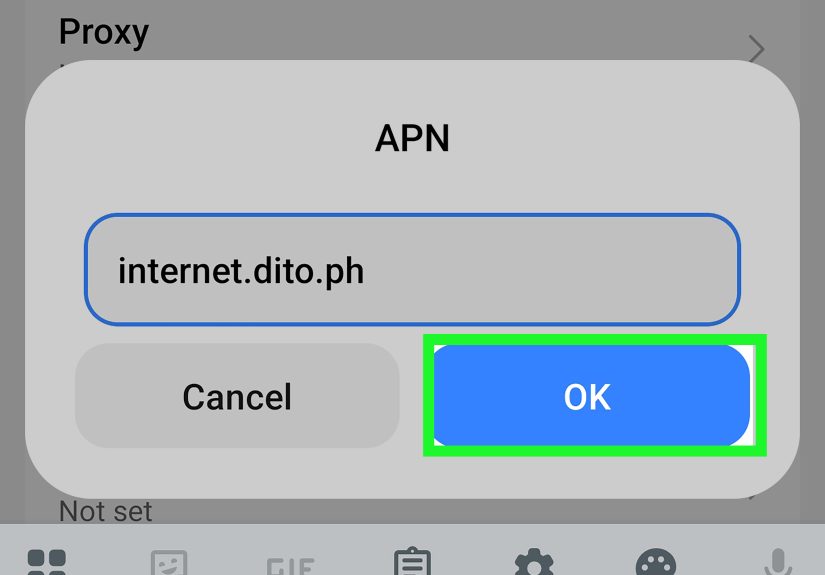
If mobile data is on and your internet still will not work, the next likely culprit is the APN, or Access Point Name. Think of the APN as the instructions your phone uses to connect to your carrier’s data network. If the APN is wrong, incomplete, or missing, your phone may show service but still refuse to load websites or apps.
This is especially common when:
- You switch to a new carrier
- You use an unlocked phone
- You move a SIM card from one phone to another
- You use an MVNO or prepaid provider
- A recent update resets or changes your settings
How to find APN settings on iPhone
- Go to Settings.
- Tap Cellular.
- Tap Cellular Data Network or the equivalent mobile data network menu if your carrier allows editing.
Important detail: on iPhone, the APN menu is not always editable. Some carriers lock it down or load it automatically. If you do not see the option, that does not mean your phone is broken. It often means the carrier controls the setting.
How to find APN settings on Android
- Open Settings.
- Tap Network & Internet, Connections, or Mobile Networks.
- Tap SIM if asked.
- Tap Access Point Names.
On Android, you will usually see one or more APNs already listed. If your carrier provided specific settings, compare them carefully. A missing character, wrong APN type, or extra space can be enough to break mobile data.
Should you add a new APN or reset the current one?
In most cases, the safest move is to reset APN settings to default first. That lets the phone reload the standard network information. If that does not help, enter the exact APN details supplied by your carrier.
Do not guess. APN settings are not a creative writing exercise. If your provider says the APN should be one value, use that value exactly.
Signs the APN is the problem
- You can make calls and send basic texts, but internet does not work
- MMS or picture messages fail
- Your phone works on Wi-Fi only
- You switched providers and data stopped working immediately
- You inserted a new SIM and nothing online loads
If you have a bring-your-own-device phone, APN setup is often the secret handshake that gets everything working. Once the APN is correct, your data connection usually springs to life like it was just waiting for permission.
Easy Way 3: Refresh the Connection with a Restart, Airplane Toggle, or Network Reset
Sometimes the settings are technically correct, but the phone still clings to a bad connection like it is emotionally attached to failure. In that case, the third easy way to activate GPRS is to refresh the network connection.
Start with the simple fixes
- Turn Airplane Mode on for about 10 to 15 seconds.
- Turn it back off.
- Restart the phone.
This forces the phone to reconnect to the network and often clears minor glitches. It is simple, but it works often enough that carriers and device makers keep recommending it for a reason.
If that fails, reset network settings
A full network reset is more serious, but it can fix stubborn problems after a bad setting change, software update, carrier switch, or connection issue.
On iPhone
- Go to Settings.
- Tap General.
- Tap Transfer or Reset iPhone.
- Tap Reset.
- Choose Reset Network Settings.
On Android
- Open Settings.
- Go to System or General Management.
- Tap Reset options.
- Choose Reset Mobile Network Settings or the closest version of that option.
Be aware that a network reset can remove saved Wi-Fi networks, Bluetooth pairings, and custom network settings. It is helpful, but it is not shy.
What to Do If GPRS Still Will Not Activate
If you tried all three methods and mobile data still is not working, do not panic. Your phone is not cursed. There are a few more things to check.
1. Confirm your SIM is active
If your service plan is paused, the SIM is not provisioned correctly, or the line was not fully activated, data may never start. This happens a lot with newly inserted SIM cards and newly ported numbers.
2. Check carrier coverage
If you are in a dead zone, the problem may be location rather than settings. Try stepping outside, moving to a window, or testing in a different area.
3. Update carrier or system software
Phones occasionally need updated carrier settings or system software to work smoothly with the network. If you can connect to Wi-Fi, check for updates.
4. Remove and reinsert the SIM
If you use a physical SIM, power off the phone, remove the SIM, check for obvious damage or dirt, and reinsert it carefully. A badly seated SIM can create surprisingly annoying problems.
5. Contact your carrier
If the APN is hidden, locked, or unknown, your carrier is the source of truth. They can confirm the correct settings, resend provisioning, or tell you whether the issue is on the network side.
Common Mistakes People Make When Activating GPRS
- They confuse Wi-Fi with mobile data. If Wi-Fi is on and poor, your phone may behave strangely while apps keep switching around.
- They edit APN settings from memory. That is bold, but not wise.
- They forget dual-SIM settings. One SIM may handle calls while another is selected for data.
- They leave airplane mode on. It happens. We are all human.
- They expect every menu path to match every guide exactly. Phone brands love changing menu names just enough to be annoying.
Helpful Tips to Keep Mobile Data Working
Once your GPRS or mobile data connection is active, a few good habits can save you future headaches:
- Take a screenshot of your working APN settings if your phone allows it.
- Keep your carrier app installed if it helps manage your line.
- Update your phone regularly.
- Do not install random configuration profiles or settings files unless they come from your carrier or employer.
- After switching SIMs or carriers, test browsing, messaging, and app downloads right away.
Conclusion
If you want to activate GPRS on your mobile phone, the process is usually far less dramatic than the name suggests. In modern terms, it comes down to three practical moves: turn on mobile data, check or reset the APN, and refresh the network connection. That solves the vast majority of cases.
And if it does not? Then the issue is usually your SIM, your carrier provisioning, or local coverage, not some mysterious digital gremlin living inside the phone. Start with the easy fixes, avoid guessing your APN values, and remember that the phrase “activate GPRS” may be old-school, but the solution is very much a modern mobile-data setup job.
Once everything is working, your phone should be able to browse, stream, message, and update without acting like the internet is an optional accessory. Which, to be fair, is exactly what phones are supposed to do.
Real-World Experiences Related to Activating GPRS on a Mobile Phone
One of the most common experiences happens when someone inserts a new SIM card into an unlocked phone and assumes everything will work instantly. Calls may go through, but the browser just spins and spins. In many of these cases, mobile data is turned on, but the APN is missing. The person usually spends twenty minutes blaming the phone, the SIM card, the weather, and possibly modern civilization before discovering that one tiny APN entry is the entire problem. Once the right settings are entered, the internet returns in about ten seconds, which is both wonderful and mildly insulting.
Another very typical experience involves dual-SIM phones. A user may have one line for calls and another for data, but after a restart or software update, the phone quietly switches the default data SIM. The result is confusion. The phone shows signal bars, texts still work, and yet apps refuse to load. The person thinks GPRS is broken, but really the wrong SIM is handling data. Switching the default data line fixes the problem immediately. It is one of those issues that feels complicated until you know where to look.
iPhone users often run into a different version of the same story. Cellular Data gets turned off by accident, or certain apps are not allowed to use it. Everything looks fine on Wi-Fi, but outside the house the phone suddenly behaves like it has retired from the internet business. Turning cellular data back on, checking app permissions, or resetting network settings usually solves it. In other words, the phone was not broken. It was just being extremely literal.
People switching to prepaid carriers or MVNOs also report a familiar pattern: voice works first, data works later. This is especially common with bring-your-own-device setups. The line activates, the user celebrates too early, and then discovers that maps, email, and social media are all offline unless Wi-Fi is available. That is usually the clue that the APN was not loaded automatically. It is frustrating in the moment, but once the carrier’s correct settings are applied, the phone behaves normally again.
There are also plenty of cases where no setting is technically wrong at all. The problem is simply a stale connection. Toggling airplane mode, restarting the device, or resetting network settings forces the phone to reconnect cleanly. Many people skip this because it sounds too basic to be useful. Then they try it last, it works immediately, and they feel betrayed by simplicity.
The biggest lesson from real-world experience is this: activating GPRS is rarely about advanced technical wizardry. It is usually about checking the obvious in the right order. First mobile data. Then APN. Then network reset. The people who solve it fastest are not necessarily the most technical. They are the ones who stay calm, verify each step, and do not type random APN values they found on a questionable forum from 2017.