Table of Contents >> Show >> Hide
- Why Bose Headphones Work Well With iPhone
- Before You Start Pairing
- How to Connect Bose Headphones to an iPhone
- How to Pair Using the Bose App
- What to Do If Bose Headphones Are Not Showing Up on iPhone
- How to Reconnect Bose Headphones to an iPhone Later
- Common Bose-to-iPhone Pairing Problems and Fixes
- Do You Need the Bose App or Not?
- Bose Headphones vs. AirPods on iPhone
- Best Practices for a Smoother Bose-iPhone Connection
- Final Thoughts
- Real-World Experiences With Connecting Bose Headphones to an iPhone
- SEO Tags
If your Bose headphones and your iPhone are acting like two people who matched on a dating app but refuse to text first, do not panic. Pairing Bose headphones to an iPhone is usually quick, easy, and drama-free once you know which button to press and what screen to watch. The trick is that Bose has several headphone and earbud models, and they do not all enter pairing mode exactly the same way. Some use a power slider, some use a Bluetooth button, and some earbuds want you to hold a button on the charging case like it contains the secrets of the universe.
This guide breaks it all down in plain English. You will learn the fastest way to connect Bose headphones to an iPhone, what to do if they will not show up, how to reconnect them later, and when the Bose app is helpful versus optional. Whether you own QuietComfort headphones, Bose earbuds, or an older Bose wireless model, this step-by-step pairing guide will help you get connected without accidentally starting a one-sided argument with your Bluetooth settings.
Why Bose Headphones Work Well With iPhone
Bose headphones connect to iPhones over standard Bluetooth, so you do not need any special Apple-only trick to make them work. That is good news for people who like great sound but do not want to be locked into one ecosystem. In most cases, all you need is a charged pair of Bose headphones, Bluetooth turned on in your iPhone settings, and a few seconds of patience while the devices discover each other.
Many newer Bose products also work with the Bose app, which can help with setup, firmware updates, noise control settings, and device switching on supported models. But here is the nice part: for many Bose headphones and earbuds, the app is not required just to pair with an iPhone. If you want simple audio playback, calls, and everyday listening, Bluetooth settings on the iPhone are often enough.
Before You Start Pairing
Before you connect Bose headphones to an iPhone, make sure you do these basic checks first:
- Your iPhone has Bluetooth turned on.
- Your Bose headphones or earbuds have enough battery.
- Your Bose product is not actively connected to another nearby device, such as an iPad, MacBook, or another phone.
- You know how your specific Bose model enters pairing mode.
This last point matters more than people think. If your Bose device is not actually in pairing mode, your iPhone can search all day and still come up empty. That is not your iPhone being rude. That is Bluetooth being Bluetooth.
How to Connect Bose Headphones to an iPhone
Step 1: Turn On Bluetooth on Your iPhone
Open Settings on your iPhone, tap Bluetooth, and make sure Bluetooth is switched on. Stay on that screen. Your iPhone will begin searching for nearby devices automatically.
Step 2: Put Your Bose Headphones in Pairing Mode
This is the step that varies by model.
For many Bose over-ear headphones: Press and hold the power or Bluetooth control until you hear a voice prompt such as “Ready to connect” or see the Bluetooth light blinking blue. On some QuietComfort models, this means sliding the power or Bluetooth switch and holding it for a few seconds.
For many Bose earbuds: Open the case and use the pairing button on the case, or touch and hold the earbud control until you hear a pairing prompt. Some Bose earbuds automatically enter pairing mode the first time you open the case, while others need a manual press-and-hold action.
If you are not sure which behavior your model uses, look for a blinking blue light, a spoken pairing message, or a quick note in the Bose companion app or manual. The goal is the same: make the Bose device discoverable.
Step 3: Select the Bose Device on Your iPhone
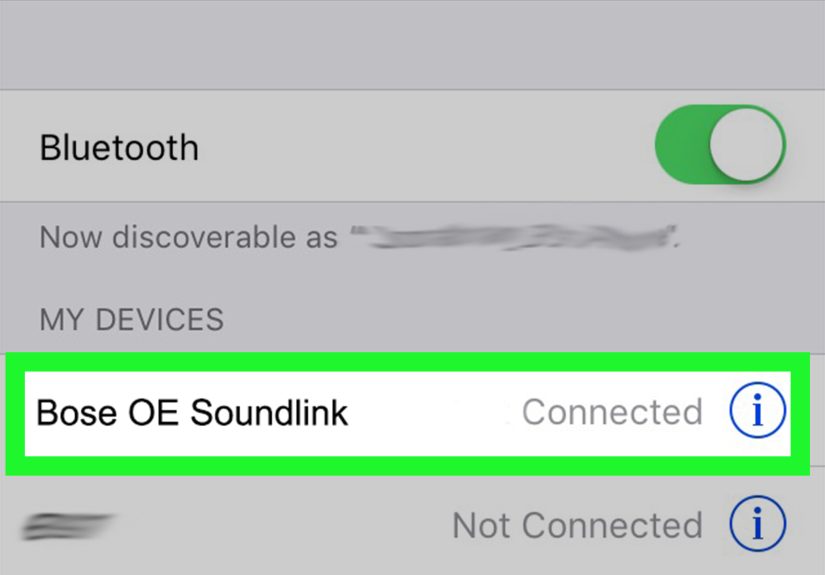
On your iPhone’s Bluetooth screen, wait for your Bose headphones to appear under Other Devices. Tap the name when it appears. In a moment, it should move to My Devices and show as Connected.
That is it. You are paired. You can now play music, watch videos, listen to podcasts, or pretend you are a movie villain while walking through the grocery store in active noise cancellation mode.
Step 4: Test Audio and Call Functions
Play something on your iPhone to confirm the sound is coming through your Bose headphones. Then check volume, pause and play controls, and microphone performance if you plan to take calls. If the headphones connect but audio still plays through the iPhone speaker, open Control Center or the audio output menu in your app and manually choose your Bose device.
How to Pair Using the Bose App
If you want a more guided setup experience, download the Bose app on your iPhone. For many current Bose products, the app helps you detect the device, complete setup, adjust sound or noise settings, and manage features like multipoint connections on supported models.
This option is especially useful if:
- You want firmware updates.
- You want to rename or manage connected devices more easily.
- You want to customize controls or sound settings.
- You use a newer Bose model with advanced Bluetooth features.
On iPhone, make sure the Bose app has Bluetooth permission. If the app cannot detect your headphones, the issue is often not magic, curses, or bad luck. It is usually a permission setting or the headphones not being in pairing mode.
What to Do If Bose Headphones Are Not Showing Up on iPhone
If your Bose headphones are not showing up in Bluetooth settings, use this checklist before you declare war on modern technology:
1. Confirm the Bose Device Is in Pairing Mode
This is the most common problem. If the light is not blinking blue or you did not hear the pairing prompt, try the pairing action again. Some users press the power button once and assume they are done. Bose often wants a press-and-hold, not a casual little tap.
2. Move the Devices Closer Together
Keep your iPhone and Bose headphones near each other during pairing. Bluetooth range is decent, but initial setup works best when the devices are within a few feet.
3. Turn Bluetooth Off and Back On
On the iPhone, toggle Bluetooth off, wait a few seconds, then turn it back on. This can refresh the search and make the Bose device appear again.
4. Restart the Bose Headphones
Turn the headphones or earbuds off and back on. For many Bluetooth accessories, a quick power cycle clears minor connection glitches.
5. Forget the Device and Re-Pair
If the Bose headphones were connected before but now refuse to cooperate, go to Settings > Bluetooth, tap the info icon next to the Bose device, then tap Forget This Device. After that, put the headphones back into pairing mode and connect again from scratch.
6. Clear Bose Pairing Memory
If your Bose headphones keep grabbing an old phone, tablet, or laptop instead of your iPhone, clearing the product’s Bluetooth memory can help. On many Bose models, this involves holding the Bluetooth or power/Bluetooth control for around 10 seconds until you hear a message that the Bluetooth device list has been cleared. Then you can pair fresh with the iPhone.
7. Check for Multipoint Confusion
Some Bose products support multipoint Bluetooth, meaning they can stay linked to more than one device. Handy? Yes. Confusing when your headphones keep favoring your laptop over your iPhone? Also yes. If your Bose model supports it, open the Bose app and review connected devices or disable multipoint temporarily while pairing.
How to Reconnect Bose Headphones to an iPhone Later
Once paired, your Bose headphones should usually reconnect automatically when both devices are on and nearby. If they do not, go to Settings > Bluetooth on your iPhone and tap the Bose device name.
If automatic reconnect fails, it often means one of three things:
- The headphones connected to another device first.
- The headphones are low on battery.
- The previous Bluetooth connection got stuck and needs a quick reset.
In real life, this often happens when your Bose headphones remember your iPad, work laptop, and partner’s tablet, then decide your iPhone is suddenly the least interesting person in the room. A quick manual reconnect usually solves it.
Common Bose-to-iPhone Pairing Problems and Fixes
The Headphones Appear but Will Not Connect
Forget the device on the iPhone, restart the Bose headphones, and try again. Also make sure the Bose product is not already busy with another device.
The Headphones Connect but There Is No Sound
Check the audio output destination on your iPhone. Your phone may still be sending sound to its speaker, your car, or another Bluetooth accessory. Then raise the volume on both the iPhone and the headphones.
The Bose App Cannot Find the Headphones
Check Bluetooth permission for the app in iPhone settings. Then confirm the headphones are in pairing mode and close enough to the phone.
The Connection Keeps Dropping
Charge the headphones, move away from other wireless clutter, disconnect extra paired devices, and install any available Bose firmware update. Connection drops are often less dramatic than they feel. They usually come down to battery, distance, interference, or too many remembered devices.
Do You Need the Bose App or Not?
For basic pairing, not always. For a better ownership experience, often yes. If your only goal is “make sound come out of headphones from iPhone,” Bluetooth settings may be all you need. If you want deeper control over noise cancellation, firmware, shortcuts, device management, and advanced features, the Bose app is worth having.
A smart middle-ground approach is this: pair first in Bluetooth settings, then install the app if you want more features. That way, you are not depending on the app to do the one job Bluetooth has been doing for years.
Bose Headphones vs. AirPods on iPhone
Bose headphones work very well with iPhone, but they do not get the same instant Apple ecosystem magic that AirPods enjoy. AirPods tend to pair faster with Apple devices and switch across Apple products more seamlessly. Bose, on the other hand, is more platform-flexible and works across iPhone, Android, tablets, and laptops without caring who made them.
So if you are using an iPhone and want premium sound, strong noise cancellation, and broad device compatibility, Bose is still a great match. It just asks for one extra tap or two now and then. Honestly, that is still less demanding than most group chats.
Best Practices for a Smoother Bose-iPhone Connection
- Keep your Bose firmware updated.
- Do not leave dozens of old Bluetooth pairings stored forever.
- Charge both the headphones and the case if you use Bose earbuds.
- Use the Bose app for supported features, but know manual pairing still works.
- When troubleshooting, start simple: pairing mode, distance, battery, and Bluetooth reset.
Final Thoughts
Connecting Bose headphones to an iPhone is usually a quick process once you know the two big rules: put the Bose device in pairing mode and select it from iPhone Bluetooth settings. After that, most problems come down to forgotten settings, old pairings, low battery, or a Bose device that has wandered off emotionally and connected to another gadget instead.
The good news is that none of these issues are especially hard to fix. Whether you use QuietComfort headphones for flights, Bose earbuds for workouts, or over-ear models for work calls, the pairing process is simple, reliable, and worth mastering. Once everything is connected, your iPhone and Bose headphones make a pretty solid team.
Real-World Experiences With Connecting Bose Headphones to an iPhone
In real everyday use, the experience of pairing Bose headphones to an iPhone is usually smoother than people expect. The first connection tends to feel a little ceremonial. You charge the headphones, open Bluetooth settings, hold a mysterious button for a few seconds, and wait for the Bose name to appear like a tiny electronic miracle. Once it does, the rest feels easy. Tap the device name, hear the connection prompt, and suddenly your kitchen, office, or bus ride sounds a whole lot better.
For commuters, the first successful pairing often turns into an instant quality-of-life upgrade. You connect the headphones, start a playlist, and the outside world becomes less loud and less interested in ruining your morning. Many users say the part they appreciate most is not just the sound quality but the relief of getting the connection to work without digging through endless menus. On an iPhone, the Bluetooth screen is straightforward, so once the Bose headphones are truly in pairing mode, the process feels refreshingly normal.
There is also a very relatable second-stage experience: the moment you try reconnecting later and realize your headphones have become a little too popular. Maybe they pair with your iPhone at home, then the next day they decide to reconnect to your laptop during a work call or cling to your tablet from the night before. This is where people start to understand the blessing and curse of remembered Bluetooth devices. The headphones are not broken. They are just trying to be helpful in a slightly chaotic way.
Users who install the Bose app often describe the experience as more polished after the initial pairing. Being able to check device status, adjust settings, or manage connections gives the whole thing a cleaner feel. It is especially helpful for people who use one pair of Bose headphones across an iPhone, a laptop, and maybe a second mobile device. Without some kind of device management, Bluetooth can feel like hosting a party where no one knows whose jacket is whose.
Workout users tend to care about speed. They want earbuds out of the case, into the ears, and connected before motivation disappears. When pairing goes well, Bose earbuds with an iPhone feel seamless. When it does not, the most common frustration is simple: the case was not charged enough, the earbuds were not actually in pairing mode, or the iPhone remembered an old connection and got confused. In other words, the problem usually feels bigger than it really is.
Travelers often have the most positive long-term experiences. Once Bose headphones are paired correctly to an iPhone, daily use becomes almost automatic. Open the headphones, connect, hit play, and enjoy the kind of peace that makes even airport announcements seem less aggressive. The pairing process matters because it sets the tone for everything after it, and when done right, it becomes one of those tech tasks you barely think about again.
The overall experience can be summed up pretty simply: pairing Bose headphones to an iPhone is not hard, but it does reward you for knowing your model and respecting the sacred power of pairing mode. Once that lesson clicks, the process becomes easy, repeatable, and pleasantly boring in the best possible way.