Table of Contents >> Show >> Hide
- Why You Might Need to Change Your Yahoo Mail Password
- Before You Change Your Yahoo Password
- How to Change a Yahoo Mail Password on Desktop
- How to Change a Yahoo Mail Password on Mobile Browser
- How to Change a Yahoo Mail Password in the Yahoo Mail App
- What If You Forgot Your Yahoo Password?
- How to Create a Strong Yahoo Mail Password
- What to Do After Changing Your Yahoo Password
- Yahoo Account Key, App Passwords, and Third-Party Email Apps
- Common Problems When Changing a Yahoo Mail Password
- Security Mistakes to Avoid
- How Often Should You Change Your Yahoo Mail Password?
- Desktop vs. Mobile: Which Method Is Best?
- Extra Experience: Real-World Lessons From Changing a Yahoo Mail Password
- Conclusion
Changing your Yahoo! Mail password is one of those tiny digital chores that feels boring right up until the moment you really need it. Maybe your browser saved the wrong password. Maybe your phone keeps asking you to sign in again. Maybe you saw a suspicious login alert and your stomach did that little trampoline jump. Whatever the reason, knowing how to change a Yahoo Mail password on desktop and mobile can save you time, protect your inbox, and keep your personal information away from nosy internet gremlins.
This guide walks you through the current, practical ways to update your Yahoo password from a desktop browser, a mobile browser, and the Yahoo Mail app. It also explains what to do if you forgot your password, how to create a stronger one, and what security settings you should review after making the change. The steps are simple, but the details matterespecially if you use Yahoo Mail for banking alerts, school accounts, online shopping, business contacts, or recovery emails for other services.
Why You Might Need to Change Your Yahoo Mail Password
You do not need a dramatic reason to update your Yahoo Mail password. Sometimes the best reason is simply that your old password is weak, reused, or older than your favorite hoodie. But there are a few situations where changing it quickly is smart:
- You noticed unfamiliar emails in your Sent folder.
- You received a sign-in alert you do not recognize.
- Your password was used on another website that had a data breach.
- You shared the password with someone in the past and no longer want them to have access.
- Your browser, phone, or password manager says the password is compromised.
- You are switching to a password manager and want a fresh, unique password.
Your email account is not just a mailbox. It is often the master key to your digital life. Password resets for shopping accounts, social media, cloud storage, streaming services, and even financial platforms may go through your inbox. That makes Yahoo Mail security more important than it might seem at first glance.
Before You Change Your Yahoo Password
Before you click any buttons, take a minute to prepare. It is not glamorous, but neither is being locked out of your email while your phone stares at you like, “Good luck, buddy.”
Make Sure You Can Access Your Recovery Options
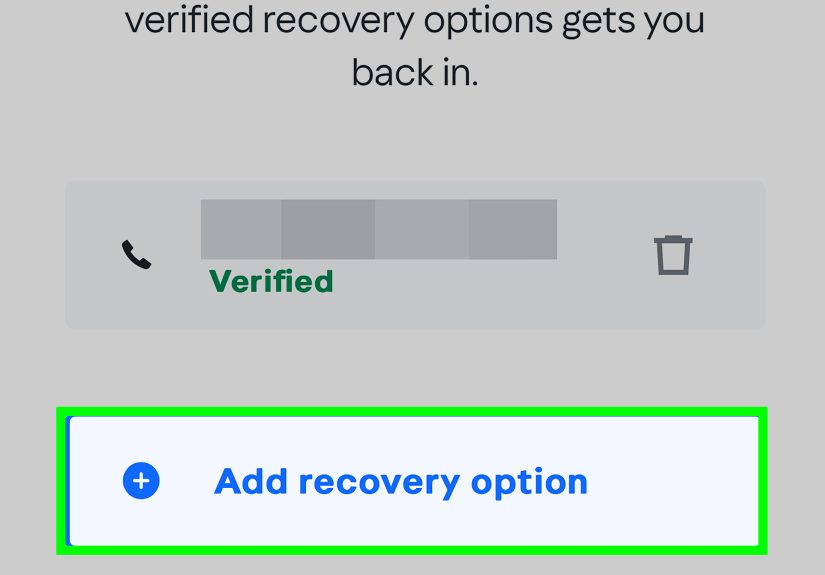
Yahoo may ask you to verify your identity using a recovery phone number, recovery email address, authenticator app, or another sign-in method. If your recovery phone number is old or your backup email belongs to an account you abandoned years ago, update those details first if you can access your account.
Use a Secure Internet Connection
Avoid changing your password on public Wi-Fi unless you are using a trusted VPN. A home network, school network, work network, or mobile data connection is usually safer than the random coffee shop network named “Free_WiFi_ReallyTrustMe.”
Have Your New Password Ready
Create a strong password before you start. A good Yahoo Mail password should be long, unique, and hard to guess. A passphrase such as several unrelated words with numbers or symbols can be easier to remember than a short password full of keyboard gymnastics.
How to Change a Yahoo Mail Password on Desktop
If you are using Yahoo Mail on a laptop or desktop computer, you can change your password through your Yahoo Account Security settings. This is usually the cleanest method because the larger screen makes it easier to review security options afterward.
Step-by-Step Instructions for Desktop
- Open your web browser and go to Yahoo Mail.
- Sign in to your Yahoo account if you are not already signed in.
- Click your profile name or profile icon near the top-right area of the page.
- Select Account Info or go to your Yahoo account settings.
- Open the Account Security section.
- Choose Change password.
- Enter your new password.
- Click Continue or follow the on-screen confirmation prompts.
After the change is complete, Yahoo may sign you out of some devices and apps. That is normal. You will need to sign in again using the new password on your computer, phone, tablet, and any email client connected to Yahoo Mail.
Desktop Tip: Check Your Account Activity
Once you are in the Account Security area, look for recent sign-in activity or connected devices. If you see a device, location, or app you do not recognize, sign it out if Yahoo gives you that option. Then review your recovery information and enable extra security features.
How to Change a Yahoo Mail Password on Mobile Browser
You do not have to use a computer to update your password. If you are on an iPhone, iPad, Android phone, or Android tablet, you can use your mobile browser. This method is helpful when the Yahoo Mail app does not show the same options or when an app screen looks different after an update.
Step-by-Step Instructions for Mobile Browser
- Open Safari, Chrome, Edge, Firefox, or another trusted mobile browser.
- Go to Yahoo Mail and sign in.
- Tap your profile icon or account menu.
- Open Account Info or account settings.
- Go to Account Security.
- Tap Change password.
- Enter your new password.
- Tap Continue to save the change.
If your phone asks whether you want to update the saved password, choose yes only if you trust the device and the password manager. If several people use the same phone or tablet, do not save the password in the browser.
How to Change a Yahoo Mail Password in the Yahoo Mail App
The Yahoo Mail app can also let you change your password if you are already signed in. The exact wording may vary slightly between iOS and Android, but the general path is similar.
Step-by-Step Instructions for the Yahoo Mail App
- Open the Yahoo Mail app.
- Tap your profile icon.
- Tap Manage Accounts.
- Select Account or Account Info.
- Tap Security.
- Scroll down and tap Change password.
- Enter your new password.
- Tap Continue.
If you do not see the password option inside the app, do not panic. App menus change, and some account settings may open in a browser window. Use the mobile browser method instead. It usually gets you to the same account security controls with fewer app-menu scavenger hunts.
What If You Forgot Your Yahoo Password?
If you forgot your Yahoo Mail password, you cannot “change” it in the normal way because you cannot prove you know the current login. Instead, you need to reset it through Yahoo’s sign-in recovery process.
How to Reset a Forgotten Yahoo Password
- Go to Yahoo’s sign-in page.
- Enter your Yahoo email address.
- Select the option for trouble signing in or forgot password.
- Follow Yahoo’s verification steps using your recovery phone, recovery email, or other available method.
- Create a new password when Yahoo allows you to reset it.
The most important thing here is patience. Do not guess too many times, do not trust random “Yahoo support” phone numbers found online, and never pay a stranger to recover your account. Account recovery should happen through Yahoo’s official sign-in and help tools.
How to Create a Strong Yahoo Mail Password
A strong password does not have to look like a raccoon sprinted across your keyboard. In fact, modern password advice often favors length and uniqueness over short, overly complicated passwords that people cannot remember.
Use a Long, Unique Password
Aim for at least 12 characters, and longer is better when the service allows it. A unique password means you do not use it anywhere else. Your Yahoo Mail password should not be the same as your Instagram, Amazon, school portal, gaming account, or online banking password.
Try a Passphrase
A passphrase is a longer password made from multiple words. For example, something in the style of RiverCactusMovieLantern47! is easier to remember than a short jumble and much harder to guess than Yahoo123. Do not copy that exact example, of course. Once it appears in an article, it belongs in the password museum.
Avoid Personal Information
Do not use your name, birthday, pet’s name, school name, favorite team, phone number, or anything someone could find on your social media. Password guessing often starts with personal clues. If your password is your dog’s name plus your birth year, your dog may be adorable, but your password needs a promotion.
Use a Password Manager
A trusted password manager can generate and store strong passwords for every account. This is especially useful if you have dozens of logins. Instead of memorizing everything, you remember one strong master password and let the manager handle the rest.
What to Do After Changing Your Yahoo Password
Changing the password is the main event, but the after-party matters too. Once your Yahoo password is updated, take a few extra minutes to secure the account properly.
Update Saved Passwords on Your Devices
Your browser, phone, tablet, and password manager may still have the old password saved. Update the saved login so you do not accidentally lock yourself out after too many failed attempts.
Sign Back In on Trusted Devices
Yahoo may ask you to sign in again on devices where your account was previously active. Sign in only on devices you trust. If an old phone, shared computer, or forgotten tablet still has access, remove it from your account if possible.
Review Recovery Email and Phone Number
Your recovery methods are your safety net. Make sure your recovery phone number and backup email are current. If you lose access later, these details can decide whether you get back into your account or spend the afternoon arguing with a login screen.
Turn On Two-Step Verification
Two-step verification adds another layer of protection by requiring more than just your password. Depending on your settings, Yahoo may let you use an authenticator app, security key, or another verification method. This makes it much harder for someone to access your email even if they somehow learn your password.
Yahoo Account Key, App Passwords, and Third-Party Email Apps
Yahoo accounts can include security features that affect how you sign in. If you use Yahoo Account Key, you may approve sign-ins from your phone instead of entering a traditional password. If you want to return to using a password, you may need to turn off Account Key in your Account Security settings.
If you use Yahoo Mail in a third-party email client such as Outlook, Apple Mail, or another mail app, your regular password may not be enough in some cases. Yahoo may require an app password for external connections. An app password is a special password generated for one specific app. If you change your main Yahoo password and your email client stops syncing, check whether you need to create a new app password.
Common Problems When Changing a Yahoo Mail Password
You Cannot Find the Change Password Button
Menu names can shift between desktop, mobile web, iOS, and Android. If the app does not show the option, use a mobile browser and go through Account Security there. Browser access is often more consistent than app menus.
Your New Password Is Rejected
Yahoo may reject passwords that are too short, too weak, previously used, or not accepted by its current rules. Try a longer passphrase with a mix of letters, numbers, and symbols. Avoid obvious patterns like Password2026!, which looks strong until you realize it is basically wearing a fake mustache.
You Are Locked Out After Changing the Password
Make sure you are typing the new password exactly as created. Passwords are case-sensitive, so uppercase and lowercase letters matter. If you use a password manager, copy and paste carefully and make sure there are no extra spaces.
Your Phone Still Shows Sign-In Errors
Open your phone’s saved passwords or password manager and update the Yahoo entry. If you use the Yahoo Mail app, sign out and sign back in. If you use Apple Mail, Gmail app, Outlook, or another client to access Yahoo Mail, check whether an app password is required.
Security Mistakes to Avoid
Changing your Yahoo Mail password is helpful, but a few common mistakes can undo the benefit. Avoid these habits:
- Do not reuse your Yahoo password on other websites.
- Do not text or email your password to anyone.
- Do not save your password on shared or public computers.
- Do not use passwords based on personal information.
- Do not click password reset links from suspicious emails.
- Do not give verification codes to anyone claiming to be support.
Real support teams do not need your password or verification code. If someone asks for either, treat it like a raccoon asking for your house keys: interesting, but absolutely not.
How Often Should You Change Your Yahoo Mail Password?
You do not need to change your password every week just because the calendar is looking at you judgmentally. For most people, it is better to use a strong, unique password and change it when there is a good reason. Good reasons include suspicious activity, a known data breach involving a reused password, a lost device, or sharing the password in the past.
That said, if your current Yahoo password is short, old, reused, or easy to guess, change it now. The best time to fix a weak password was yesterday. The second-best time is before your inbox starts sending “discount sunglasses” emails to everyone you know.
Desktop vs. Mobile: Which Method Is Best?
The desktop method is usually best if you want a full view of your account settings, recent activity, recovery options, and security tools. The mobile app method is convenient if you are already signed in and need a quick password update. The mobile browser method is the best backup when the app menu is confusing or missing the option you need.
In short: use desktop when you can, mobile browser when you need reliability, and the app when you want speed.
Extra Experience: Real-World Lessons From Changing a Yahoo Mail Password
Changing a Yahoo Mail password sounds simple on paper, but real life has a way of adding tiny complications. The most common experience is realizing that your Yahoo account is connected to more things than you remembered. You change the password, feel victorious for approximately eight seconds, and then your phone, tablet, browser, and old email app all start asking for the new login like a group project with no leader.
One practical lesson is to change your password when you have a few quiet minutes, not while standing in line, traveling, or trying to send an urgent email. The process itself may be quick, but signing back into every device can take longer. If you use Yahoo Mail on multiple devices, make a short checklist: desktop browser, mobile browser, Yahoo Mail app, Apple Mail, Outlook, tablet, and password manager. After the password change, go down the list and update each one.
Another experience many users run into is confusion between changing and resetting. Changing your password usually means you are already signed in and can update it from Account Security. Resetting means you forgot the password or cannot access the account, so Yahoo needs to verify your identity first. These two paths can feel similar, but they are not the same. If you are signed in, changing is faster. If you are locked out, recovery options become everything.
A third lesson is that recovery information is often ignored until it becomes urgent. People change phone numbers, abandon old email accounts, and forget to update their security settings. Then, when they need a verification code, Yahoo sends it to a number that now belongs to someone named Brenda in Ohio. Keep your recovery phone and email current before there is a problem. It is one of the least exciting security tasks on earth, but it can save your account.
Password managers also make the experience much smoother. Without one, users often create passwords they can remember, which usually means passwords that are shorter, reused, or based on familiar patterns. With a password manager, you can create a long, random Yahoo password and never manually type it again. The only catch is that you must update the saved Yahoo entry immediately after changing the password. Otherwise, autofill keeps entering the old password, and you may think Yahoo is broken when the real villain is stale autofill.
Finally, the password change is a perfect time to look for signs of account trouble. Check your sent mail, filters, forwarding settings, recovery methods, and recent activity. Some compromised accounts have hidden forwarding rules or filters that move important messages out of sight. If anything looks strange, remove it, change the password again if needed, and turn on two-step verification. Think of it as changing the lock and checking the windows too.
The best experience is boring: you update the password, save it securely, verify your recovery options, sign back in on trusted devices, and nothing dramatic happens. In cybersecurity, boring is beautiful. Boring means your email is working, your account is safer, and nobody is using your inbox to sell miracle sneakers to your contacts.
Conclusion
Learning how to change a password in Yahoo! Mail on desktop and mobile is a simple but powerful way to protect your email account. Whether you use a computer, mobile browser, or the Yahoo Mail app, the key path is your Yahoo Account Security settings. After changing the password, update saved logins, review account activity, confirm your recovery information, and consider turning on two-step verification for stronger protection.
Your Yahoo Mail password should be long, unique, and private. Do not reuse it, do not share it, and do not trust suspicious messages asking for verification codes. A few minutes of careful setup today can prevent a giant headache later. And honestly, your future self deserves an inbox that is secure, organized, and not secretly controlled by someone trying to send fake gift card emails to your aunt.