Table of Contents >> Show >> Hide
- What Is CTF Loader on Windows 10?
- Common CTF Loader Problems
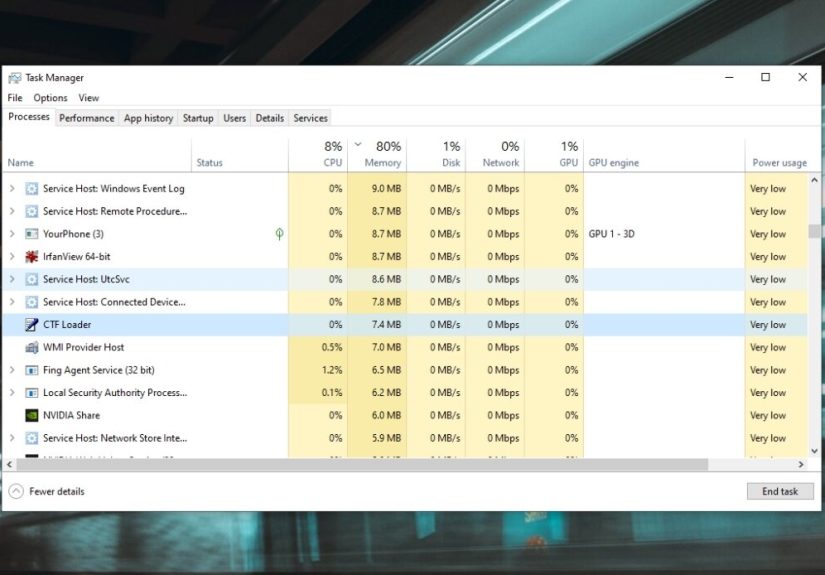
- Before You Fix Anything, Make Sure It Is the Real ctfmon.exe
- Fix 1: Restart CTF Loader Manually
- Fix 2: Re-Enable the MsCtfMonitor Scheduled Task
- Fix 3: Check Keyboard, Language, and Input Settings
- Fix 4: Set the Touch Keyboard and Handwriting Service Correctly
- Fix 5: Repair Corrupted Windows Files with DISM and SFC
- Fix 6: Install the Latest Windows Updates
- Fix 7: Perform a Clean Boot to Find Software Conflicts
- Fix 8: Use a Repair Install if Windows 10 Is Seriously Damaged
- Should You Disable CTF Loader Completely?
- Real-World Experiences With CTF Loader Issues on Windows 10
- Final Thoughts
- SEO Tags
If you have ever opened Task Manager, spotted CTF Loader, and immediately thought, “That sounds suspiciously like a robot intern gone rogue,” you are not alone. On Windows 10, CTF Loader is tied to text input features such as keyboard layouts, language switching, speech input, handwriting, and other input services. Most of the time, it behaves. Sometimes, however, it becomes the star of a frustrating little drama: high CPU usage, typing problems, missing language bar, search box glitches, or strange startup behavior.
This guide walks through what CTF Loader is, why it acts up, and how to fix it without accidentally breaking features you still need. We will keep it practical, avoid sketchy “delete random system file” advice, and focus on fixes that make sense in the real world.
What Is CTF Loader on Windows 10?
CTF Loader is the Windows process behind ctfmon.exe. It helps manage input-related features, including alternative text input processors, language bar functions, handwriting, speech recognition, and IME behavior. In plain English, it is part of the machinery that helps Windows understand how you type and switch input methods.
That means ctfmon.exe is not automatically malware just because it appears in Task Manager. In many cases, it is perfectly legitimate. The trouble starts when it crashes, launches incorrectly, consumes too many resources, or disappears when Windows still expects it to be running.
Common CTF Loader Problems
CTF Loader issues rarely arrive with a neat label that says, “Hello, I am the exact problem.” Instead, they show up through symptoms like these:
- You cannot type in the Windows Search box, Start menu, Settings, or some apps.
- The language bar disappears or keyboard switching stops working.
ctfmon.execauses high CPU or memory use.- You see errors such as ctfmon.exe has stopped working or unknown hard error.
- Touch keyboard, handwriting, or multilingual input features stop responding.
- CTF Loader does not start automatically after reboot.
If one of those sounds painfully familiar, good news: the fix is often simpler than the error makes it seem.
Before You Fix Anything, Make Sure It Is the Real ctfmon.exe
First, do not go full action movie and terminate every process with a confusing name. Check whether the file is genuine.
- Open Task Manager.
- Find CTF Loader or
ctfmon.exe. - Right-click it and choose Open file location.
The legitimate file is usually found in C:WindowsSystem32 or, on some systems, C:WindowsSysWOW64. If the file is running from an odd folder, especially under a user profile or temp directory, treat that as suspicious and run a full security scan before trying anything else.
In short: if it lives where Windows keeps Windows things, relax a little. If it lives in a mystery cave, investigate.
Fix 1: Restart CTF Loader Manually
This is the fastest fix and often the most satisfying. It is basically the “did you try turning it off and on again?” version for text input.
- Press Windows + R.
- Type
C:WindowsSystem32ctfmon.exe - Press Enter.
If your issue is a dead search bar, broken typing in modern apps, or a missing language bar, this can restore functionality immediately. It does not always fix the root cause, but it tells you something useful: if manually launching CTF Loader solves the problem, then startup or scheduling is likely part of the issue.
Fix 2: Re-Enable the MsCtfMonitor Scheduled Task
On Windows 10, ctfmon.exe is commonly launched through a scheduled task called MsCtfMonitor. If that task is disabled or not running correctly, Windows may behave as if the keyboard fairy forgot to clock in.
- Press Windows + R, type
taskschd.msc, and press Enter. - Go to Task Scheduler Library > Microsoft > Windows > TextServicesFramework.
- Find MsCtfMonitor.
- If it is disabled, right-click it and choose Enable.
- Restart your PC.
This is one of the most useful fixes when CTF Loader does not start automatically. If you can type only after manually running ctfmon.exe, check this task next.
Fix 3: Check Keyboard, Language, and Input Settings
CTF Loader is tightly connected to keyboard layouts and input settings. If Windows is juggling too many layouts, mismatched language packs, or outdated IME settings, weird typing behavior can follow.
What to check
- Open Settings > Time & Language > Language or Language & region.
- Review installed languages and keyboard layouts.
- Remove keyboard layouts you do not actually use.
- Keep at least one correct keyboard layout active for your current display language.
Too many users end up with a keyboard list that looks like a travel itinerary. If you only use one layout, keep it clean. If you use multiple languages, make sure each one is configured correctly instead of letting Windows improvise.
Restore the input language icon
If the language indicator vanished from the taskbar:
- Go to Settings > Time & Language > Typing.
- Open Advanced keyboard settings.
- Uncheck Use the desktop language bar when it’s available if you want the normal taskbar input indicator back.
This will not fix every CTF problem, but it can solve cases where the input system works behind the scenes while the interface around it gets confused.
Fix 4: Set the Touch Keyboard and Handwriting Service Correctly
Another common cause is the service behind touch and handwriting input. On many Windows 10 systems, this is listed as Touch Keyboard and Handwriting Panel Service, also associated with TabletInputService.
- Press Windows + R, type
services.msc, and press Enter. - Find Touch Keyboard and Handwriting Panel Service.
- Double-click it.
- Set Startup type to Manual.
- Click Apply, then OK.
- Restart the PC.
Why Manual instead of Disabled? Because Windows still may need the service for input features. Disabled is the digital equivalent of removing the batteries and then wondering why the remote stopped working.
Fix 5: Repair Corrupted Windows Files with DISM and SFC
If CTF Loader errors appear alongside broken search, app crashes, or general Windows weirdness, corrupted system files may be the real culprit. This is where Microsoft’s built-in repair tools earn their keep.
Run these commands in an elevated Command Prompt
To do that:
- Type cmd into Windows Search.
- Right-click Command Prompt.
- Select Run as administrator.
- Run the DISM command first.
- Then run
sfc /scannow.
DISM repairs the Windows image used for recovery, and SFC checks protected system files and replaces damaged ones. If ctfmon.exe errors are being triggered by corrupted Windows components, this fix is one of the strongest bets.
Fix 6: Install the Latest Windows Updates
Sometimes the issue is not your fault, which is always a nice plot twist. Microsoft has released updates over time that improve ctfmon.exe reliability and fix input-related bugs. So, if your system is still eligible for updates, install them.
- Go to Settings > Update & Security > Windows Update.
- Click Check for updates.
- Install available updates and restart.
One important reality check, though: Windows 10 support ended on October 14, 2025. That means standard free security fixes and regular support have ended. If you are still on Windows 10, your update path is more limited now. Eligible devices can use the Extended Security Updates (ESU) program through October 13, 2026, but that does not magically turn Windows 10 into a forever platform.
So yes, update what you can. But also keep one eye on the bigger picture.
Fix 7: Perform a Clean Boot to Find Software Conflicts
If CTF Loader breaks only after startup, only in certain apps, or only after installing some “helpful” utility that was absolutely not helpful, a background conflict may be involved.
- Type
msconfigin Search and open System Configuration. - Go to the Services tab.
- Check Hide all Microsoft services.
- Disable the remaining non-Microsoft services.
- Open Task Manager from the Startup tab and disable startup items.
- Restart the PC.
If the problem disappears in a clean boot, you have likely confirmed a third-party conflict. Re-enable services in batches until the trouble returns. It is tedious, yes, but it is much smarter than uninstalling half your machine in a panic.
Fix 8: Use a Repair Install if Windows 10 Is Seriously Damaged
If CTF Loader errors come bundled with bigger issues such as broken built-in apps, missing typing in multiple areas, or repeated system instability, you may be past the “small fix” stage. A repair install, also called an in-place upgrade, can reinstall Windows 10 over itself while keeping personal files, settings, and installed apps.
This is often the best last-resort option before a full reset. It is especially useful when system components are damaged but you do not want to nuke the whole setup from orbit.
Should You Disable CTF Loader Completely?
Maybe, but only if you understand what you are trading away.
If you never use multiple keyboard layouts, speech recognition, handwriting, touch keyboard, or IME features, disabling CTF Loader may reduce annoyance in some edge cases. But on many systems, disabling it too aggressively creates new problems: broken search, missing text input in apps, or strange behavior with language switching.
That is why the safer strategy is usually this:
- Fix startup and scheduling first.
- Clean up language settings.
- Repair Windows files.
- Use clean boot testing.
- Disable related features only if you are sure you do not need them.
Think of CTF Loader like a weird-looking tool in a toolbox. It may not be glamorous, but throwing it away because it looks confusing is not always the move.
Real-World Experiences With CTF Loader Issues on Windows 10
CTF Loader problems are especially frustrating because they often feel random. One day, everything works fine. The next morning, the Start menu search box refuses to accept input, Edge will not type, or the language bar disappears like it left for a better job. Many users first notice the issue not because they were looking for ctfmon.exe, but because basic typing suddenly breaks in specific parts of Windows while other parts still work. That mismatch is what makes the problem so confusing.
A very common experience goes like this: the keyboard works in File Explorer and maybe even inside some desktop apps, but not in Search, Settings, or other Windows interface elements. The user assumes the keyboard driver is broken, spends an hour blaming Bluetooth, the USB port, or a recent coffee spill, then discovers that manually running C:WindowsSystem32ctfmon.exe magically restores typing. At that moment, the reaction is usually half relief and half outrage. Relief because the machine is not cursed. Outrage because the fix was hiding behind one tiny executable all along.
Another common scenario involves multilingual users. Someone installs a second language, an extra keyboard layout, or an IME for work or study, and Windows suddenly becomes dramatic. Keyboard switching stops working. The language icon vanishes. Shortcut keys behave like they are improvising jazz. In these cases, CTF Loader is often not the villain by itself. It is more like the overworked stage manager trying to coordinate too many inputs at once. Cleaning up unused layouts and checking language options frequently helps more than people expect.
Then there is the high-CPU situation, which tends to create immediate panic. Users open Task Manager, see CTF Loader consuming more resources than it should, and assume malware has rented office space inside the PC. Sometimes it is just a temporary glitch tied to input services, an update issue, or a conflict with background software. Other times, the scary part is not the real ctfmon.exe at all, but a suspicious file pretending to be it from the wrong directory. That is why checking the file location matters so much. A legitimate Windows file and a fake copy can wear the same name while having very different intentions.
Some users also learn the hard way that disabling CTF Loader completely is not always the elegant solution it seems to be. Yes, killing the process may feel satisfying for about ten minutes. But later, the search bar stops responding, the touch keyboard will not open, or text input in modern apps becomes unreliable. This is the classic “I fixed the noise by removing the engine” problem. It works, technically, until you still need the car.
The most reassuring experience, however, is also the most boring: many CTF Loader issues are fixable with steady troubleshooting. Re-enable the scheduled task. Set the handwriting service correctly. Run DISM and SFC. Update the system. Test with a clean boot. These are not flashy fixes, but they are the kind that solve problems without making new ones. And when that happens, Windows 10 goes back to being merely complicated, which in computer terms counts as a win.
Final Thoughts
CTF Loader issues on Windows 10 are annoying, but they are rarely unbeatable. In most cases, the problem comes down to one of a few things: the scheduled task is disabled, the input service is misconfigured, language settings are messy, Windows files are damaged, or another program is interfering.
The smart fix is not to delete ctfmon.exe and hope for the best. The smart fix is to identify whether Windows is failing to launch it correctly, whether input services are broken, or whether the system itself needs repair.
If you are still using Windows 10 in 2026, this is also a good moment to think beyond the single error. Since regular Windows 10 support has ended, unresolved system issues may become more painful over time. Fix the current problem, absolutely, but also plan for a supported future instead of treating every new glitch like a surprise plot twist.