Table of Contents >> Show >> Hide
- Before You Start: Identify What Kind of PDF You’re Dealing With
- Method 1: Copy & Paste from a Text-Based PDF (The “Don’t Overthink It” Method)
- Method 2: Open the PDF in Microsoft Word (Word Converts It for You)
- Method 3: Export PDF to Word with Adobe Acrobat (Best for Keeping Layout)
- Method 4: Use Google Drive + Google Docs OCR (Scanned PDFs to Editable Text)
- Method 5: Use OneNote OCR to Extract Text (The Underrated Swiss Army Knife)
- Method 6: Use On-Screen OCR (PowerToys or Live Text) When PDFs Fight Back
- Formatting Rescue Kit: Make the Text Look Normal in Word
- Troubleshooting: Common Problems (and the Least Annoying Fixes)
- Quick FAQ
- Real-World Experiences & Lessons Related to Copying PDF Text into Word (Extra )
- Conclusion
PDFs are amazing at one thing: staying exactly the same no matter what device you open them on. Unfortunately,
that same “stays exactly the same” energy is why copying text into a Word doc can feel like trying to pet a cat
that has read your calendar and knows you’re busy.
The good news: copying text from a PDF to Microsoft Word is usually easyif you pick the right method for the
kind of PDF you have. This guide walks you through 6 easy methods (from simple copy/paste to OCR),
plus a formatting rescue kit and real-world tips so your Word document doesn’t come out looking like a ransom note.
Before You Start: Identify What Kind of PDF You’re Dealing With
Use this 15-second test before you do anything fancy:
- Try selecting a sentence in your PDF viewer (Adobe Reader, browser, Preview on Mac).
- If the text highlights cleanly, it’s a text-based PDF (easy mode).
- If you can’t select text (or it selects a whole page like an image), it’s likely a scanned PDF and you’ll need OCR.
- If it asks for a password or won’t let you copy, it may have permissionsdon’t try to bypass them. Use allowed export options or get access from the owner.
Once you know whether you’re working with selectable text or an image scan, you’ll instantly know which method will save you time (and which will waste it).
Method 1: Copy & Paste from a Text-Based PDF (The “Don’t Overthink It” Method)
Best for
- Short passages (a paragraph to a few pages)
- Text-based PDFs where you can highlight words normally
- When you don’t care if formatting needs a little cleanup
How to do it
- Open the PDF in a viewer (a browser works, too).
- Drag to highlight the text you want.
- Copy it:
- Windows: Ctrl + C
- Mac: Command + C
- Open Word and paste:
- Windows: Ctrl + V
- Mac: Command + V
Make the paste look better (without a makeover show budget)
- Paste as plain text to remove weird spacing:
- In Word, use Paste Options and choose Keep Text Only (or Paste Special > Unformatted Text).
- If line breaks are chaotic, don’t panicscroll down to the “Formatting rescue kit.”
Mac-specific pro tip (tables and columns)
If you’re using Preview on Mac and want to copy a column cleanly, you can do a vertical selection
(helpful when the PDF has table-like columns). It won’t fix every layout, but it’s shockingly handy when it works.
Method 2: Open the PDF in Microsoft Word (Word Converts It for You)
Best for
- Whole documents you want in Word format
- PDFs with normal paragraphs, headings, and simple layouts
- When you want the text to be editable and searchable in Word
How it works (in plain English)
When you open a PDF in Word, Word creates a copy and converts the PDF content into something it can edit.
Your original PDF stays unchanged. Think of it as Word doing a quick costume change on your file.
Steps
- Open Microsoft Word.
- Go to File > Open and select your PDF.
- Word will warn you it’s going to convert the fileclick OK.
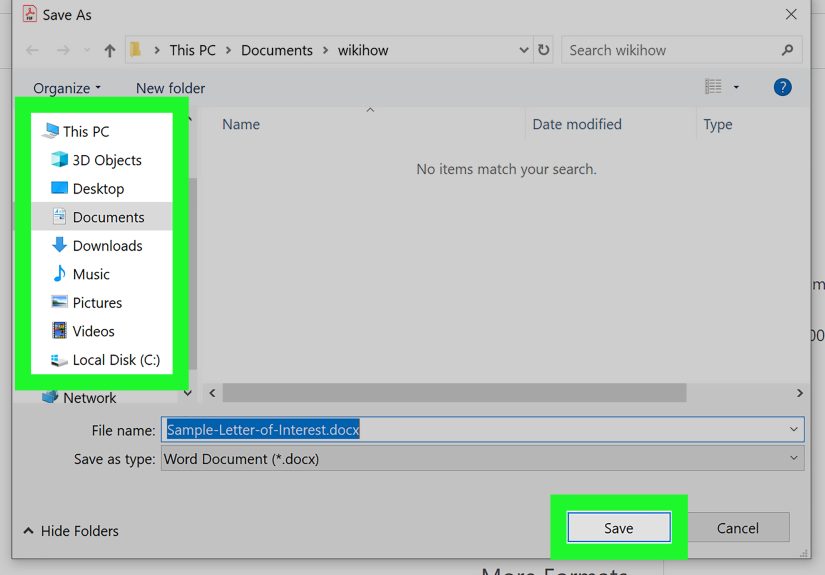
- Once it opens, copy what you need or save it as a Word document:
- File > Save As → choose .docx
What to expect
- Simple PDFs usually convert nicely.
- Complex layouts (multi-column brochures, magazine-style pages) may convert out of order.
- Headers/footers and page numbers sometimes move around like they’re trying to avoid responsibility.
Quick fix for “the columns are in the wrong order”
If Word stacks a two-column PDF in a weird reading order, try Method 3 (Acrobat export) or Method 4/5 (OCR workflows) instead.
Conversion tools tend to handle layout reconstruction better than copy/paste.
Method 3: Export PDF to Word with Adobe Acrobat (Best for Keeping Layout)
Best for
- PDFs where formatting matters (headings, spacing, images)
- Long documents where manual copy/paste would be painful
- Scanned PDFsif you use OCR during export
Option A: Adobe Acrobat on the web (quick conversion)
- Use Adobe’s PDF-to-Word conversion tool (web-based).
- Upload the PDF.
- Download the converted DOCX.
- Open the DOCX in Word and edit/copy as needed.
Option B: Adobe Acrobat desktop (more control)
- Open the PDF in Adobe Acrobat.
- Choose Export a PDF (or Convert tools, depending on your version).
- Select Microsoft Word (.docx).
- If the PDF is a scan, run OCR first (or choose an export path that includes text recognition).
- Export, then open the Word file.
Why Acrobat often wins
Acrobat is built for PDF structure. When it exports to Word, it generally does a better job preserving layout
than Word’s “open and convert” featureespecially on PDFs with tables, mixed fonts, or a lot of page styling.
Method 4: Use Google Drive + Google Docs OCR (Scanned PDFs to Editable Text)
Best for
- Scanned PDFs (image-only pages)
- When you need text extraction more than perfect formatting
- Free-ish workflows (using Google Drive/Docs)
Steps
- Upload the PDF to Google Drive.
- Right-click the file and select Open with > Google Docs.
- Google Docs will attempt OCR and create an editable document.
- Copy the text into Word, or download as a Word file:
- File > Download > Microsoft Word (.docx)
Reality check (formatting)
Google’s OCR conversion may keep some basic formatting (like bold/italics and line breaks), but it often struggles with
tables, columns, footnotes, and complex layouts. If your PDF is a fancy newsletter with three columns and a sidebar, plan
on some cleanup after extraction.
Method 5: Use OneNote OCR to Extract Text (The Underrated Swiss Army Knife)
Best for
- Scanned PDFs, screenshots, or image-heavy PDFs
- When you only need the text (not the full layout)
- Quick extraction without buying a dedicated OCR app
How it works
OneNote can perform OCR on images and “printouts” of files, letting you copy recognized text and paste it into Word.
It’s especially useful when the PDF won’t let you select text normally.
Steps (Windows)
- Open OneNote (desktop).
- Insert the PDF as a printout (or insert an image of the page).
- Right-click the printout/image and choose Copy Text (wording may vary slightly by version).
- Paste the extracted text into Word and format as needed.
Steps (Mac)
- Insert the image or PDF page into OneNote.
- Control-click (or right-click) the image and choose Copy Text from Picture.
- Paste into Word.
Important note
OneNote for the web has limitations for copying text from images; the desktop app is typically the reliable route.
Also, OCR can take a bit to become available depending on the file and platform, so if the “Copy Text” option is missing,
wait a little and try again.
Method 6: Use On-Screen OCR (PowerToys or Live Text) When PDFs Fight Back
Sometimes you have a PDF that’s technically selectable… but the text comes out garbled. Or it’s a scan. Or it’s a
screenshot inside a PDF. Or it’s that one document that was clearly created by a committee of printers from 1997.
In those cases, on-screen OCR can be the fastest workaround.
Option A (Windows): PowerToys Text Extractor / Advanced Paste
- Install Microsoft PowerToys (if you don’t already have it).
- Use Text Extractor to grab text from anywhere on your screeneven inside images or video frames.
- Paste the extracted text into Word.
This is great for short-to-medium snippets when you don’t want to convert an entire PDF.
It’s also handy for extracting text from charts, screenshots, or “non-text” PDF content.
Option B (Mac/iPhone/iPad): Live Text (Copy text from images)
- Open the PDF or an image of the PDF page in Preview/Photos (or use your iPhone/iPad camera).
- Use Live Text to select the text in the image.
- Copy and paste into Word.
Live Text can be surprisingly accurate on clean scans, especially when the lighting is good and the font isn’t microscopic.
If your scan looks like it was faxed through a thunderstorm, results will vary.
Formatting Rescue Kit: Make the Text Look Normal in Word
Even when copying goes smoothly, Word can inherit line breaks, odd spacing, and hyphenation from the PDF. Here’s the clean-up kit that fixes 90% of messes:
1) Paste smarter
- Use Keep Text Only to strip weird fonts and spacing.
- If you need some formatting, try Merge Formatting so Word applies your document’s style.
2) Fix “every line ends early” (hard returns)
Many PDFs insert line breaks at the end of every line. In Word, that can look like a poem written by a printer driver.
- Use Find and Replace to replace line breaks with spaces (do this carefully and preview results).
- Then fix paragraph breaks separately so real paragraphs stay paragraphs.
3) Repair hyphenation
PDFs often hyphenate words at line endings (e.g., “docu- ment”). After pasting, search for “- ” (hyphen + space) and verify before replacing.
4) Rebuild structure with Styles
After conversion, apply Word’s built-in Heading 1/2/3 styles. It makes the document easier to edit, navigate, and export later.
Troubleshooting: Common Problems (and the Least Annoying Fixes)
You can’t select text at all
- It’s likely a scanned PDF: use OCR (Method 3, 4, 5, or 6).
- Or the PDF is permission-protected: request access or use allowed export options.
You copy text, but it pastes as symbols or garbage
- Try exporting (Acrobat/Foxit) instead of copy/paste.
- If it’s a scan, run OCR first. If it’s a font/encoding issue, conversion tools usually handle it better than direct paste.
Tables turn into chaos
- Use Acrobat or another PDF-to-Word export tool that reconstructs tables.
- If the table is small, consider grabbing it with on-screen OCR and reformatting in Word.
Columns paste out of order
- Use export-to-Word (Method 3) instead of copy/paste.
- For quick snippets, select just the column area (Mac Preview vertical selection can help on some layouts).
Quick FAQ
Which method is the best overall?
If you want the best balance of accuracy and formatting, Export to Word using Adobe Acrobat is the most consistent.
For scanned PDFs, OCR-based workflows (Google Docs, OneNote, Acrobat OCR, PowerToys/Live Text) are the winners.
Will I lose formatting when copying from PDF to Word?
Sometimes, yesespecially with scanned PDFs, multi-column layouts, and complex tables. If formatting matters, use an export/conversion tool rather than raw copy/paste.
Is it legal to copy text from a PDF?
Copying for legitimate, authorized use is common (school, work, internal documentation). But if a PDF is protected, copyrighted, or restricted by permissions,
respect those rules and get permission if needed.
Real-World Experiences & Lessons Related to Copying PDF Text into Word (Extra )
In the real world, “copy text from PDF to Word” rarely means “copy a cute paragraph and move on with your life.”
It usually means “copy a 37-page policy document with headers, footers, charts, and that one table that refuses to behave.”
If that sounds familiar, you’re not aloneand it helps to know what people typically run into so you can sidestep the drama.
One of the most common experiences is the Line Break Avalanche: you paste into Word and every sentence breaks like it’s trying out for
slam poetry. This happens because many PDFs store text in a way that’s optimized for visual layout, not for editing. The fix isn’t to retype everything
while questioning your career choices. The fix is usually to paste as plain text, then use Find/Replace thoughtfully to convert those hard line breaks
back into normal paragraphs. It’s not glamorousbut it’s fast, and it works.
Another classic is “Why Are My Letters Haunted?” You copy the text and Word spits out random symbols, missing characters, or spacing that
looks like Morse code. That’s often a font encoding issue, or the PDF was generated in a way that doesn’t map cleanly to Unicode text. When this happens,
brute-force copy/paste is basically the wrong tool for the job. Exporting through Acrobat (or another reputable converter) usually fixes it because the
export process rebuilds the content into a normal Word-compatible text structure.
Then there’s the Scanned PDF Trap: you can see the words, but your cursor can’t highlight them because the “text” is actually just an image.
Lots of people waste time trying three different PDF viewers hoping one will magically make the scan selectable. Spoiler: it won’t. What you need is OCR.
Once you accept that, life improves immediately. Google Docs OCR is a surprisingly accessible option for quick extraction, OneNote OCR is a nice “already on
your computer” trick, and Acrobat OCR tends to be more polished when quality matters.
And yes, tables. Tables are the boss battle. Even good conversion tools can misread table borders, merge columns, or treat cell content like it’s free-range
text wandering across the page. A practical approach is to ask: “Do I need this table to be editable, or do I just need the information?” If you need it
editable, export tools are your best bet. If you just need the contents, sometimes it’s faster to extract the text and rebuild the table in Word manually
(or copy the data into Excel first, then paste a cleaned table into Word).
The biggest lesson from all these experiences is simple: match the method to the PDF. Text-based PDFs are copy/paste-friendly. Scans are OCR territory.
Complex layouts need export/conversion. And if you only need a tiny snippet from a stubborn document, on-screen OCR (PowerToys or Live Text) can feel like
having a cheat codeone that’s actually allowed.
Conclusion
Copying text from a PDF into a Word doc doesn’t have to be a productivity horror story. If your PDF is text-based, Method 1 is often plenty.
If you want a full Word document, Method 2 (Word conversion) is quick and built-in. For better formatting, Method 3 (Acrobat export) is usually the cleanest.
For scanned PDFs, jump straight to OCR with Method 4 (Google Docs), Method 5 (OneNote), or Method 6 (PowerToys/Live Text).
Pick the method that fits the file, do a quick formatting cleanup, and you’ll spend more time writing and less time wrestling with line breaks like they owe you money.